To create an email template in Gmail, turn the feature on once under Settings → See all settings → Advanced → Templates, then write a message and save it with More options → Templates → Save draft as template. After that the template is two clicks away in every compose window. The steps below follow Google's own instructions, and they only work in Gmail on a computer.
Key takeaways
- Templates are off by default; turning them on takes a minute and is done once.
- A template is saved from a draft and inserted from the three-dot menu of a compose window.
- Templates belong to one account, hold fixed text only, and aren't available in the phone apps.
Step 1: Turn templates on
- In Gmail on your computer, click the Settings gear at the top right, then See all settings.
- Open the Advanced tab.
- Next to Templates, select Enable.
- Click Save Changes at the bottom of the page.
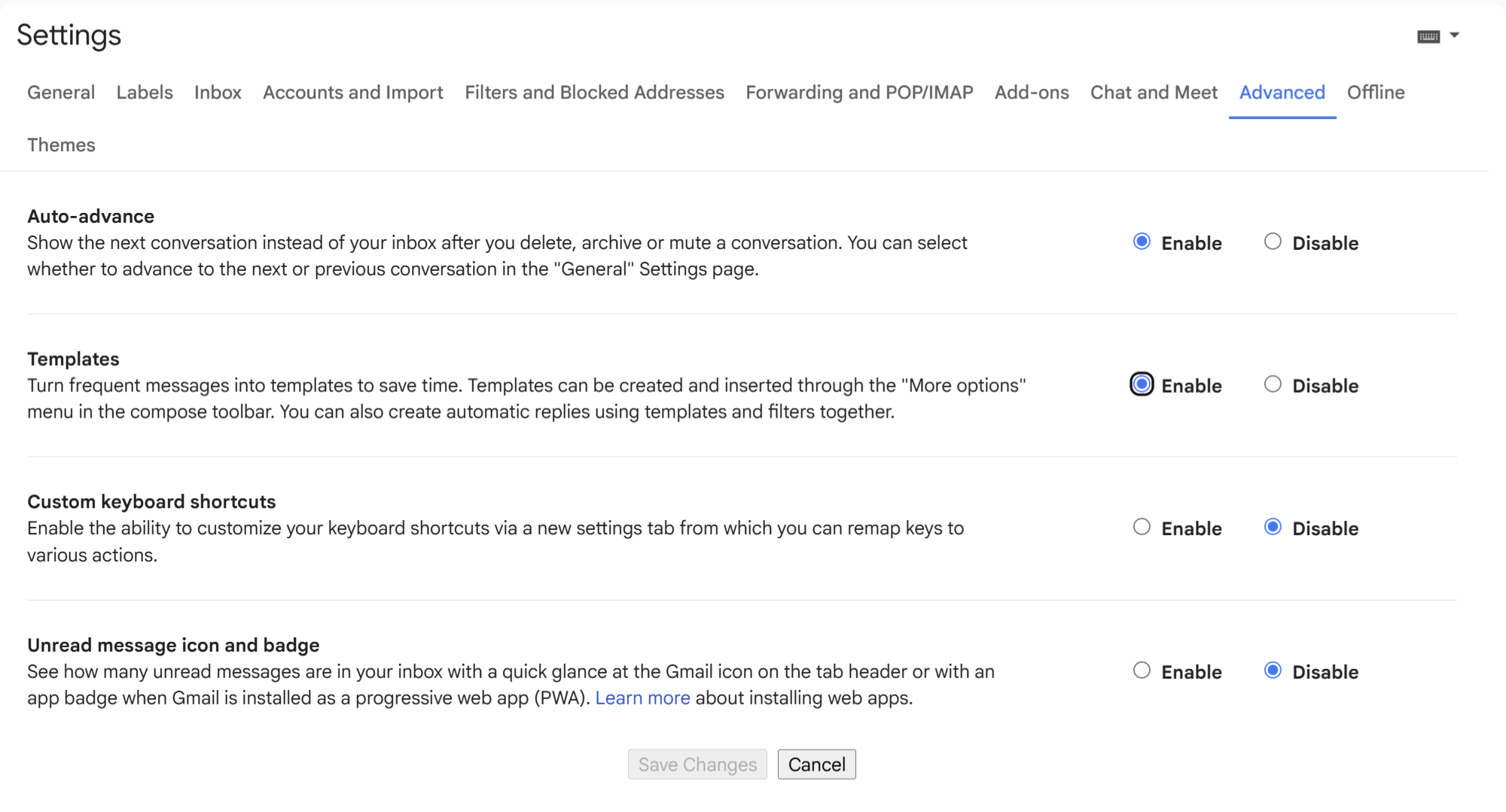
Gmail reloads. Nothing looks different yet: the new menu item is inside the compose window.
Step 2: Save a message as a template
- Click Compose.
- Write the message as you want it saved. Give it a subject: Gmail suggests the subject as the template's name.
- At the bottom right of the compose window, click More options (the three dots).
- Point to Templates, then Save draft as template, then click Save as new template.
- Type a name you'll recognize in a list, such as
Quote follow-up, 1 week, and click Save.
Tip
Delete your signature from the draft before you save it. A template saved with the signature in it adds a second one to every message it's inserted into.
Step 3: Insert a template
- Click Compose, or Reply in a conversation.
- Click More options, then point to Templates.
- Under Insert template, click the one you want.
- Change what needs changing, such as the name and the date, and send.
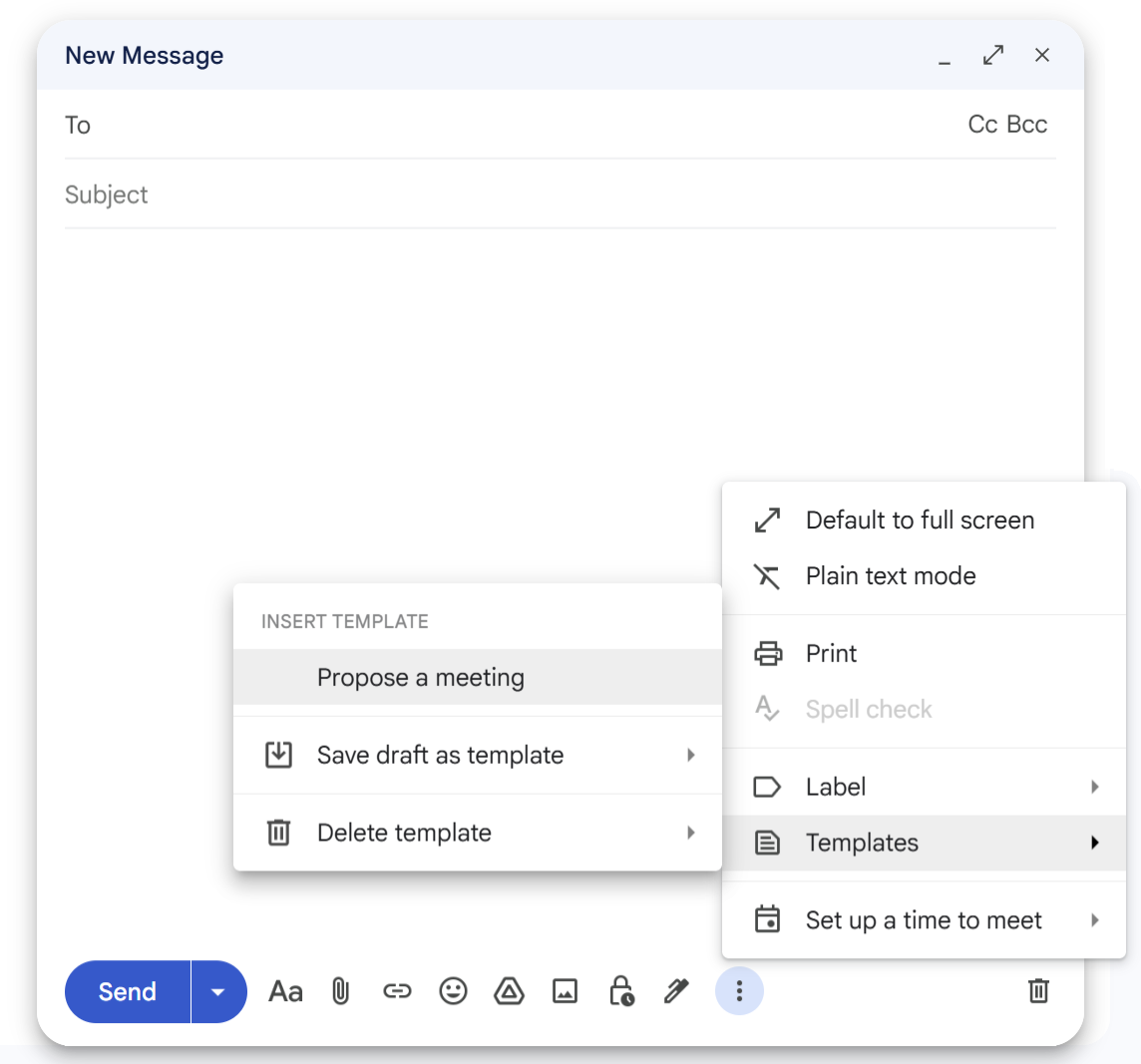
The template's text goes in where the message body is. In a reply, check the greeting and anything that referred to another customer before you send: this is the step where the wrong name goes out.
How do you change or delete a template?
There's no editor for templates. To change one, insert it into a new message, make the changes, then choose More options → Templates → Save draft as template and click the template's name under Overwrite template. To remove one, choose Templates → Delete template and click its name.
Can Gmail send a template by itself?
Yes, through a filter.
- Click the sliders icon at the right end of the search box.
- Say which mail the filter is for, such as everything sent to an orders address, and click Create filter.
- In the list of actions, check Send template and choose the template next to it.
- Click Create filter.
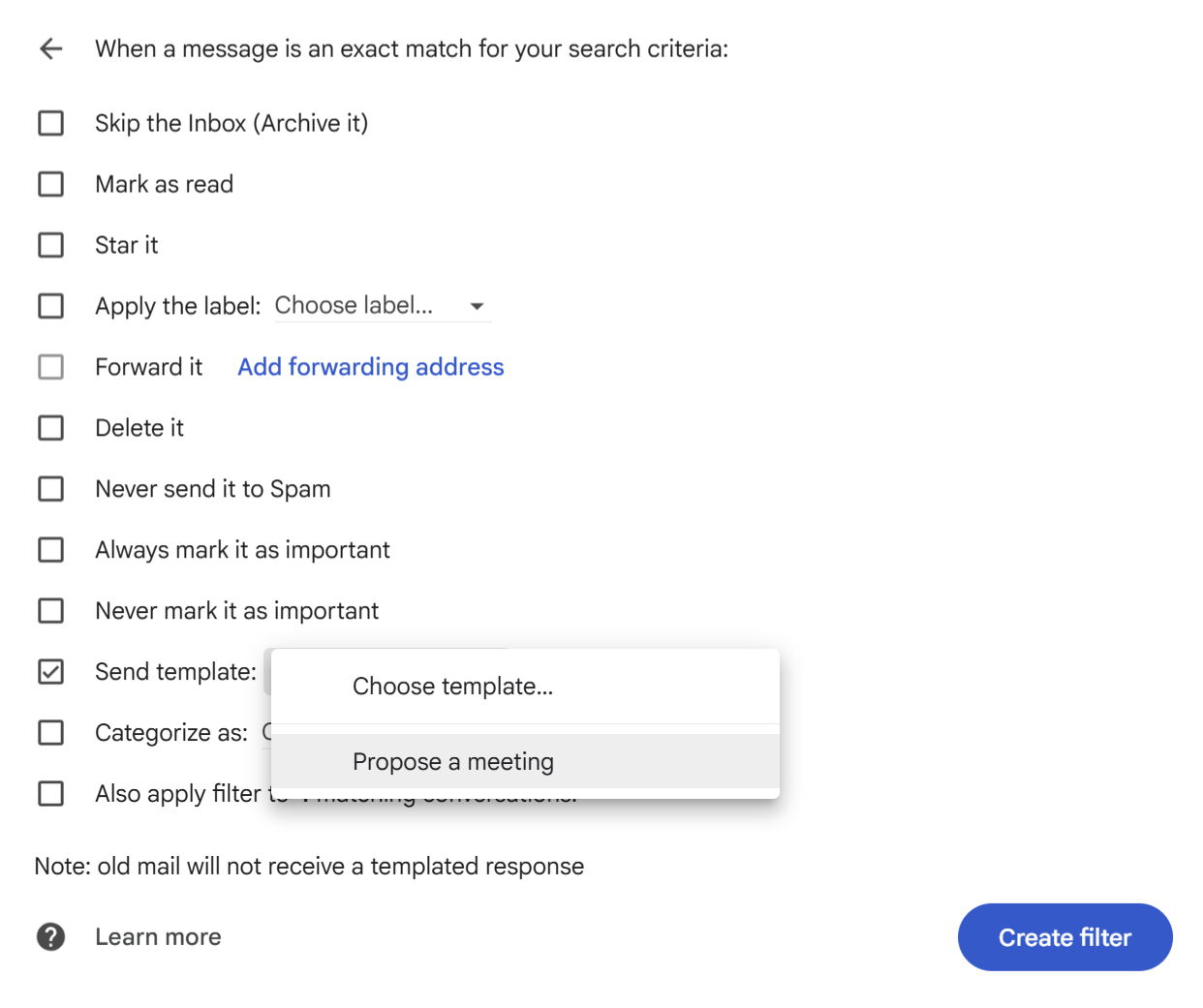
Mail that matches the filter gets the template as an automatic reply from then on. Gmail notes on the same screen that old mail will not receive one.
It suits a narrow case, such as an acknowledgement for mail sent to an orders address. It answers every matching message the same way, so keep the filter tight.
Where do Gmail's templates stop?
For one person with a handful of standard replies, the built-in templates are all that's needed. The limits show up as soon as a team relies on them.
| What you need | Gmail templates |
|---|---|
| The same templates for the whole team | Each account has its own; nothing is shared |
| A change that reaches everyone | Every person overwrites their own copy |
| Parts that change, marked so nobody misses one | Fixed text only; you type over it |
| Templates on a phone | Computer only |
| Finding one among many | A single list, by name; no folders or search |
The third row is the one that causes trouble. A template with [NAME] and [DATE] in it works until the day someone sends it with the brackets still there.
What works for a team?
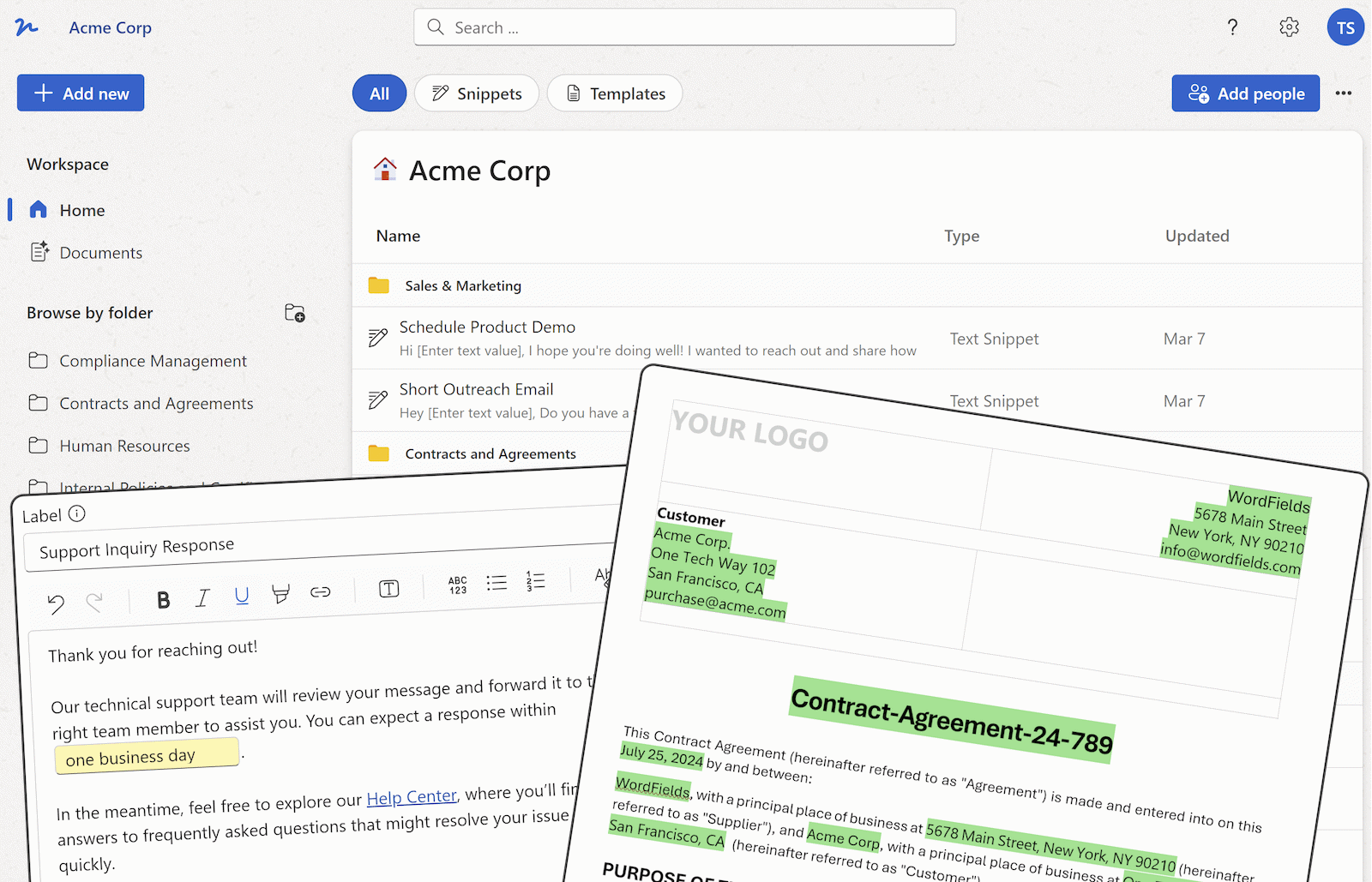
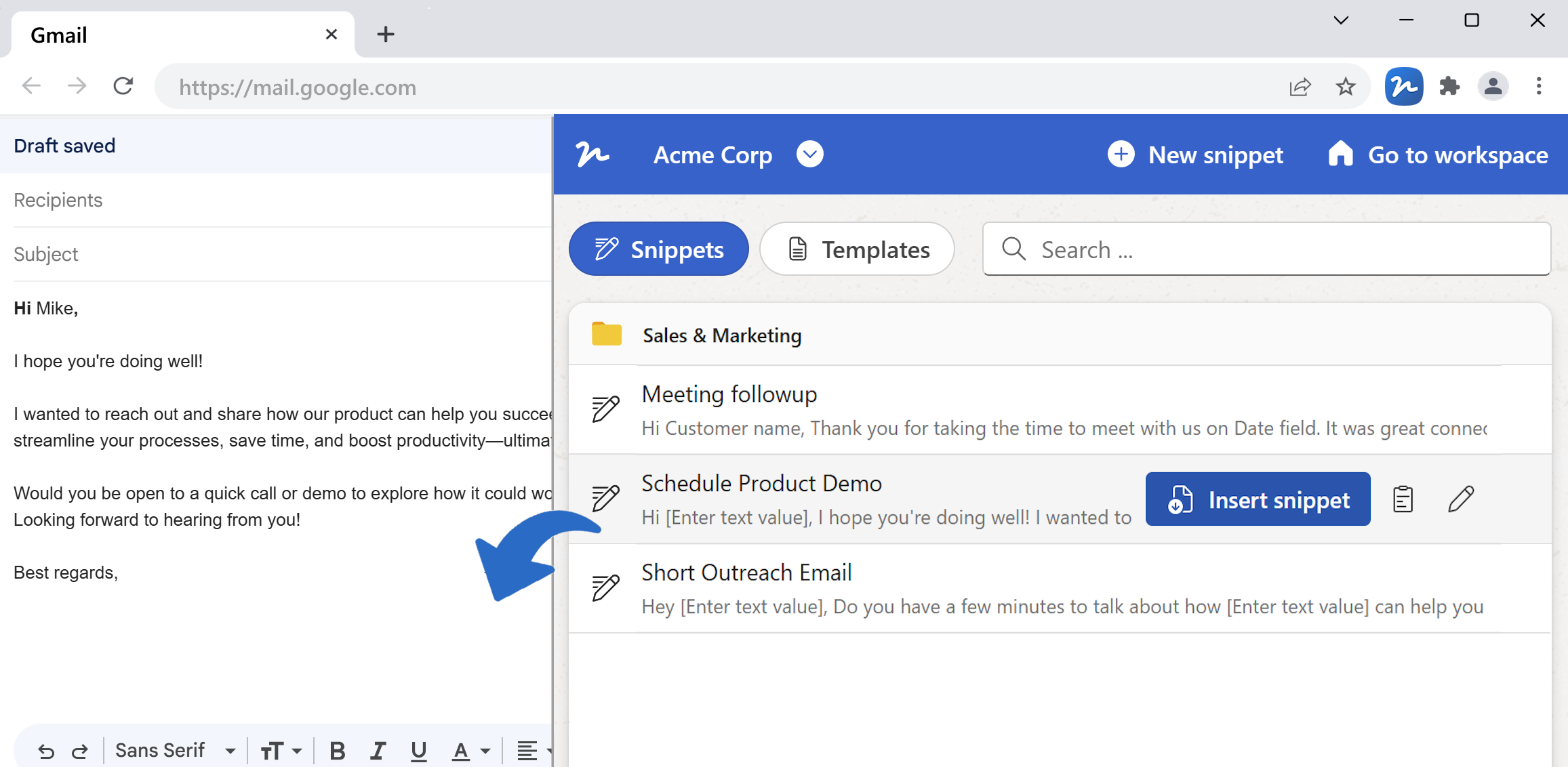
A team needs its templates in one place, with the changing parts as fields. That's what WordFields email templates are: your team writes each reply once as a snippet, with fields for the customer's name, the date, the amount or a choice from a list, and keeps them in shared folders.
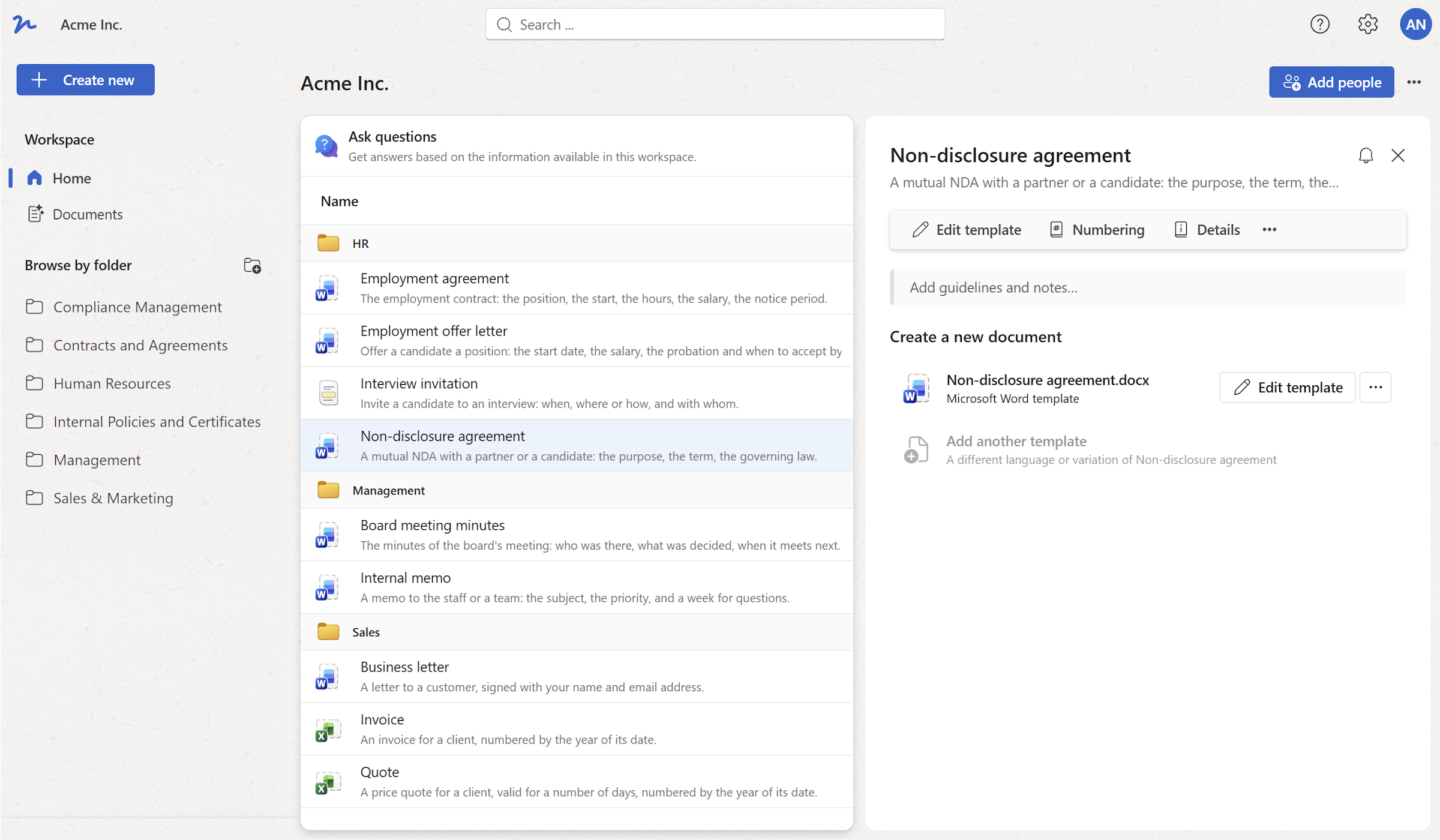
With the browser extension you click in Gmail's compose window, pick the snippet, fill in its fields in a small window, and it's inserted where your cursor is, formatting included. A required field can't be skipped, so the bracket never goes out. When someone improves the wording, everyone has the new version at the next reply.
If your team uses Outlook as well, the same snippets work there; see how to create email templates in Outlook for what Outlook offers by itself.
Frequently asked questions
Why can't I see Templates in Gmail's menu?
Templates are off until you turn them on. On a computer, click the Settings gear, then See all settings, open the Advanced tab, set Templates to Enable and click Save Changes. The Templates item then appears under More options, the three dots at the bottom of a compose window. In a work account, an administrator can also have turned the feature off.
Can I use Gmail templates on my phone?
No. Google's help says templates can only be turned on and used in Gmail on a computer. They are not available in the Gmail apps for Android and iPhone. On a phone, the usual workaround is to keep the text in a notes app, or to use a text replacement shortcut in the phone's keyboard settings.
Can I share Gmail templates with my team?
Not from Gmail itself. A template belongs to the account it was saved in, and there is no way to publish it to colleagues. Each person has to save their own copy, and a later change has to be repeated by everyone. To give a team one set of templates, you need a shared tool outside Gmail.
Can a Gmail template fill in the recipient's name automatically?
No. A Gmail template is fixed text: it has no fields or variables, so anything that changes has to be typed over by hand after the template is inserted. Mail merge in Google Workspace can personalize a bulk send from a spreadsheet, but that is for sending one message to many people, not for a single reply.