Outlook has four different features that people call email templates, and which ones you have depends on your version. In the new Outlook and Outlook on the web, use Mail templates for a whole message and My Templates for a short piece of text. In classic Outlook for Windows, save a message as an Outlook Template (.oft) file, or keep reusable text in Quick Parts, which the new Outlook is getting too. The steps below follow Microsoft's instructions.
Which kind of template do you need?
| Kind | Where | Holds | Good for |
|---|---|---|---|
| Mail templates | New Outlook, Outlook on the web | A whole message: recipients, subject, formatting, images, attachments | A message you send again and again as it is |
| My Templates | New Outlook, web, classic | Short text with basic styling | A paragraph you drop into replies |
| Outlook Template (.oft) | Classic Outlook | A whole message, as a file | A standard message, or a file to pass to a colleague |
| Quick Parts | New Outlook (as it reaches your account), classic Outlook | A formatted block of text | Clauses and paragraphs inside longer messages |
Not sure which Outlook you have? The new Outlook has a New Outlook switch at the top right of the window, turned on. Classic Outlook has a File tab at the top left.
Microsoft notes that Mail templates and My Templates need an account with a qualifying Microsoft 365 subscription.
Mail templates: a whole message, in the new Outlook and on the web
- On the Home ribbon, select New mail.
- Write the message, with everything you want kept: the subject, the recipients if they're always the same, formatting, attachments.
- On the Message ribbon, select Mail template → Save email as template.
- Type a name and select Save.
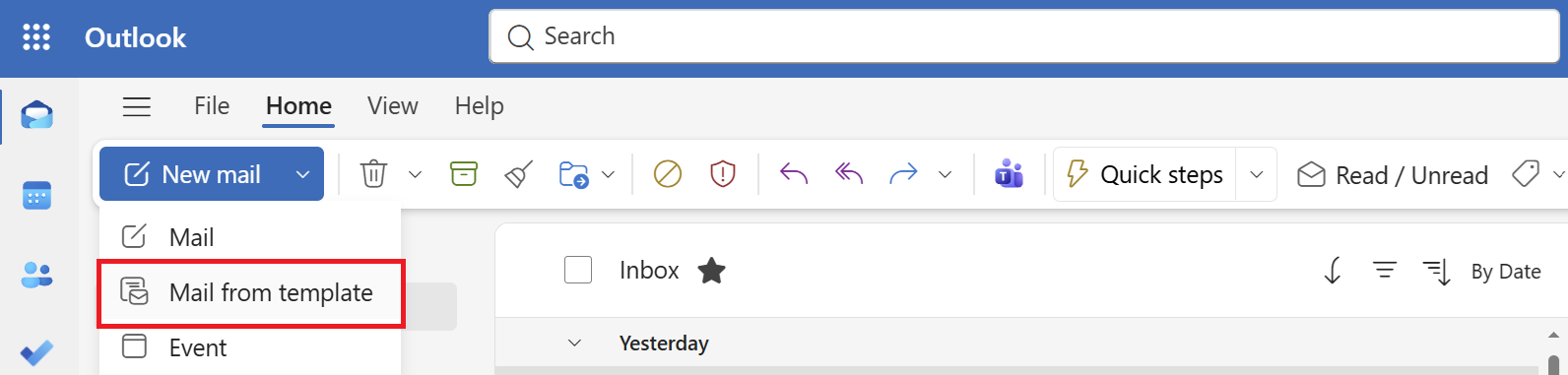
To use it, click the arrow next to New mail on the Home ribbon and select Mail from template.
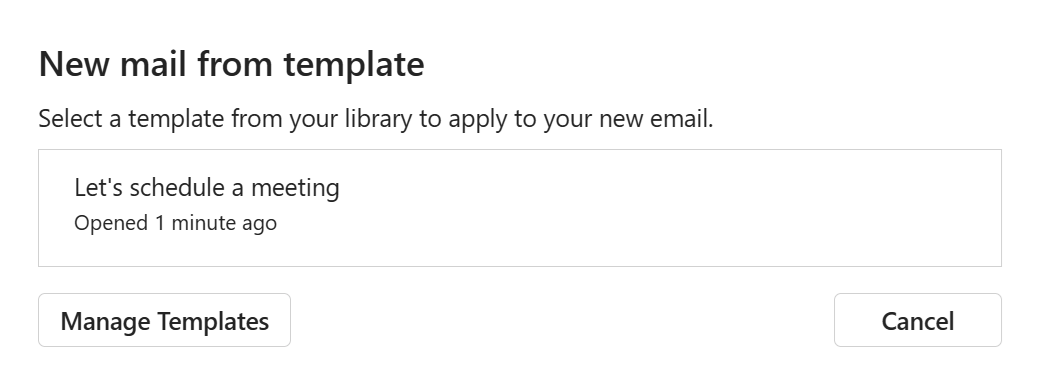
The New mail from template dialog lists what you've saved. Click a template, and a new message opens with its subject, recipients, text and attachments in place.
Manage Templates in the same dialog opens Settings → Mail → Templates, the list of what you've saved. Each template there can be edited, downloaded or deleted, and Add starts a new one.
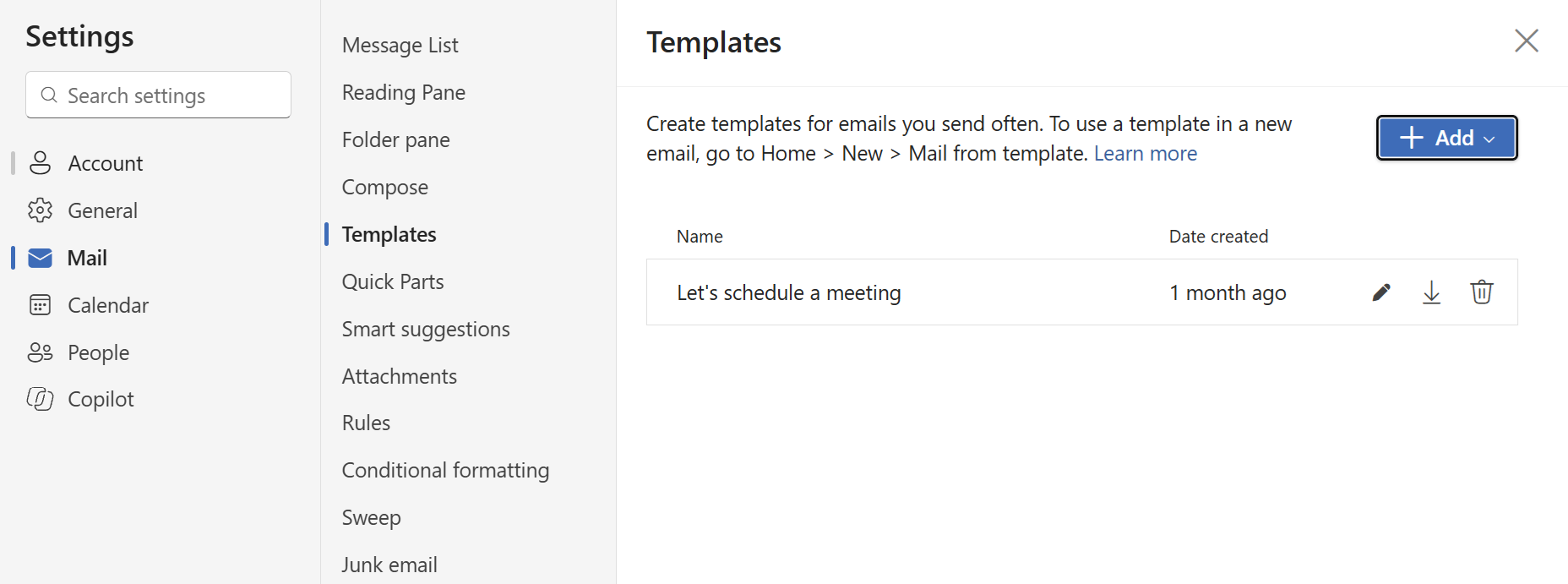
A Mail template is saved to the account the draft was written in, and is there for the same mailbox in both the new Outlook and Outlook on the web.
My Templates: short text, in every version
- Start a new message.
- On the Message tab, select My Templates. In classic Outlook the button is called View Templates. A pane opens at the side.
- Select +Template.
- Type a Title, then the text in the box under it.
- Select Save.
To use one, open the pane in any message and click the template: its text goes in where your cursor is. My Templates are saved to your primary mailbox, so the same ones appear wherever you sign in.
They hold text with basic styling only: no subject, no attachments, no images.
Outlook Template files: a whole message, in classic Outlook
- On the Home tab, select New Email, or press
Ctrl+Shift+M. - Write the message.
- In the message window, select File → Save As.
- In the Save as type list, select Outlook Template.
- Type a name and select Save.
Outlook saves the file to c:\users\<username>\appdata\roaming\microsoft\templates unless you choose another folder.
To start a message from it, select New Items → More Items → Choose Form, pick User Templates in File System in the Look In list, select the template and click Open. That's five clicks deep, so for a template you use daily it's worth keeping a shortcut to the .oft file on the desktop: double-clicking the file opens a new message from it.
Quick Parts: reusable blocks
A Quick Part is a block of text, a paragraph or a few, that you drop into a message you are already writing: payment terms, opening hours, a standard closing.
In the new Outlook:
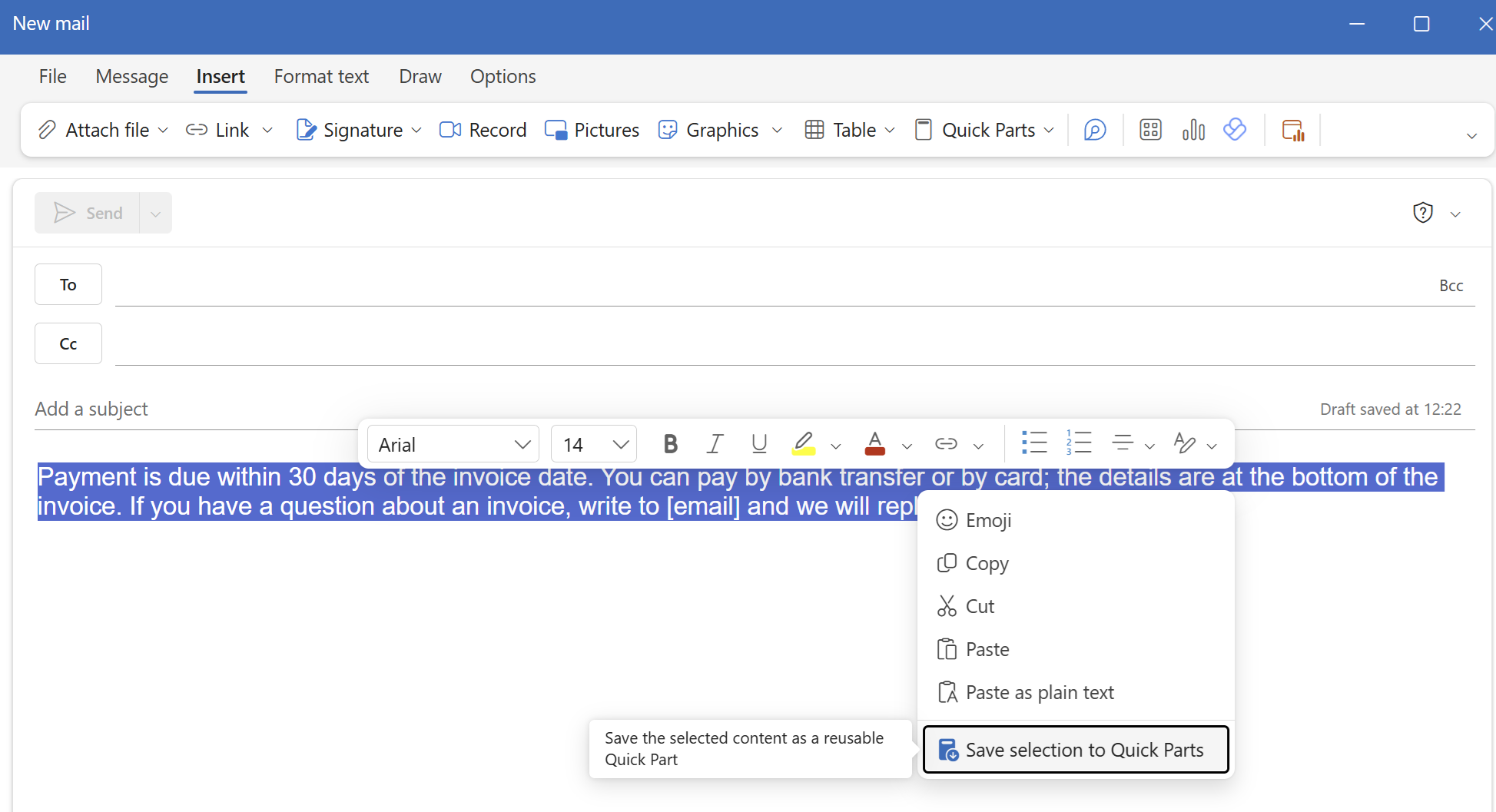
- In a message, select the text you want to reuse.
- Right-click the selection and choose Save selection to Quick Parts.
- In the New Quick Part dialog, type a name you'll recognize in a list, such as
Payment terms, and click Save. To replace a block you already have, pick it from the list in the same dialog instead.
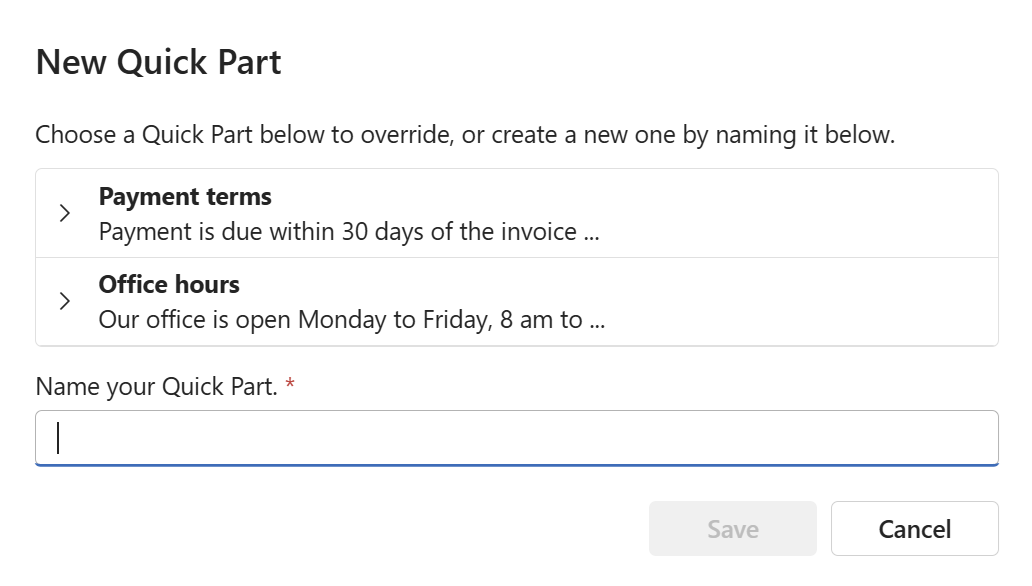
To insert it, place the cursor in a message and pick the block from Quick Parts on the Insert tab.
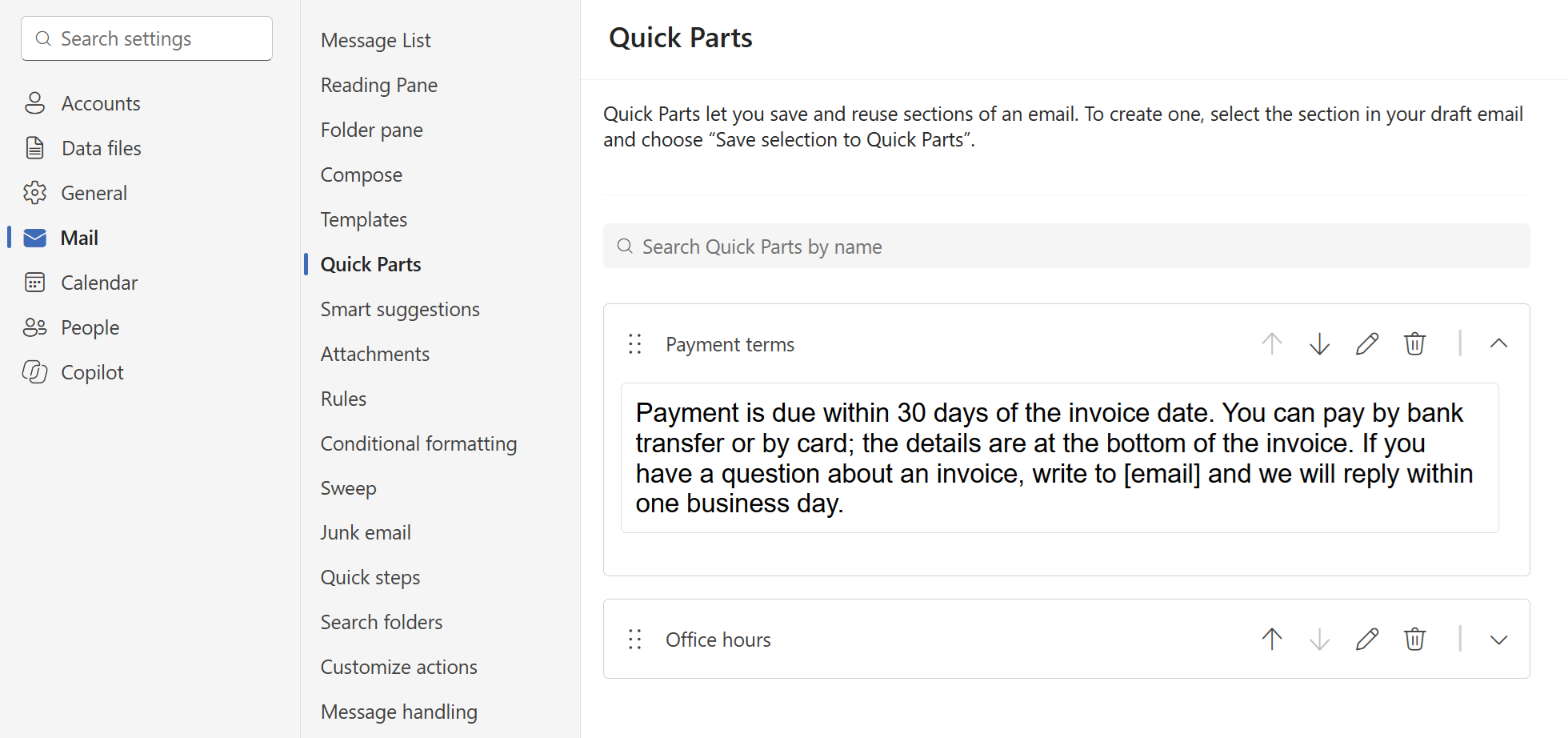
What you've saved is listed under Settings → Mail → Quick Parts (Microsoft's page on Quick Parts). There you can search the blocks by name, put them in the order you want, edit one or delete it.
Quick Parts reached the new Outlook during 2026, account by account, so if the button isn't there yet, use My Templates.
In classic Outlook:
- In a message, select the text you want to reuse.
- On the Insert tab, select Quick Parts → Save Selection to Quick Part Gallery.
- Give it a name and click OK.
Insert it the same way, from Insert → Quick Parts. Quick Parts made in classic Outlook are kept on the computer they were made on, not in your mailbox, so they don't appear in the new Outlook by themselves.
What don't Outlook's templates do?
Each of the four is built for one person. That's fine for your own standard replies, and it's where a team runs into the same three problems.
- Nothing is shared. Mail templates and My Templates live in one mailbox; Quick Parts with one person, in classic Outlook on one computer. An .oft file can sit on a shared drive, but everyone works from a copy.
- A change doesn't travel. Improve the wording of a reply, and every colleague has to update theirs by hand.
- Nothing marks what changes. A template is fixed text. The customer's name, the date and the amount are typed over each time, and nothing stops a message going out with last week's name still in it.
What works for a team?
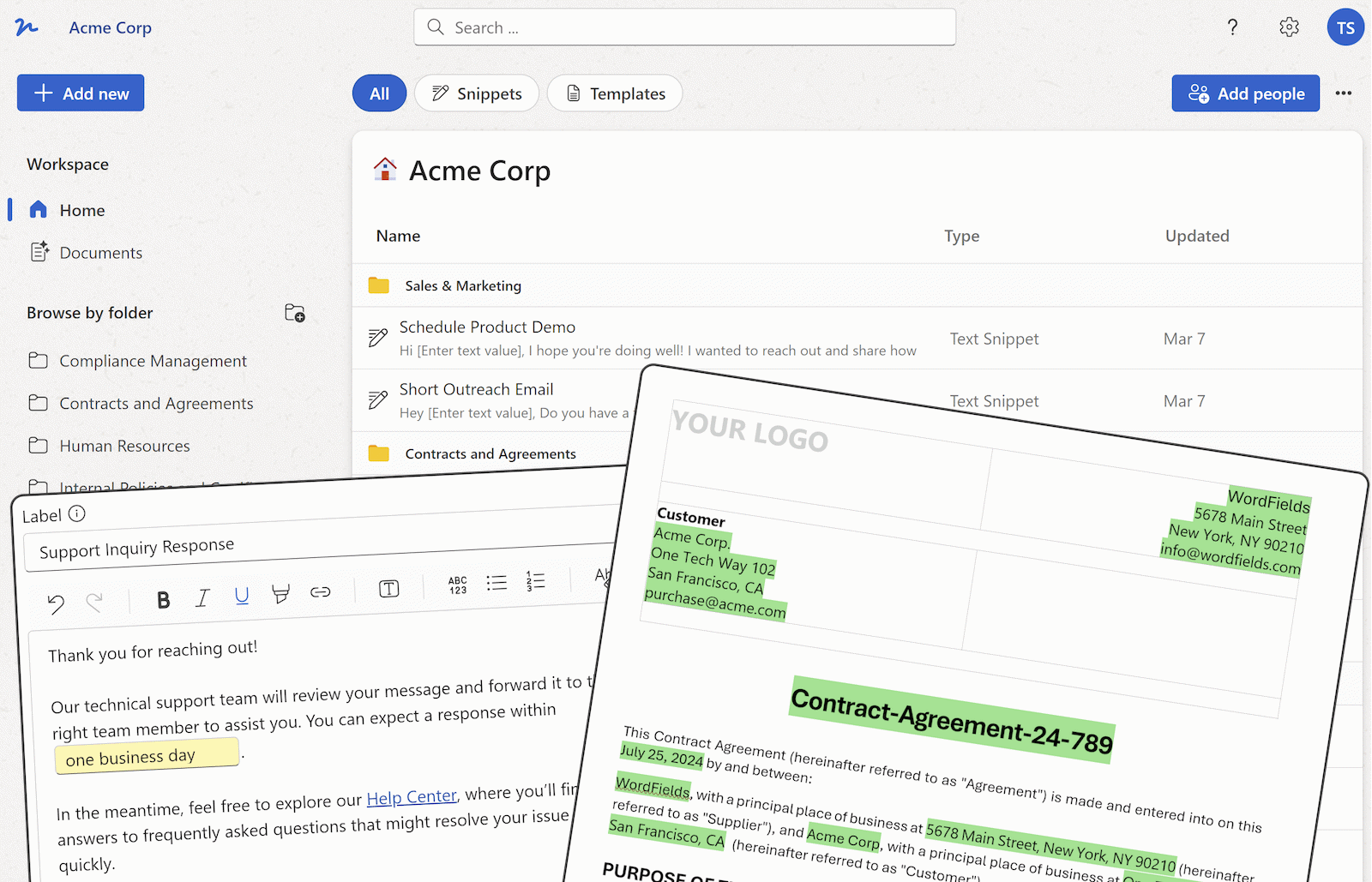
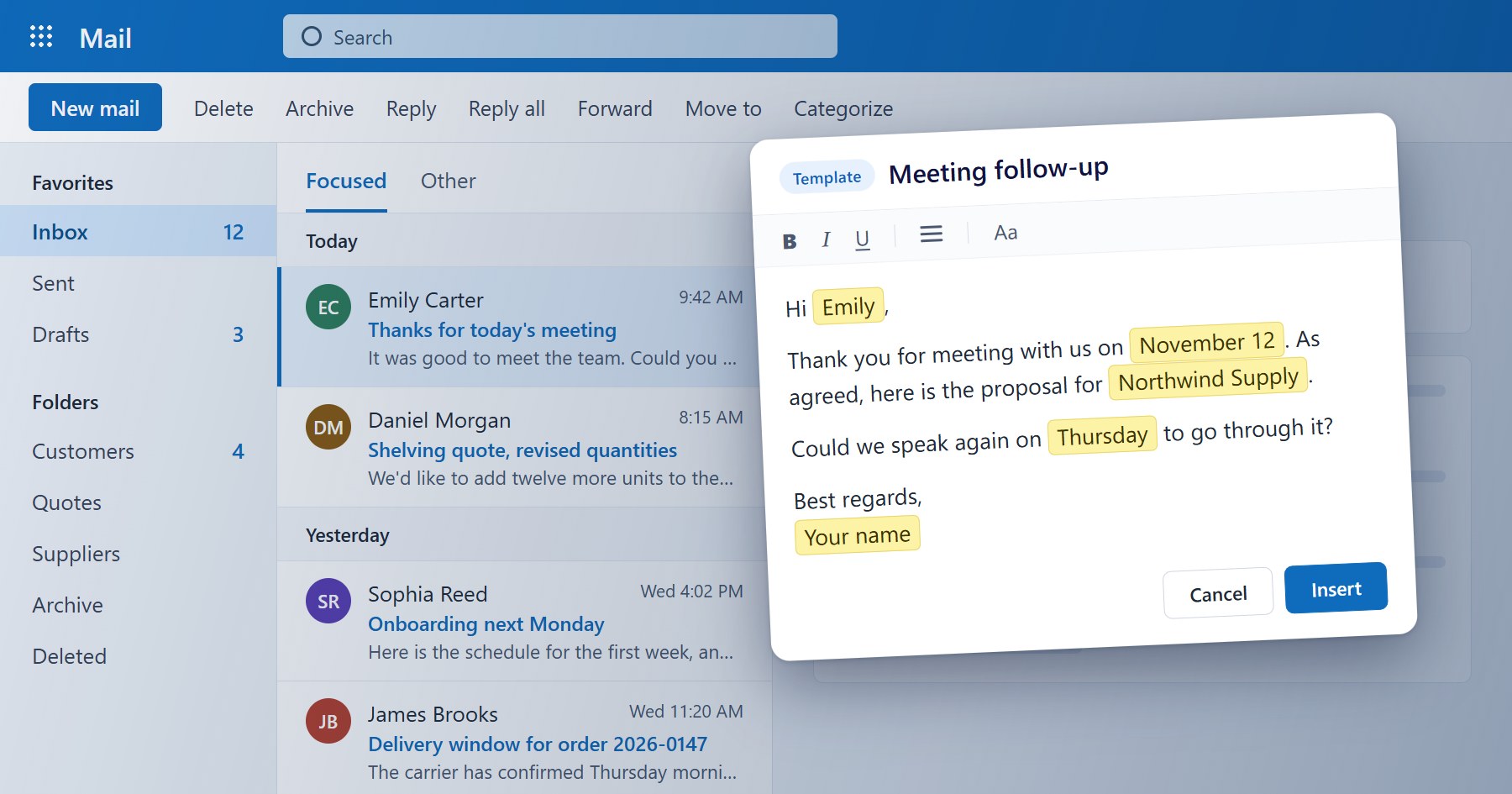
Keep the templates in one shared place and make the changing parts fields. With WordFields email templates, your team writes each reply once as a snippet, with fields for the name, the date, the amount or a choice from a list, and organizes them in folders by team.
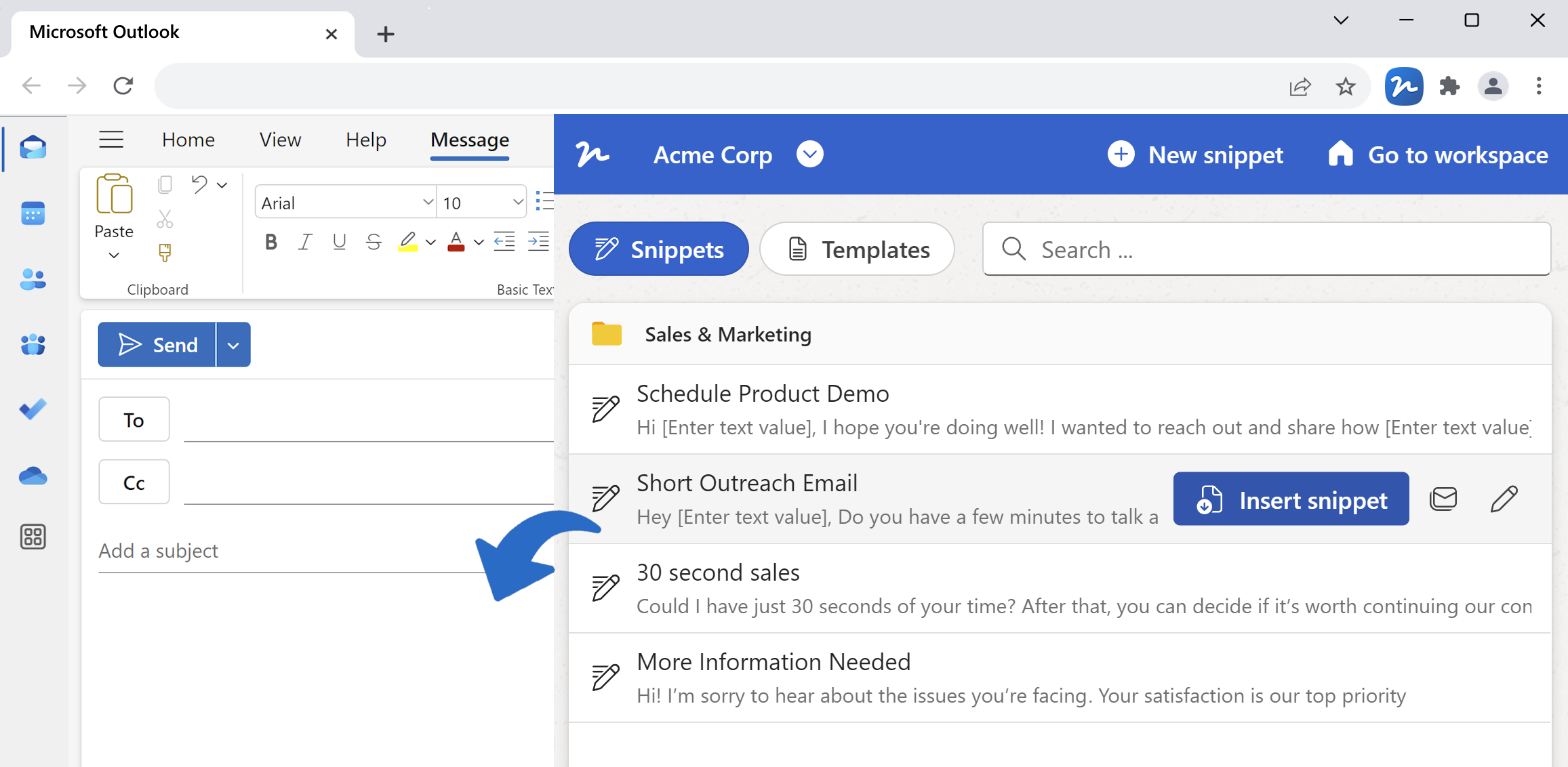
In Outlook on the web, the browser extension puts a snippet into the message you're writing: click in the message, pick the snippet, fill in its fields, insert. In the desktop app, copy the filled-in snippet with one click and paste it. Either way everyone uses the current wording, and a required field can't be left empty.
Using Gmail too? See how to create email templates in Gmail.
Frequently asked questions
Where are Quick Parts and .oft templates in the new Outlook?
Saving a message as an Outlook Template (.oft) file is a feature of classic Outlook for Windows only; in the new Outlook and Outlook on the web, Mail templates do that job. Quick Parts began in classic Outlook and are being added to the new Outlook and Outlook on the web, where they are managed under Settings, Mail, Quick Parts. If your account doesn't show that page yet, use My Templates for short pieces of text.
Why don't I see My Templates or Mail template in Outlook?
Microsoft says both need an account with a qualifying Microsoft 365 subscription. If the account qualifies and My Templates is still missing, your organization may have turned add-ins off, which only an administrator can change. In classic Outlook, the button for the add-in is called View Templates and is on the Message tab of a new email.
Can I share Outlook templates with my team?
Not in a way that stays in sync. Mail templates and My Templates are saved to one person's mailbox. An .oft file can be put on a shared drive, but everyone opens their own copy, and a change means sending the file round again. For one set of templates the whole team uses, you need a shared tool.
Can an Outlook template include the subject line and attachments?
Yes, with two of the four kinds. A Mail template in the new Outlook or Outlook on the web saves the recipients, the subject and attachments along with the text. An .oft file in classic Outlook does the same. My Templates and Quick Parts hold text only and are inserted into a message you have already started.