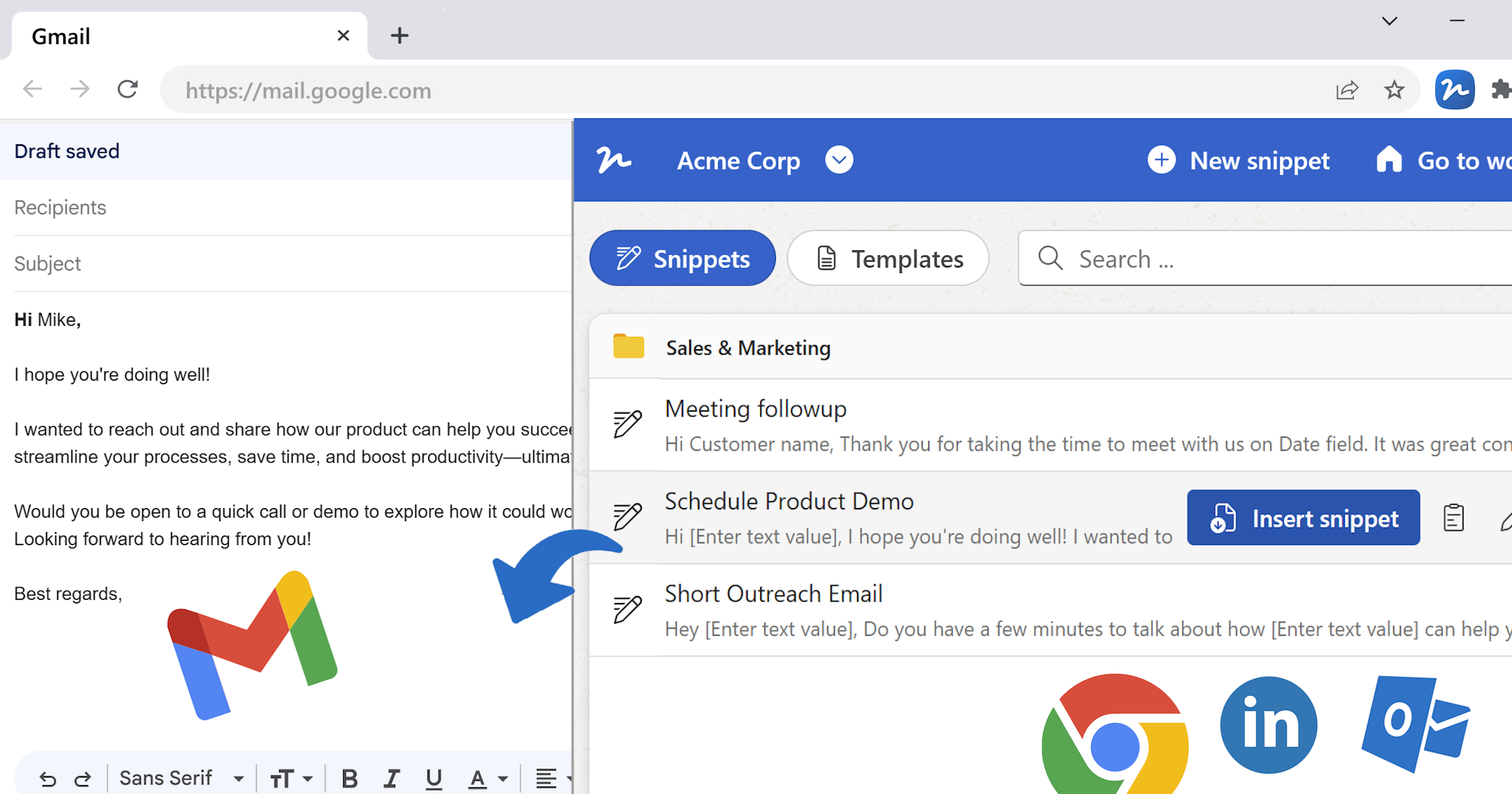
WordFields isn't just for teams. This guide shows how to set up a personal workspace for your own templates and snippets — reusable content you can access anywhere and use in seconds.
Not every WordFields user is managing a team. A lot of people use it for their own work — a freelancer who sends the same types of proposals and contracts every week, a consultant who writes variations of the same emails dozens of times a month, a manager who generates recurring reports from the same template. If you regularly reuse documents, messages, or text, WordFields can save you a significant amount of time.
This guide walks through setting up a personal workspace — building a library of snippets and templates you can access from anywhere and use in seconds.
Set up your workspace
When you first sign in to WordFields you already have a workspace ready to use. There's nothing to configure before you start — just give it a name that makes sense to you.
- Click the Settings and more icon in the top right corner.
- Select Workspace Settings.
- Under Workspace, click Edit and update the name to something meaningful — for example your name, your business name, or simply
My templates. - Click Save changes.
Tip
If you ever need to collaborate with others later, you can invite people to your workspace at any time. Starting solo doesn't lock you into anything.
Build your snippet library
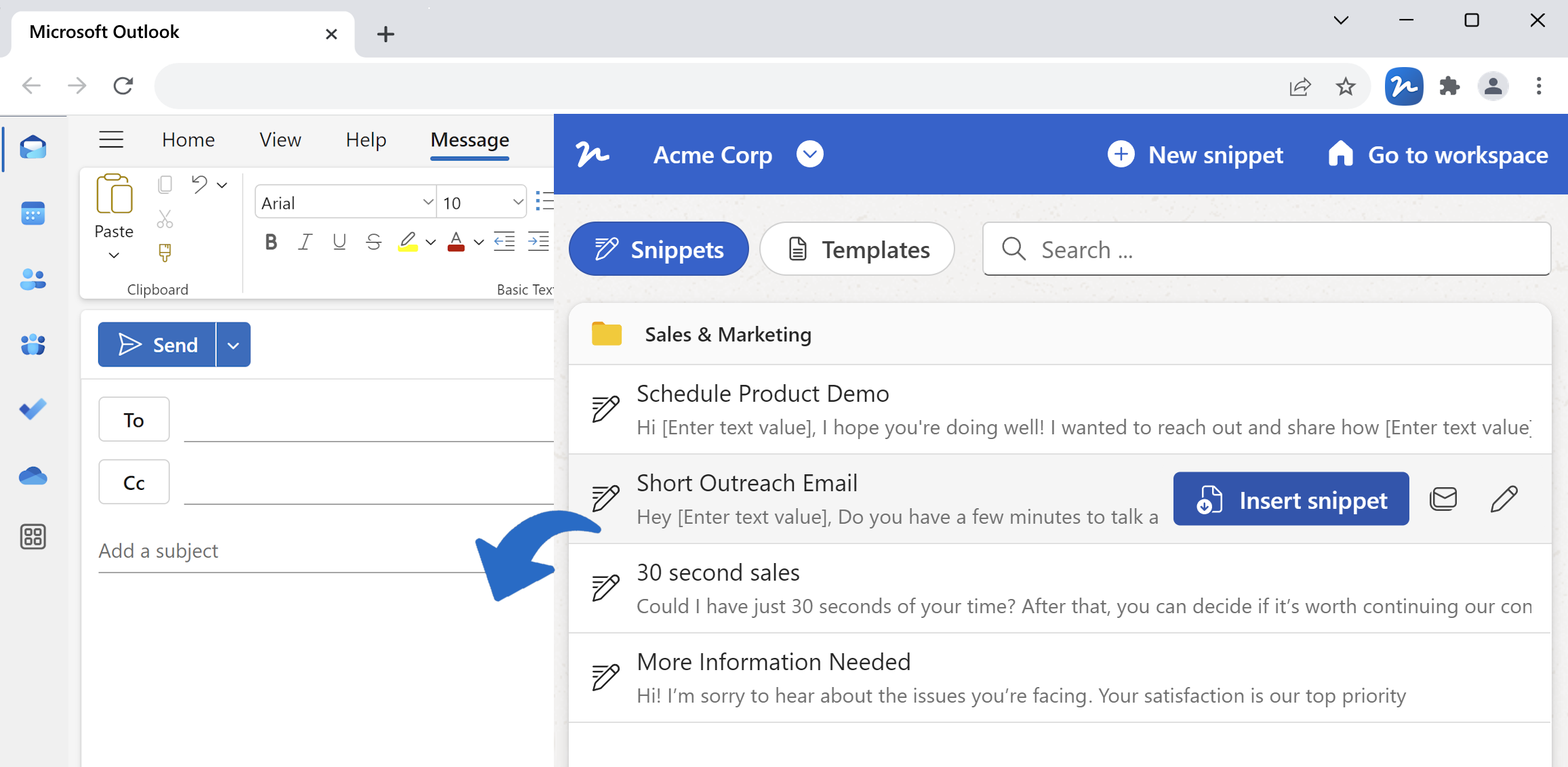
Snippets are the fastest win in a personal workspace. If you type the same thing more than a few times a week — an email introduction, a project status update, an invoice payment reminder, a meeting request — it should be a snippet.
- Click + Create new and select Text snippet.
- Give it a name that describes exactly what it is —
Invoice: payment reminder,Email: project kickoff intro,Proposal: about me section. The more specific the name, the faster you find it. - Write the content and add fillable fields anywhere the text changes — a client name, a date, a project title, an amount.
- Save the snippet and move it into the relevant folder.
When you need it, open the snippet, fill in the fields, and copy it to your clipboard with one click. Or use the Text Snippets & Templates Chrome Extension to insert it directly into Gmail, your email client, a CRM, or any web-based tool without switching tabs.
Tip
Use the My:FullName and My:EmailAddress merge tags in your snippets so your name and email address are inserted automatically every time — particularly useful for email signatures and sign-offs.
Convert your documents into templates
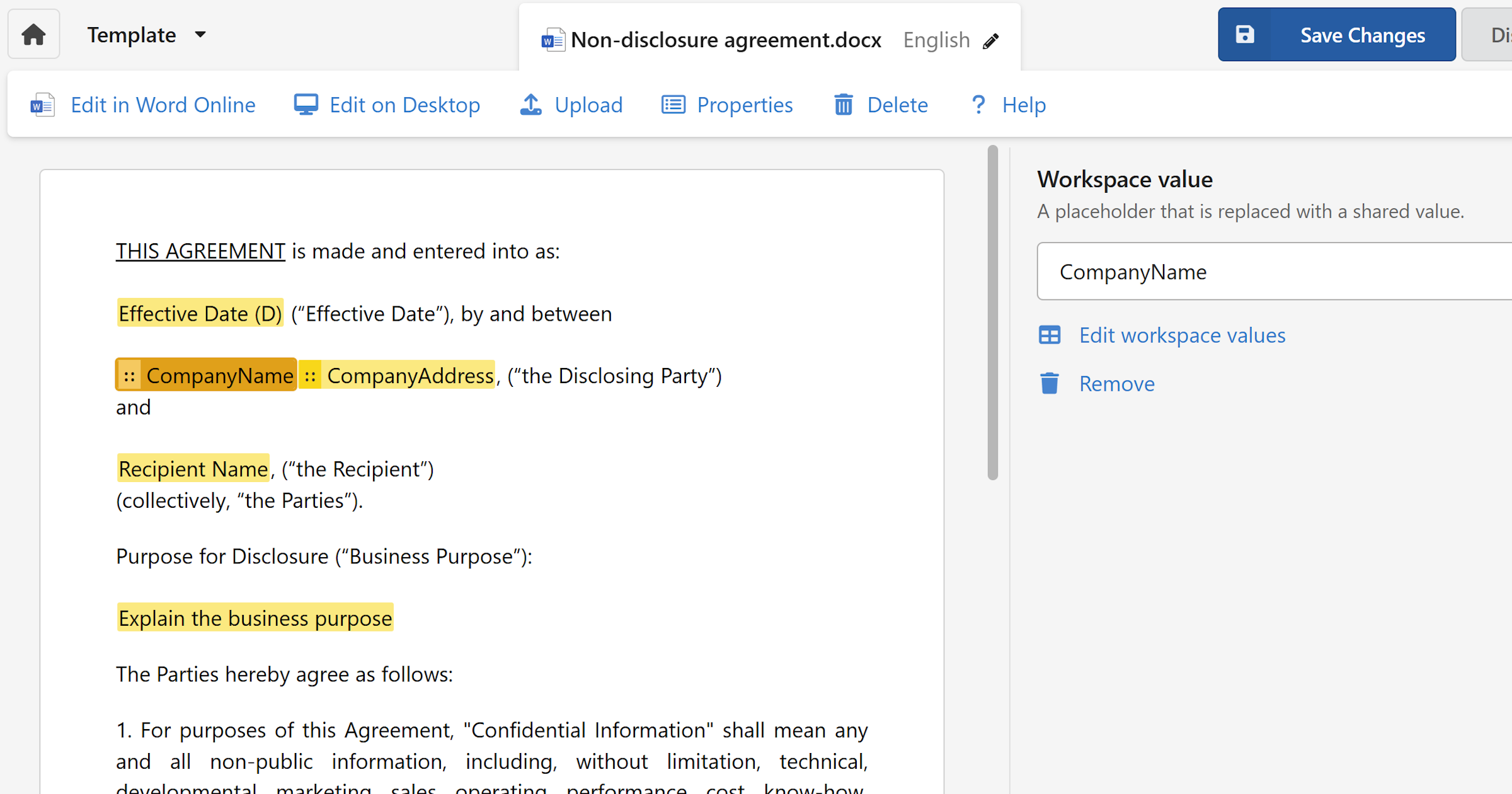
If you regularly produce the same type of document — a proposal, a contract, an invoice, a report — and currently make a copy of the last one and edit it, that's exactly what WordFields templates are designed to replace.
- Take the Word or Excel document you already use as your starting point.
- Click + Create new and select Word template or Excel template.
- Upload the file.
- In the template editor, select the text that changes with each document and convert it into a merge field — or type
${FieldName}directly in the document. For example:${ClientName},${ProjectTitle},${Amount},${StartDate}. - Save the template.
The next time you need that document, open the template, fill in the form, and download a finished file with all formatting preserved exactly as in the original.
Note
Your original document is never modified. WordFields stores it as a template and generates new documents from it — the source file stays intact.
Organise your content with folders
Folders keep your snippets and templates grouped so you can find the right one quickly. For personal use, organise them around how you actually work — by project type, by client, by document category, or whatever makes the most sense for your workflow.
A few examples of how individuals typically organise their workspace:
- A freelance designer might have
Client proposals,Project briefs,Invoices, andEmail responses - A consultant might use
Engagement letters,Status reports,Meeting notes, andClient emails - A sales professional might keep
Outreach emails,Follow-ups,Proposals, andContracts
To create a folder:
- Click + Create new in the left sidebar and select Folder.
- Enter a name and click Create.
Access your snippets anywhere
Your personal workspace is accessible from any browser, which means your snippets and templates are available wherever you're working. For faster access when writing emails or filling in web-based tools, install the Chrome extension.
The Chrome extension adds a small WordFields icon to any text field in your browser. Click it to browse your snippets, fill in the fields, and insert the text directly — without opening a new tab or copying and pasting. Get Chrome extension here
Tip
Pin the WordFields extension to your browser toolbar so it's always one click away. Once you get used to inserting snippets directly into Gmail or your CRM without leaving the page, going back to copy-pasting feels slow.
Keep your library tidy
A snippet library that becomes cluttered or out of date is a library you stop using. A few habits that keep things useful:
- Review once a quarter — go through your snippets and templates and remove or update anything that's no longer accurate or relevant.
- Name things specifically —
Email: follow-up after demois more useful thanFollow-up. The more precise the name, the less time you spend searching. - Update templates at the source — when a document changes, upload the revised version in the template editor. The merge fields you've already configured are preserved automatically.
Warning
Deleting a template removes it permanently. If you're replacing a template with an updated version, upload and test the new one before deleting the old.