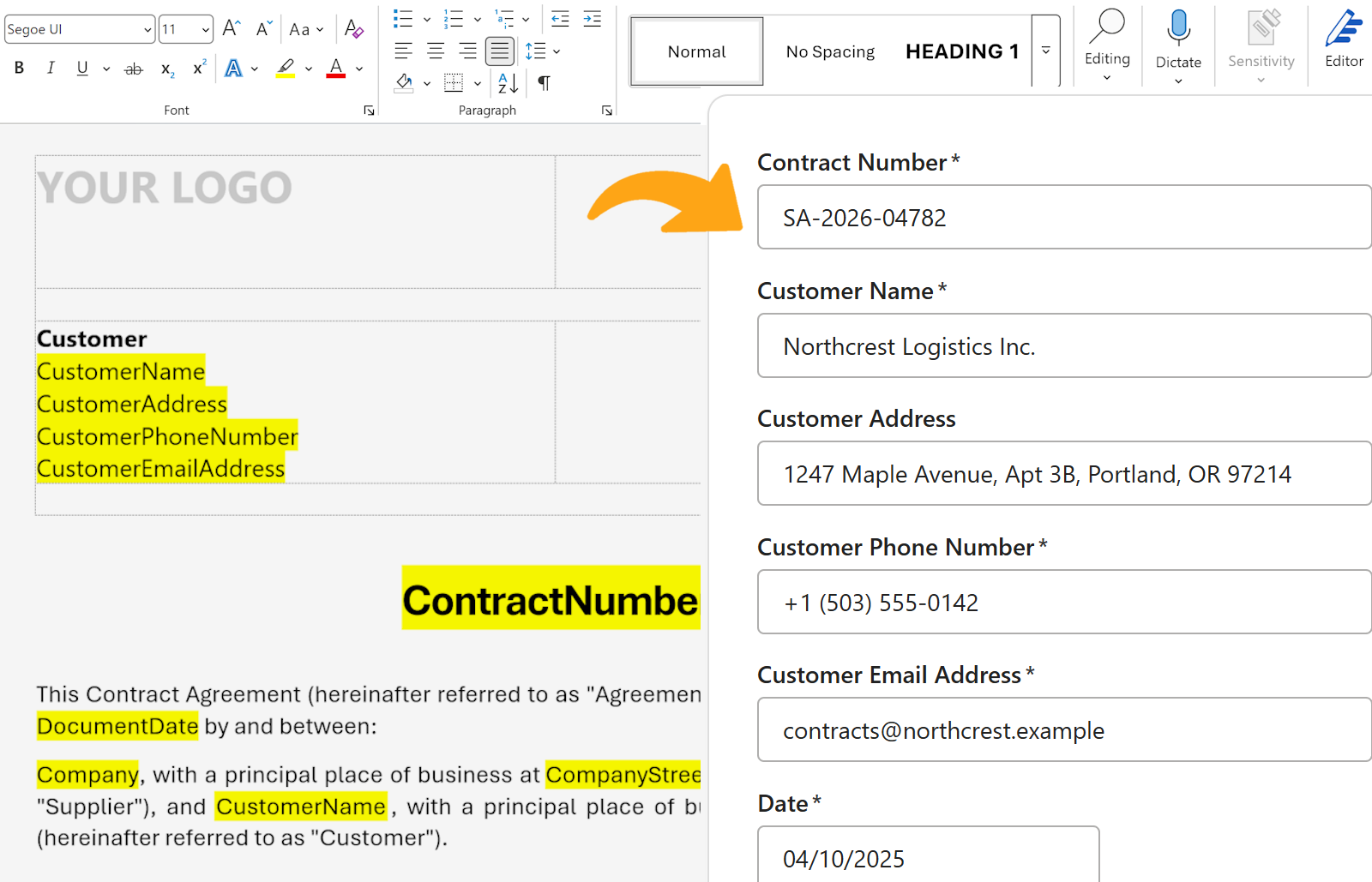
Sending the same letter to fifty people with fifty different names used to mean fifty manual edits. Word's Mail Merge turns it into a single template run against a list, producing every personalized copy in one pass.
Mail merge is the Microsoft Word feature that pulls data from an external source, such as an Excel sheet or Outlook contacts, into named placeholders inside a document. You build the template once, point it at your list, and Word generates one finished letter, label, or email per row. The core workflow has not changed much in years, which is part of why it's worth learning well.
Key Takeaways
- Mail merge combines a Word template with a structured data source (Excel, Outlook contacts, CSV) to produce personalized copies in bulk.
- The process has four phases: prepare the data, insert merge fields, preview, finish and merge.
- Most "broken" merges trace back to header or field-name mismatches that take thirty seconds to fix once you know where to look.
What is Mail Merge in Word?
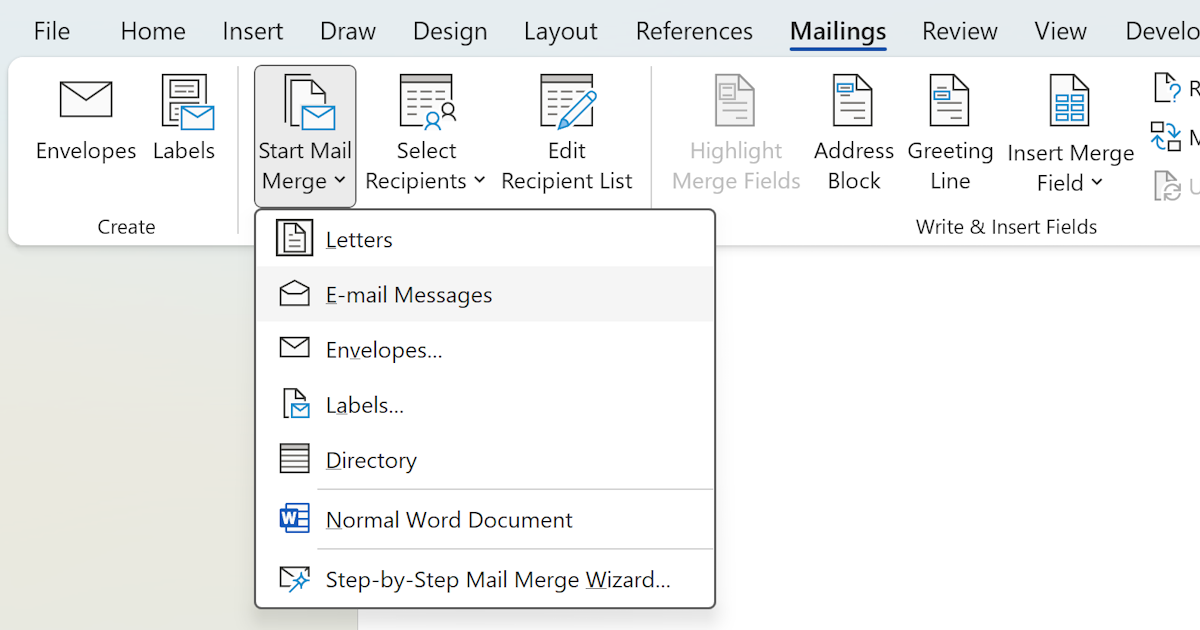
Mail Merge is Word's built-in feature for generating multiple personalized documents from one template. The template holds the fixed copy, the merge fields mark the spots that change, and the data source supplies the values. When you run the merge, Word steps through the data source row by row and produces one output per record.
You reach the feature under the Mailings tab in the ribbon. The workflow supports letters, mailing labels, envelopes, directories, and emails. If you're sending mostly email, keep in mind that the merge hands off final delivery to Outlook, so Outlook needs to be set up on the same machine.
What do you need before starting?
Two things, really: a data source and a clear idea of what the finished document should look like. The data source is any structured list that Word can read. An Excel spreadsheet with a header row is the easiest. An Outlook contacts group works too, as does a CSV exported from almost any CRM.
The data source rules worth following from day one:
- Put column headers in row 1. Word treats those labels as your merge field names.
- Keep headers short and free of spaces.
FirstNametravels better thanFirst Name. - One record per row. No merged cells. No blank rows in the middle of the list.
- Save and close the file before you link it. Word dislikes pulling from a file another process is editing.
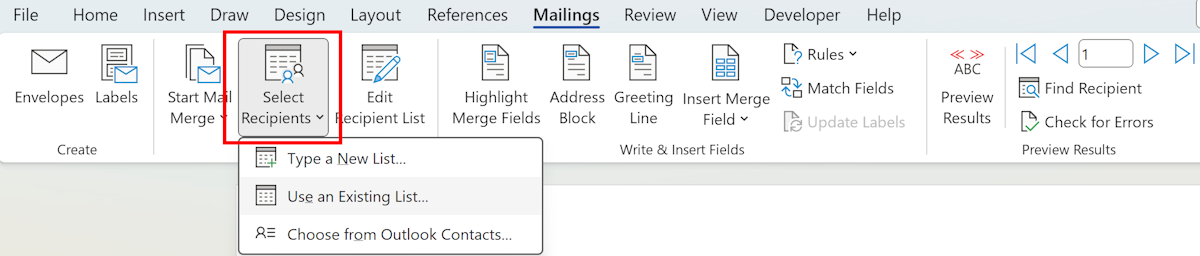
To attach the data source to your document:
- Open a new or existing Word document.
- Click the Mailings tab in the ribbon.
- Click Select Recipients and pick the option that matches your source (for most people that's Use an Existing List).
- Browse to the file and select it. If it's an Excel workbook, Word will ask which sheet to use.
Tip
If your spreadsheet has more than one sheet, name the one you're using something obvious like mail_list. Word shows you a list of all sheets during the connect step, and a clear name saves a second of guessing.
How do you create the mail merge document?
Once the data source is connected, the writing phase is about dropping merge fields into the right places. Every field you insert corresponds to one column in your source.
- Place your cursor where the personalized text should appear.
- Click the Mailings tab, then Insert Merge Field.
- Pick the field name from the dropdown. Word inserts it as a field code that looks like
«FirstName»in the editor. - Repeat for every personalized spot in the document.
A greeting line shows the pattern quickly. Typing Dear followed by an inserted «FirstName» followed by , produces the final output Dear Ana, for the first row, Dear Marco, for the second, and so on. You can mix merge fields freely with normal text, tables, images, and formatting. They behave like any other character when it comes to fonts and styles.
For common patterns like full names and mailing addresses, the ribbon also has Address Block and Greeting Line buttons. These are convenience wrappers around several merge fields at once, handy when you're handling international addresses or want a fallback greeting if a first name is missing.
How do you preview and edit the merged document?
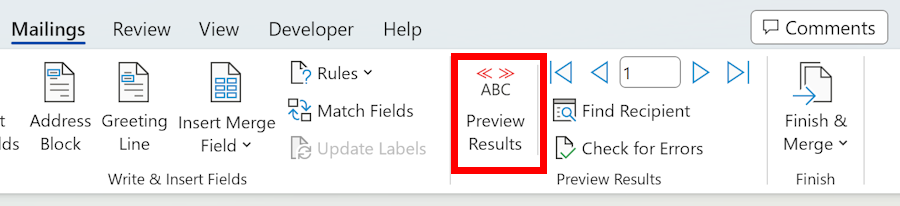
The Preview Results button in the Mailings tab is easily the most underused control in the whole feature. Clicking it replaces every merge field with real data from the first row, so you can see the finished document exactly the way your recipient will. The navigation arrows next to it step through every row in the list.
Use the preview to check:
- Every field fills correctly. A blank field name usually means a mismatch between the template and the data source headers.
- Spacing and punctuation read naturally. The classic glitch:
Dear«FirstName»without the space between. - Long values fit. Addresses with long company names sometimes wrap awkwardly. Fix this at template time, not after.
- Date and number formats look right. Excel sometimes hands over raw date serials. If dates appear as
45678instead of a real date, adjust the field code or format the source column.
Note
Preview does not send or save anything. It just renders the template against real data. You can click in and out of preview mode as many times as you need.
How do you finish and deliver the merge?
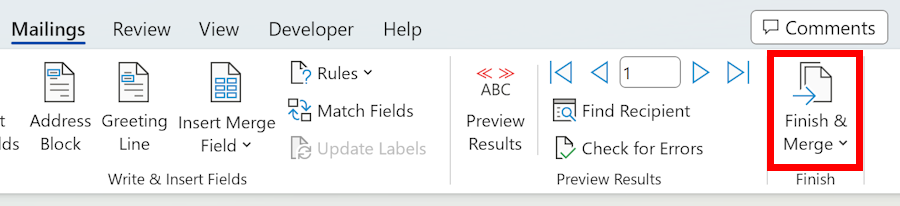
When the preview looks right, the last step is Finish & Merge, also in the Mailings tab. It offers three delivery options:
- Edit Individual Documents. Produces a new Word file with every personalized copy stacked inside it. Useful when you want to spot-check everything before printing, or keep an archive.
- Print Documents. Sends the merged output straight to the printer. Skips the intermediate file. Good for labels and envelopes once you trust the preview.
- Send Email Messages. Uses Outlook to send one email per row. Word asks for the column containing email addresses and the subject line. Each message is a separate Outlook send, so it respects your mail server's per-message rules.
If you're merging to email for the first time, send to yourself and one trusted colleague before the full list. The first time someone discovers that their "Dear {{FirstName}}" ended up in a customer inbox is the last time they skip that check. For teams that send the same emails often enough that building a merge every time feels heavy, it's worth separately setting up email templates for teams and treating mail merge as the bulk-send option.
What if your mail merge keeps breaking?
Most mail merge problems are not really Word problems. They're small data hygiene issues that compound at scale. After enough support tickets, these are the usual suspects, in rough order of how often they show up:
- Trailing spaces in headers.
Emailwith a stray space at the end is a different column toEmail. Open the spreadsheet, click each header, and trim. - Renamed columns after insertion. Inserting
«LastName»and then changing the spreadsheet header toSurnamebreaks the link. Rename before you start, not after. - Merged or blank header cells. Word expects exactly one row of headers. If row 1 has merged cells or if row 1 is blank and row 2 is the real header, the connection fails.
- Locale mismatches on numbers. Decimals and thousands separators swap between regions. If amounts show up wrong, check whether the source locale matches Word's.
- The file was moved. Word remembers the path to the data source. If the spreadsheet moved after the link was created, reconnect it through Select Recipients again.
Fixing these one at a time is usually a ten-minute job. Fixing them before you start the merge is a thirty-second job. The asymmetry is worth remembering.
When should you move beyond Word's Mail Merge?
Mail Merge handles one-to-many bulk work well. It starts to feel tight the moment documents need to differ from each other beyond name-swapping: warranty clauses that should only appear for certain products, itemized line items of varying length, embedded signatures, per-recipient images, or teammates who need to generate a document without opening Word at all.
If that sounds like the kind of work you do every week, Word's Mail Merge is probably not the long-term answer. It still works as a starting point, and the merge-field idea carries forward cleanly, but most teams at that stage look for a mail merge alternative built around a shared template and a web form instead of a local Word file.
Quick recap
Mail merge is a four-step pattern: connect a data source, drop merge fields into a template, preview every row, finish and deliver. Ninety percent of what goes wrong is data hygiene, not Word itself. Master the preview step and the rest of the feature reveals itself quickly.
If you're new to merge fields as a concept, the introduction to what a merge field is covers the vocabulary before the how-to. If you already know Mail Merge cold and keep running into the ceiling, that's your signal to explore the tools built for the next step up.
Frequently asked questions
Can you do a mail merge in Word without Excel?
Yes. Word accepts several data sources beyond Excel, including an Outlook contacts list, a table in another Word document, a plain CSV file, and a direct connection to an Access database. Excel is the most common choice because it handles header rows and many records cleanly, but it is not a requirement.
Why does my mail merge show the field name instead of the actual value?
This usually means the merge field name does not match any column in the data source. Check for trailing spaces in the spreadsheet headers, mismatched capitalization, or renamed columns. The Preview Results button in the Mailings tab is the fastest way to confirm every field is mapping correctly before the final merge.
Can you do a mail merge to email in Word?
Yes. Under Finish & Merge, choose Send Email Messages. Word will prompt for the column that contains email addresses and the subject line, then hand off each personalized message to Outlook for sending. The default Outlook profile on the machine must be configured, and the data source needs a valid email column.
What is the difference between mail merge and a merge field?
A merge field is a single placeholder inside the template, for example the First Name slot in a greeting line. Mail merge is the process that replaces every merge field at once using rows from an external data source, producing one personalized document per row.