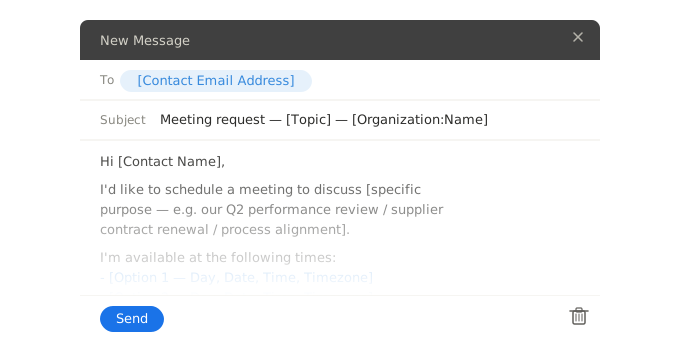
Two internal process update email templates for operations and admin teams — announcing a new process and communicating a change to an existing one. Clear structure, consistent tone, ready to send.
Hi [Team or department name],
We're introducing [Process name] effective [Effective date]. This replaces the current approach to [Brief description of what the process covers].
Why we're making this change: [One or two sentences — e.g. to reduce manual steps, improve accuracy, meet a compliance requirement].
What you need to do:
- [Specific action 1 employees need to take]
- [Specific action 2 employees need to take]
- [Specific action 3 — e.g. complete training, update a system, follow a new sign-off step]
Full details and reference materials are available at [Link or attachment reference].
If you have questions, contact [Contact name] at [Contact email]. We'll also cover this in [Upcoming meeting or team call name] on [Meeting date] if you'd prefer to ask in person.
[VALUE("Author.FullName")]
[VALUE("Author.EmailAddress")]
[VALUE("Organization")]
Hi Team or department name,
We're introducing Process name effective Effective date. This replaces the current approach to Brief description of what the process covers.
Why we're making this change: One or two sentences — e.g. to reduce manual steps, improve accuracy, meet a compliance requirement.
What you need to do:
- Specific action 1 employees need to take
- Specific action 2 employees need to take
- Specific action 3 — e.g. complete training, update a system, follow a new sign-off step
Full details and reference materials are available at Link or attachment reference.
If you have questions, contact Contact name at Contact email. We'll also cover this in Upcoming meeting or team call name on Meeting date if you'd prefer to ask in person.
=VALUE("Author.FullName")
=VALUE("Author.EmailAddress")
=VALUE("Organization")
Hi [Team or department name],
We're updating [Process name] effective [Effective date]. Please stop using the current [form / workflow / system / procedure being replaced] from that date.
What's changing: [One clear sentence describing the change].
What stays the same: [One sentence confirming what is unaffected, if relevant].
Why: [One or two sentences — e.g. the previous process created delays, a system has been updated, a policy requirement has changed].
From [TEXT([Effective Date], "d")], please:
- [New step or action 1]
- [New step or action 2]
- [New step or action 3]
The updated [procedure / documentation / form] is available at [Link or attachment reference]. Please bookmark or save it now so you have it ready.
Questions? Contact [Contact name] at [Contact email].
[VALUE("Author.FullName")]
[VALUE("Author.EmailAddress")]
[VALUE("Organization")]
Hi Team or department name,
We're updating Process name effective Effective date. Please stop using the current form / workflow / system / procedure being replaced from that date.
What's changing: One clear sentence describing the change.
What stays the same: One sentence confirming what is unaffected, if relevant.
Why: One or two sentences — e.g. the previous process created delays, a system has been updated, a policy requirement has changed.
From =TEXT([Effective Date], "d"), please:
- New step or action 1
- New step or action 2
- New step or action 3
The updated procedure / documentation / form is available at Link or attachment reference. Please bookmark or save it now so you have it ready.
Questions? Contact Contact name at Contact email.
=VALUE("Author.FullName")
=VALUE("Author.EmailAddress")
=VALUE("Organization")
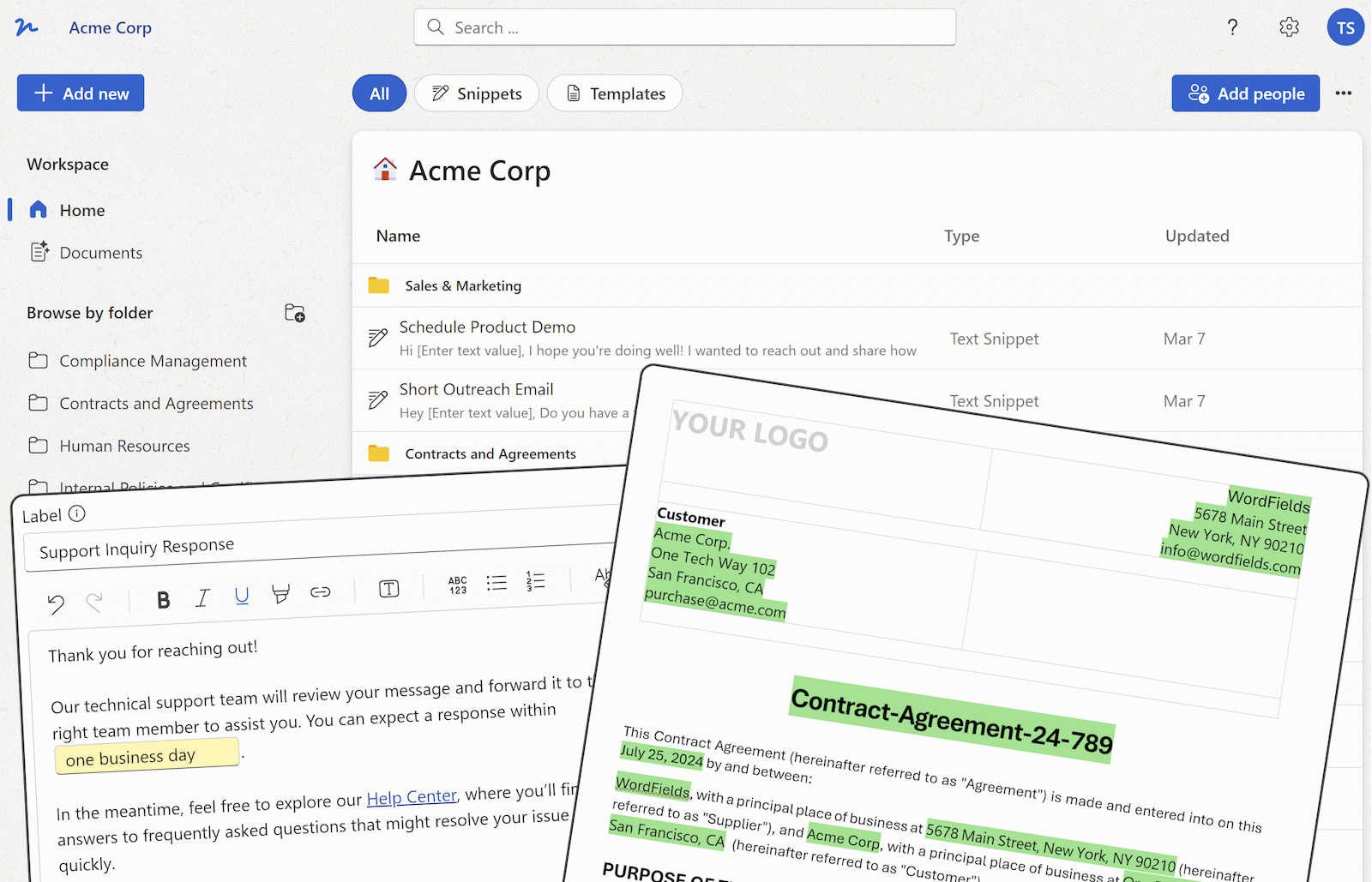
Your name, email address, and organisation name fill in automatically via WordFields merge tags — no manual edits before sending. Use the Chrome extension to insert directly into Gmail, Outlook, or any internal communication tool without switching tabs.
What's included
Each snippet auto-populates the following fields when used in WordFields:
- Process name and effective date
- Team or department being notified
- Reason for the change and what it replaces
- Specific action steps employees need to take
- Link or attachment reference for full documentation
- Named contact for questions and escalation
- Sender name, email, and organisation name (pulled from the logged-in user and workspace automatically)
When to send a process update email
Use the new process announcement email when introducing a procedure that does not currently exist in your team's workflow. The primary challenge here is adoption — employees have no existing habit to override, but they also have no frame of reference, so clarity on the specific actions required matters more than the reasoning behind them. Operations managers rolling out a new approval step, expense submission process, or reporting format will reach for this variant. The structured action list in the template forces the sender to define exactly what employees need to do, rather than describing the process in general terms and leaving individuals to interpret their own next steps.
Use the process change notification email when updating or replacing something employees already do. This is the harder communication task: employees have an established habit, and unless the email is explicit about what they must stop doing — not just what they should start doing — a significant portion of the team will continue the old method through inertia. The template's "what's changing / what stays the same" structure addresses this directly, giving employees a clear before-and-after frame without requiring a long explanation. The instruction to bookmark the updated documentation is deliberate: in practice, teams that know a change is coming but cannot find the new reference material default to the old process until someone chases them. For teams managing recurring process changes — seasonal workflows, compliance updates, system migrations — storing variant versions of this template in WordFields with pre-filled process names and contact details saves significant time and keeps the communication format consistent across every update.
Frequently asked questions
What should an internal process update email include?
An internal process update email should state what is changing, when it takes effect, why the change is being made, and exactly what employees need to do differently. Include a named contact for questions and any relevant links to documentation, training, or reference materials. The email is not the place for extensive background or justification — keep the body focused on what employees need to know and act on. Supporting detail belongs in an attachment or linked document.
How do you announce a new process to employees?
State the change in the subject line so employees know what the email is about before opening it. In the body, lead with what is changing and when, then give the reason in one or two sentences. Follow with the specific actions employees need to take and a deadline if one applies. Close with a named contact for questions. Avoid burying the key information in paragraphs of context — most employees will skim the email, so the critical details need to be visible immediately.
What is the difference between a new process announcement and a process change email?
A new process announcement introduces a procedure that did not previously exist — employees have no prior habit to overcome and need clear instructions on what to do and when. A process change email updates or replaces an existing procedure — it must be explicit about what is no longer correct, not just what the new approach is, because employees will default to the old method unless you actively address the transition. Process change emails typically require more context and a clearer before/after framing.
How do you communicate a process change without causing confusion?
Be specific about what is changing, not just what is new. Employees need to know which parts of their current workflow are affected and which are not. Use a clear subject line, an effective date, and a single named contact for questions. If the change affects different teams differently, send targeted versions rather than one catch-all email. Follow the initial announcement with a reminder closer to the effective date, particularly for changes that require employees to update habits or learn new tools.
Who should send an internal process update email?
The email should come from whoever owns the process — typically the operations manager, department head, or team lead responsible for implementing and maintaining it. For company-wide changes, a senior leader or the relevant function head should be the sender. The authority of the sender signals the weight of the change. If the email comes from someone without clear ownership of the process, employees are less likely to act on it promptly.
How far in advance should you send a process change email?
Send the initial announcement at least five to ten business days before the effective date for routine process changes, and longer for changes that require training, system access, or significant workflow adjustment. Sending too early risks employees forgetting the details by the time the change takes effect. A follow-up reminder one or two days before the go-live date is good practice for any change that requires employees to stop doing something they are used to doing.
Should a process update email include a reason for the change?
Yes, briefly. Employees who understand why a process is changing are significantly more likely to follow it consistently. One or two sentences explaining the reason — efficiency, compliance, a system change, customer feedback — is enough. You do not need to justify the decision in detail, but a complete absence of reasoning tends to generate questions and resistance that a single line would have prevented.
Related operations email templates
Explore more professional document and email templates you can copy, customize, and use immediately