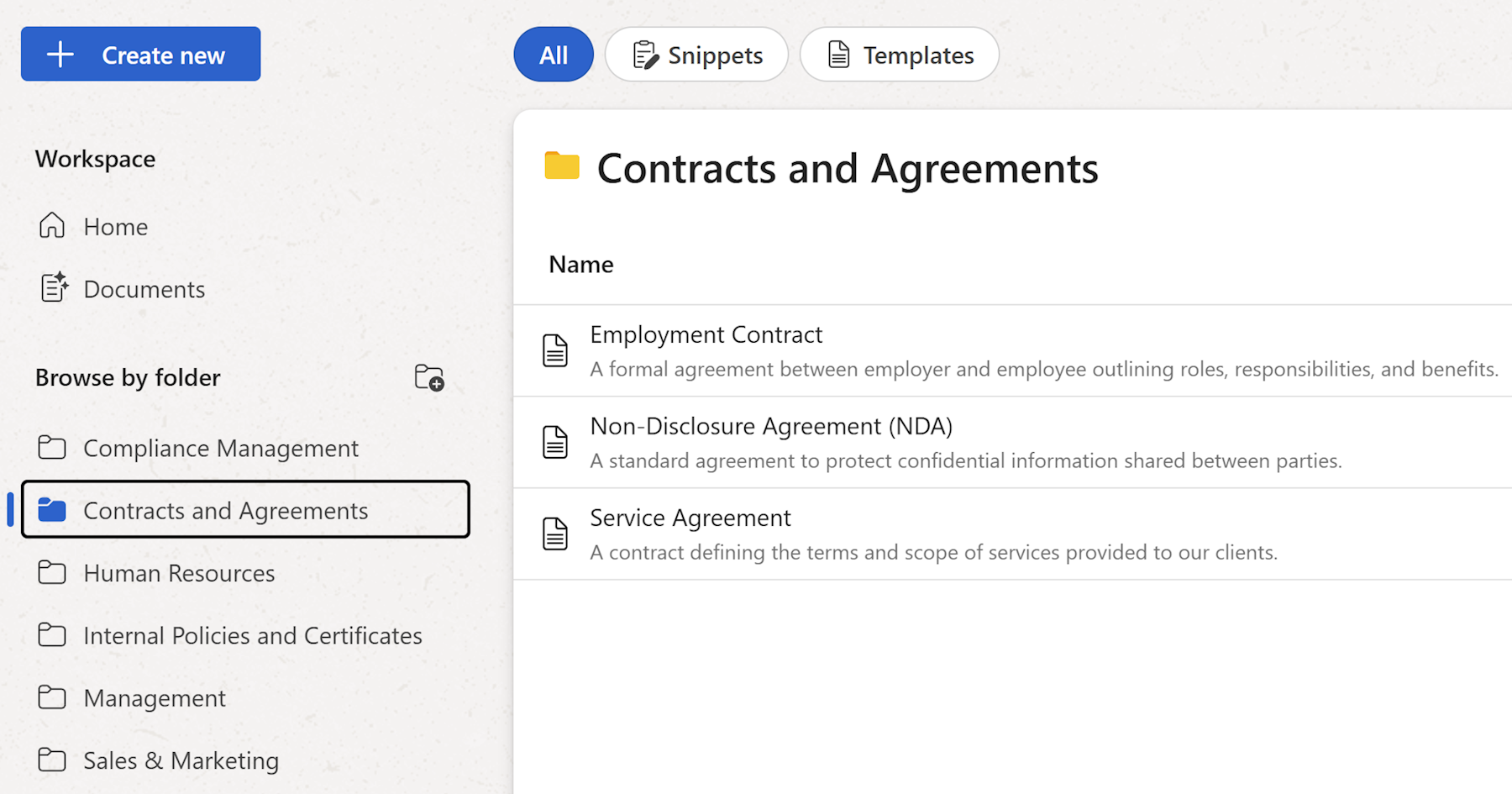
Your workspace home is where all your snippets and templates live. Here's how to find, preview, and manage your content. 🗂️
Browse templates & snippets

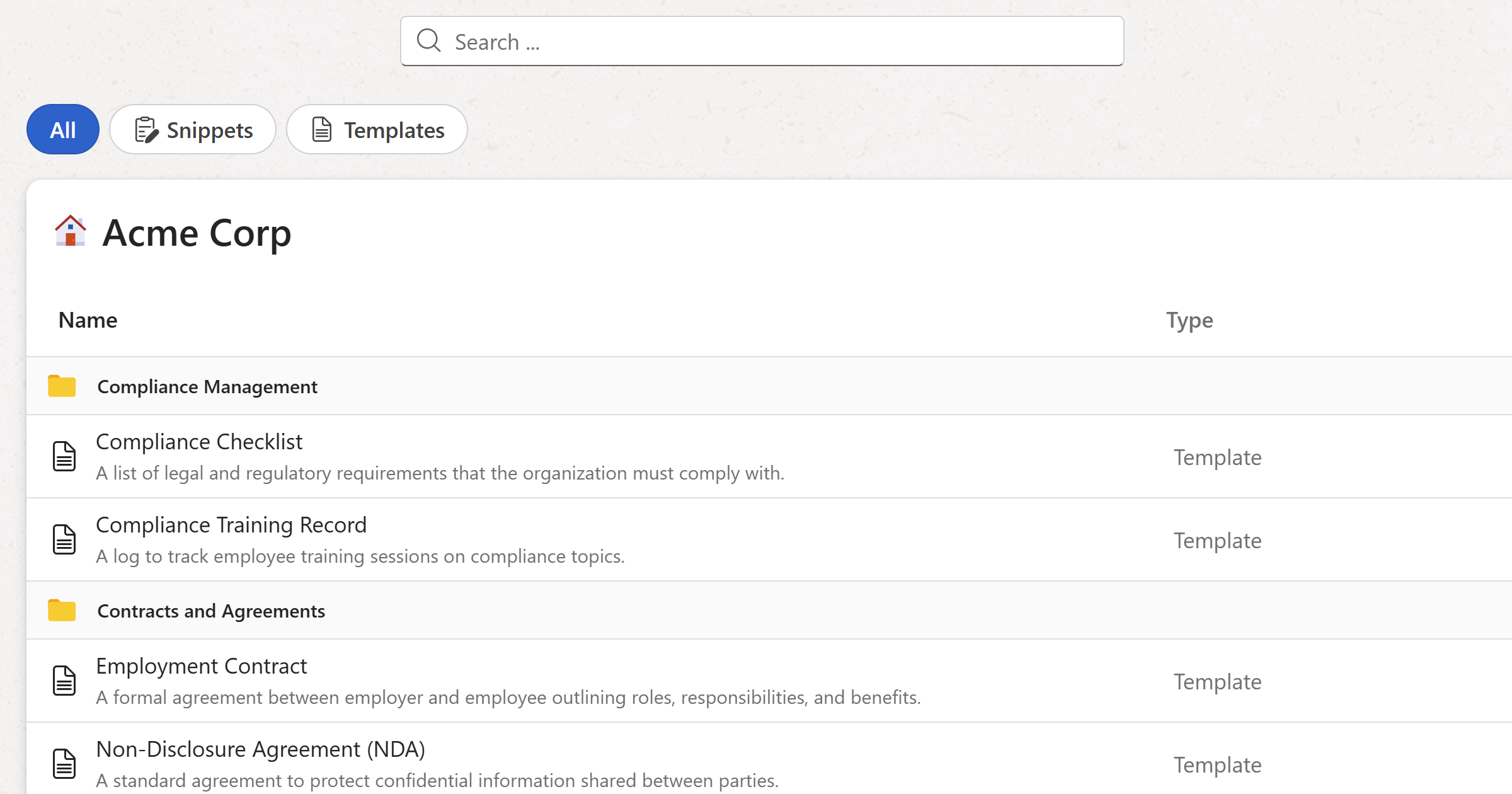
All snippets and templates you have access to are displayed here, grouped by folder. Use the filter tabs at the top to narrow down what's shown:
- All — Shows everything in the workspace you have access to.
- Snippets — Shows only text snippets.
- Templates — Shows only document templates.
To view the contents of a specific folder, click it in the left sidebar. The content list will show only the snippets and templates inside that folder. Click Home in the sidebar to go back to the full list.
Click any item to open a preview in the right sidebar.
Search

Use the search bar at the top of the workspace to find any snippet or template by name. Results update as you type and search across all folders you have access to.
Managing items
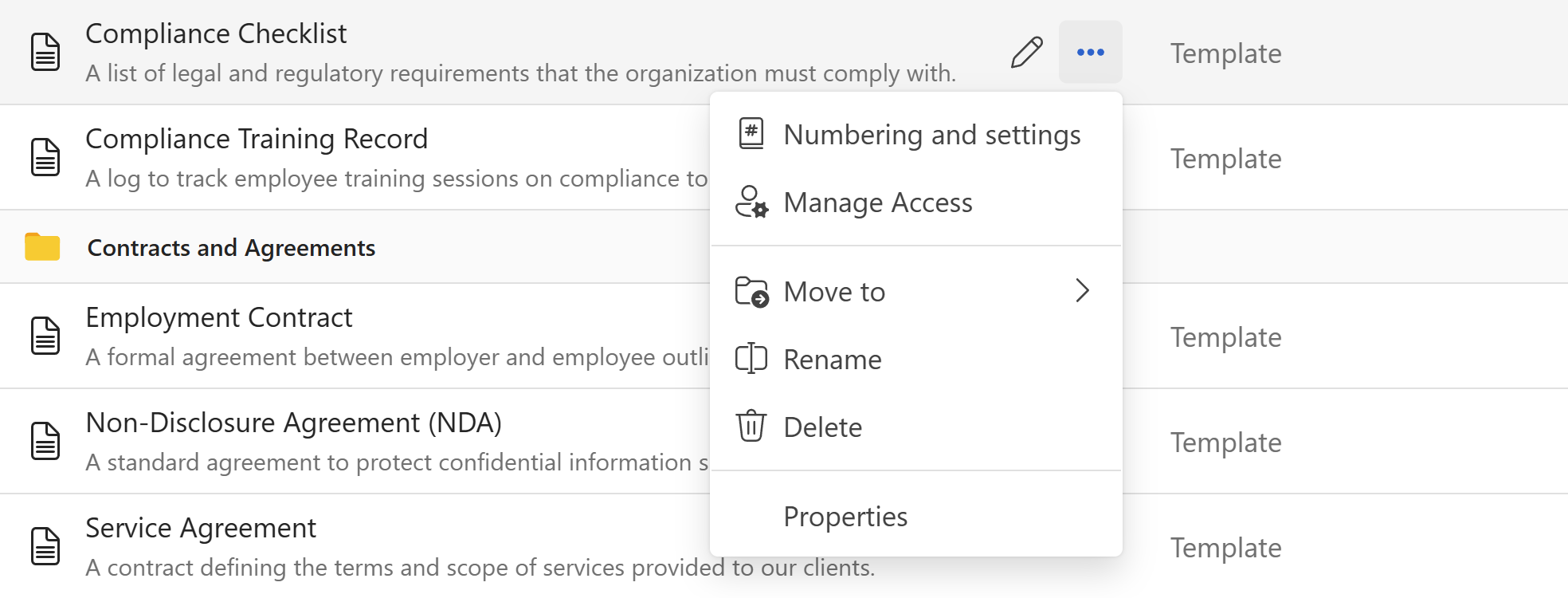
Hover over any snippet or template in the list to reveal its action buttons:
- Edit — Opens the snippet or template editor. Only visible to Admins and Managers.
⋯— Opens a menu with the following options:
| Option | Description |
|---|---|
| Rename | Renames the item inline. |
| Move to | Moves the item to another folder. |
| Properties | Opens the properties dialog to update name, description, language, and other settings. |
| Manage access | Controls who can see and use this item. See Roles and permissions for details. |
| Delete | Permanently deletes the item. This cannot be undone. |
Note
The Edit button and More options (⋯) menu button are only available to Admins and Managers. Members can open and use items but cannot modify or delete them.
Warning
Deleting a snippet or template is permanent. There is no way to recover a deleted item, so make sure you no longer need it before proceeding.