Folders keep your snippets, templates, and other content organized in one place — and control who on your team can see what. 📁
Folders
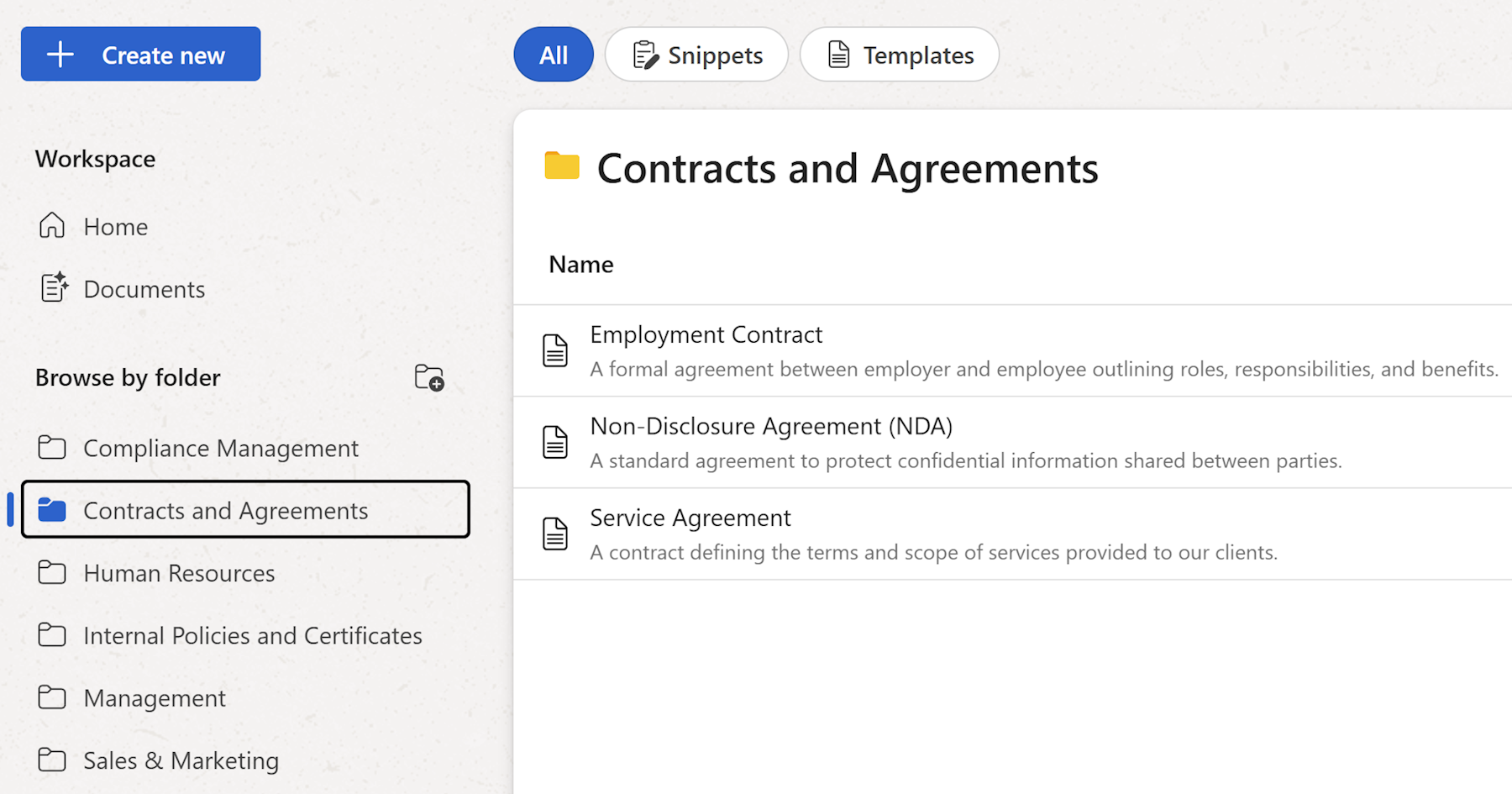
Folders are the main way to structure your workspace. They keep snippets, templates, and other content grouped in a way that makes sense for your team — and they control who can see what. A user with no access to a folder won't see it in the sidebar at all.
Note
Only Admins and Managers can create, rename, and delete folders. Members can only see folders they've been given access to.
Create a folder
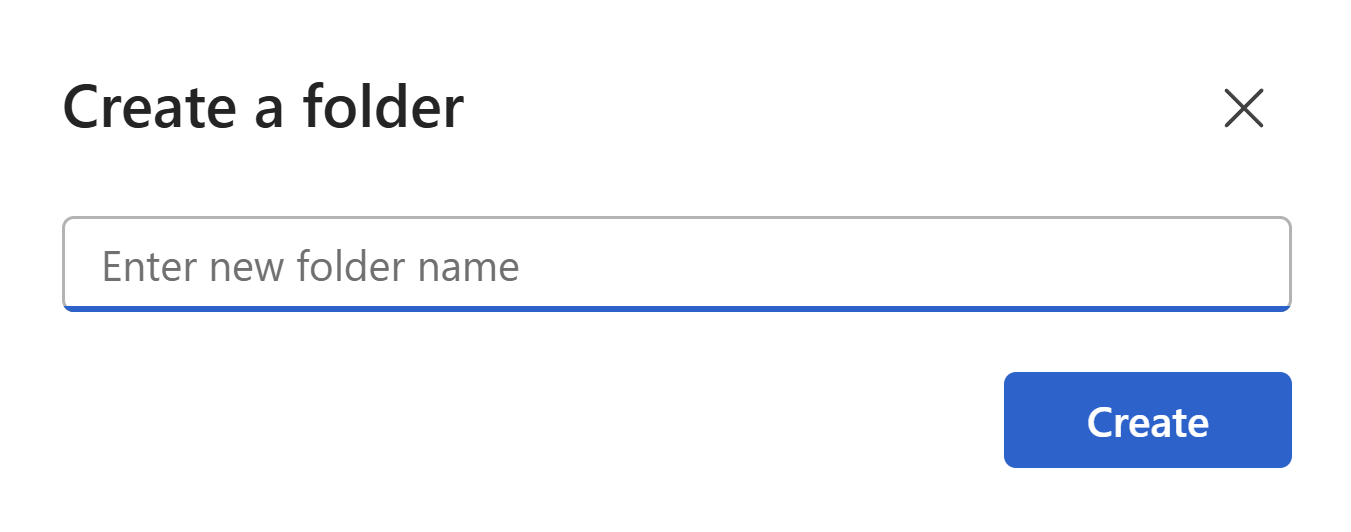
There are two ways to create a new folder:
From the sidebar:
- Click the folder icon next to the Browse by folder label in the left sidebar.
- Type a name for the folder in the dialog that appears.
- Click
Create.
From the Create new menu:
- Click
+ Create newin the left sidebar. - Select
Folder. - Type a name and click
Create.
The new folder appears in the sidebar immediately.
Tip
Organize folders by department, team, or content type — for example HR, Legal, or Sales replies. A clear folder structure makes it much easier to manage access as your team grows.
Rename a folder
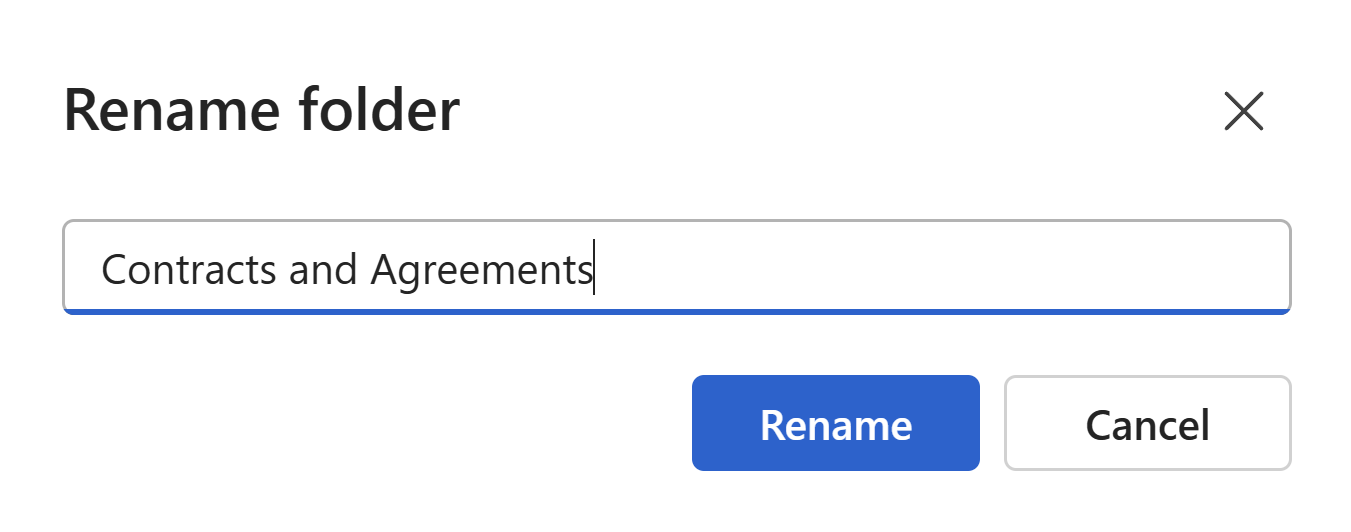
- Hover over the folder in the left sidebar and right click on it.
- Select
Rename. - Type the new name and confirm.
Delete a folder

- Hover over the folder in the left sidebar and right click on it. You can also open a folder and click on
⋯button in the top right toolbar. - Select
Delete. - Confirm the deletion.
Note
Deleting a folder does not delete the snippets and templates inside it. They are moved to an Uncategorized group and remain accessible in the workspace. You can move them into another folder at any time.
Move into a folder
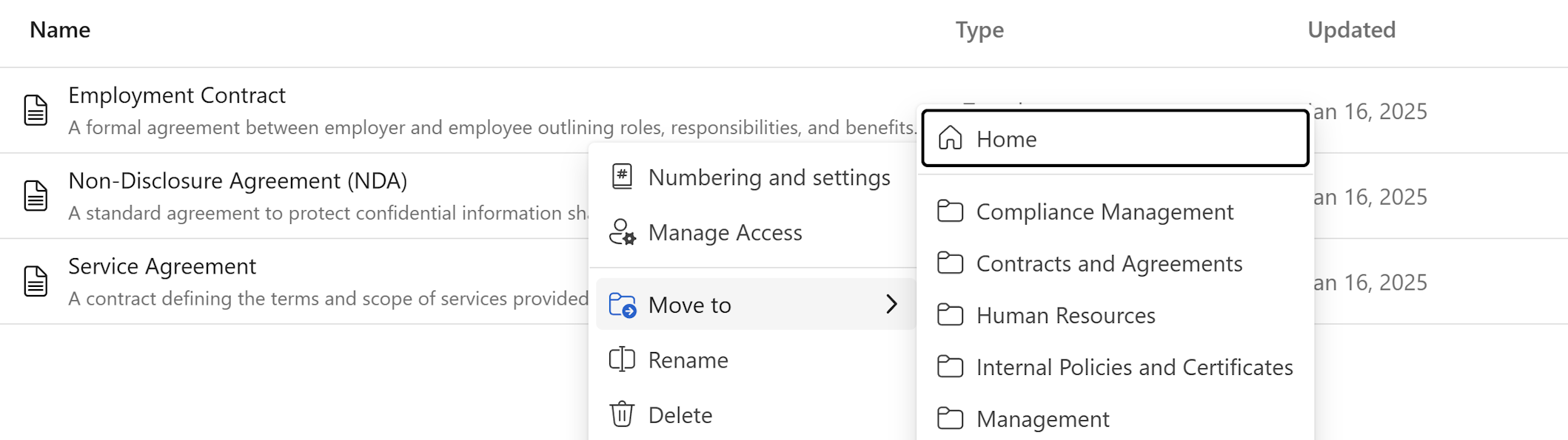
To move a snippet or template into a folder:
- Hover over the item in the content list and click the
⋯button. - Select
Move to. - Choose the destination folder from the list.
Managing folder access
Each folder has its own access list — users and groups assigned to a folder can see and use the content inside it. Snippets and templates inherit their permissions from the folder they're in, so there's no need to set access on individual items.
To update a folder's access list, open the folder and click Manage access in the top right toolbar. You can add or remove individual users and groups at any time.