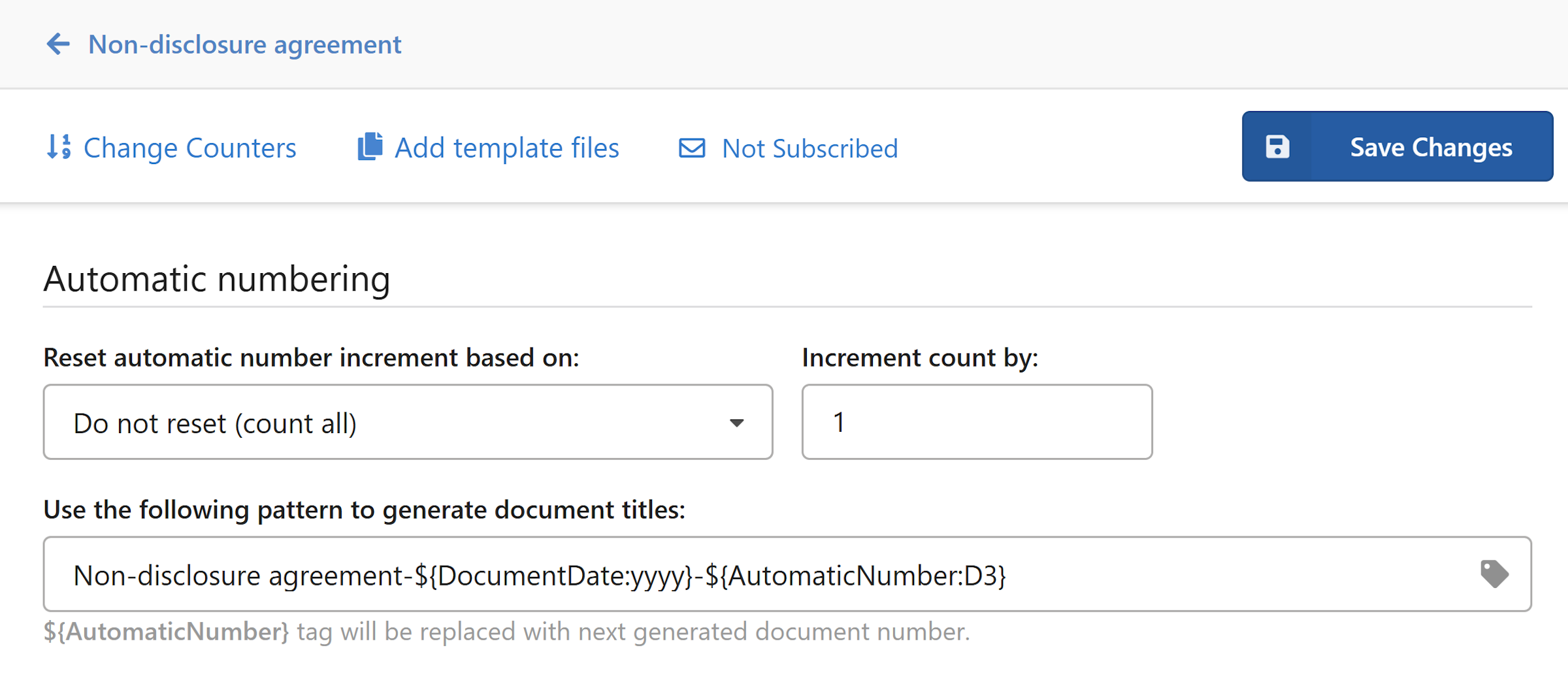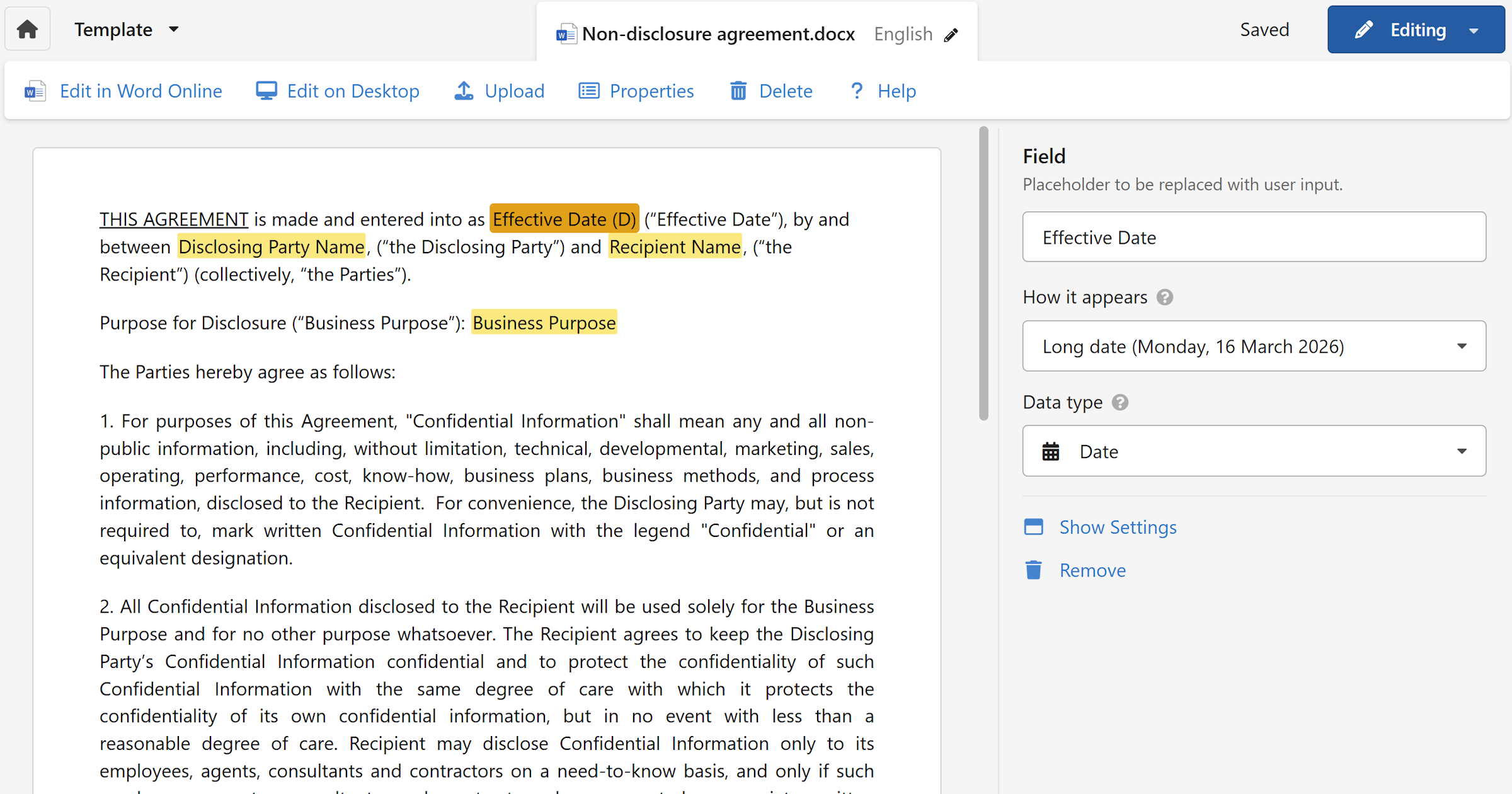
Once a template is created, you can update its file, rename it, adjust its properties, or delete it — all from within the template editor.
Upload a new version
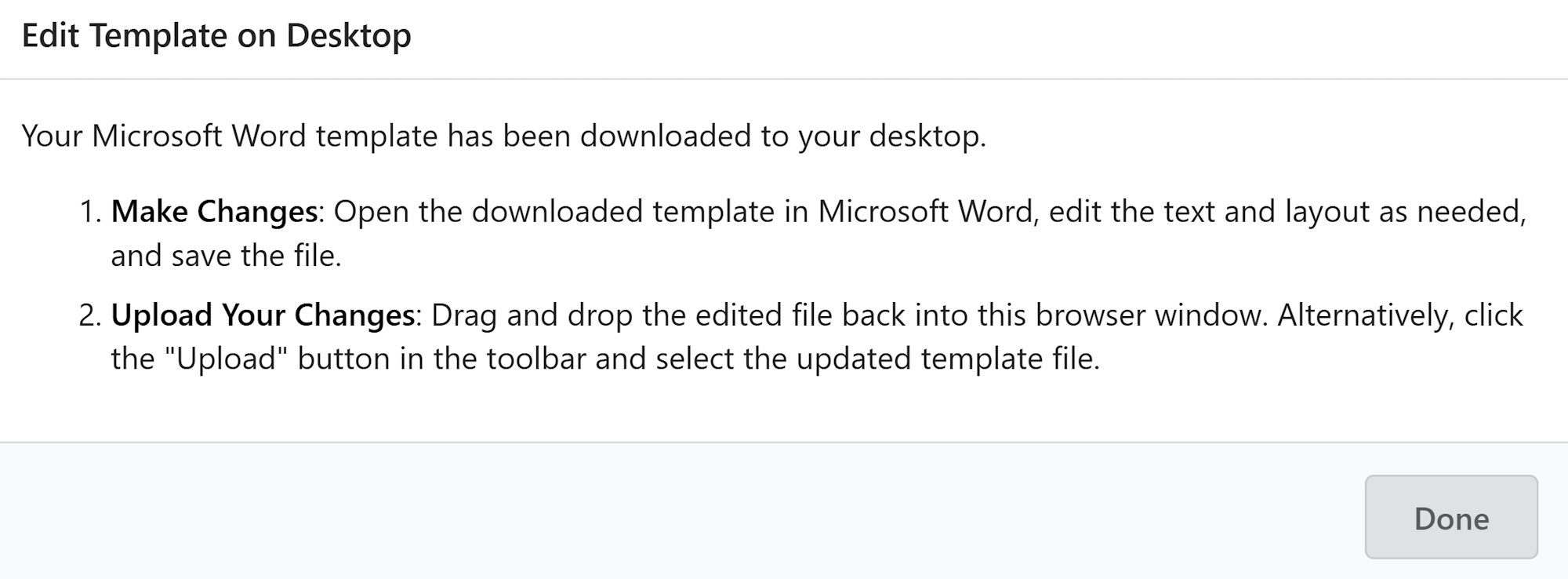
When you need to update the layout, content, or styling of a template, use the Edit on desktop flow. This downloads a version of the file with all merge fields preserved as ${FieldName} tags, so you can safely edit the document in Word or Excel without losing any fields.
- Open the template in the editor.
- In the template toolbar, click
Edit on desktop. - Open the downloaded file in Microsoft Word or Excel.
- Make your changes — update text, adjust styles, fix layout — without removing or renaming any
${FieldName}tags. - Save the file.
- Drag and drop the updated file back into the browser window, or click
Uploadin the template toolbar and select the file.
The template is updated with your changes and all existing fields are preserved.
Warning
Do not rename or delete ${FieldName} tags while editing in Word or Excel. Removing a tag removes that field from the template permanently.
Tip
If your workspace is connected to OneDrive or SharePoint, click Edit in Word Online in the toolbar to open and edit the file directly without downloading anything. Changes are synced back automatically.
Template properties
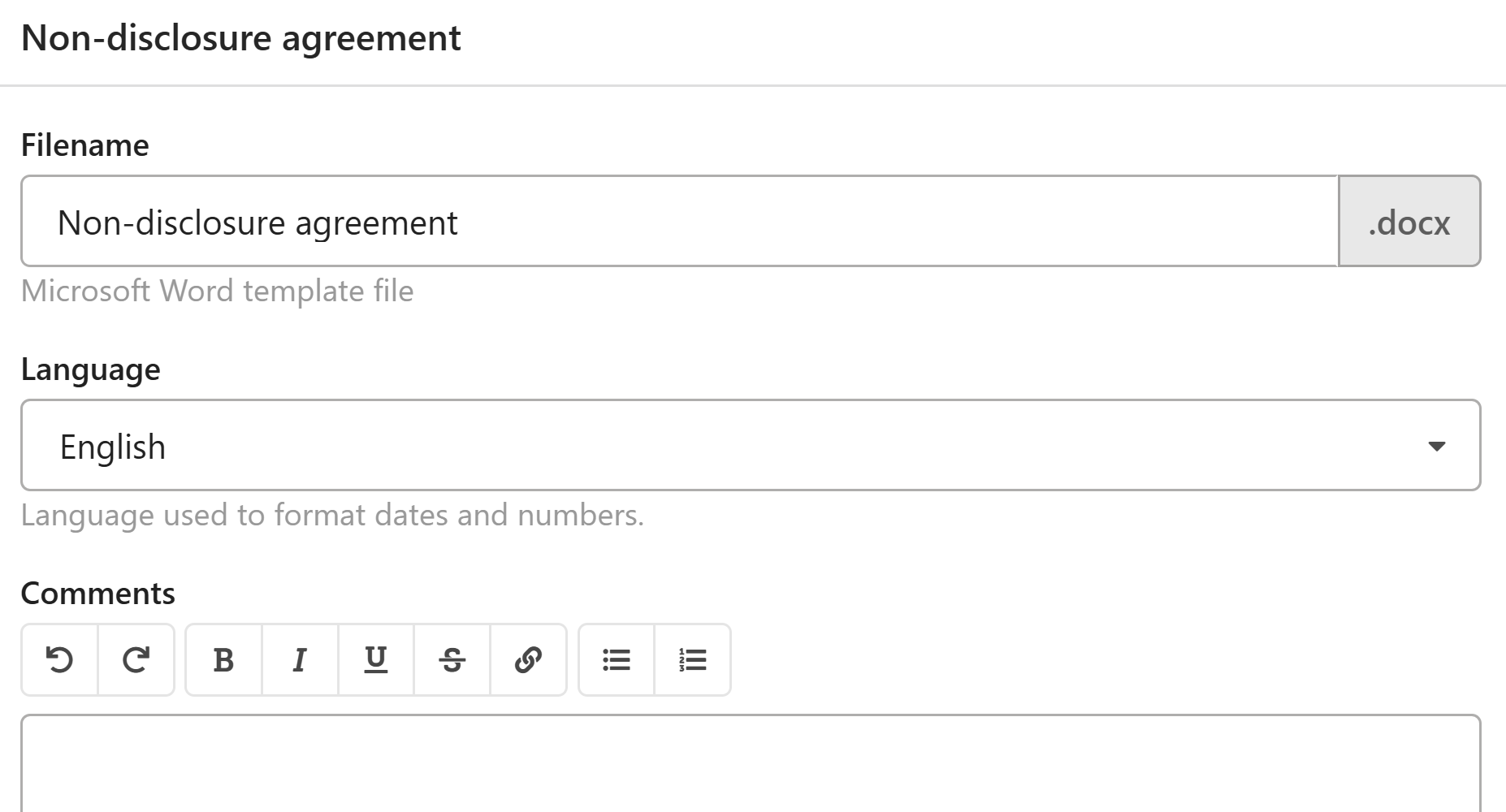
Properties let you configure file-level settings and add instructions for your team.
- In the template toolbar, click
Properties.
The properties dialog contains the following fields:
- Filename — the name of the current template file, for example
agreement.docx. - Language — the language used to format dates and numbers in generated documents. Set this to match the language your document is written in.
- Comments and notes — a free-text field for instructions or context about this template. Useful for letting teammates know how to fill out the form correctly, which fields are required, or any other guidance relevant to the template.
- Make your changes and click
Save.
Delete a template file
- In the template toolbar, click
Delete.
Warning
Deleting a template file is permanent. Previously generated documents are not affected, but the template will no longer be available for creating new documents.
Multiple template files
A template can contain more than one file — for example, separate language versions of the same document. You can switch between them using the template menu at the top left of the editor, under Template files.
This is an uncommon setup and not required for most teams. If you're just getting started, a single file per template is all you need.