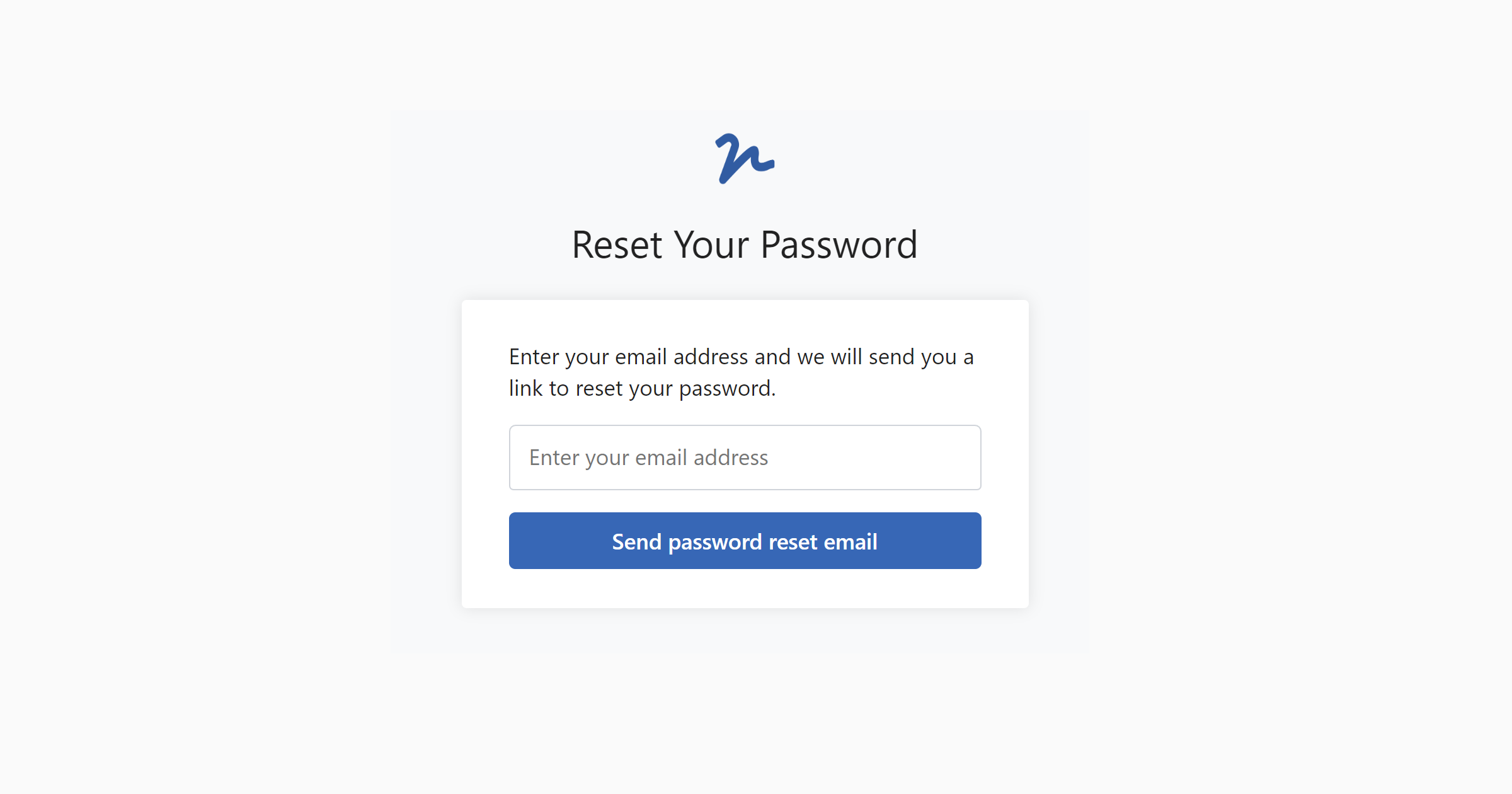
Reset a forgotten password or change your current password while signed in to WordFields.
Note
You'll need access to the email inbox associated with your WordFields account to complete a password reset.
Reset a forgotten password
- Go to wordfields.com/signin.
- Click the Forgot password? link below the email input field.
- Enter the email address linked to your WordFields account and click Send password reset email.
- Check your inbox for an email from WordFields containing a reset link. If it doesn't arrive within five minutes, check your spam or junk folder.
- Click the link in the email to open the password reset screen.
- Enter your email address and your new password, then retype it to confirm.
- Click Reset password.
You can now sign in using your new password.
Change your password while signed in
- Click the icon with your initials in the top-right corner of the navigation bar.
- Select My account from the menu.
- Click Change password.
- Enter the email address associated with your account and follow the same steps as above.
Didn't receive the reset email?
Check your spam or junk folder first. If you still can't find it, ask your IT department to whitelist emails from @wordfields.com. If you have trouble receiving your confirmation email, send us a message.
Never set a password?
If you registered with a Google or Microsoft account and never created a password, you can still use the password reset flow above to set one. Enter the email address you signed up with and follow the steps as normal.