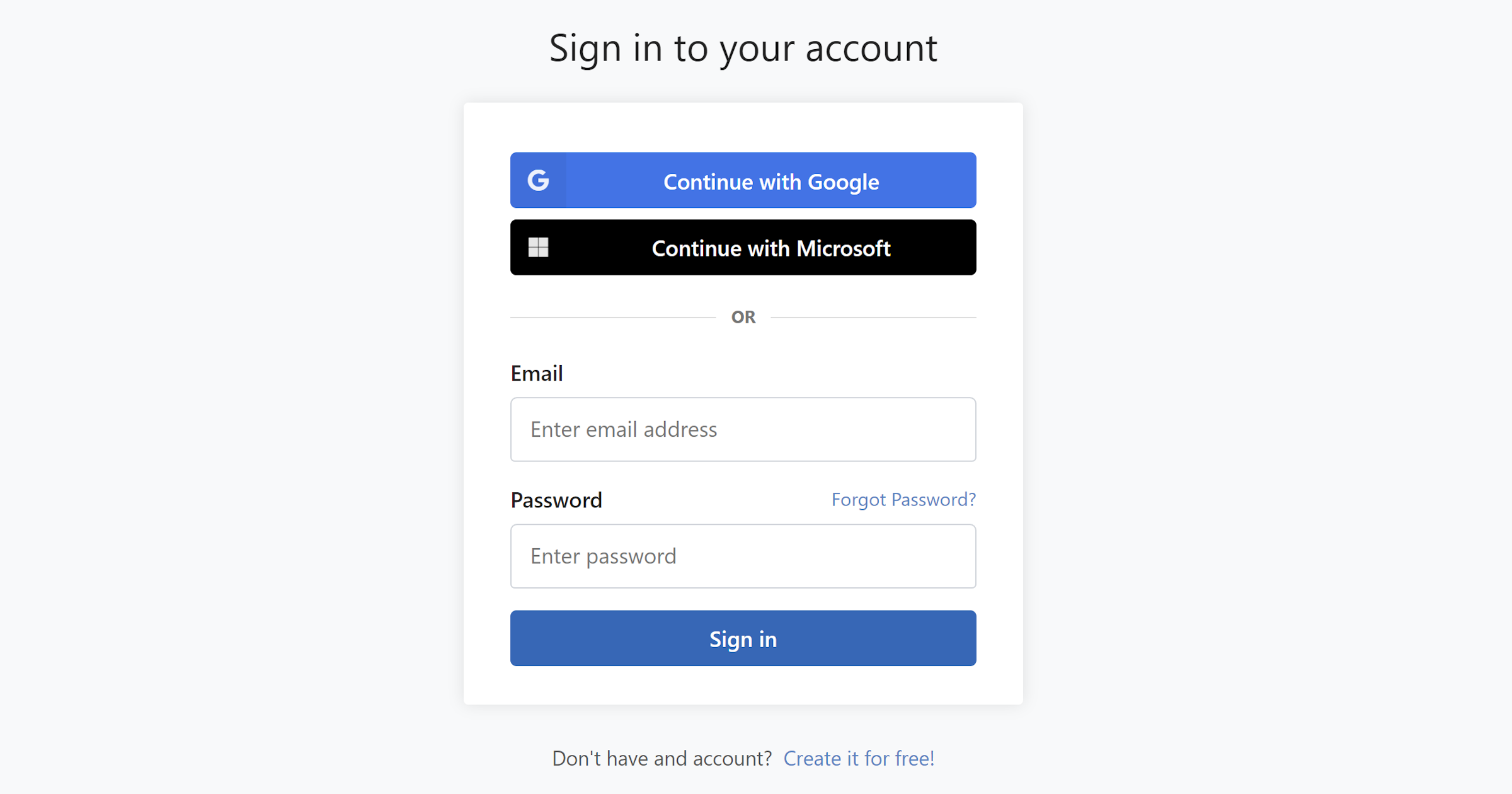
You can sign in to WordFields using an email and password, or through your existing Google or Microsoft account.
Sign in with email and password
- Open wordfields.com/signin in your browser.
- Enter your email address and password, then click Sign in.
- If prompted, check your inbox for an email from us and click the confirmation link.
- Select the workspace you want to open. If you're a member of only one workspace, you'll be taken there automatically.
Sign in with Google or Microsoft
- Open wordfields.com/signin in your browser.
- Click Continue with Google to use your Google account, or Continue with Microsoft to use your Microsoft or Office 365 account.
- Follow the prompts from Google or Microsoft to complete authentication.
- Select your workspace, or you'll be redirected there automatically if you only have one.
Trouble signing in?
Forgot your password
Go to the forgot password screen, enter the email address linked to your account, and follow the instructions to set a new one. See Reset your password for the full steps.
Didn't receive a sign-in confirmation email
Check your spam or junk folder. If the email still isn't there after a few minutes, ask your IT department to whitelist emails from @wordfields.com. If you still have trouble receiving your confirmation email, send us a message.