API keys let external applications and scripts authenticate with the WordFields REST API on behalf of your workspace — useful for integrations, document automation, or custom workflows.
Manage API keys
Note
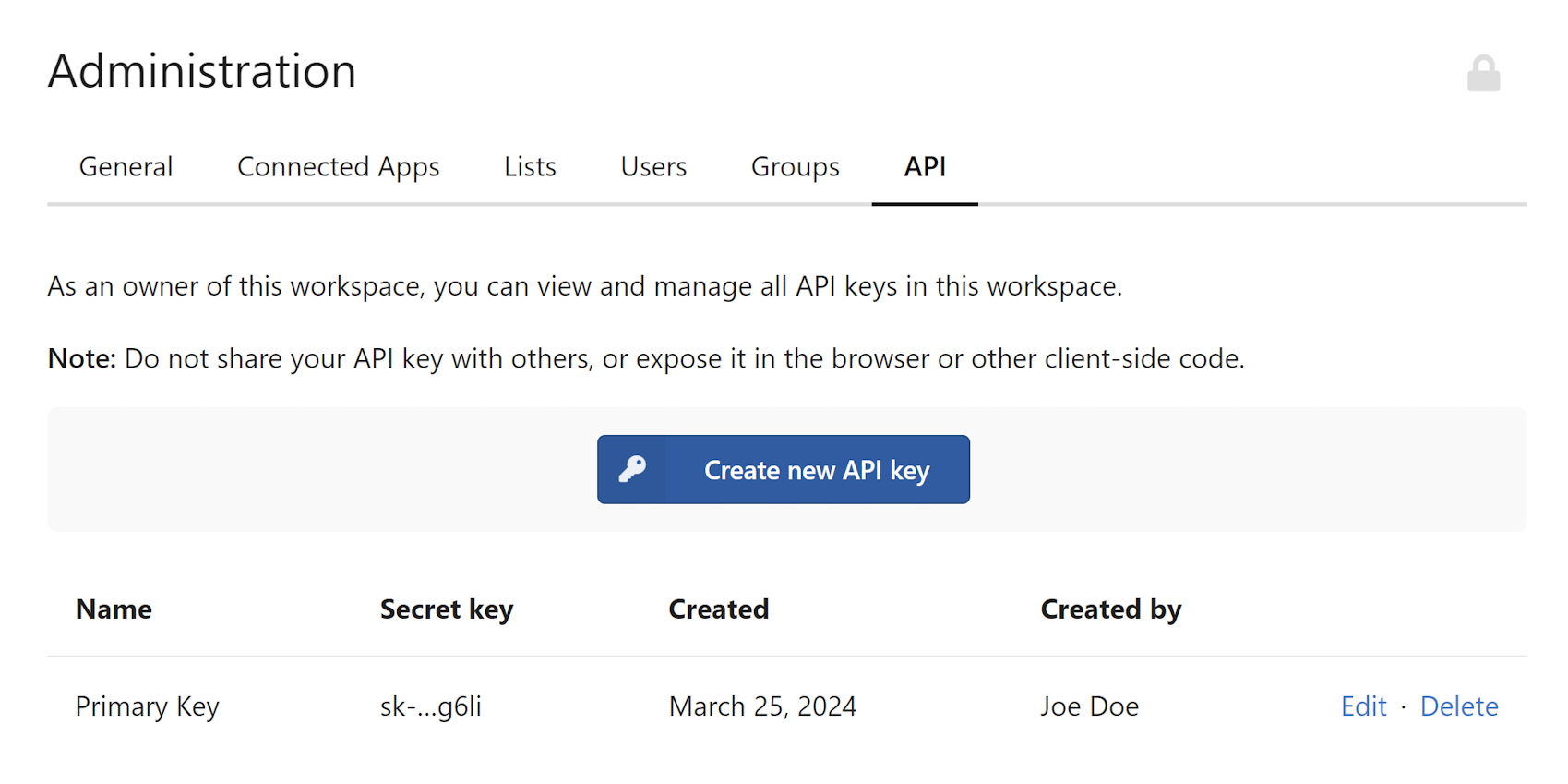
Only Administrators can create and manage API keys. If you don't see the API keys tab in workspace settings, your account doesn't have administrator privileges.
Warning
Do not share your API key with others or expose it in the browser or other client-side code.
Create an API key
- Click the cogwheel icon in the top-right corner of the navigation bar.
- Select Workspace Settings from the menu.
- Click the API keys tab at the top of the settings page.
- Click Create API key.
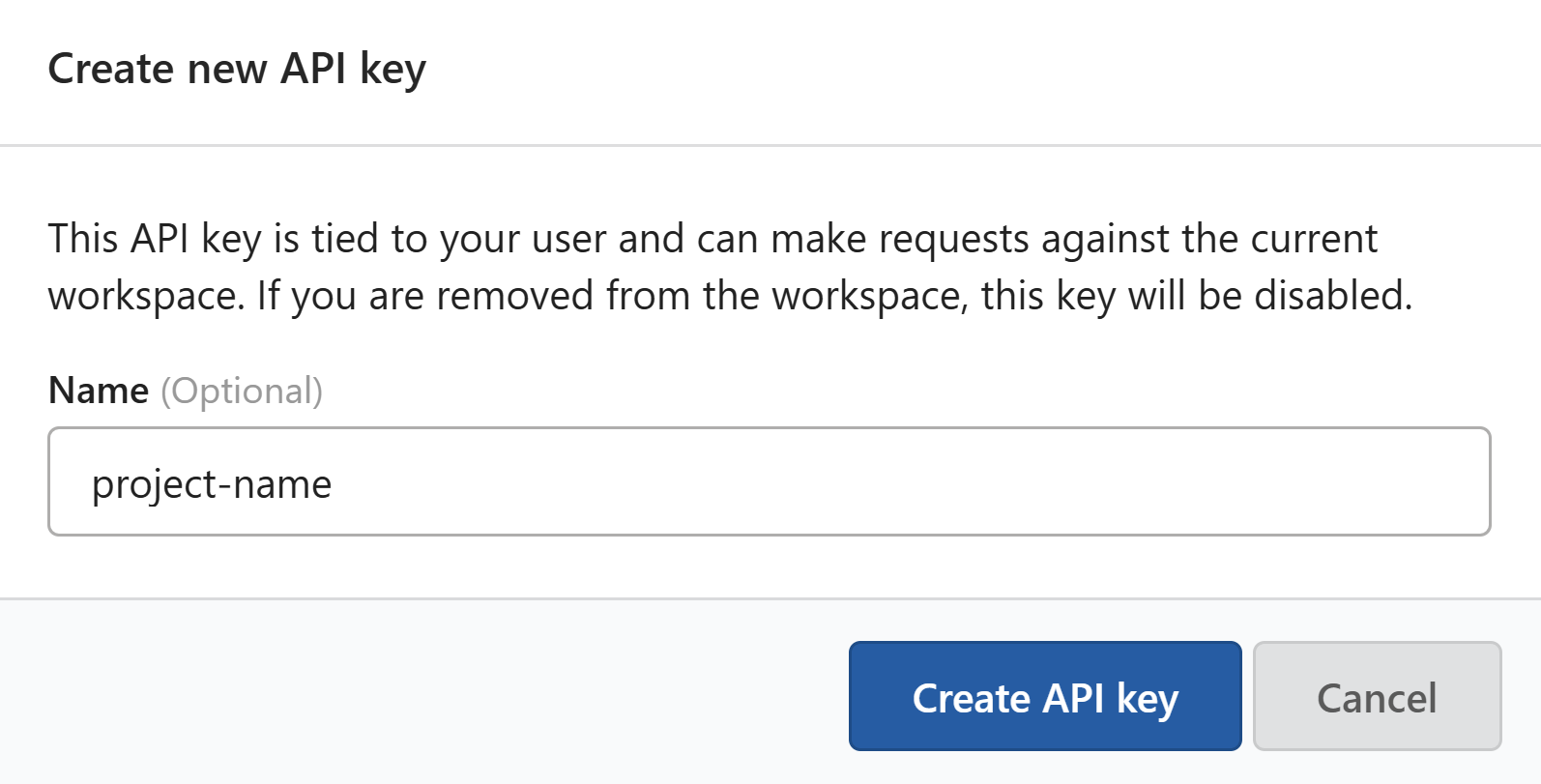
- In the dialog that opens, enter a descriptive name in the Name field — something that identifies what the key will be used for, such as
Zapier integrationorDocument automation script. - Click Create API key.
The key is generated and added to the list. Copy the secret key immediately and store it somewhere secure, such as a password manager or your application's environment variables.
Warning
Each API key is tied to your user account. If you are removed from the workspace, all keys you created will be disabled automatically.
Rename an API key
You can update the name of an existing key at any time — for example, to better reflect what it's currently used for.
- On the API keys screen, find the key you want to rename.
- Click Edit to the right of the key.
- Update the Name field.
- Click Save changes.
Note
Renaming a key does not affect the secret key value or any integrations using it.
Revoke an API key
If a key is no longer needed or may have been compromised, delete it immediately.
- On the API keys screen, find the key you want to remove.
- Click Delete to the right of the key.
- Confirm the action when prompted.
Any application or script using that key loses access immediately. If the integration is still needed, create a new key and update your application with the new secret.
Warning
Deleting a key is permanent and cannot be undone.
Keep API keys organised
If you use the API across multiple integrations or environments, give each one its own dedicated key. That way, if one key needs to be revoked — say, when an integration is retired or a contractor's access ends — you can remove just that key without affecting anything else.
For full details on available endpoints, request formats, and response examples, see the API reference.