Shared values are workspace-wide placeholders that fill in automatically across any snippet or template — no user input needed. Define them once and reuse them on any snippet or template.
Workspace shared values
When a shared value is used as a merge tag in a snippet or template, it fills in automatically without any user input. If the value ever changes, you update it in one place and it reflects everywhere immediately.
Common examples include company name, registered address, support email, phone number, website, VAT number, and company registration number.
Note
Only Admins can add, edit, or delete shared values. Managers and Members can use existing shared values in snippets and templates but cannot manage them.
Opening shared values

- Click the cog icon in the top right corner of the workspace toolbar.
- Select
Workspace Settings. - In the Preferences section, click
Edit workspace values.
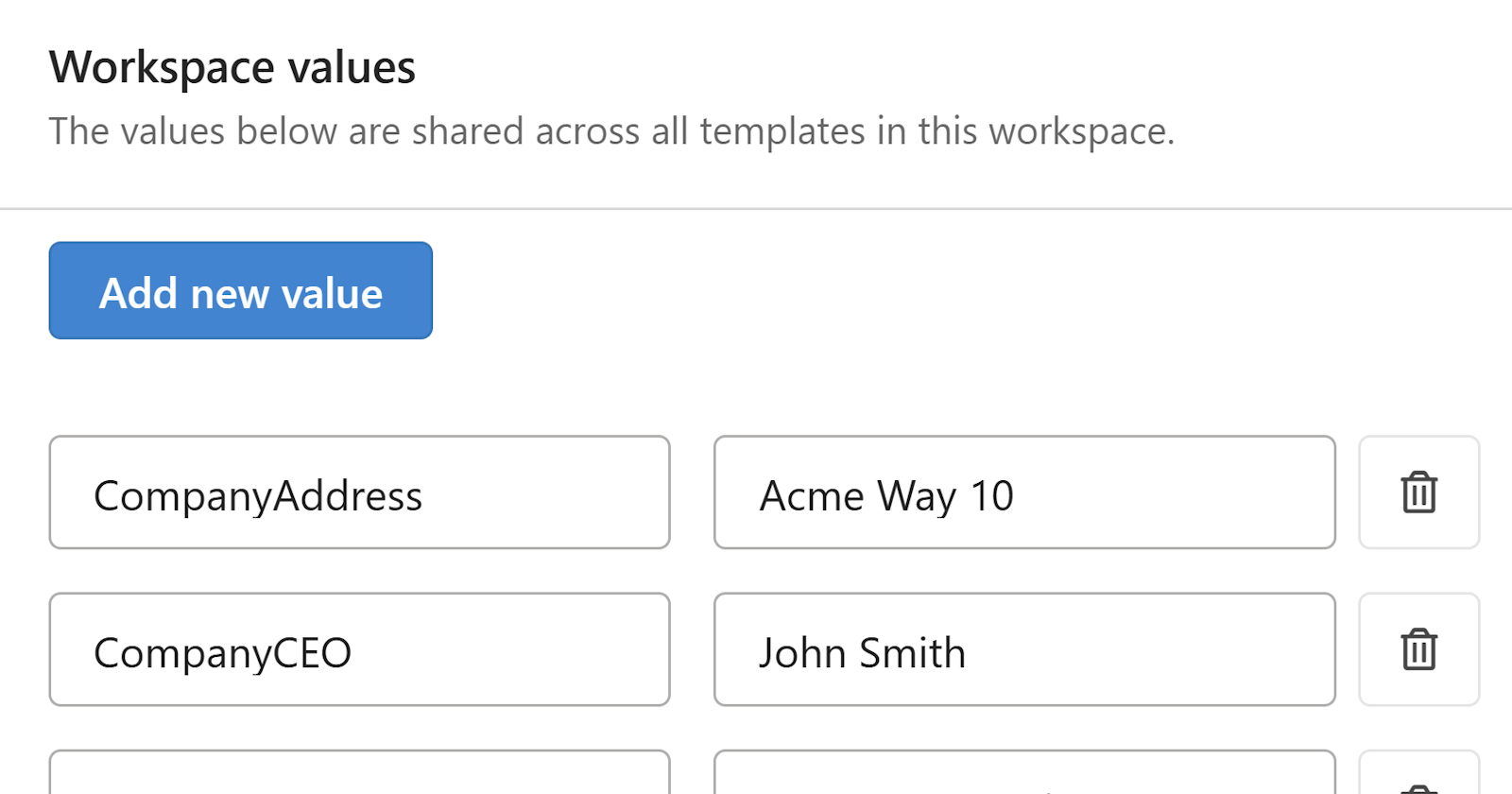
The Workspace values dialog opens showing all existing shared values.
Adding and editing shared values
- In the Workspace values dialog, click
Add new valueto add a new row. - Enter a Name — this is the identifier used to reference the value in merge tags (e.g.
CompanyName). - Enter the Value — the actual text that will be inserted (e.g.
Acme Corporation). - To edit an existing value, update the Name or Value field directly in the list.
- Click
Savewhen you're done.
[!TIP] Use clear, descriptive names for your values. Names like
CompanyAddressorSupportEmailare easier for your team to find in the merge tag menu than short abbreviations.
[!WARNING] If you change the Name of a shared value, any snippets or templates that reference the old name via merge tag will stop populating correctly. You'll need to update those merge tags manually to use the new name.
Deleting a shared value
- Open the Workspace values dialog.
- Click the trash icon next to the value you want to remove.
- Click
Save.
Warning
Deleting a shared value will cause any merge tags referencing it to appear blank in snippets and templates. Make sure the value is no longer in use before deleting it.
Using shared values in snippets and templates
Once a shared value is defined, it can be inserted as a merge tag anywhere in a snippet or template.
- In snippets: Click
Insert merge tag → Workspacein the snippet editor toolbar and select the value from the list. See Adding merge tags to snippet for details. - In templates: Add the merge tag using the template designer. See Adding merge tags to templates for details.