Learn how to create a reusable text or email snippet in WordFields — write it once, and your whole team can use it instantly.
Create a snippet
Snippets are reusable pieces of text — a support reply, a meeting follow-up, a standard intro paragraph — that you write once and reuse whenever you need them. Anyone on your team with access can insert a snippet directly into an email, message, or any other text field in the browser.
Note
You need an Admin or Manager role to create snippets. If you don't see the + Create new button in the sidebar, ask your workspace administrator to check your role.
Step 1: Open the snippet editor
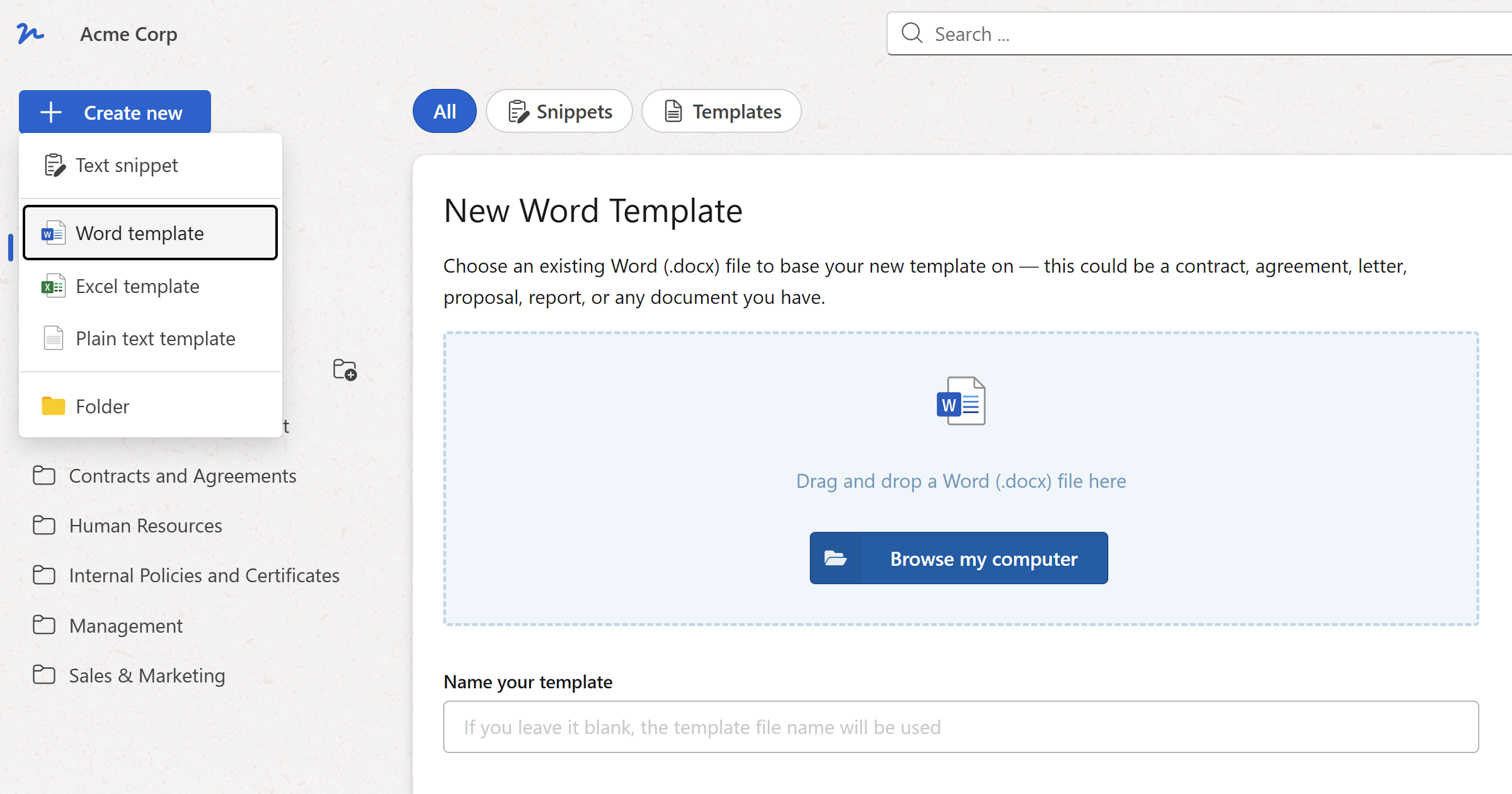
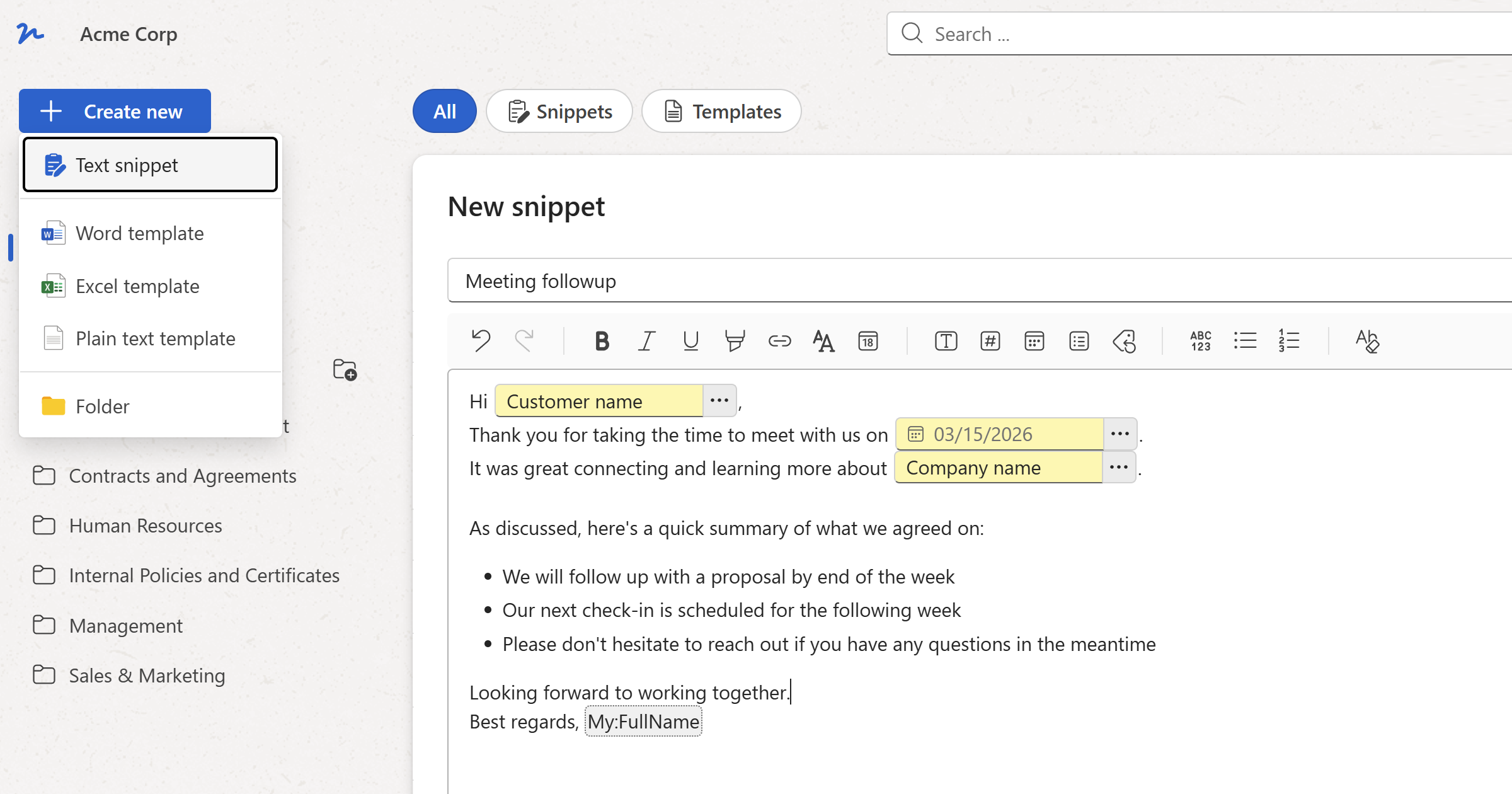
- Click
+ Create newin the left sidebar. - Select
Text snippetfrom the menu.
The snippet editor opens as a dialog.
Step 2: Give your snippet a name
- Click the name field at the top of the editor.
- Type a short, descriptive label — for example,
Support closing messageorSales intro paragraph.
Tip
Your team will search and browse snippets by name, so be specific. Follow-up email — no response is more useful than just Follow-up.
Step 3: Write your content
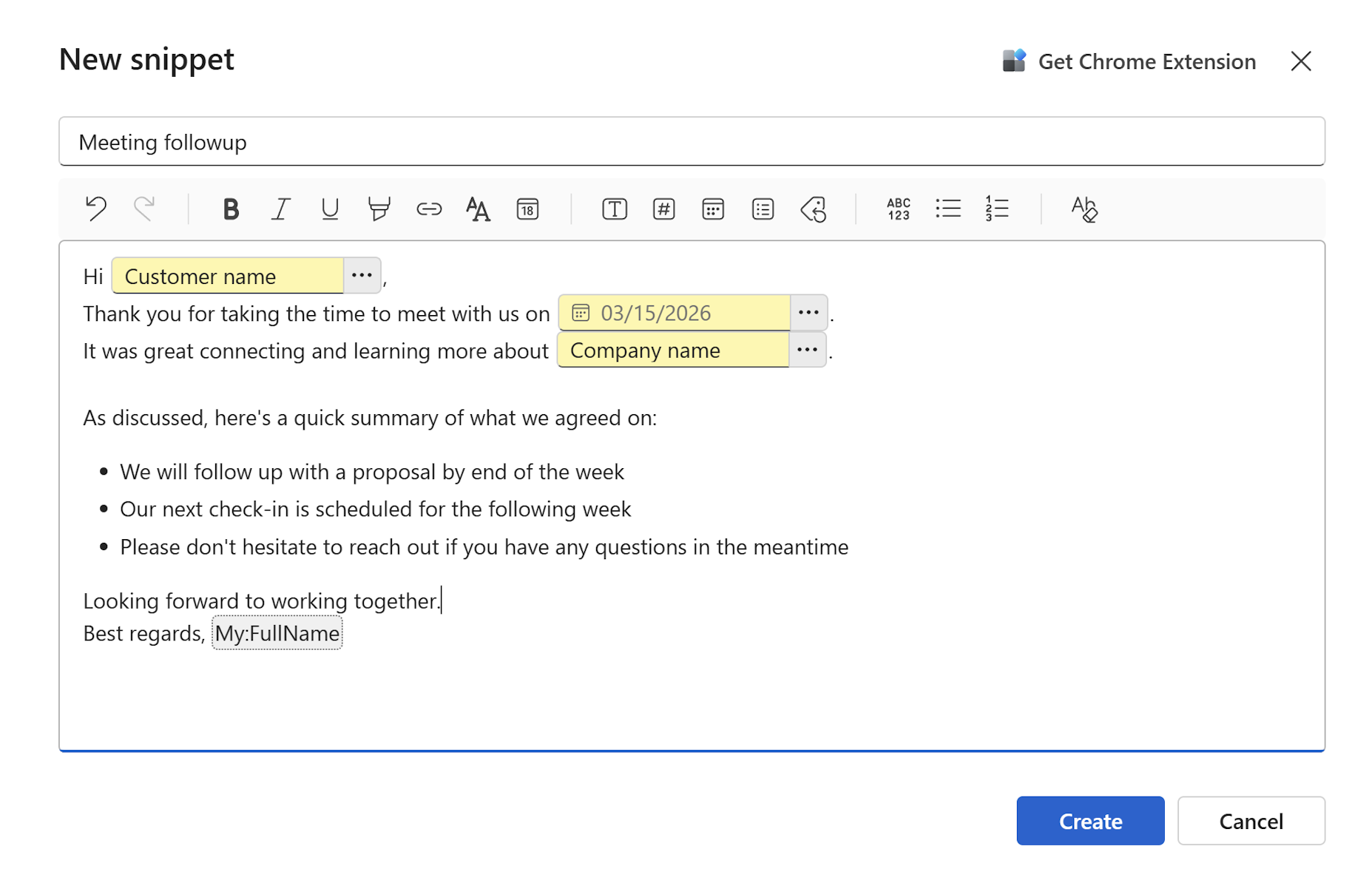
Click inside the editor body and type or paste your text. Use the toolbar to format it — bold, italic, underline, text color, and links are all supported.
If parts of your snippet will change each time it's used — a customer name, a date, a specific amount — you can mark those spots as fillable fields. Place your cursor where the field should appear and click the Insert text field button in the toolbar (or press Ctrl+M). A field placeholder appears inline, and whoever uses the snippet fills it in before inserting. For number fields, date pickers, dropdowns, and more, see Fillable fields in snippets.
When done, click Create at the bottom of the editor.
Step 4: Use the snippet
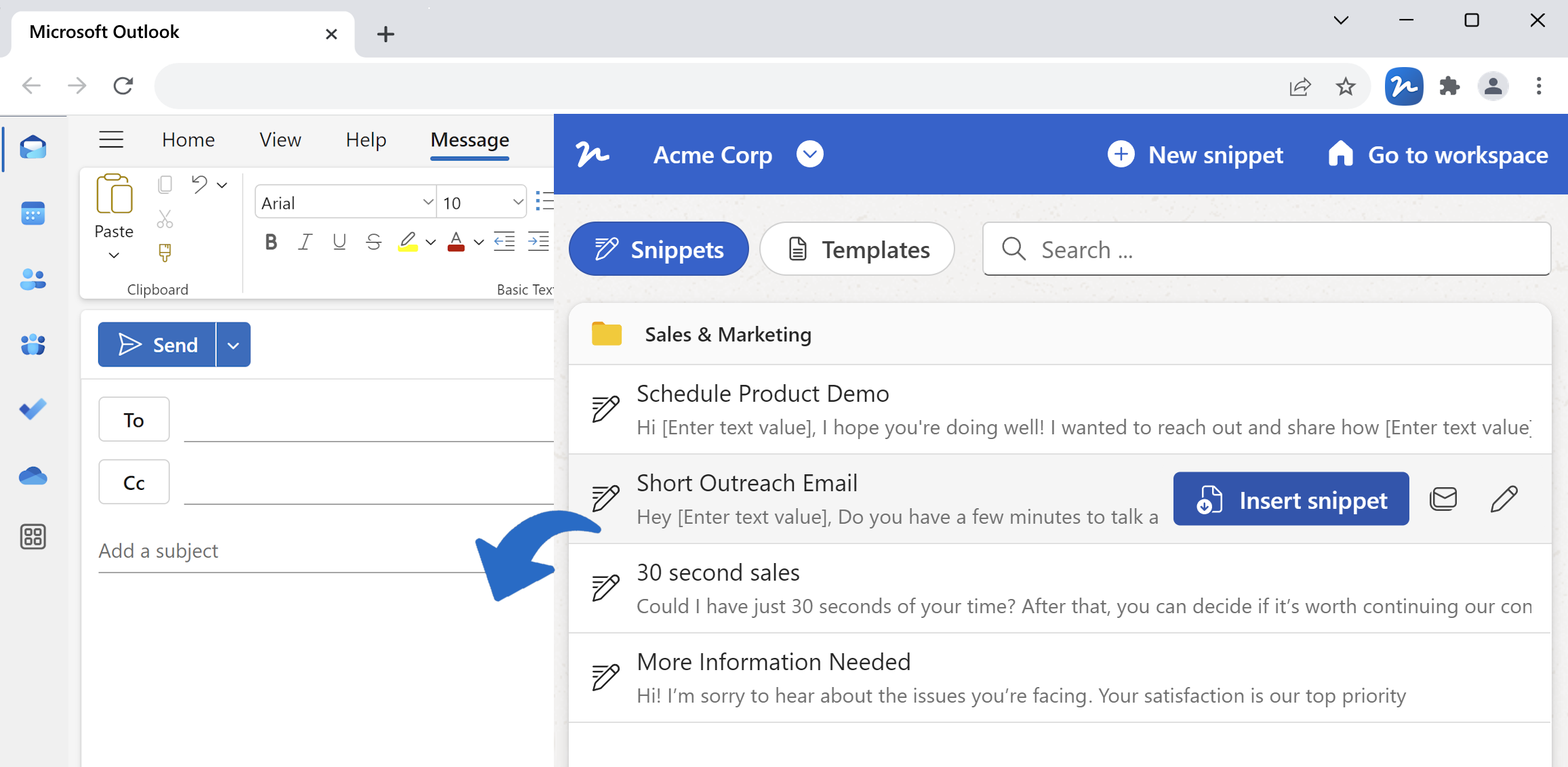
Any team member with access can open this snippet, fill in the fields and copy it straight to their clipboard. From there, paste it into any email client like Gmail, Outlook, or Apple Mail, or into a CRM, help desk, or any other tool.
If you have the WordFields Chrome Extension installed, you can insert it directly without switching tabs.
Learn more
- Make it dynamic — Add fillable fields and merge tags to your snippets.
- Share it with your team — Organize snippets into folders and manage who has access.
- Use it instantly anywhere — Use the Chrome Extension to insert snippets directly into Gmail, your CRM, or any web-based text field.