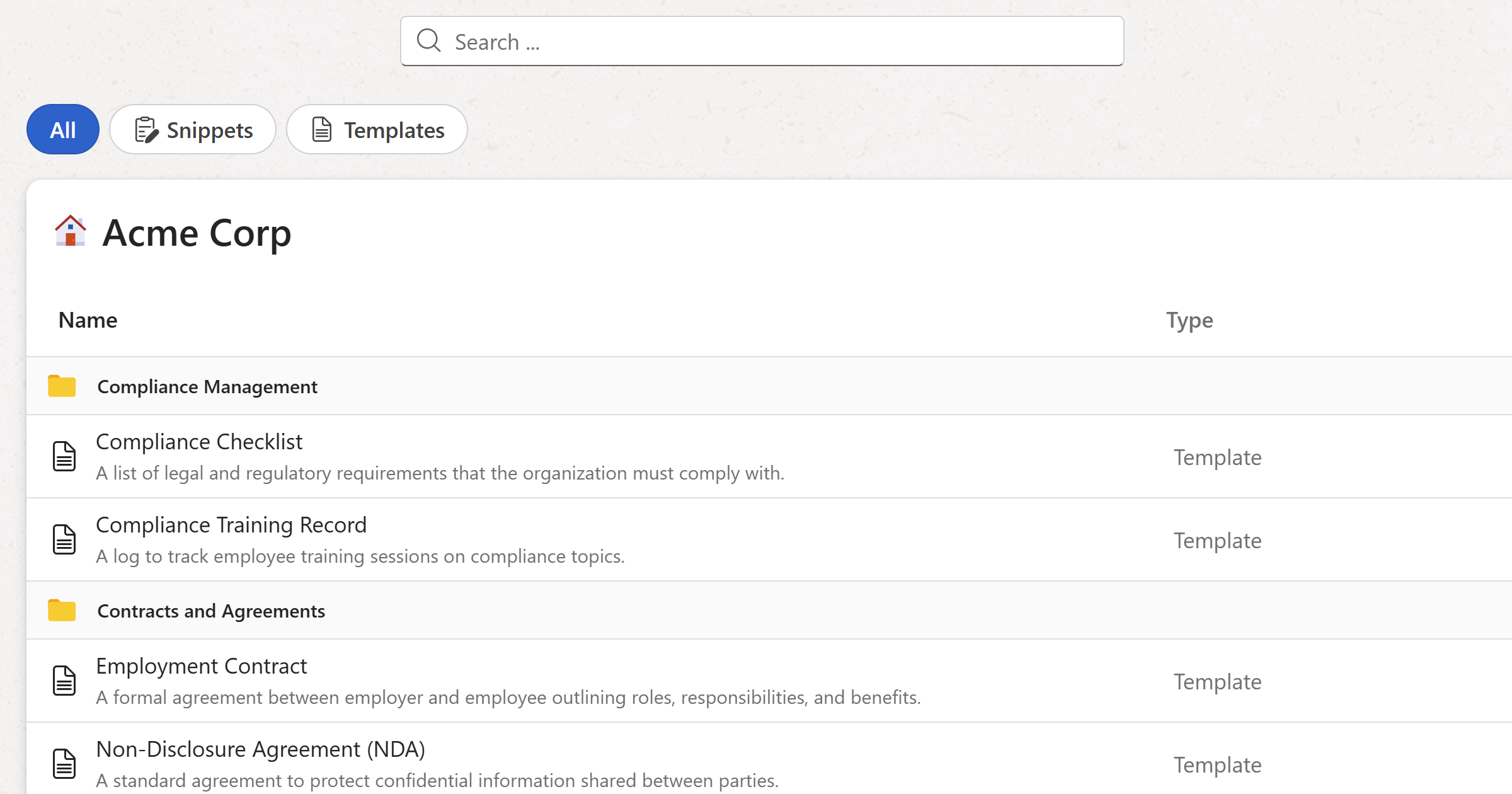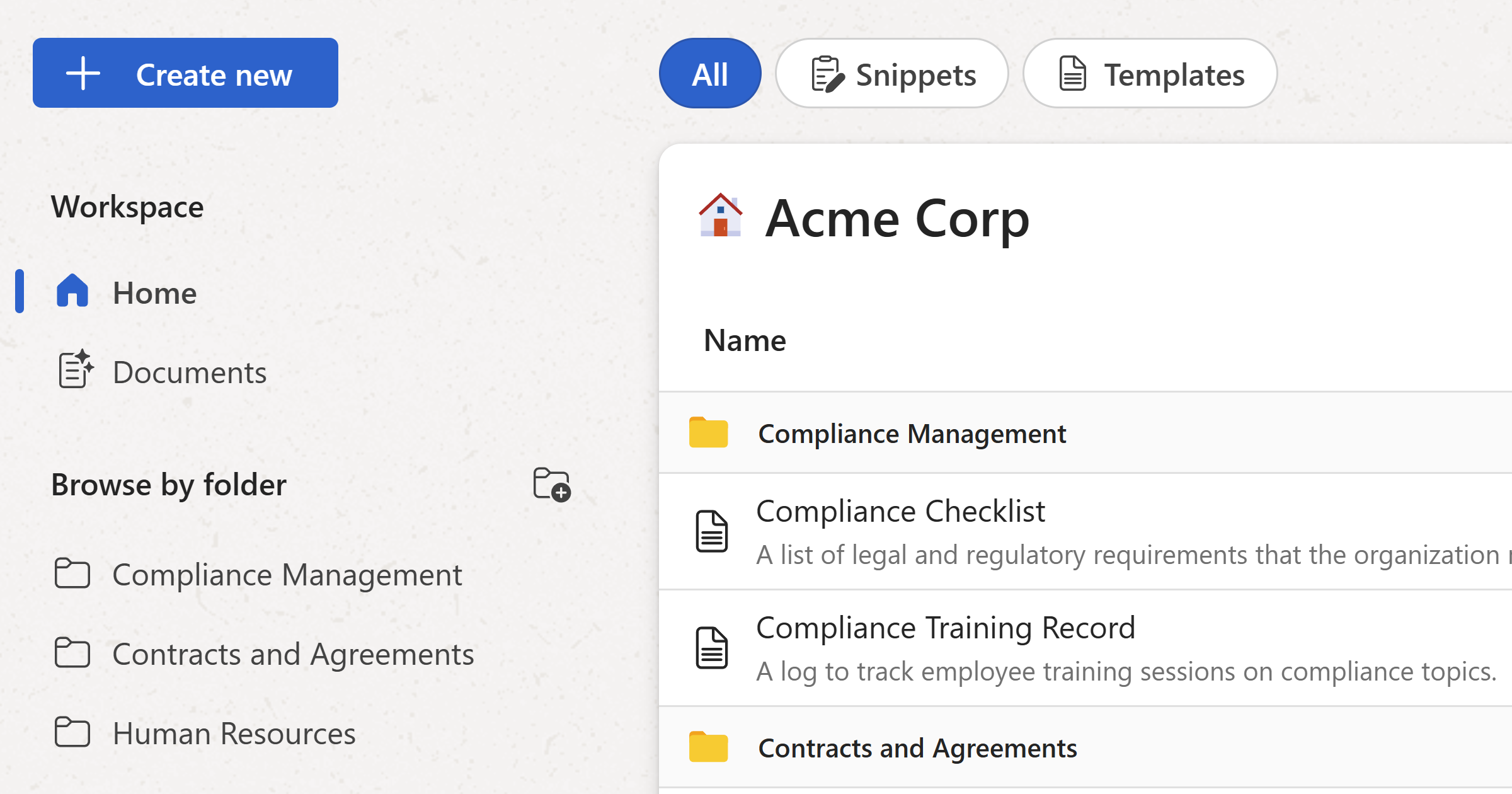
The left sidebar is your main way to get around your workspace — everything you need to browse your content, jump between folders, and create new snippets and templates is right there on the left. 📂
Create new
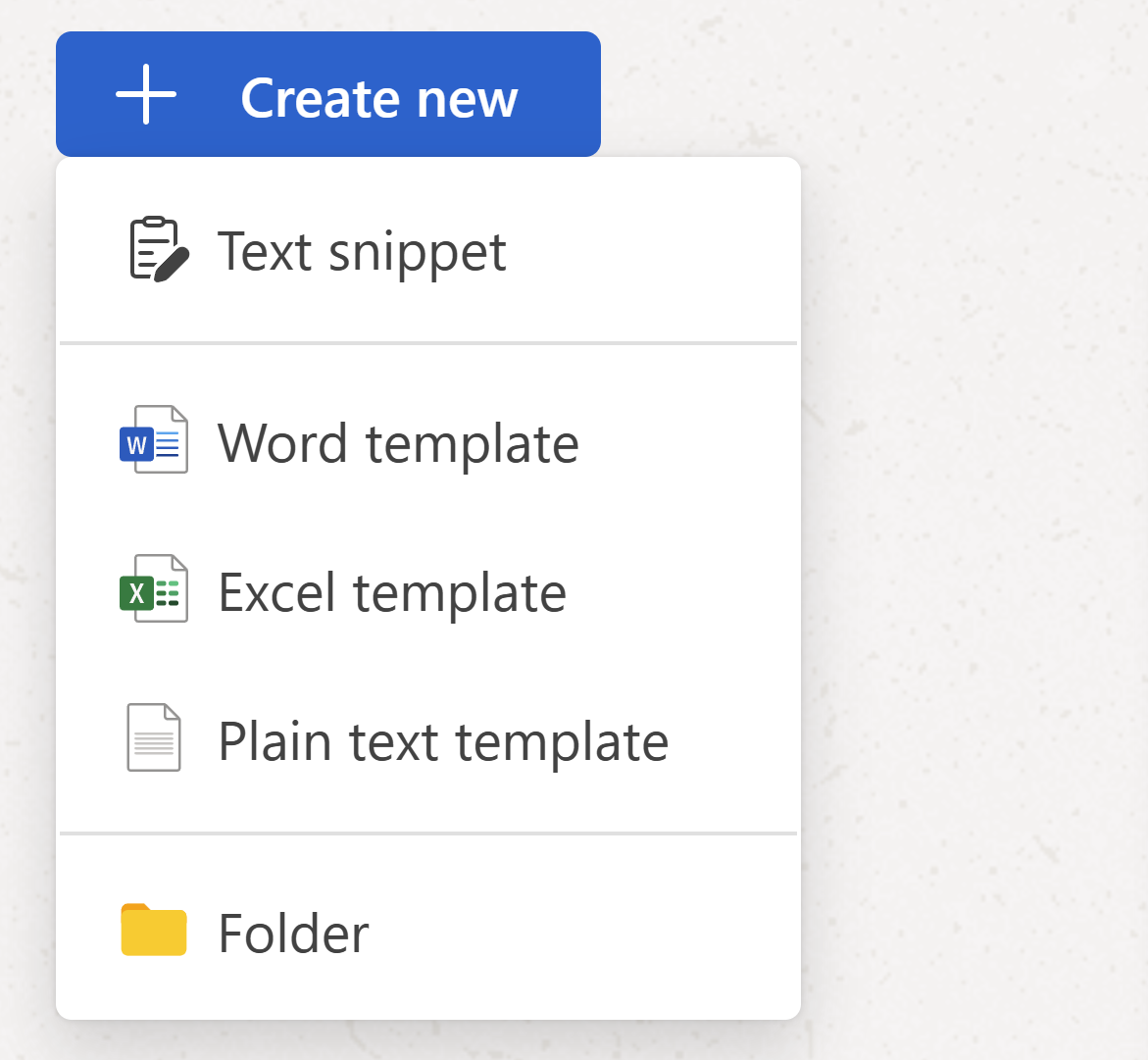
The + Create new button at the top of the sidebar opens a menu with everything you can add to the workspace:
- Text snippet — A reusable rich text block with optional fillable fields.
- Word template — Upload a
.docxfile and add merge fields to generate dynamic Word documents. - Excel template — Upload a
.xlsxfile with fillable fields and formulas. - Plain text template — A template for plain text, JSON, or Markdown files.
- Folder — Creates a new folder to organize your content.
Note
The + Create new button is only visible to Admins and Managers. Members don't see this option.
Workspace
Below the + Create new button there is a Workspace section with two navigation items:
- Home — Returns you to the workspace home screen, which shows all snippets and templates you have access to across all folders.
- Documents — A chronological list of all documents generated from templates in this workspace, with the most recent at the top. Click any document to see its metadata in the sidebar. You can filter the list by template to find documents from a specific one.
Note
WordFields doesn't store the generated document files themselves — they are downloaded automatically when created. The Documents list shows activity and metadata only.
Browse by folder
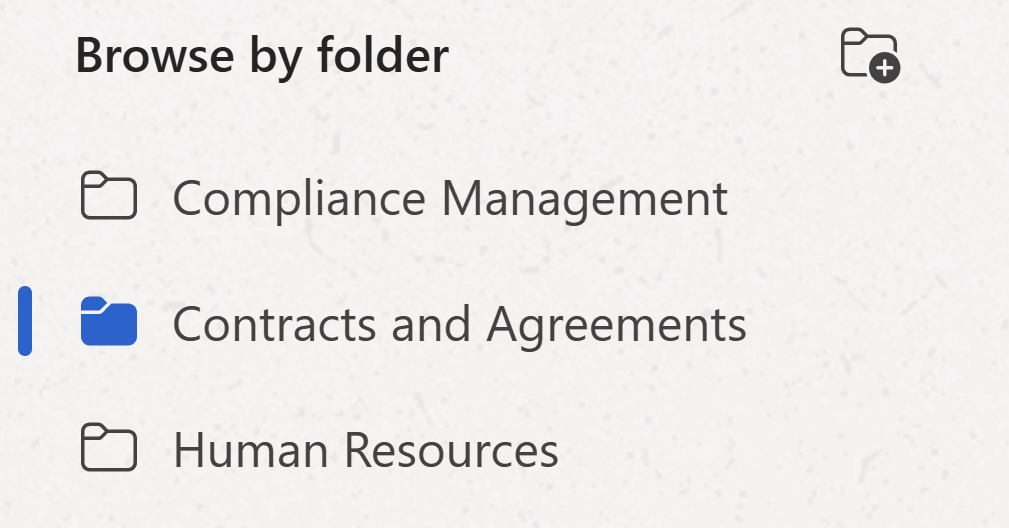
The Browse by folder section lists every folder you have access to. Click any folder to load its contents in the main area. The selected folder is highlighted so you always know where you are.
Note
You can only see folders you've been given access to. If you're missing a folder, ask your workspace Admin to check your permissions.
Admins and Managers can create a new folder directly from the sidebar by clicking the folder icon next to the Browse by folder label.