WordFields lets you belong to multiple workspaces at once — each with its own content, members, and settings, and a different role for you in each. 🔄
Use multiple workspaces
Some common reasons to use multiple workspaces:
- Personal and work — Keep your own reusable snippets in a personal workspace while also being a member of your company's workspace.
- Multiple clients or companies — If you work across different organisations, each one can have its own workspace with its own team and content.
- Separate departments — Large teams sometimes prefer to keep department content fully isolated rather than managing it all through folder access.
Switching workspaces
- Click your account initials button in the top right corner of the workspace.
- Select
My workspacesfrom the menu. - Click any workspace from the list to switch to it.
Creating an additional workspace
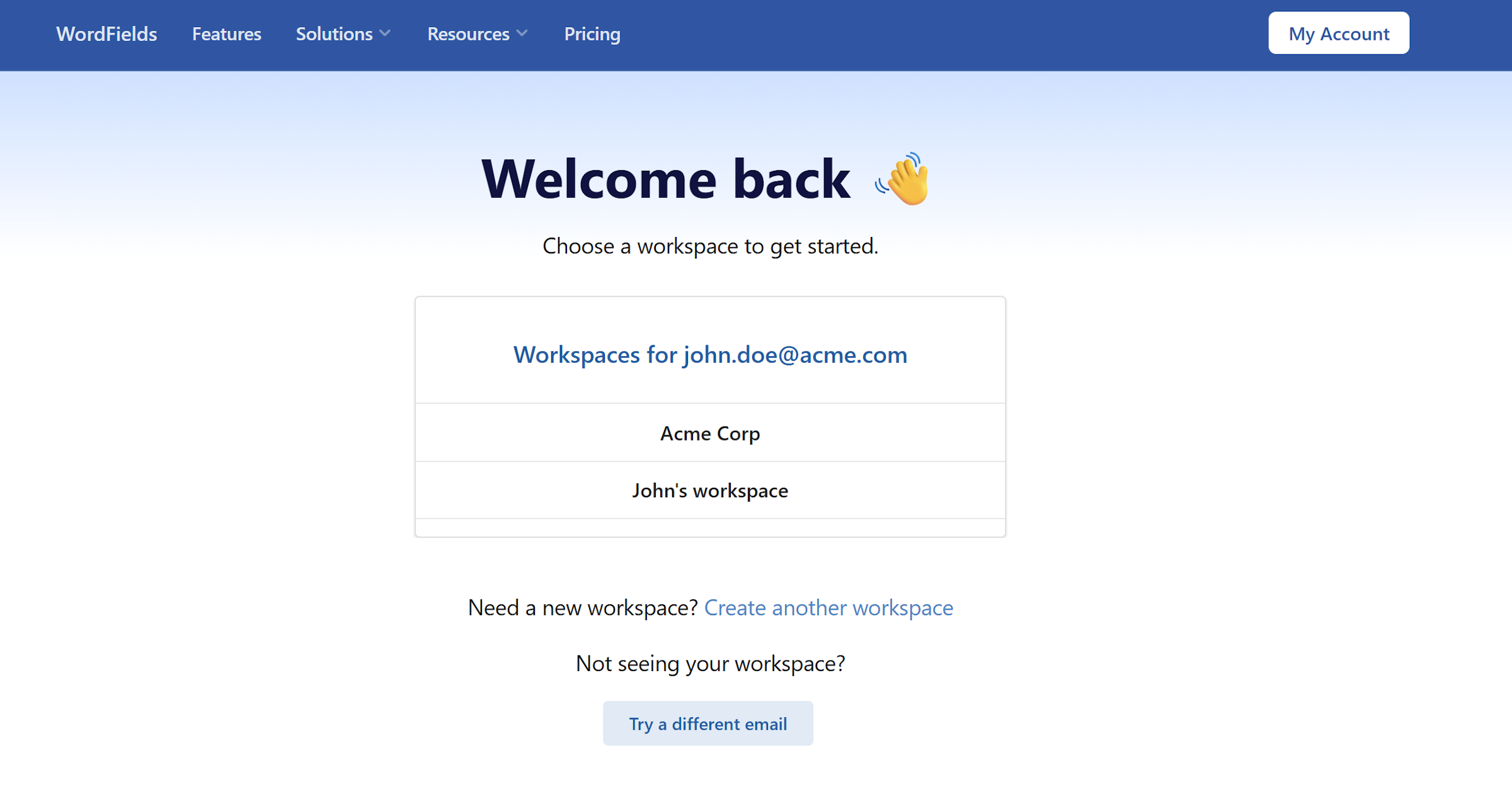
- Click the WordFields logo in the top left corner. This takes you to the index page where all your workspaces are listed.
- At the bottom of the list, look for "Need a new workspace?" and click
Create another workspace. - Enter a workspace name and click
Create workspace.
You are automatically assigned the Admin role in any workspace you create.
Tip
If you're setting up a personal workspace just for yourself, you don't need to invite anyone or configure folder access — just create it and start adding snippets.