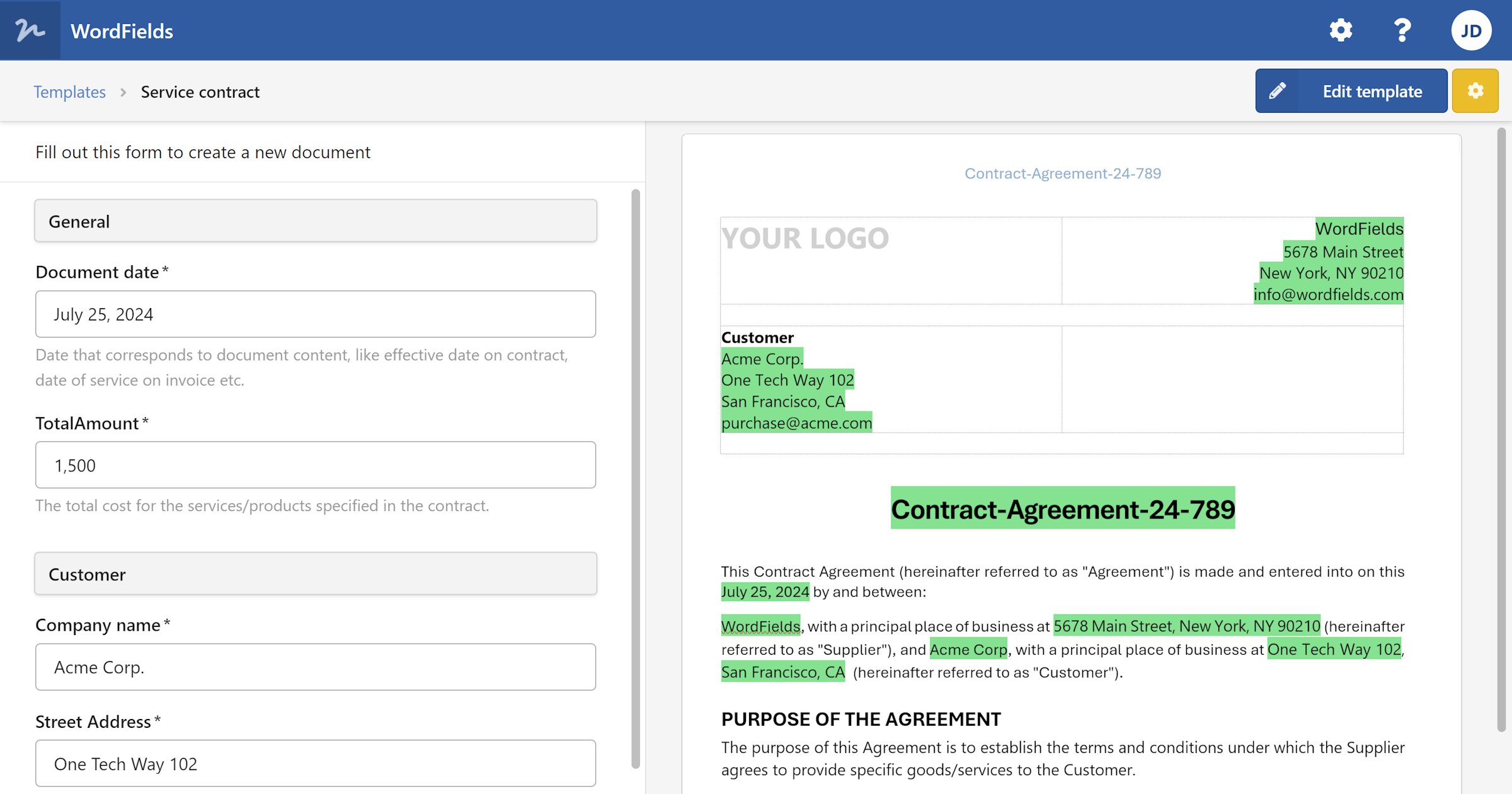
Merge tags are placeholders that are automatically populated with a value when a document is generated — unlike fillable fields, which require the user to type something in. Use them for values that are always known ahead of time.
Standard tags
Standard tags pull in values tied to the person generating the document, the workspace, or the document itself.
| Tag | Inserts |
|---|---|
Author |
Name of the person who created the template |
AutomaticNumber |
Sequential number assigned based on the template's numbering settings |
DocumentDate |
Date of the document |
DocumentId |
Unique identifier assigned to the generated document |
Organization |
Organisation name set in workspace settings |
Title |
Title of the document |
User: EmailAddress |
Email address of the person generating the document |
User: FullName |
Full name of the person generating the document |
Workspace values
Workspace values are shared key-value pairs defined by an Admin in workspace settings — things like a company address, bank account number, or a standard legal clause that appears across multiple templates. Once defined, they're available as merge tags in every template in the workspace.
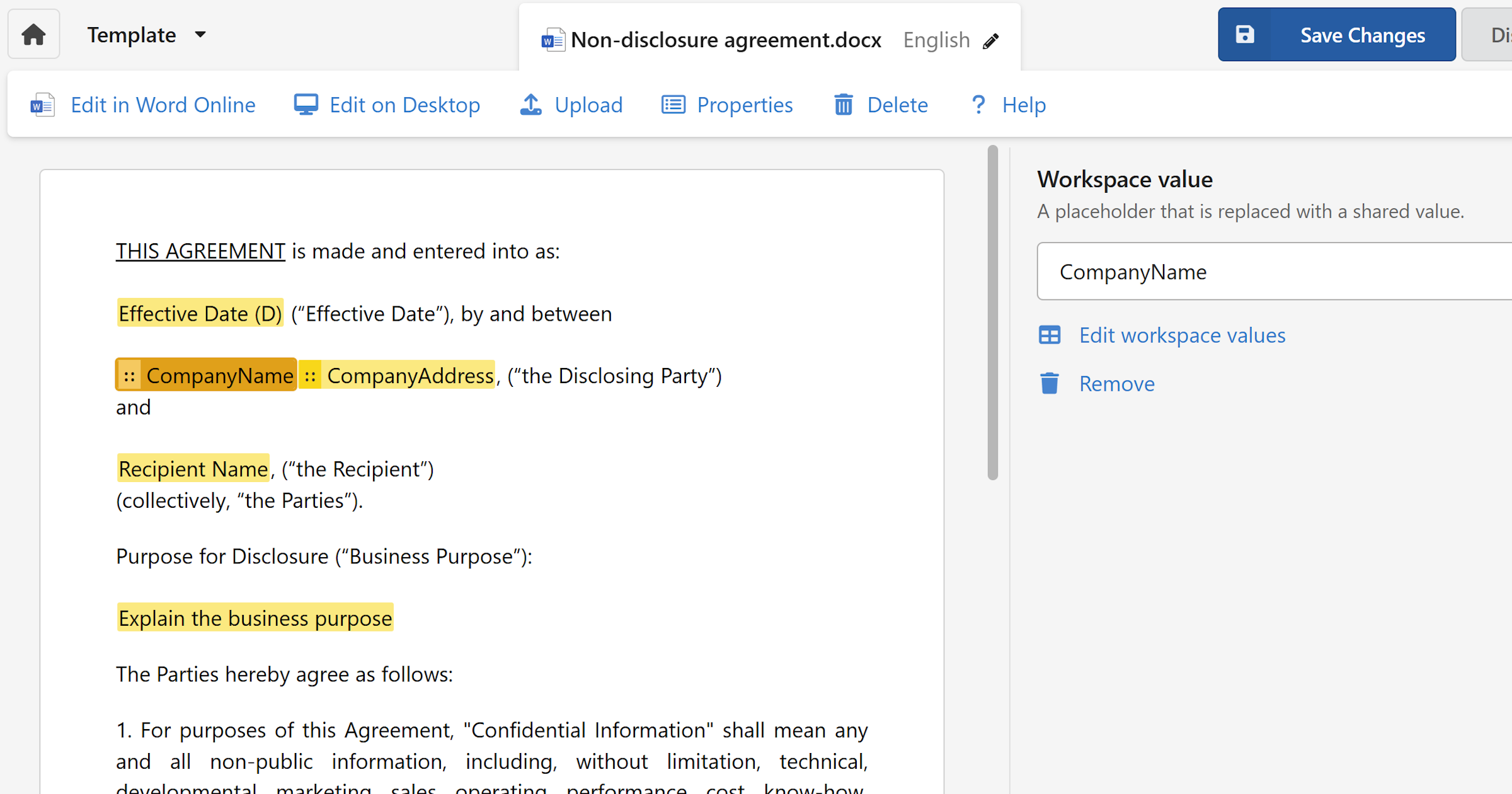
For example, a workspace value named CompanyAddress can be inserted as a tag and will always reflect the current value set in workspace settings — so if the address changes, you update it once and it's corrected across all templates automatically.
To manage workspace values, go to Administration → General → Workspace values. See Workspace shared values for a full walkthrough.
Insert a merge tag
- Open the template in the editor.
- Select the text you want to replace with a tag, or place your cursor where you want it inserted.
- In the right sidebar, click
Merge Tagunder the Insert section. - A dropdown appears — select the tag you want to insert:
- User — then choose
FullNameorEmailAddressfrom the dropdown. - Organization — inserts the organisation name from workspace settings.
- Title, DocumentDate, Author, DocumentId, or AutomaticNumber — inserts the respective document-level value.
- Workspace — lists all workspace values defined for this workspace.
- User — then choose
The tag is inserted into the document and will be replaced with its value automatically when a document is generated.
Note
Workspace tags only appear in the list if workspace values have been set up by an Admin. If the list is empty, ask your workspace Admin to add values under Administration → General → Workspace values.
Edit or remove a merge tag
- Click on the merge tag in the document preview to select it.
- In the right sidebar, use the dropdown to switch to a different merge tag, or click
Removeto delete the tag from the document.
Save your changes
- Click
Save changesin the top-right corner when you're done.