WordFields uses a two-level permission system — roles control what you can do, folder access controls what you can see. Here's how it all works together. 🔐
Roles
Every member of a workspace is assigned one of three roles. When someone accepts an invitation to join a workspace they are automatically assigned the Member role. Roles are set at the workspace level and apply everywhere.
Tip
An Admin can change any member's role at any time from Administration → Users.
Admin
Admins have full access to everything in the workspace. They can:
- Create, edit, and delete any snippet or template in any folder
- Create, rename, and delete folders
- Manage workspace settings, regional format, and workspace values
- Invite and remove members, assign roles, and manage groups
- Assign folder access to any user or group
- Manage API keys
Manager
Managers can create and manage content but have no access to workspace administration. They can:
- Create, edit, and delete snippets and templates in folders they have access to
- Create and rename folders
- Assign folder access to users and groups — but only on folders they themselves have access to
Member
Members are read-only users. They can:
- View and use snippets and templates in folders they have been given access to
- Fill in fields and copy or export snippet content
Members cannot create, edit, or delete any content, and cannot manage folder access.
Note
Roles are assigned by an Admin. To change your role, contact your workspace administrator.
Folder access
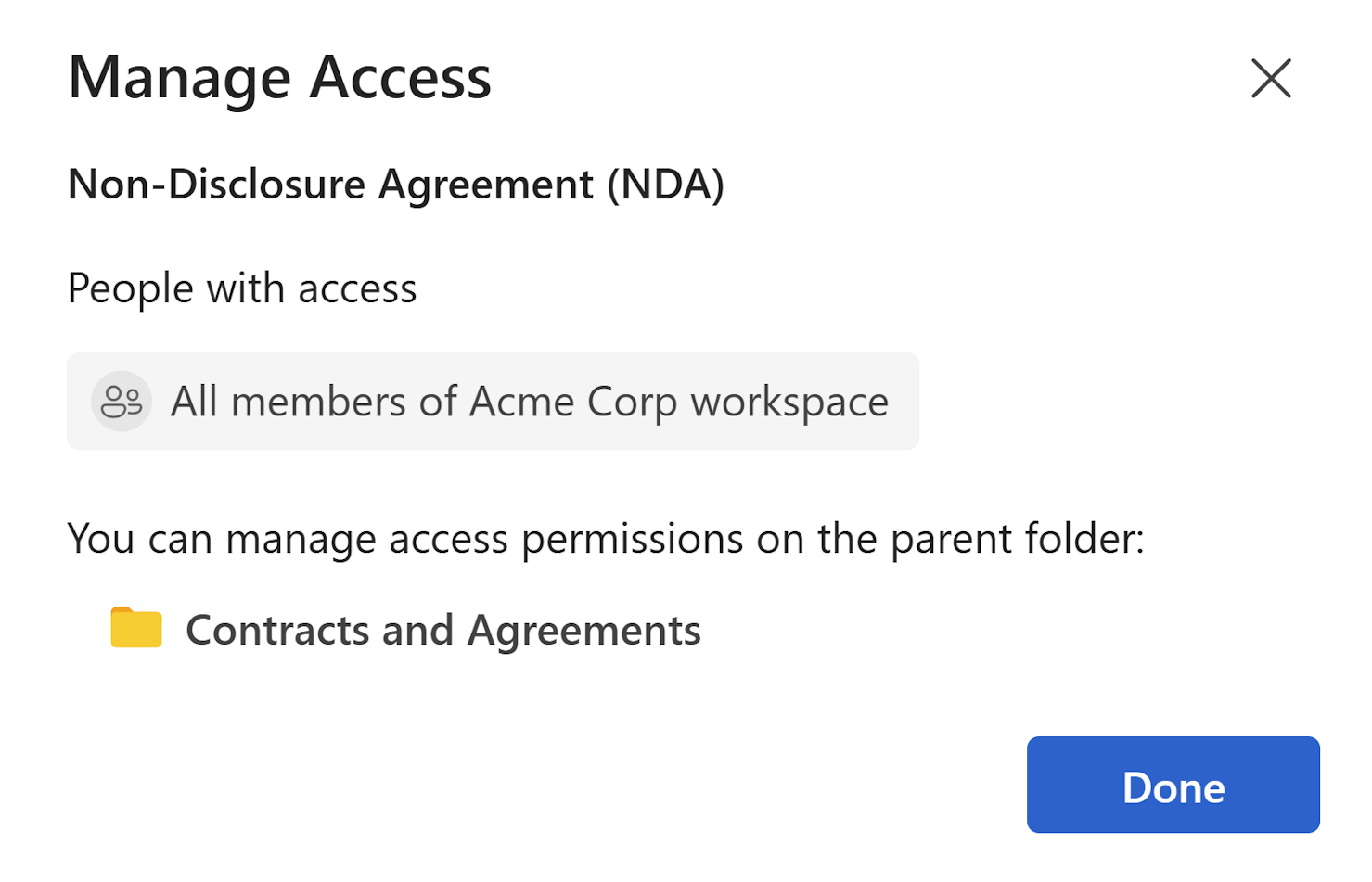
Folder access controls which users and groups can see the contents of a folder. A user with no access to a folder won't see it in the sidebar at all.
Note
Snippets and templates inherit their permissions from the folder they belong to
There are no per-item permissions — if a user can access a folder, they can see everything inside it.
Assigning folder access
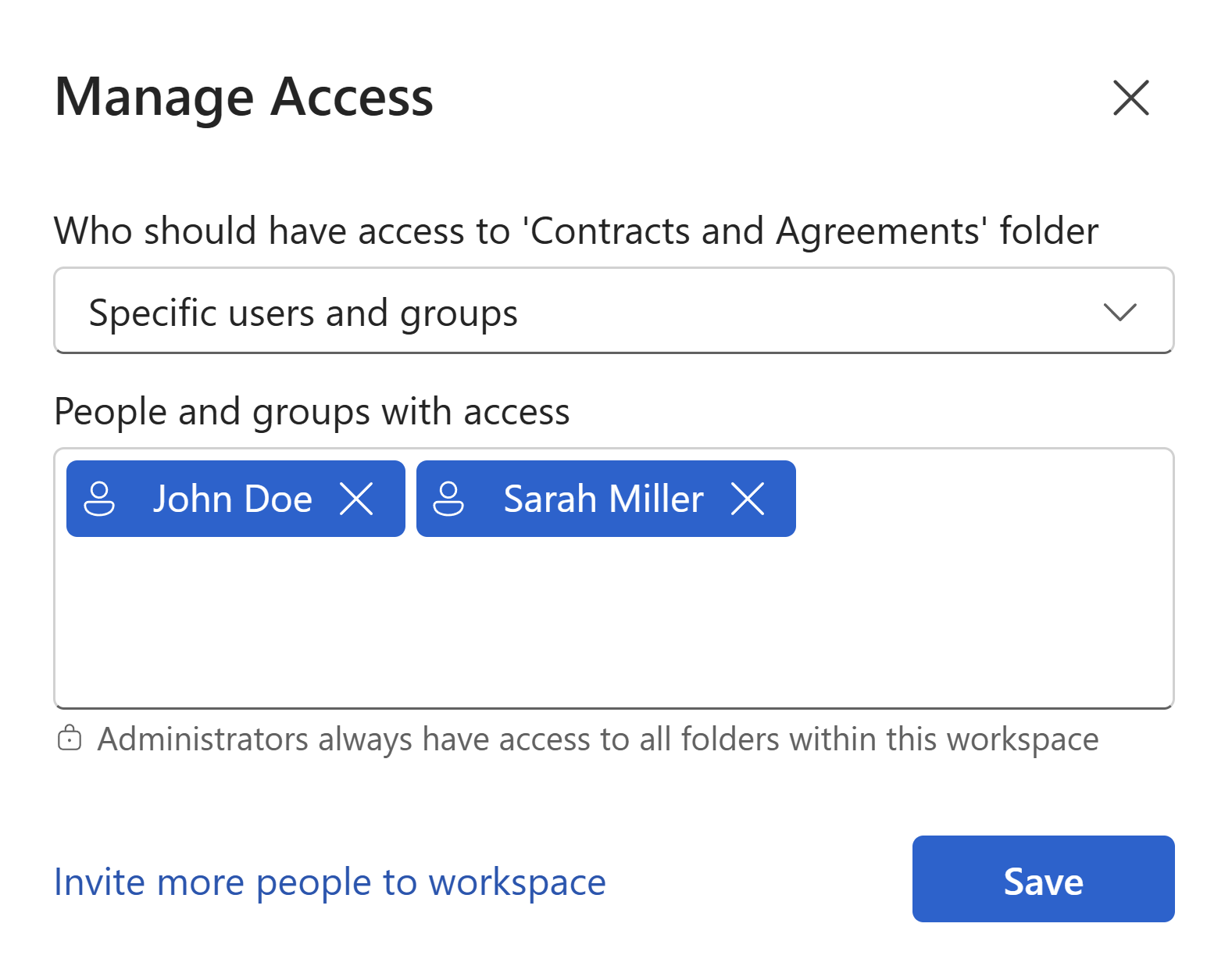
- Hover over a folder in the left sidebar and right click on it, or open the folder and click
Manage access. - Select the
Specific users and groupsoption in theWho should have access todropdown. - Under
People and groups with accesssearch for the user or group you want to add. - Click on selected user or group to grant them access.
To remove access, find the user or group in the access list and click X.
Note
Managers can assign folder access, but only for folders they themselves have access to. Only Admins can assign access to folders they don't have access to. Administrators always have access to all folders within this workspace
How roles and folder access work together
A user's role and their folder access work as a pair — both need to be in place for a user to be useful in the workspace.
A practical example:
- A Member added to the
Salesfolder can browse and use all snippets and templates in that folder, but cannot edit them or see any other folder they haven't been given access to. - A Manager added to the
HRfolder can create and edit snippets and templates in that folder, and can assign other users access to it — but cannot touch content in folders they haven't been given access to. - An Admin doesn't need to be assigned to any folder — they can see and manage everything across the workspace regardless of folder access settings.
Tip
Use groups to manage folder access at scale. Instead of adding users to folders one by one, create a group (e.g. Sales Team), add members to it, and assign the group to the relevant folders. When someone joins or leaves the team, you only need to update the group. See Managing groups for details.