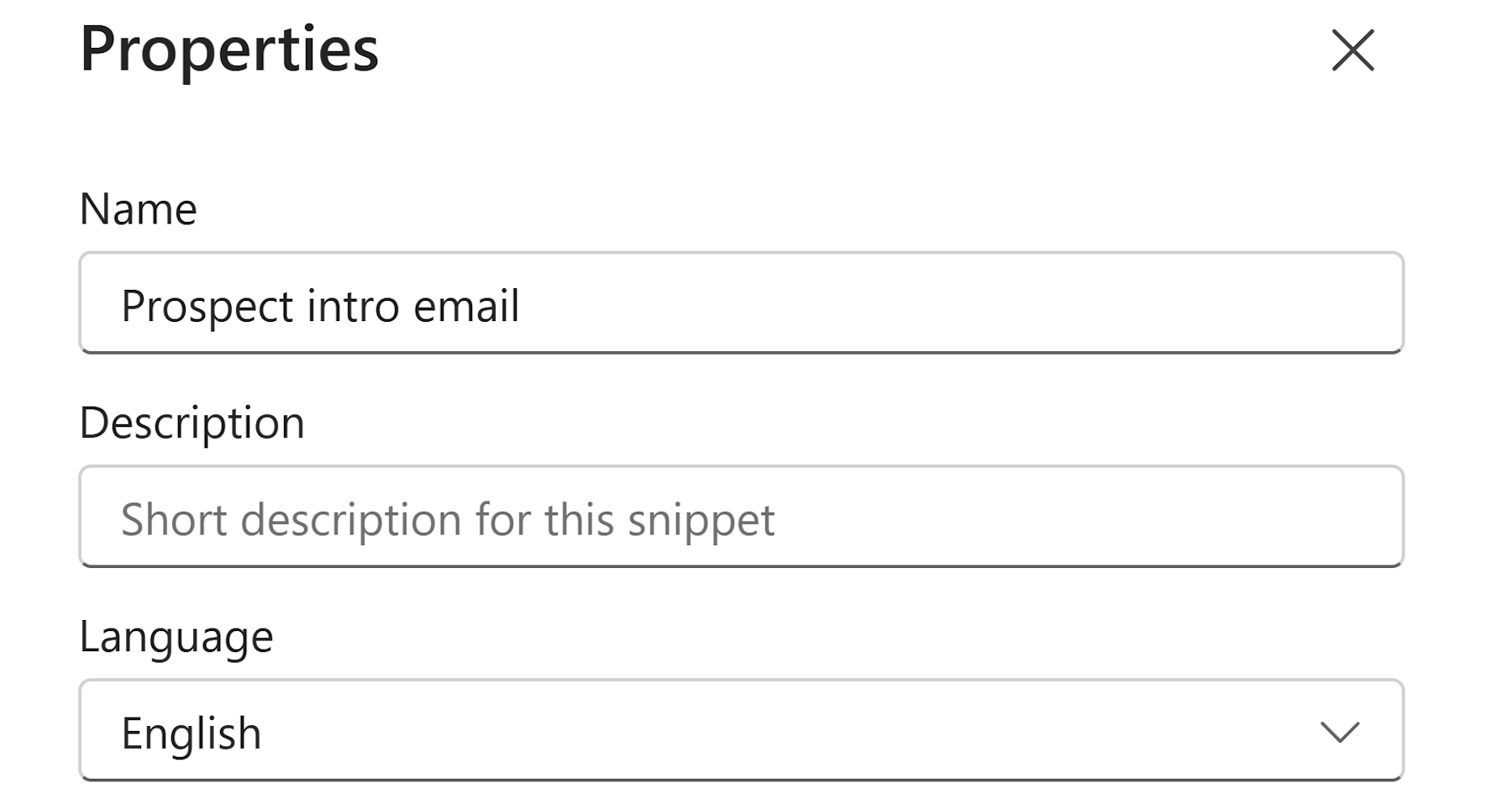
Each snippet has a set of properties that help your team identify and organize it in the workspace — its name, a short description, and the language it's written in.
Open snippet properties
Note
Updating properties requires an Admin or Manager role.
- Click on a snippet in the content list to open it in the sidebar.
- Click the
•••button in the snippet toolbar. - Select
Propertiesfrom the menu.
The Properties dialog opens.
Available properties
Name. The label used to identify the snippet across the workspace — in the content list, search results, and the Chrome Extension. Keeping this clear and specific makes it easier for your team to find the right snippet quickly.
Description. An optional note explaining what the snippet is for, when to use it, or any instructions for your team. A good description saves your teammates from having to open a snippet just to figure out if it's the right one.
Language. The language the snippet is written in. This also controls how dates and numbers are formatted when the snippet is used — for example, whether dates appear as MM/DD/YYYY or DD.MM.YYYY, and whether numbers use a period or comma as the decimal separator. If set to Default, the snippet inherits the language configured in your workspace settings.
Click Save to apply the changes. The snippet list updates immediately to reflect the new name or description.