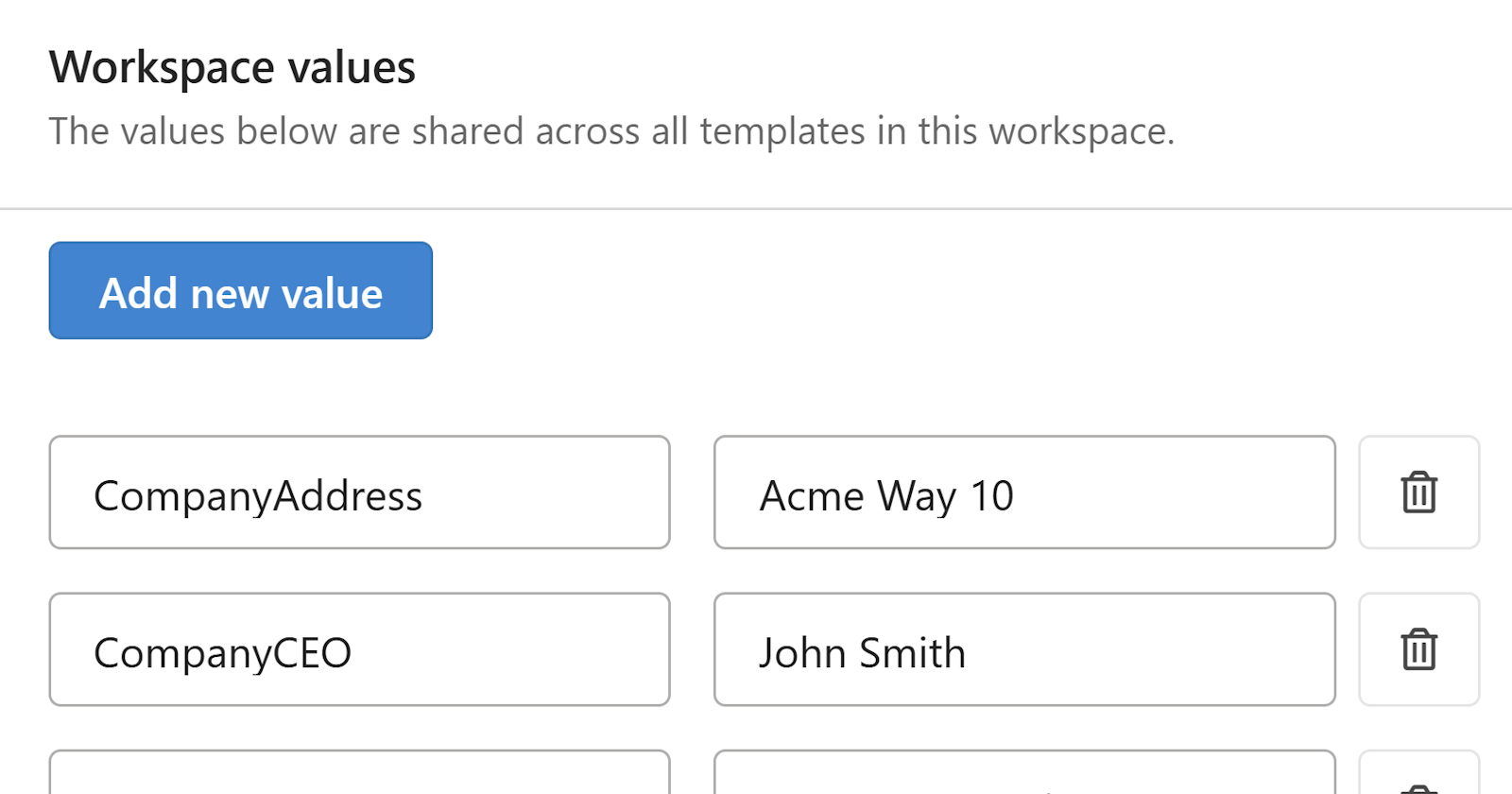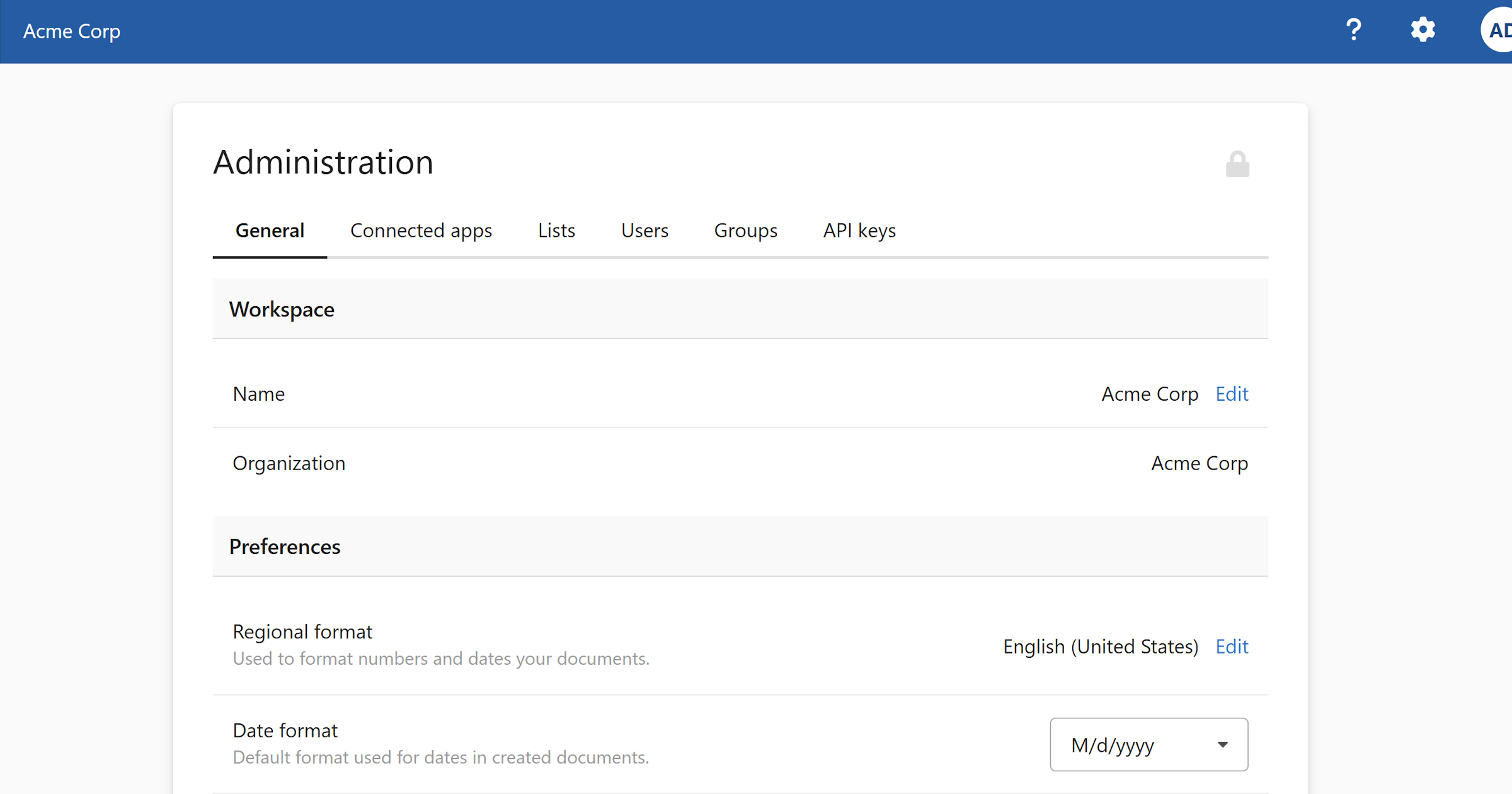
Workspace settings let you configure your workspace name, organization, regional format, and date settings from one central place. Admin access required.
Open workspace settings
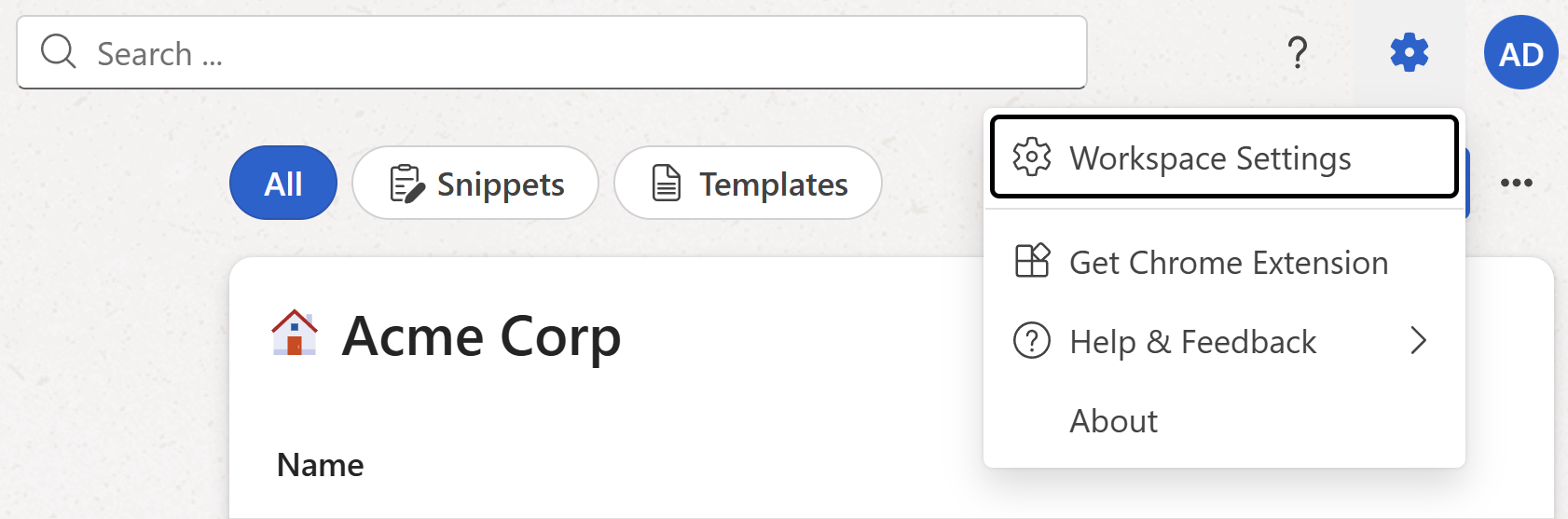
- Click the cog icon in the top right corner of the workspace toolbar.
- Select
Workspace Settingsfrom the menu.
Note
Only Admins can access and change these settings.
Workspace name and organization
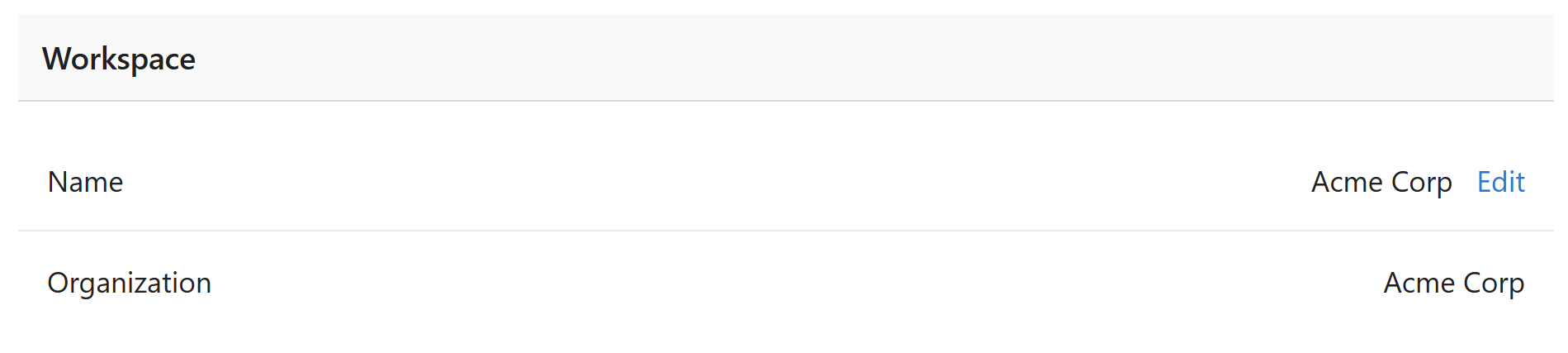
The workspace name is shown to all members in the sidebar and account switcher. To update it:
- In the Workspace section, click
Editnext to the current workspace name. - In the dialog that opens, update the Workspace name and optionally your Organization name.
- Click
Save changes.
Regional format
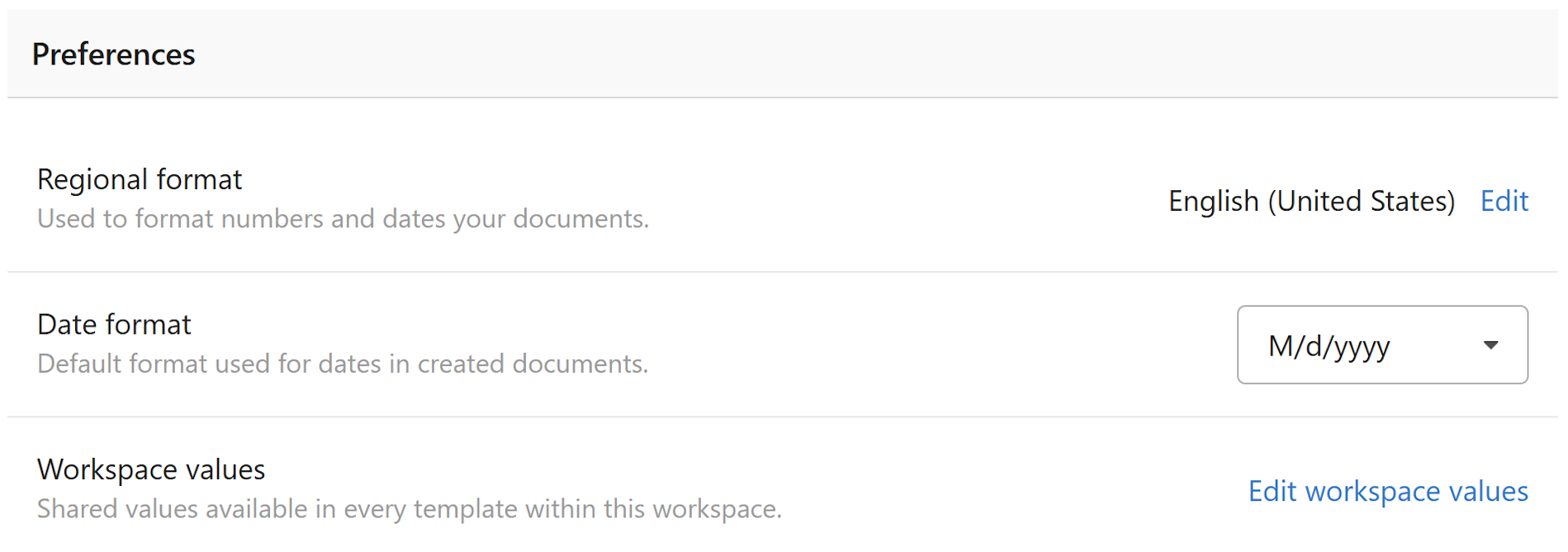
The regional format controls how numbers and dates are formatted across all documents and snippets generated in this workspace. It should reflect the language and region your team primarily works in.
- In the Preferences section, click
Editnext to Regional format. - Select the language and regional format from the dropdown.
- Click
Save changes.
Note
Individual snippets and templates can override the workspace regional format by setting a different language in their properties. If set to Default, they inherit the workspace regional format.
Date format
The date format controls how dates appear by default in generated documents.
- In the Preferences section, find the Date format row.
- Select your preferred format from the dropdown.
Workspace shared values
Shared values are key-value pairs available in every template and snippet across the workspace — things like your company name, address, or support email that auto-populate without any user input. See Workspace shared values for a full explanation of how to set them up and use them in your templates and snippets.