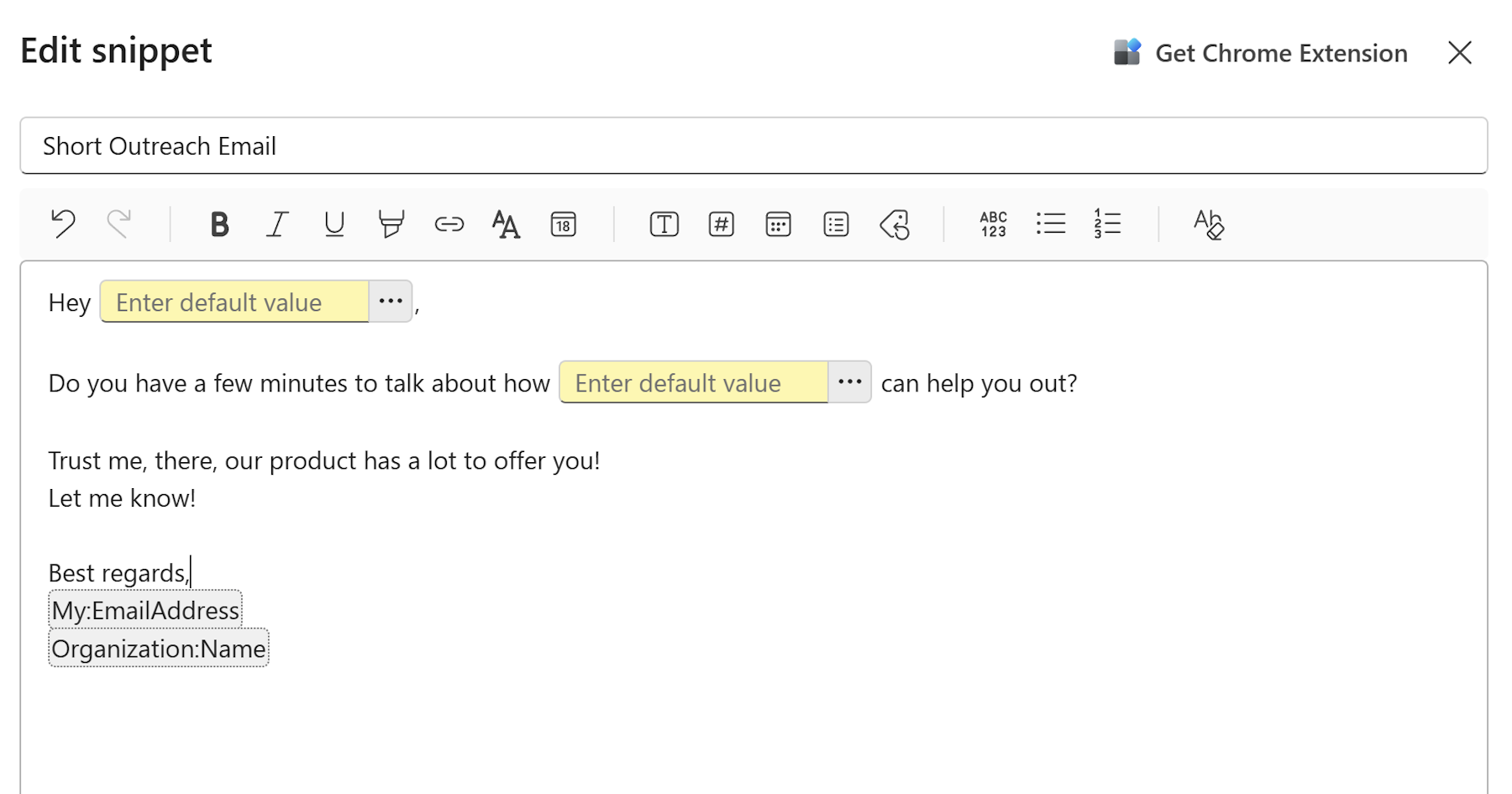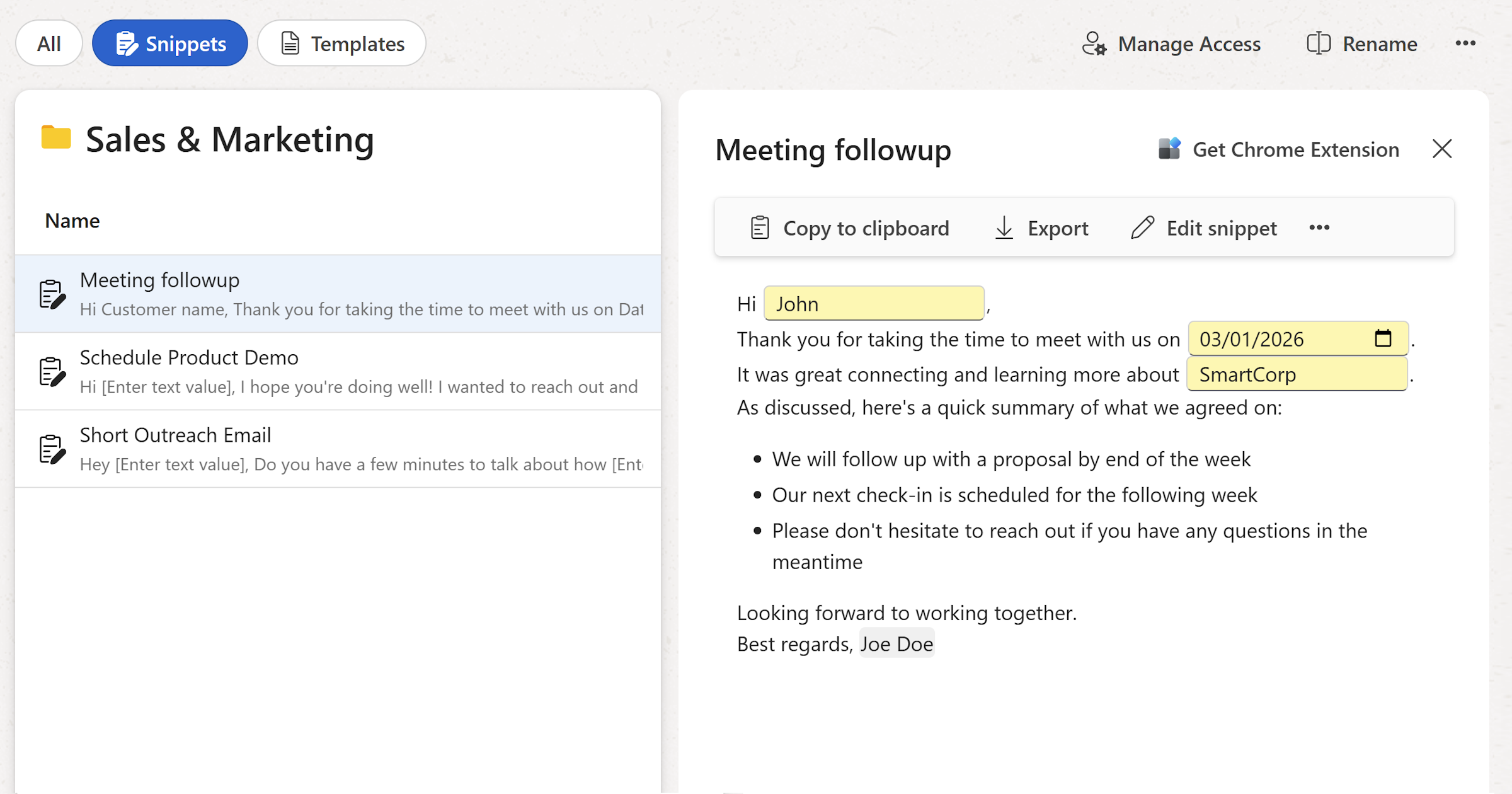
Open a snippet, fill in your details, and copy it straight to your clipboard — then paste it into Gmail, Outlook, your support tool, or wherever you're working.
Step 1: Open a snippet
- In the left sidebar, click the folder that contains the snippet you're looking for.
- Find the snippet in the content list and click on it.
The snippet opens in a sidebar on the right side of the screen, showing its full contents in a ready-to-use view.
Tip
Not sure which folder a snippet is in? Use the search bar at the top of the workspace to find it by name.
Step 2: Fill in the fields
If the snippet contains fillable fields, they'll be active and ready for input in the sidebar — just click into each one and type your value.
- Text fields — Type freely.
- Number fields — Enter a numeric value.
- Date fields — Pick a date from the date picker.
- Select fields — Choose one or more options from the dropdown.
Merge tags are populated automatically — things like your full name, email address, and shared workspace values fill in without any input on your part.
Note
You don't need to fill in every field before copying or exporting — but any field left empty will appear blank in the output.
Step 3: Use the snippet
Once your fields are filled in, there are a few ways to get the content where you need it.
Use the Chrome Extension
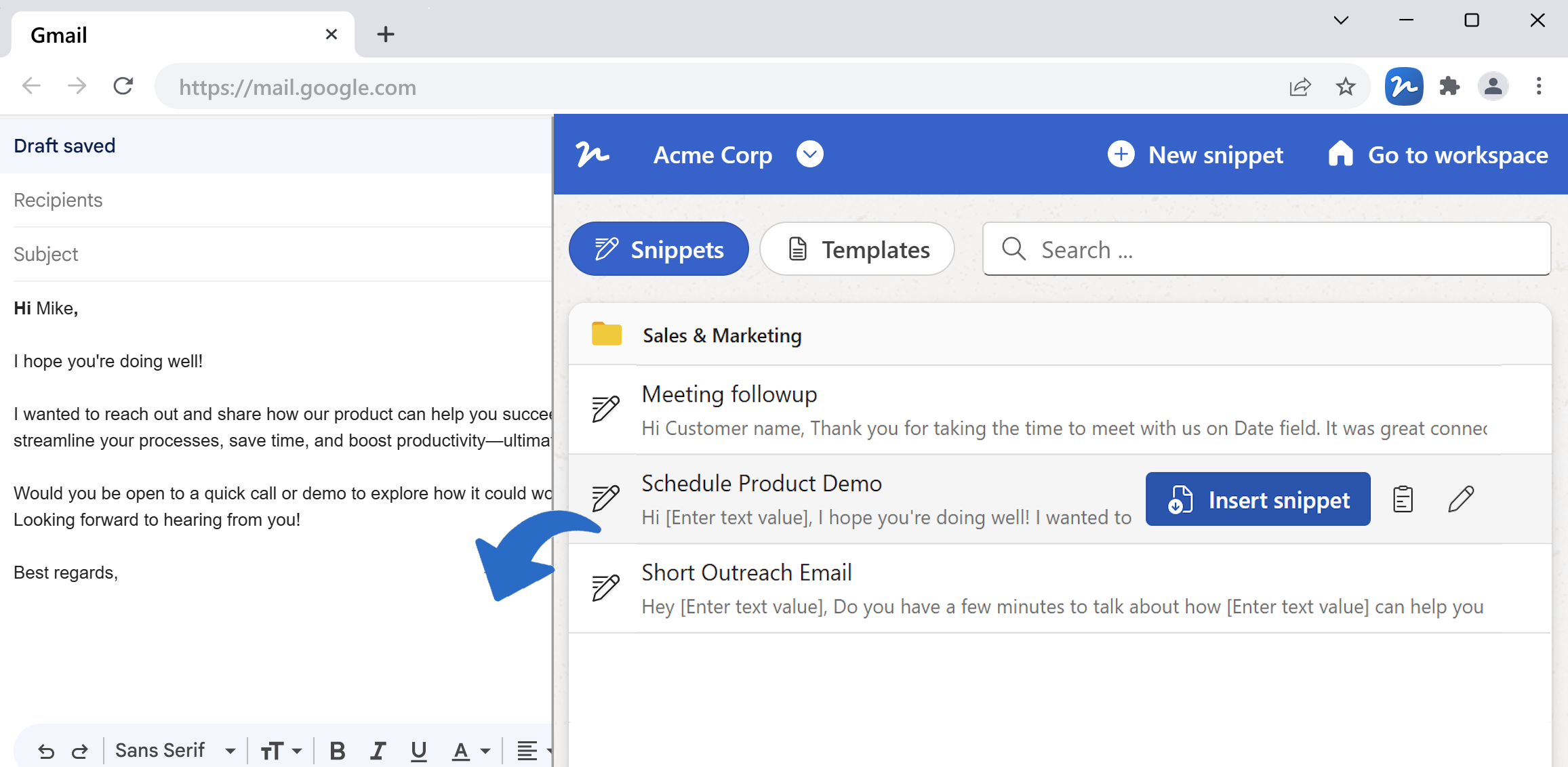
The Chrome Extension lets you browse your snippets and insert them directly into any text field in your browser — without switching tabs or copying and pasting.
To install the extension:
- Visit the Text Snippets & Templates Chrome Extension page on the Chrome Web Store, or click
Settings → Get Chrome Extensionfrom the workspace toolbar. - Click
Add to Chromeand follow the prompts.
To use it:
- Click on any text field on the page — a Gmail compose window, a support ticket, a CRM entry, or anywhere else you write.
- Click the WordFields icon in your browser toolbar.
- Browse or search for the snippet you want.
- Click
Insert snippet. If the snippet has fillable fields, a form opens first — fill it in and click Insert.
Tip
The Chrome Extension is the fastest way to use snippets day-to-day. You never have to leave the page you're working on.
Copy to clipboard
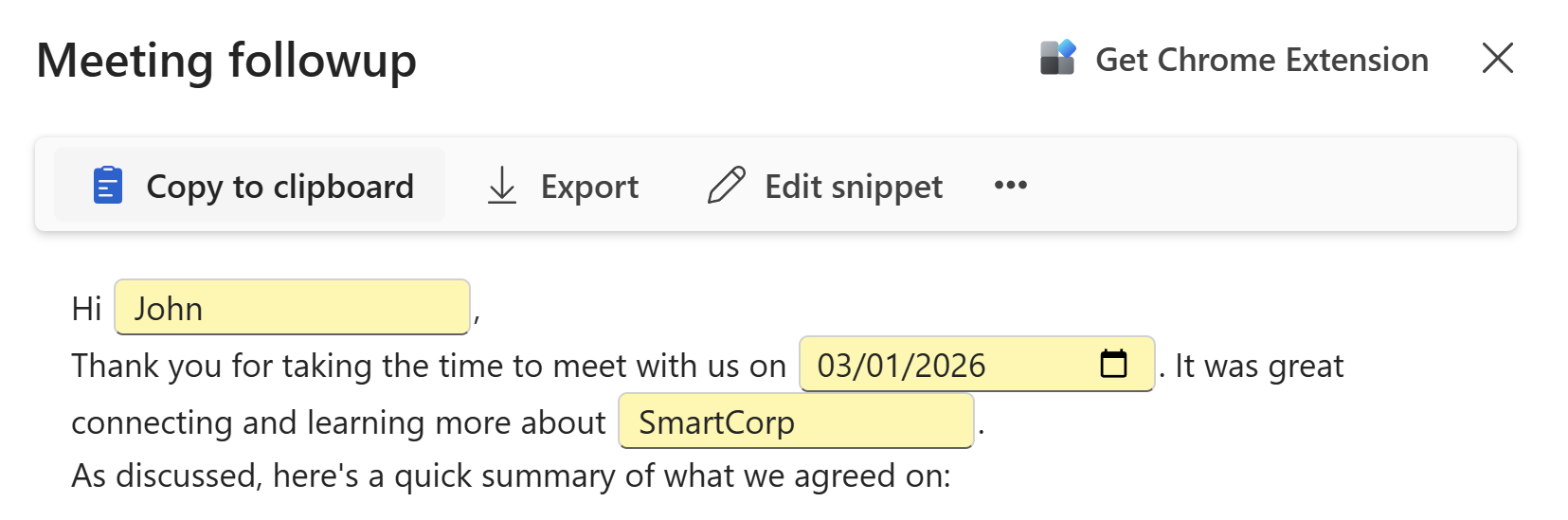
Click the Copy to clipboard button in the sidebar toolbar. The snippet text — with all your field values and merge tags applied — is copied and ready to paste.
You can paste it directly into:
- Email clients — Gmail, Outlook, Apple Mail
- Support tools — Zendesk, Intercom, Freshdesk, Help Scout
- Document editors — Microsoft Word, Google Docs, Notion
- Messaging apps — Slack, Microsoft Teams
- Any other text field in your browser or desktop app
Tip
Snippets copy with their rich text formatting intact — bold, italic, headings, and links all come through when pasting into an editor that supports formatted text (like Gmail or Notion). Pasting into a plain text field will strip formatting automatically.
Export or print
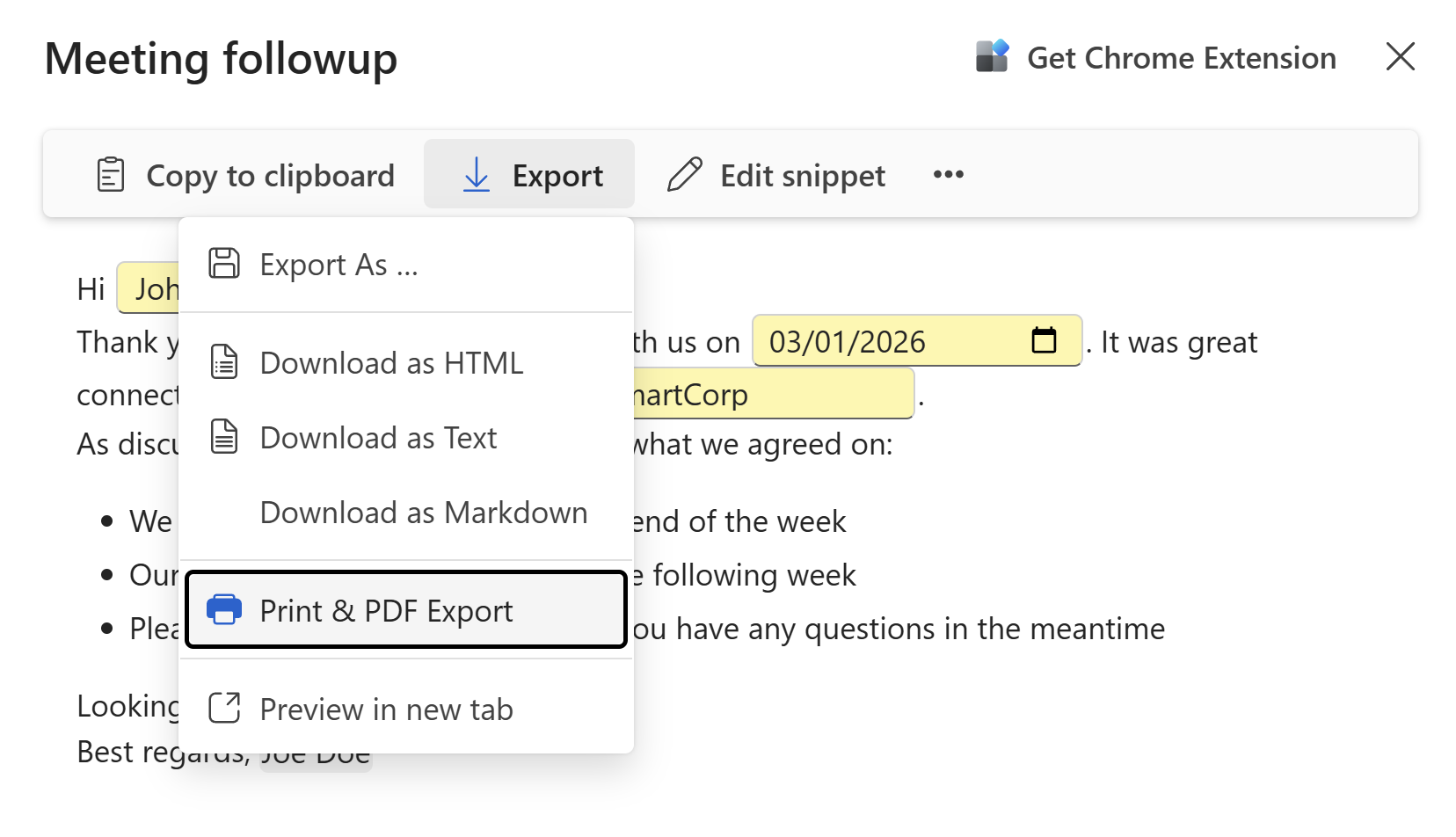
Click the Export button in the sidebar toolbar to save the snippet as a file or send it to print. The following options are available:
- Export as... — Opens a file dialog to choose a local folder and file format.
- Download as HTML — Preserves full formatting.
- Download as Text — Plain text, no formatting.
- Download as Markdown — Useful for Markdown-based editors and documentation tools.
- Print & PDF export — Opens the print dialog, from which you can save as PDF.
- Preview in new tab — Opens the rendered snippet in a browser tab before exporting.