
Once your workspace is set up, you can invite colleagues to join it by email. Each person receives an invitation with a link to access the workspace.
Invite your team
Note
Only Admins can invite new members to a workspace.
Sending invitations
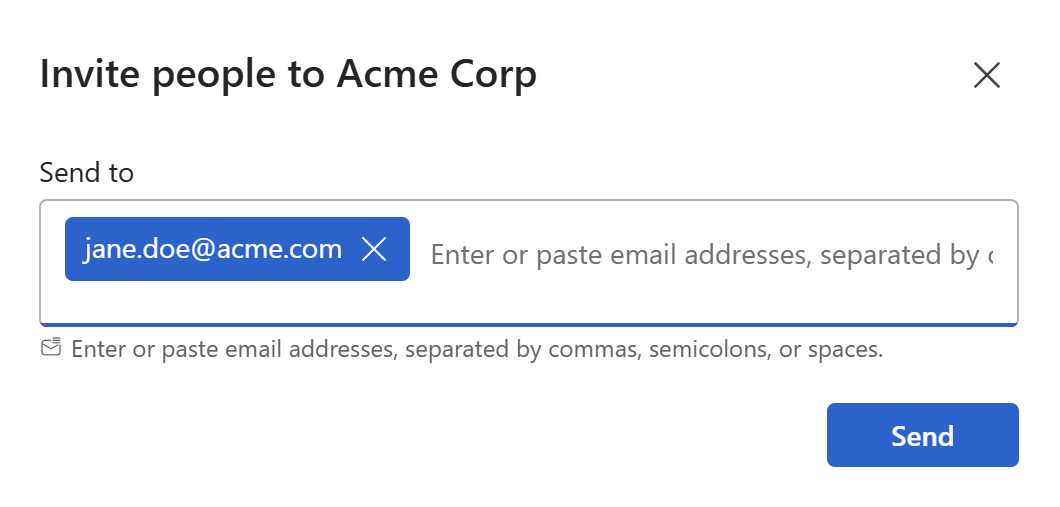
- Click the Add people button in the top right of the workspace home screen, or go to
Administration → Usersand clickInvite people. - In the Invite people to workspace dialog, enter the email addresses of the people you want to invite. Separate multiple addresses with a comma. Press
Enter,Tab, or,after each valid address to confirm it. - Click
Send.
Each person receives an email with instructions on how to join the workspace. Until they accept, they appear in the users list with an Invited status.
Note
Invitations don't expire automatically, but you can revoke one at any time from Administration → Users if you need to cancel it before it's accepted.
What happens after someone joins
Once an invited person clicks the link in their email and signs up or logs in, they become a Member of the workspace. Members can access content in folders they've been given permission to see, but cannot create or edit snippets and templates.
To give someone more access, an Admin can update their role from Administration → Users. See Roles and permissions for a full breakdown of what each role can do.
Pending and resending invitations
If someone hasn't received or acted on their invitation, you can resend it:
- Go to
Administration → Users. - Find the person with Invited status.
- Click
Resend invitation.
To cancel an invitation before it's accepted, click Revoke invitation next to their name. The previously sent link will stop working immediately — you'll need to invite them again if you change your mind.