Connecting a cloud storage app lets you pull existing files into WordFields to use as templates, and automatically saves any newly generated documents back to your storage.
Connect a cloud storage app
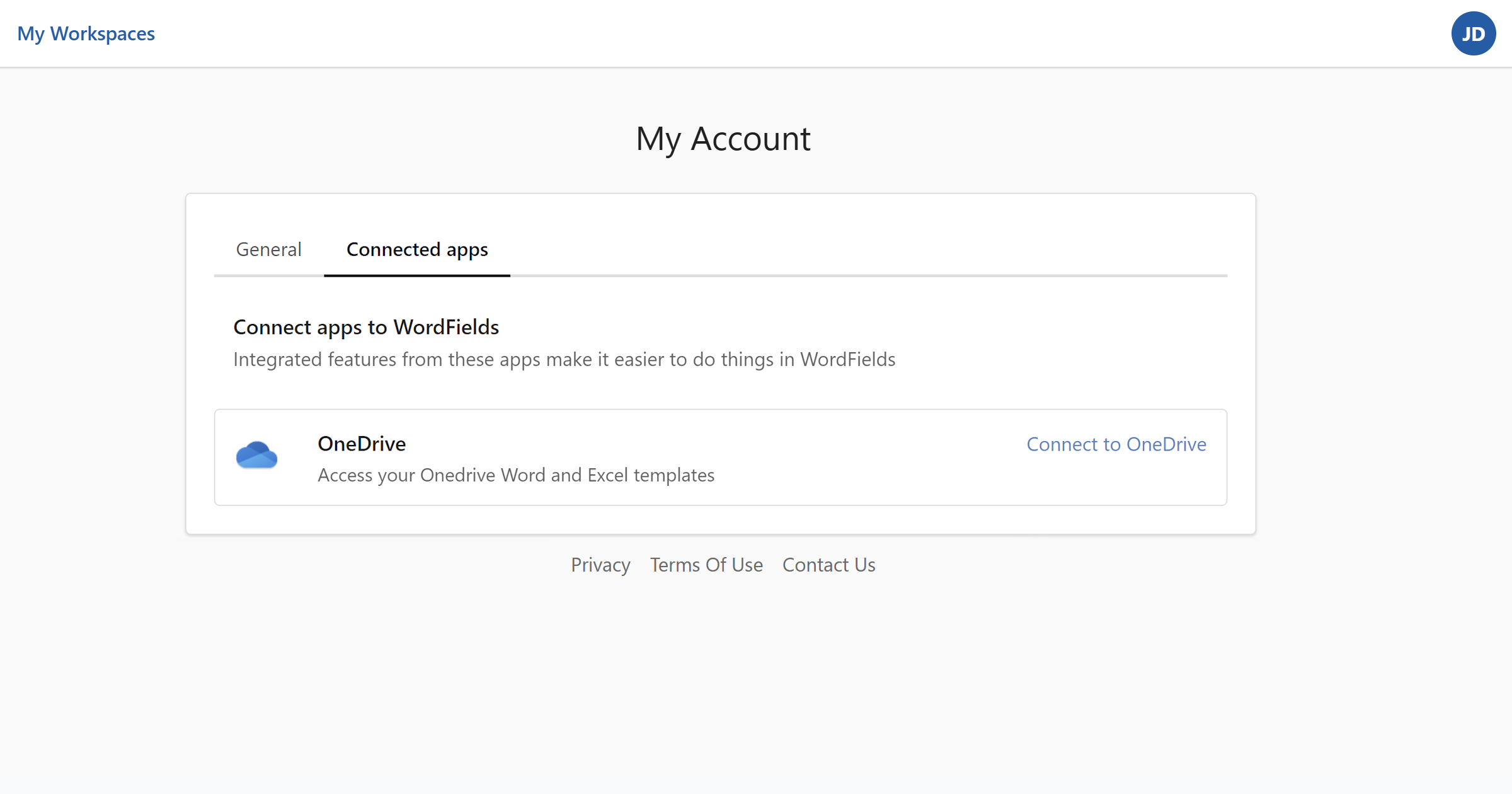
- Click the icon with your initials in the top-right corner of the navigation bar.
- Select My account from the menu.
- On your account page, click the Connected apps tab. All available storage apps are listed here.
- Find the app you want to connect and click Connect to... on the right.
- Follow the on-screen instructions to authorise the connection.
Once connected, the app will appear as active in the Connected apps tab.
Currently supported apps include OneDrive and SharePoint.
OneDrive and SharePoint
With OneDrive or SharePoint connected, you can browse your existing Word or Excel documents directly from WordFields and convert them into templates. Any documents you generate in WordFields will be saved back to your OneDrive automatically, so you can continue working in your existing tools without any extra steps.
Tip
If you use SharePoint for team document storage, connecting it means generated documents land in the right place for your team straight away — no manual uploading needed.