Automatic numbering assigns a unique sequential number to each document generated from a template. You can control when the counter resets, how fast it increments, and how the number appears in the document title.
Open numbering settings
- Open the template in the editor.
- Click the template menu on the left side of the top bar.
- Select
Numbering and settings.
Set up the counter
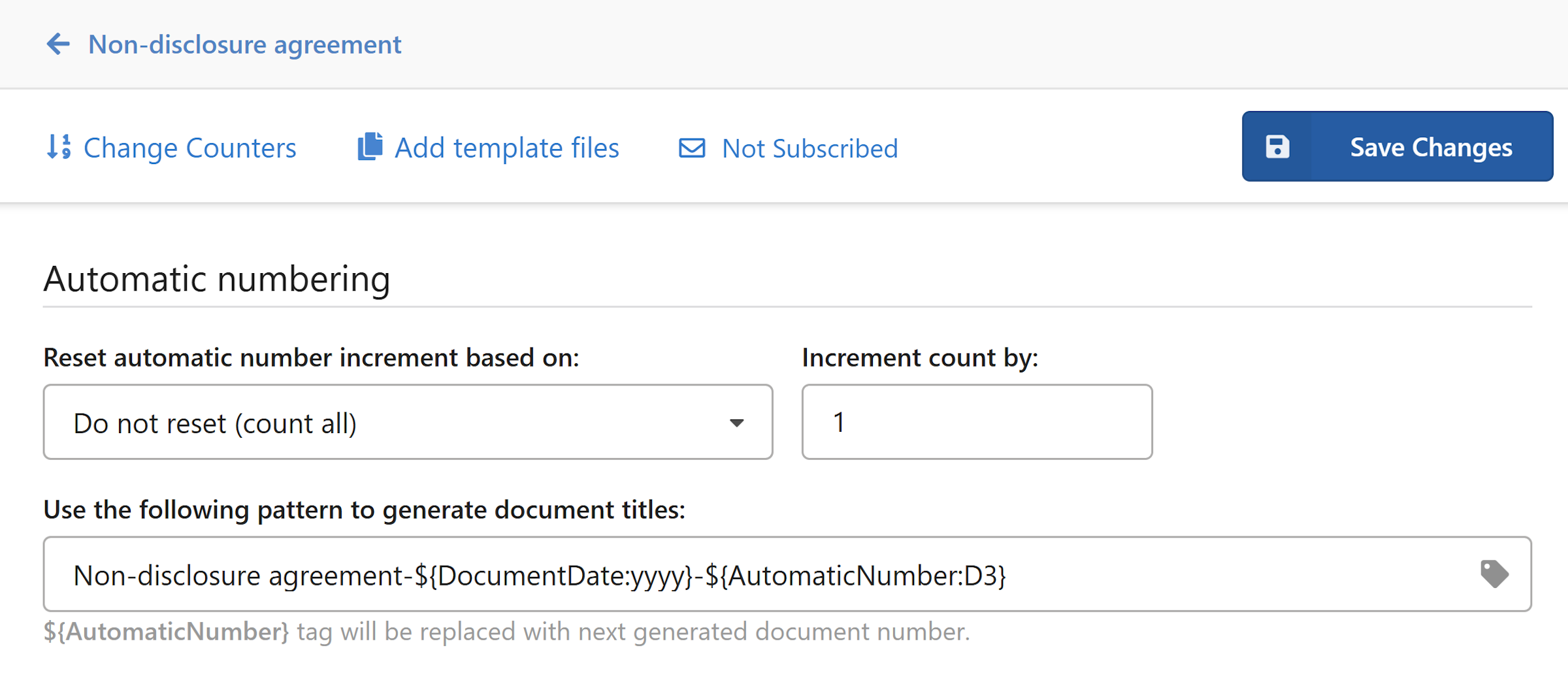
Reset automatic number increment based on
This controls when the sequence resets back to the starting number. Choose from:
- Do not reset (count all) — the number increments continuously across all documents, regardless of when they were created.
- Year created — resets to the starting number at the beginning of each calendar year.
- Month created — resets at the beginning of each month.
- Document date year — resets based on the year of the document date field, rather than when the document was created.
- Document date month — resets based on the month of the document date field.
- Subject — resets when a specified subject value changes.
- Custom — define your own reset condition.
Increment count by
Sets how much the number increases with each new document. The default is 1. You can increase this if your numbering convention requires gaps between numbers.
Set the document title pattern
The Use the following pattern to generate document titles field lets you define how the title of each generated document is formatted. The pattern can include plain text, field values, and the special ${AutomaticNumber} tag, which is replaced with the next sequential number when a document is generated.
For example, the pattern:
NDA-${DocumentDate:yyyy}-${AutomaticNumber:D4}
Would produce a title like:
NDA-2026-0001
Note
The :yyyy and :D4 formatting syntax controls how dates and numbers are displayed in the title — for example, four-digit year or zero-padded number.
Tip
Use draft mode when creating a document to test your numbering pattern without incrementing the counter. See Create a document for more on draft mode.
Change counters
If you need to manually adjust the current counter value — for example, to correct a numbering gap or continue from a specific number — click Change counters in the template toolbar.
A table shows each active counter based on your configured reset setting, along with the last value used. To adjust a counter:
- Find the counter you want to update.
- Enter the new value in the
Last Value Usedfield. - Click
Change.
The next document generated from this template will increment from the value you set.
Save your changes
- Click
Save changeswhen you're done configuring numbering.