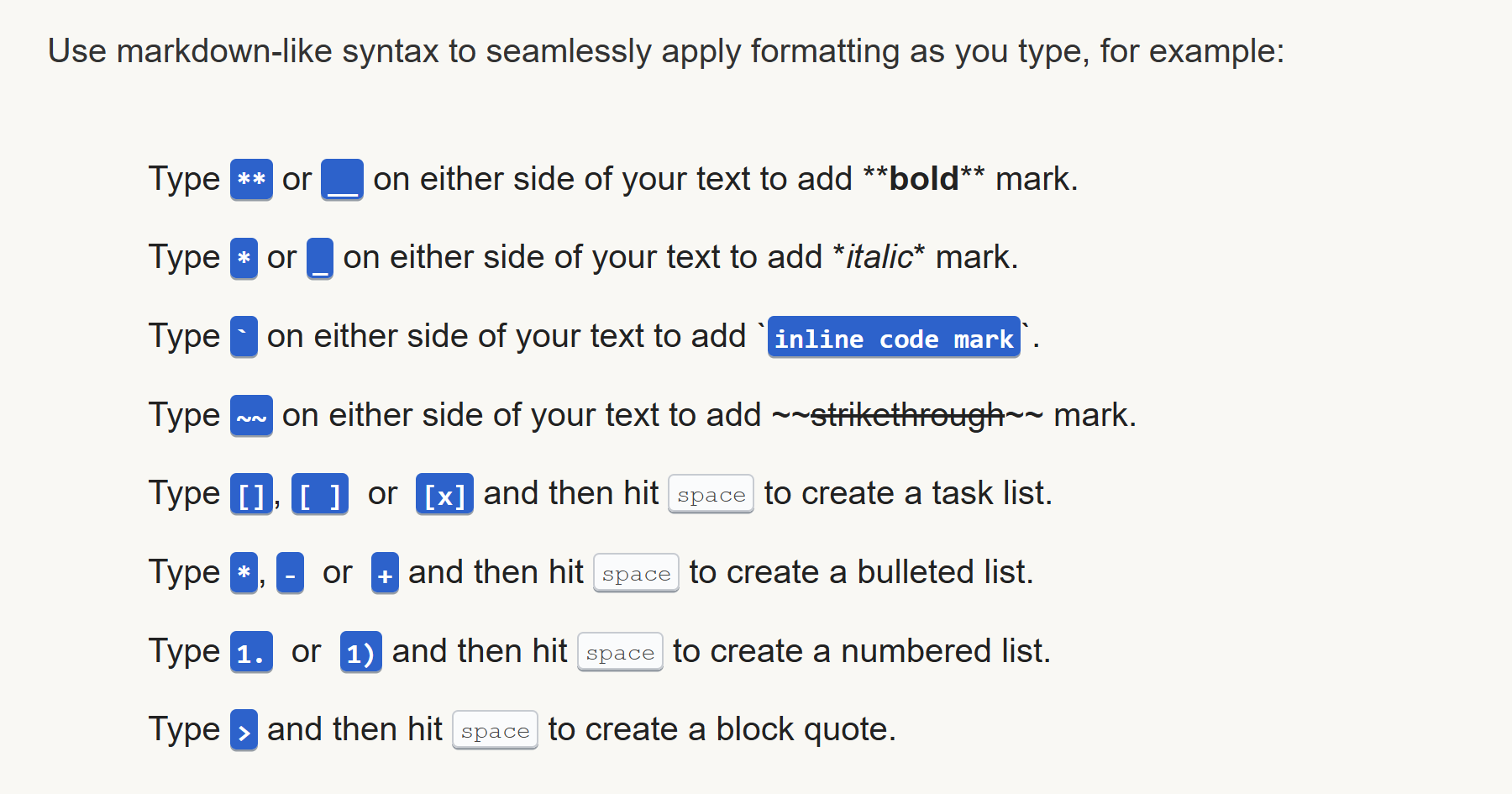
The Text Snippets & Templates extension puts your workspace in the browser's toolbar — fill in a snippet and insert it into any text box on any page, without leaving it.
What the extension does
The Text Snippets & Templates extension opens your workspace's snippets in a small window from the browser's toolbar. Pick one, fill in its fields, and the text goes straight into the message or form you were writing — Gmail, Outlook on the web, a support tool, a CRM, any text box on any page. Your document templates are there too, one click from their form.
Install it
- Open the Text Snippets & Templates page in the Chrome Web Store — or click Get Chrome Extension in a snippet's details pane, or
Settings and more → Get Chrome Extensionin the workspace header. - Click
Add to Chromeand confirm. - Pin the extension's icon to the toolbar, so it is always at hand.
The extension works in Chrome, Edge and the other Chromium browsers. It uses your WordFields sign-in: if you are signed out, its icon opens the sign-in page.
Insert a snippet into a page
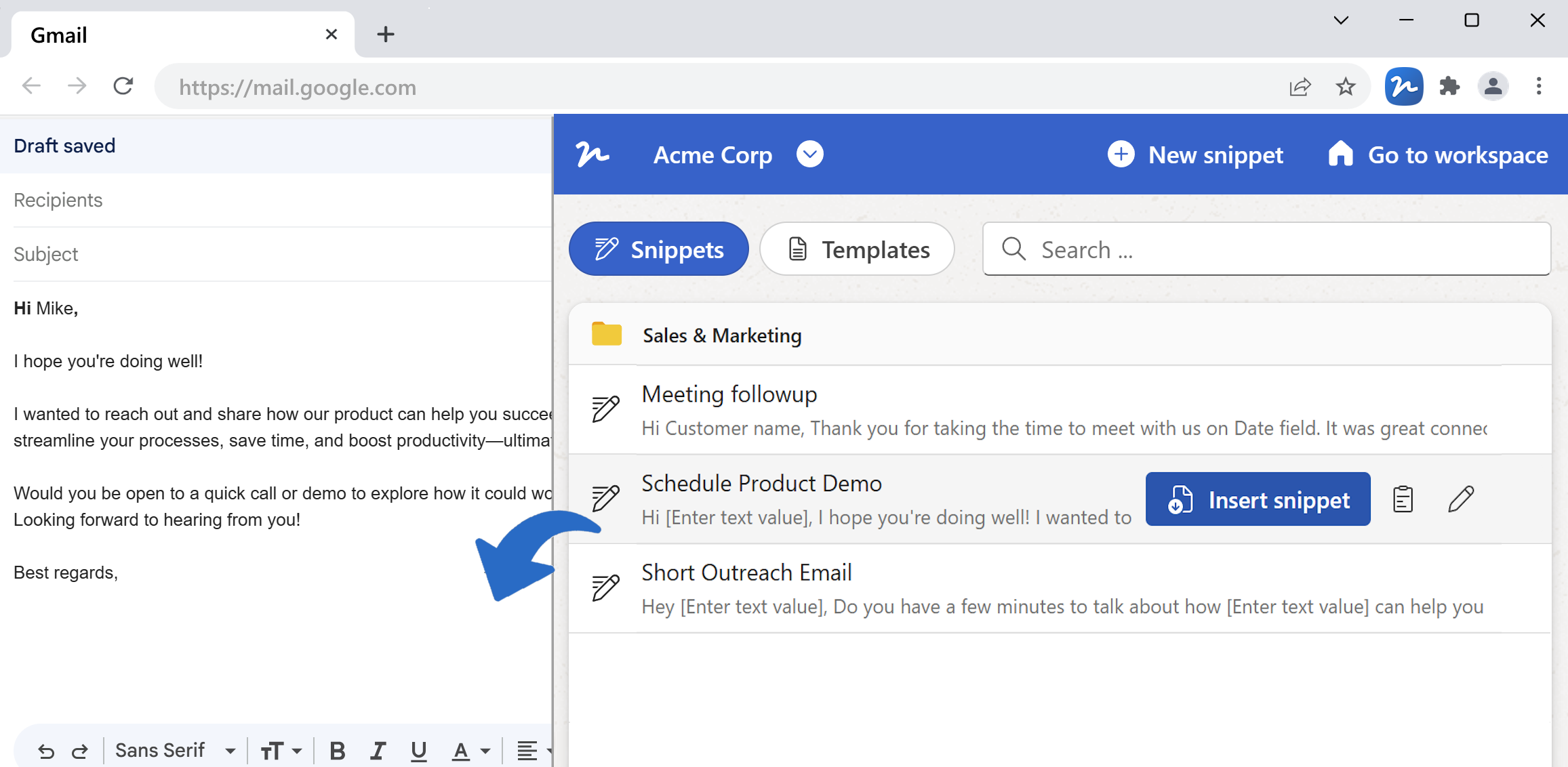
- Click in the text box where the text should go — the body of a new email, a reply, a ticket.
- Click the extension's icon in the toolbar. The popup opens on your workspace's snippets, grouped by folder; type in the search box to find one by name or by a word in its text.
- Point at the snippet and click Insert text.
A snippet without fields goes in at once. One with fields opens in a window of its own first:
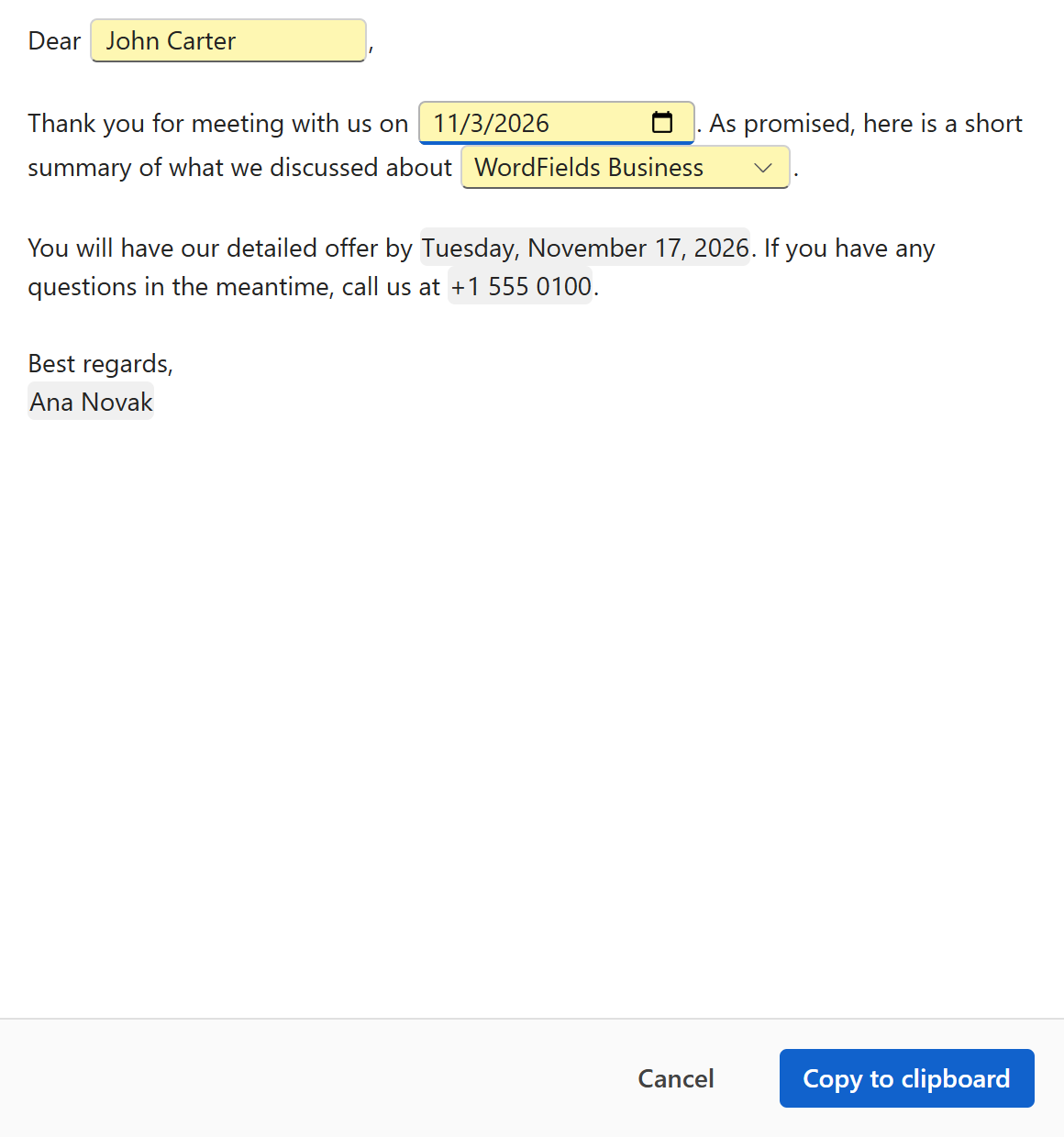
- Fill in the fields — merge tags and formulas are worked out as you type — and click Insert text.
The text lands in the box you clicked, with its formatting where the box takes formatted text.
Tip
You can also right-click in a text box and choose Text Snippets → Insert snippet…: the popup opens ready to insert into that box.
Note
Insert text needs a text box to have had the cursor in it when the popup opened. Without one, the button is disabled and says so — use Copy instead, and paste. On the browser's own pages nothing can be inserted.
Copy a snippet
Click Copy on a snippet's row to put the filled-in text on the clipboard instead — as formatted text and as plain text, so it pastes well into both kinds of editor. A snippet with fields opens its window first, with Copy to clipboard in place of Insert text.
Document templates
Switch the filter at the top of the popup from Text to Documents to list the workspace's document templates. Create document on a row opens the template's form in a new tab — see Create a document.
From the popup to the workspace
- Edit on a row (Admins and Managers) opens the snippet or template for editing in a new tab.
- New text template or New template in the header starts a new one.
- Go to workspace opens the workspace's home page. With more than one workspace, the name in the header is a menu to switch between them; the extension remembers the one you used last.
Note
The popup shows the snippets and templates in the folders you have access to, as the workspace does. See Roles and permissions.