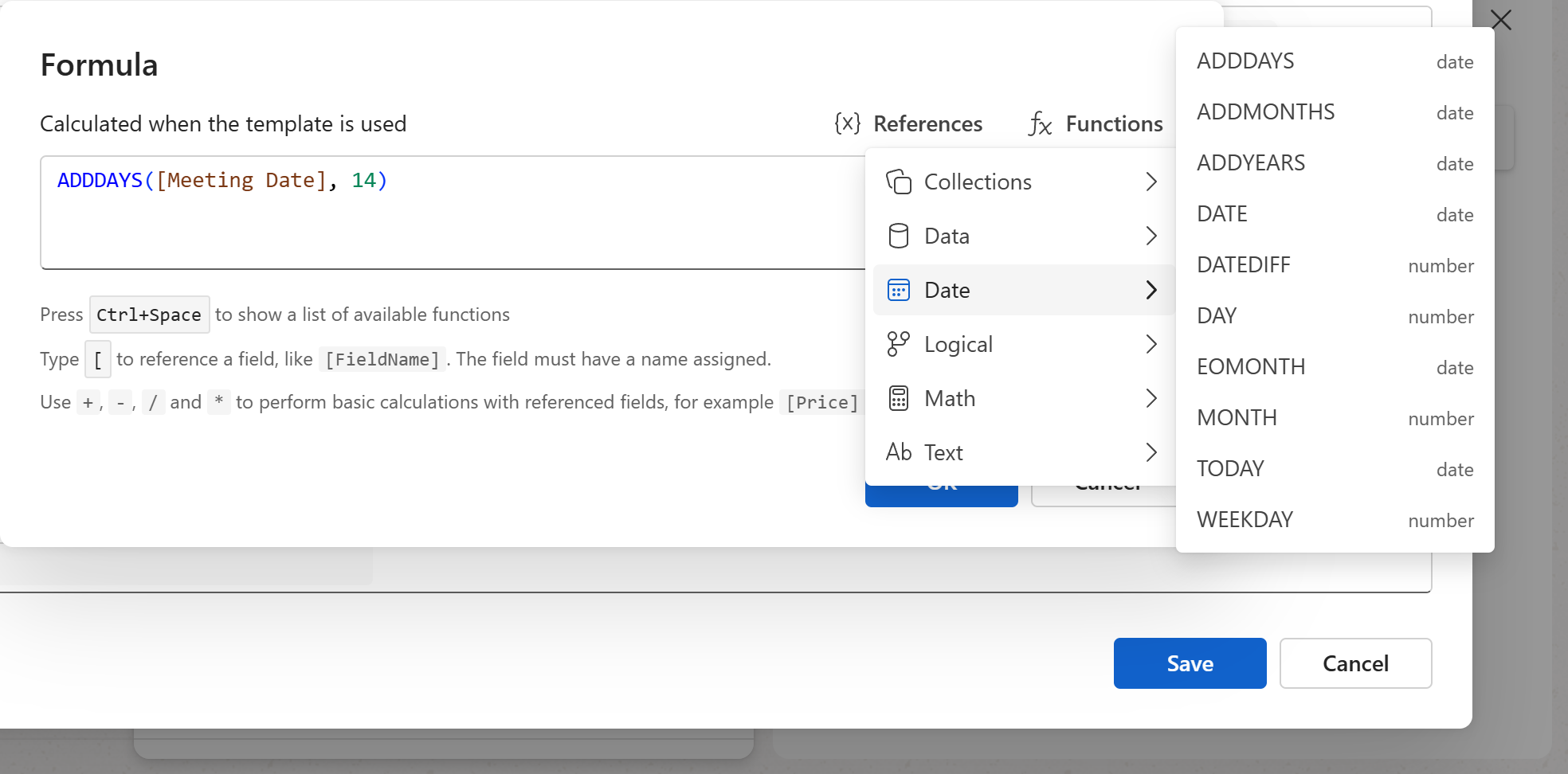
The Formula dialog, the way a formula is written — fields in brackets, functions, operators — how it is checked as you type, and how its result is formatted.
The Formula dialog
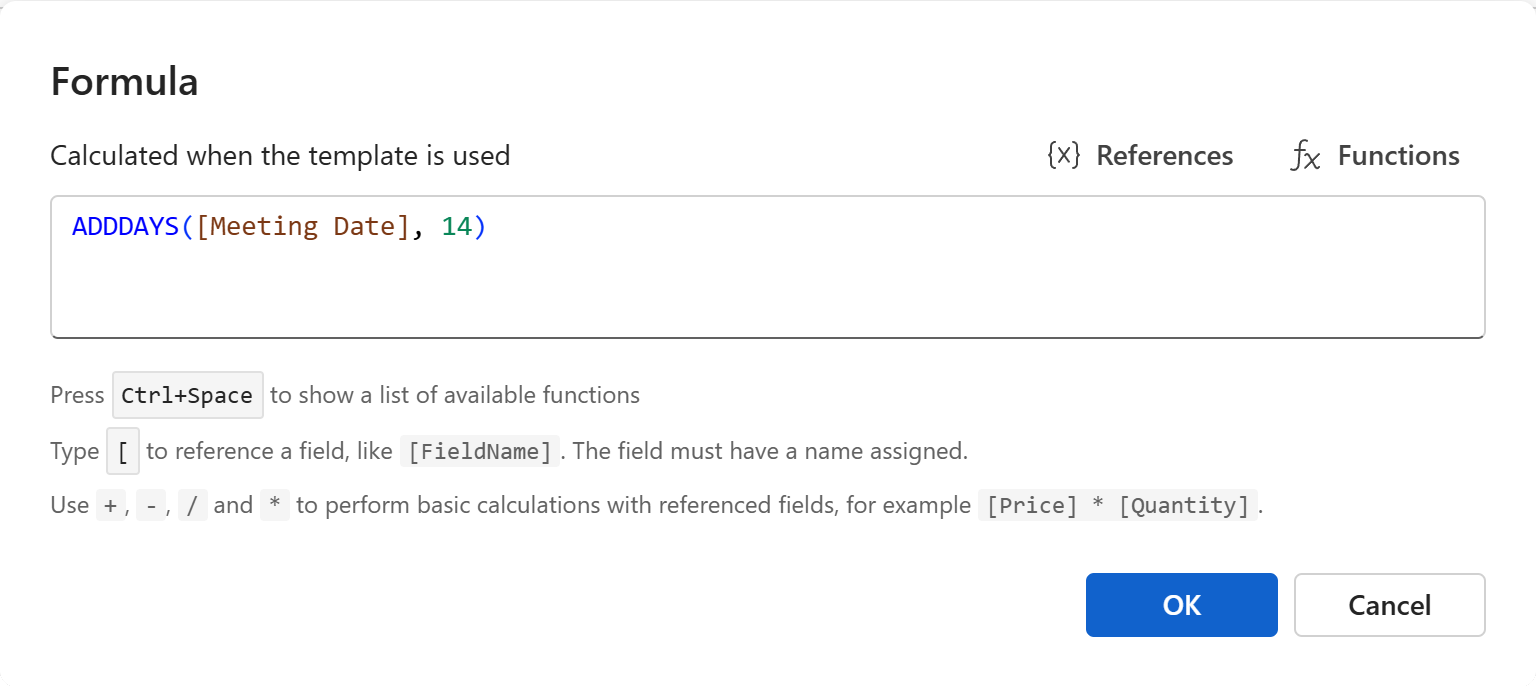
- Place the cursor where the result should appear and click Insert formula (
fx) in the toolbar. To change an existing formula, double-click it in the text, or click its box in the template pane. - Write the formula in the box. References lists the fields you can refer to, Functions the functions by group — pick one to put it in.
- Click
OK. The dialog checks the formula first; it only closes when the formula is sound.
The dialog edits one line: a long formula wraps, and Enter never makes a new line. Cancel drops the change, and a new formula that was never written is taken out of the text again.
Note
You need an Admin or Manager role to edit snippets and templates, and so to write formulas.
How a formula is written
Fields go in square brackets, by name: [Price], [Meeting Date]. Type [ and the dialog lists the named fields of the snippet or template, each with its type; in a document template, the document's own properties follow them. A field needs a Name before a formula can use it — see Naming fields.
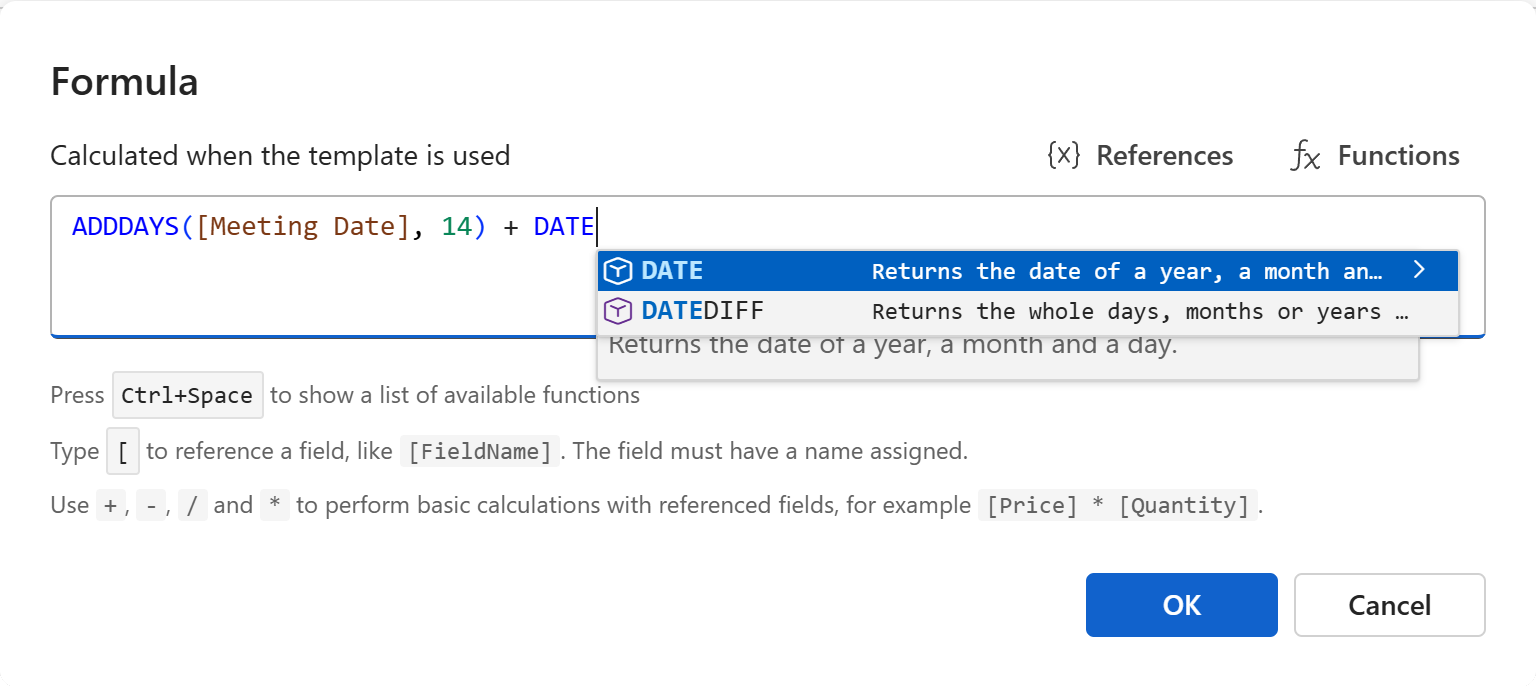
Functions are written in capitals with their arguments in parentheses: ADDDAYS([Meeting Date], 14). Start typing a name, or press Ctrl+Space, and the dialog offers the matching functions with a description of each; pick one and its signature shows what it takes. The full list is in the Function reference.
Numbers are written plain, with a period for decimals: 14, 0.08. Text goes in double quotes: "days". Dates come from fields, from TODAY(), or from DATE(2026, 12, 31). Yes and no are TRUE and FALSE.
Operators combine them:
| Operators | For |
|---|---|
+ - * / % |
Arithmetic: [Price] * [Quantity], [Total] * 0.08, the remainder with % |
= <> < <= > >= |
Comparisons, giving true or false: [Amount] > 1000 |
AND OR NOT |
Combining conditions: [Amount] > 1000 AND [Remote Work] |
( ) |
Grouping: ([Subtotal] - [Discount]) * 1.08 |
Functions can be nested: ROUND([Subtotal] * (1 - [Discount] / 100), 2), TEXT(ADDDAYS([Due Date], 7), "D").
Shared values and document properties. PREVALUE("Company Name") reads a shared workspace value. In a document template, [DocumentDate], [AutomaticNumber], [Author] and the other document properties are used like fields; VALUE("Author.EmailAddress") picks a part of one.
What the dialog checks
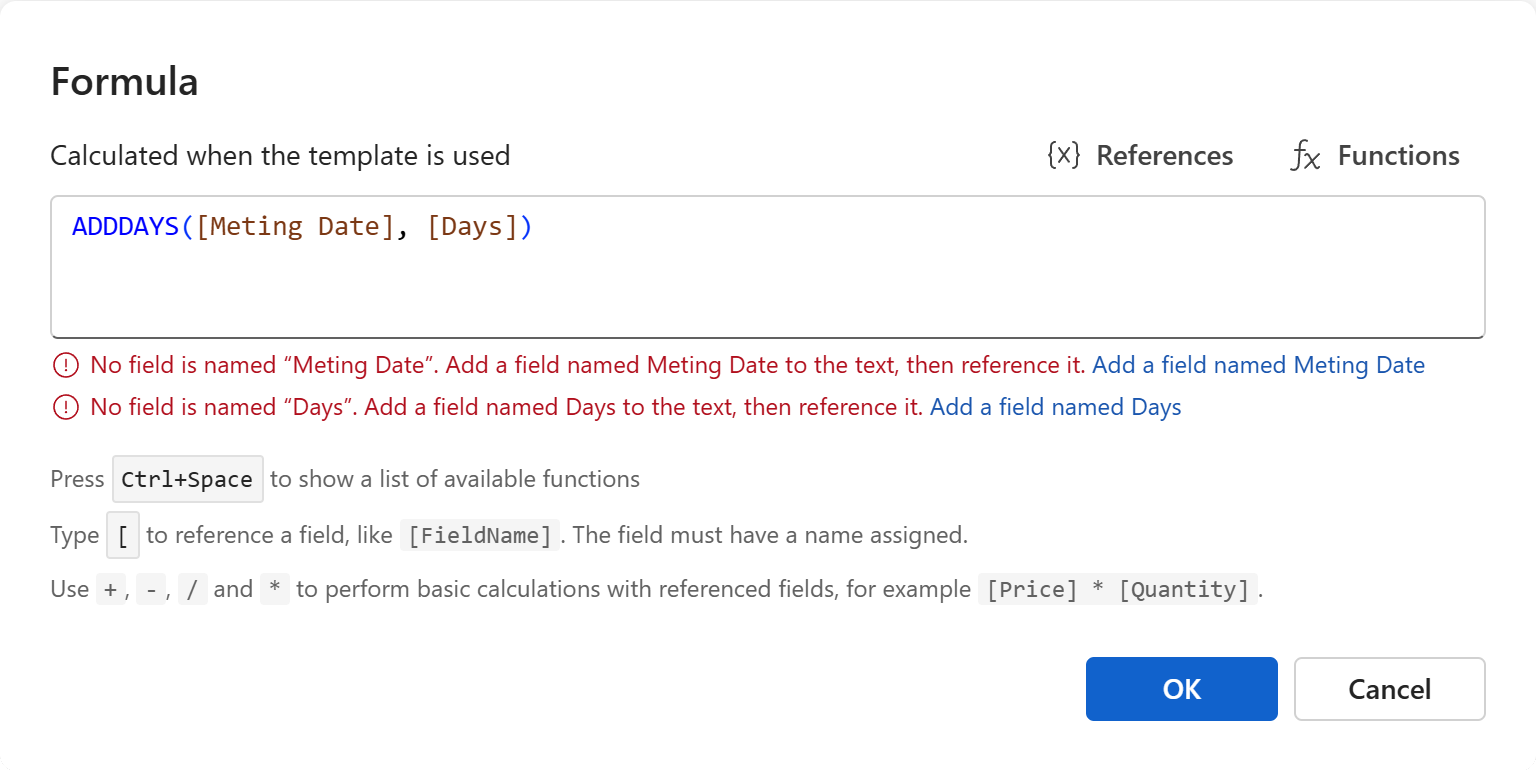
As you write, the dialog checks the formula and lists what it finds under the box:
- Errors (red) stop
OKandSave: a field no field is named after, a name a field can't have, a text field given to a function that needs a date or a number, a field used both as a number and as a date, a property that doesn't exist. - Warnings (amber) are told but stop nothing: two fields share a name, or a date format is applied to a text field.
- A note (gray) says the formula couldn't be checked — the server didn't answer — and holds
Saveuntil it can.
Where there is an easy fix, the finding offers it as a link: Add a field named … puts a new field of the right type into a text template, marked as not part of the text; Change … to Date turns a text field into a date field; Use EmailAddress corrects a misspelt property.
Names are matched whatever their case: [meeting date] finds Meeting Date.
Tip
When several fields need the same name — a customer's name used twice — they are one field: the user fills it in once. The warning only appears when two differently defined fields clash.
The result's format
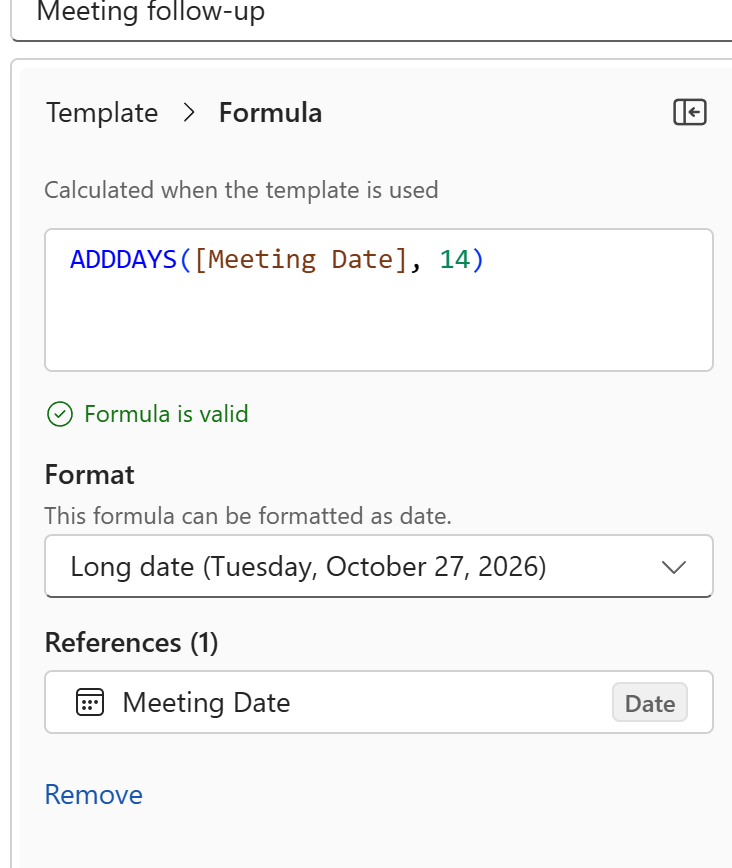
Once the formula is in the text, click it to see its properties in the template pane: the formula itself (click it to edit), what the check found — Formula is valid when nothing was found — the Format of its result, and its References, the fields it uses, each with its type.
The Format decides how the result is shown. The pane offers the formats of what the formula gives: for a date the short date, the long date, the month and day and so on; for a number whole numbers, two decimals, a thousands separator; for a text as it is, UPPERCASE, lowercase or Capitalize Each Word. Default shows a date as a short date, a number with two decimals, and a text as it is.
To format a value inside a formula — a date put into a sentence, say — use TEXT: TEXT([Due Date], "D") gives the long date, TEXT([Total], "N2") a number with a thousands separator and two decimals. Inside TEXT's second argument the dialog lists the formats for the type of the first.
| Format | Shows |
|---|---|
d |
Short date, in the template's language: 11/17/2026 |
D |
Long date: Tuesday, November 17, 2026 |
M |
Month and day: November 17 |
MMMM, yyyy, dd |
The month's name, the year, the day — or any date picture such as yyyy-MM-dd |
N2, #,##0.00 |
A number with a thousands separator and two decimals: 1,234.57 |
F2, 0.00 |
Two decimals, no separator: 1234.57 |
N0 |
A whole number with a thousands separator: 1,235 |
P0 |
A percentage: 8% |
UPPER, LOWER, TITLE |
A text in capitals, in lowercase, or with Each Word Capitalized |
Note
The Excel editor shows a date or a number through the cell's own number format, as it shows any value; set the cell's format there instead of the pane's.