Once a template is in your workspace, making a document from it takes a minute — open the template, fill in the form, and save the file. Here is the whole round trip.
Create a document
A document template — a contract, an invoice, an offer letter — is a file your team fills in rather than edits. You open it, answer the form, and WordFields makes the finished Word, Excel or text file with your values in place. Anyone in the workspace can do this; you only need access to the template's folder.
Note
No template yet? An Admin or Manager makes one from an existing file: see Create a template.
Step 1: Open the template
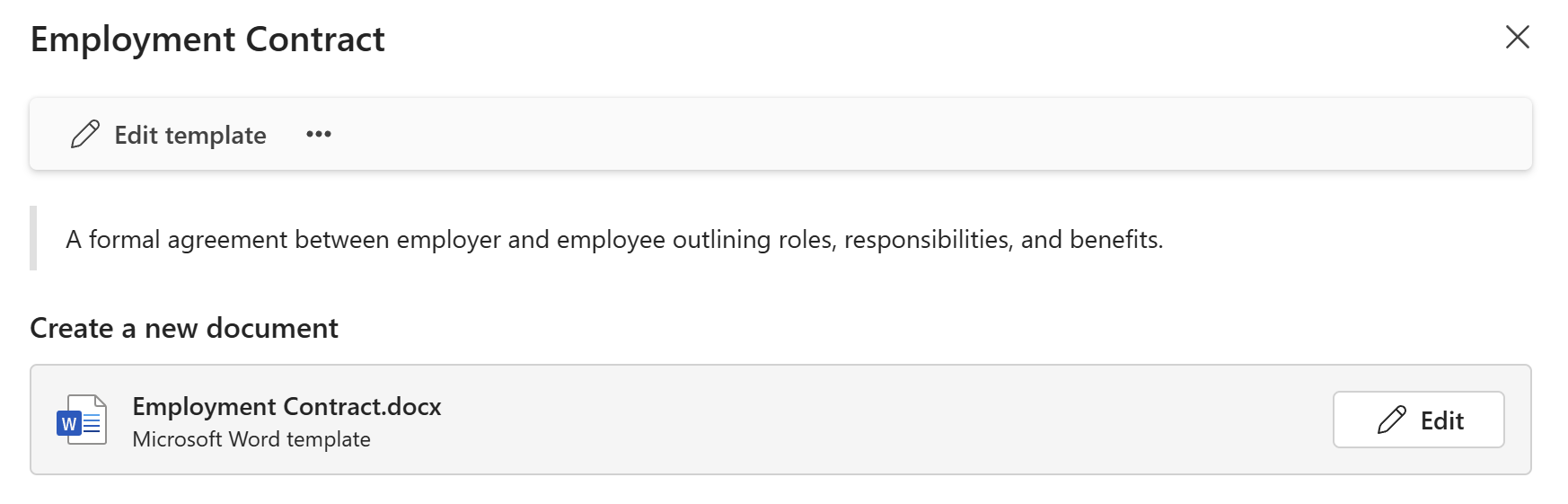
- Find the template on the workspace home page or in its folder, and click it. Its details pane opens on the right.
- Read the notes the template's author left, if any.
- Under Create a new document, click the template's file.
Step 2: Fill in the form
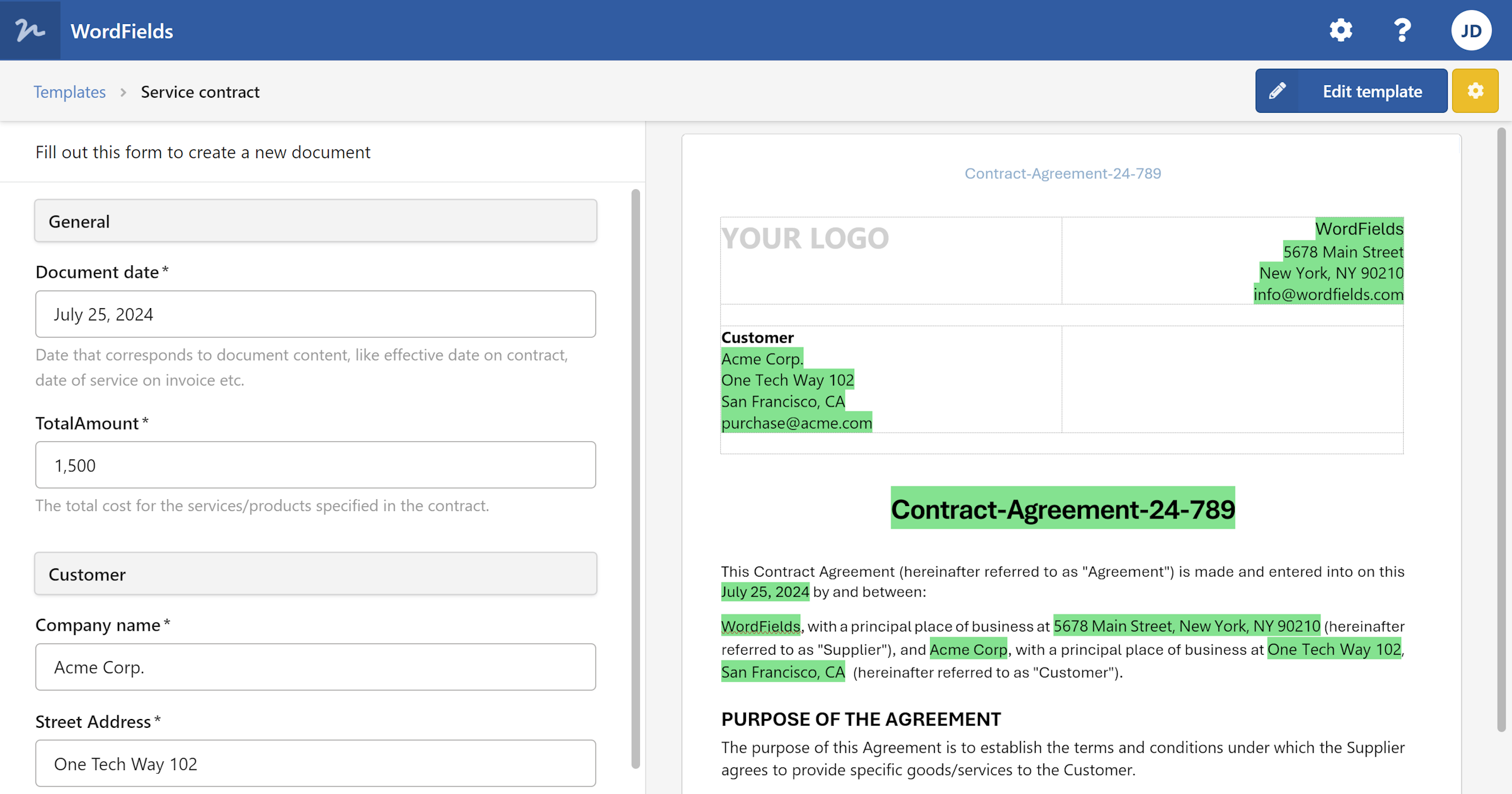
The form opens in the pane on the left, the document on the right.
- Pick the DocumentDate if it isn't today, and type a Title if the template asks for one.
- Fill in the fields. Required ones are marked with
*; the line above the form counts what is still missing. You can also click a field in the document and type there — the form and the document are one.
Values you don't type — your name, the company's address, a due date worked out from another date — fill in by themselves as you go.
Tip
Have the details in an email or a note already? Copy the text, click Fill with AI at the top of the form, then Paste from clipboard, and the fields are filled in for you. Check them before you go on.
Step 3: Save the document
- Click
Create documentin the top left.
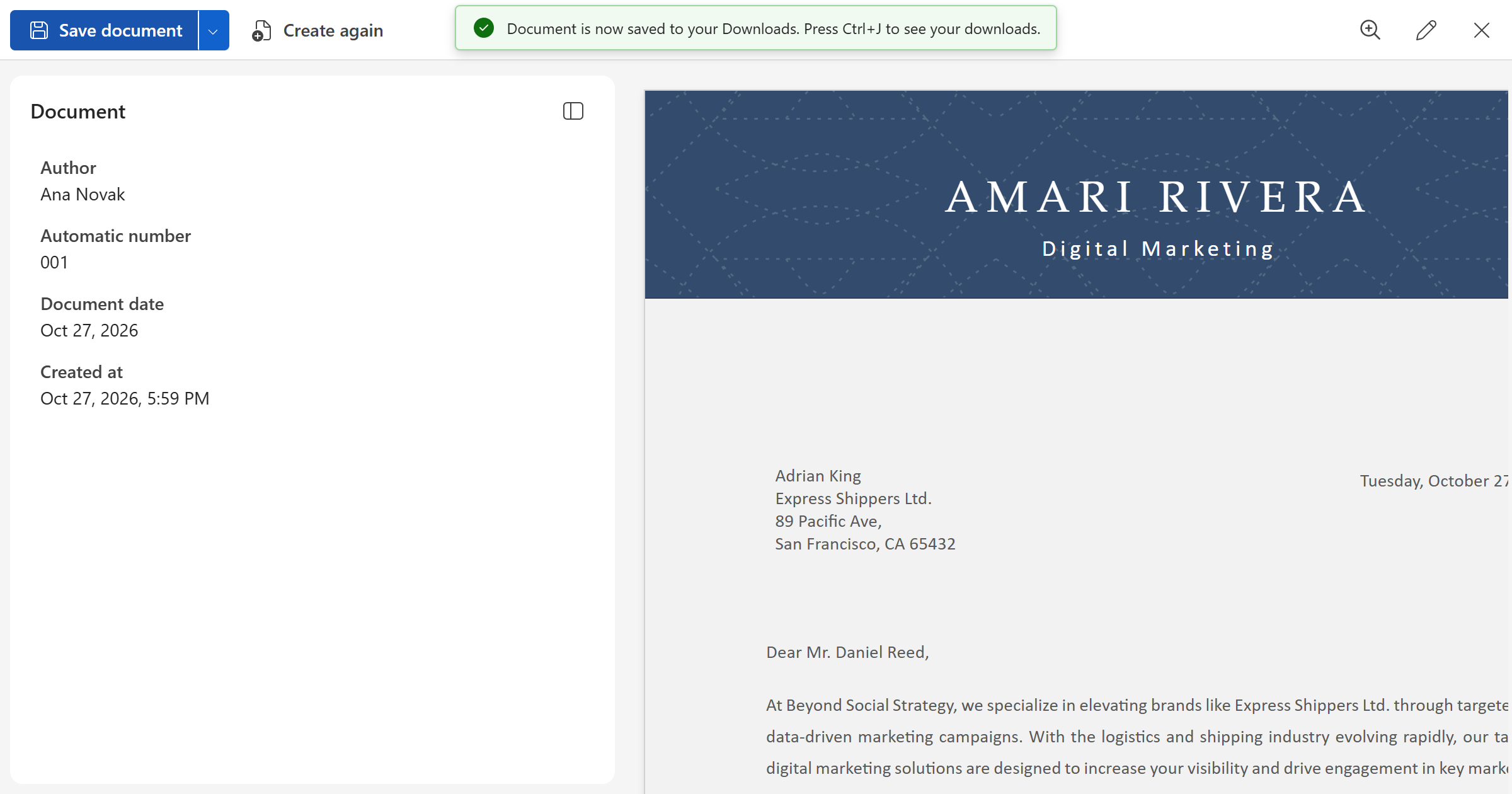
The finished document opens on its own page. Save document saves the file to your device; its menu also offers Download a copy and Email me a copy. On the left is the document's record — who made it, its number, its date — and any notes the author left for this moment, such as who the document goes to.
Need another one? Click Create again.
Note
WordFields keeps the record of every document, not the file. Find your documents later under Documents in the sidebar; the file itself is where you saved it. See Generated documents.
Learn more
- Create a document — every detail of the form and the document page.
- What is a template — how templates work, and how to make your own.
- Connect apps — save every document to OneDrive or SharePoint automatically.