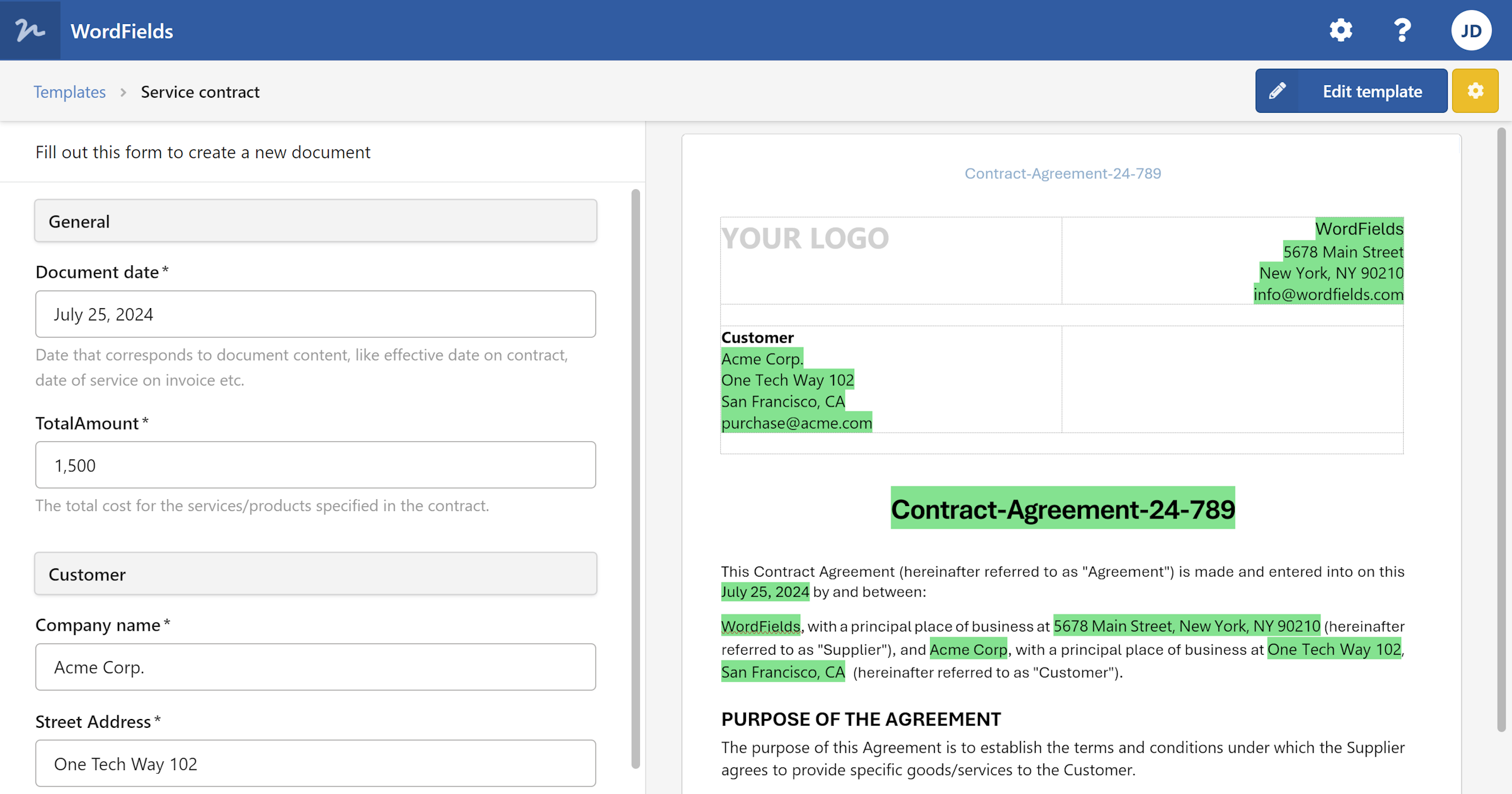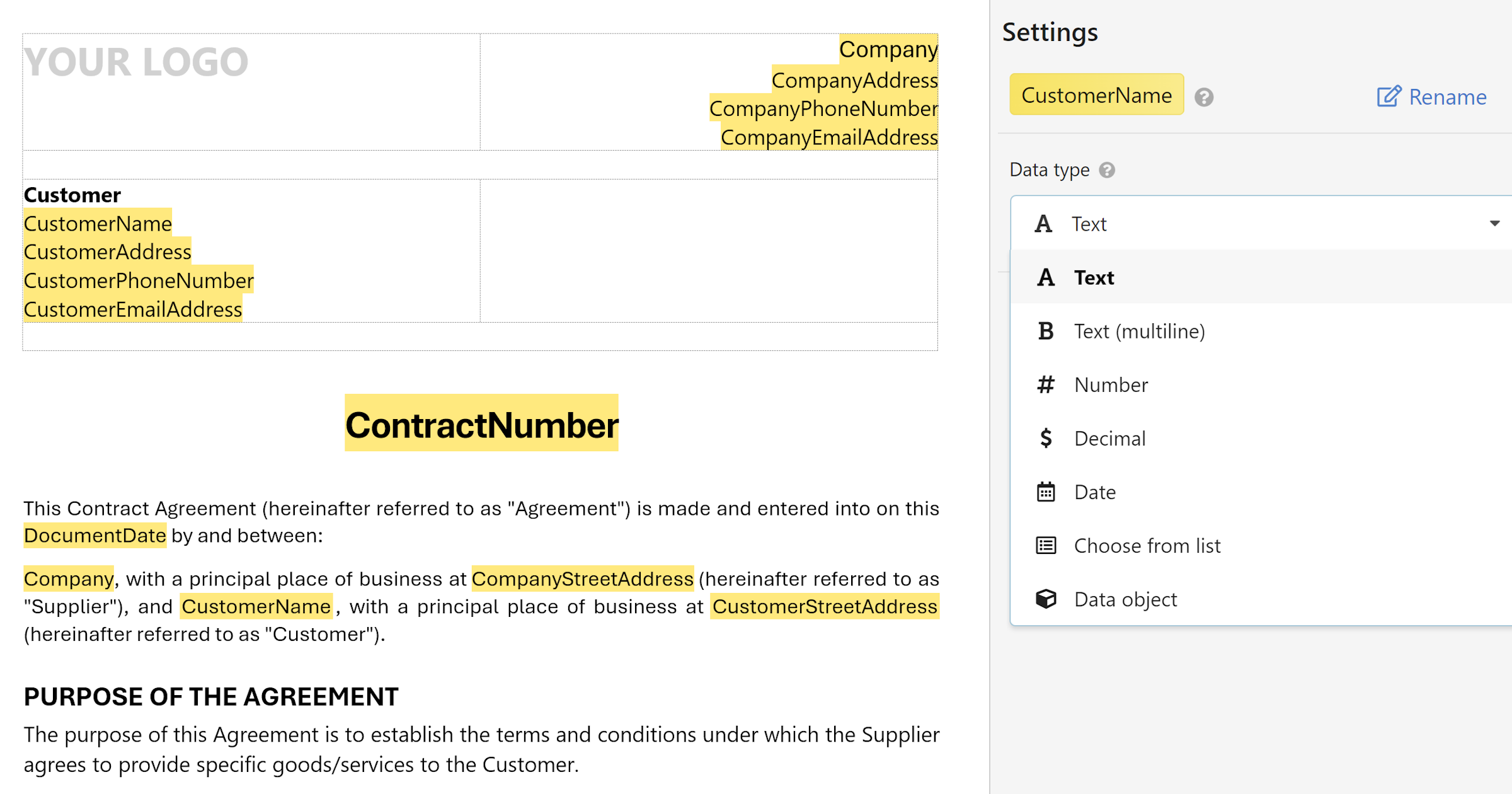
Fillable fields mark the parts of a document that change each time — a name, a date, an amount. Merge tags fill in what is already known, and formulas calculate the rest. Here is how to set them up in any template.
The three things you can put in
- A field is filled in by the person creating the document: a text, a number, a date, a choice from a list, a yes or no.
- A merge tag fills itself in: the document's own date or number, the author, the organization, a shared workspace value, or the value of another field.
- A formula calculates a value from the others. See Formulas.
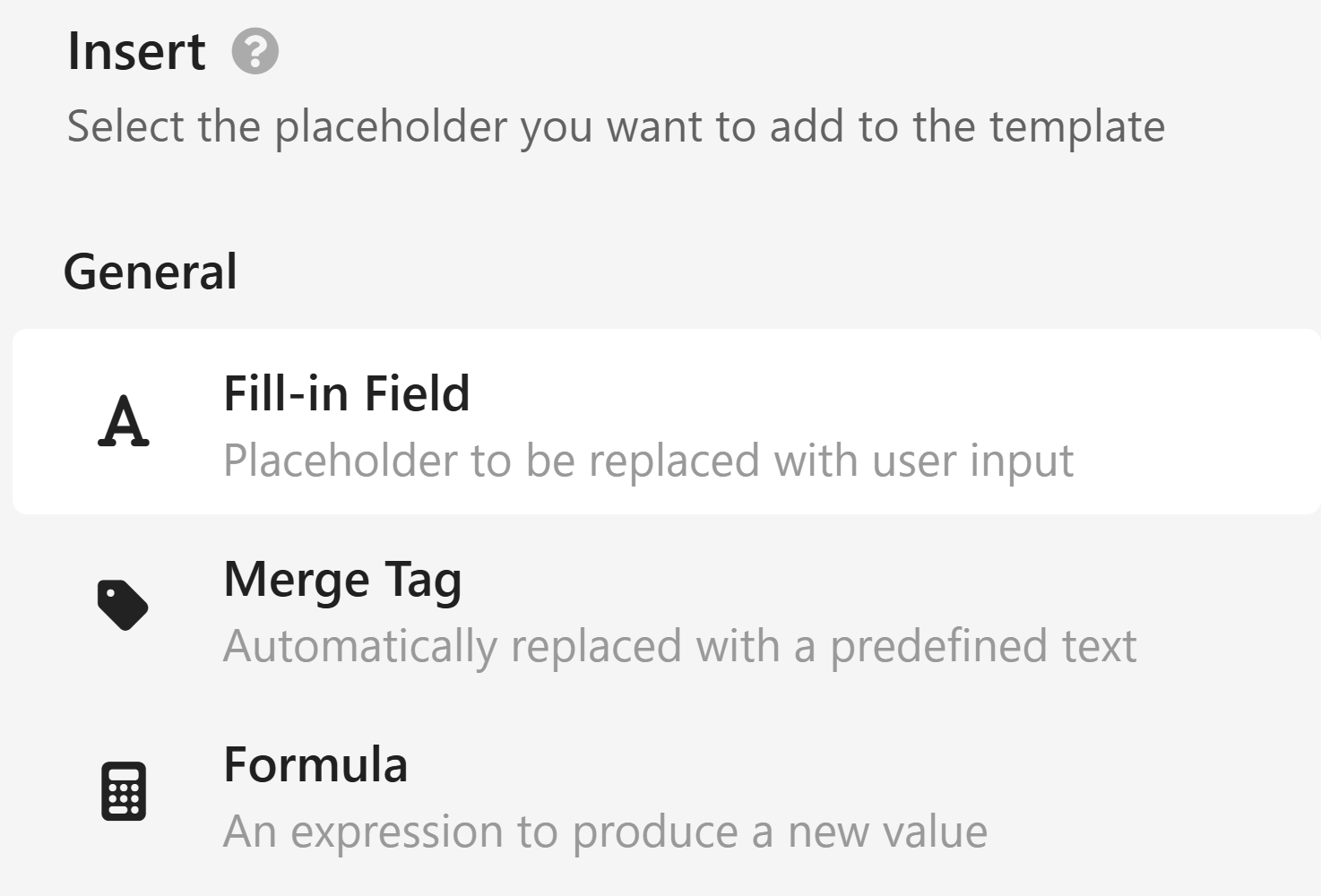
All three are put in the same way, from the Insert field menu: over selected text or at the cursor in a Word or plain text template, over a cell in an Excel template. The kinds are the same in every editor, and they are the same as in snippets.
Note
You need an Admin or Manager role to edit templates. Open the template from the content list and click Edit template.
Fields
The template pane on the left lists the template's fields; click one to select it in the document and see its properties. Click a field in the document to do the same. The properties are:
- Kind — Text, Number, Date, Select or Toggle, shown at the top of the pane; click it to change the kind.
- Hint — The placeholder shown while the field is empty, and the field's label in the form. The text a field was put in over becomes its hint.
- Default — What the field starts with: a text, a number, a date (none, today, or a specific day), an option, or a toggle's state.
- Format — How the value appears: a text as typed, in capitals, lowercase or Capitalize Each Word; a number's decimals and separators; a date's short or long form. In an Excel template a number's or date's format is the cell's.
- The kind's own settings — Allow multiple lines for a text; an Allowed range for a number or a date; the Options, Allow selecting more than one and the default option for a select; the two values of a toggle, Yes and No or your own words.
- Named field — A name, so the field can be repeated elsewhere, referenced, or used in a formula. Two fields with the same name are one field: the user fills it in once.
- Not part of the text, used only in formulas — The field is asked in the form but left out of the document; only formulas and references use its value. Word and plain text templates only.
- Required — The user must fill it in before the document can be created. A new field is required; turn it off for an optional one.
- Remove — Takes the field out; its text stays.
The field's properties are described one by one, with examples, in Fillable fields in snippets — they are the same here.
Tip
A Word field in a line of text can be formatted like the text around it: with the field selected, the Formatting buttons in the pane make the whole field bold, italic, underlined or highlighted.
Merge tags
Merge tags are in the same Insert field menu, under the fields:
Standard tags are the document's own properties, filled in when the document is created:
| Tag | Inserts |
|---|---|
DocumentDate |
The document's date, which the person creating it picks (today unless changed) |
Title |
The document's title, from the numbering's title pattern or typed by the person creating it |
AutomaticNumber |
The document's sequential number — see Automatic document numbering |
Author |
The person who creates the document |
Organization |
The organization name set in workspace settings |
CreatedOn |
When the document was created |
DocumentId |
The document's unique identifier |
Template |
The template it was made from |
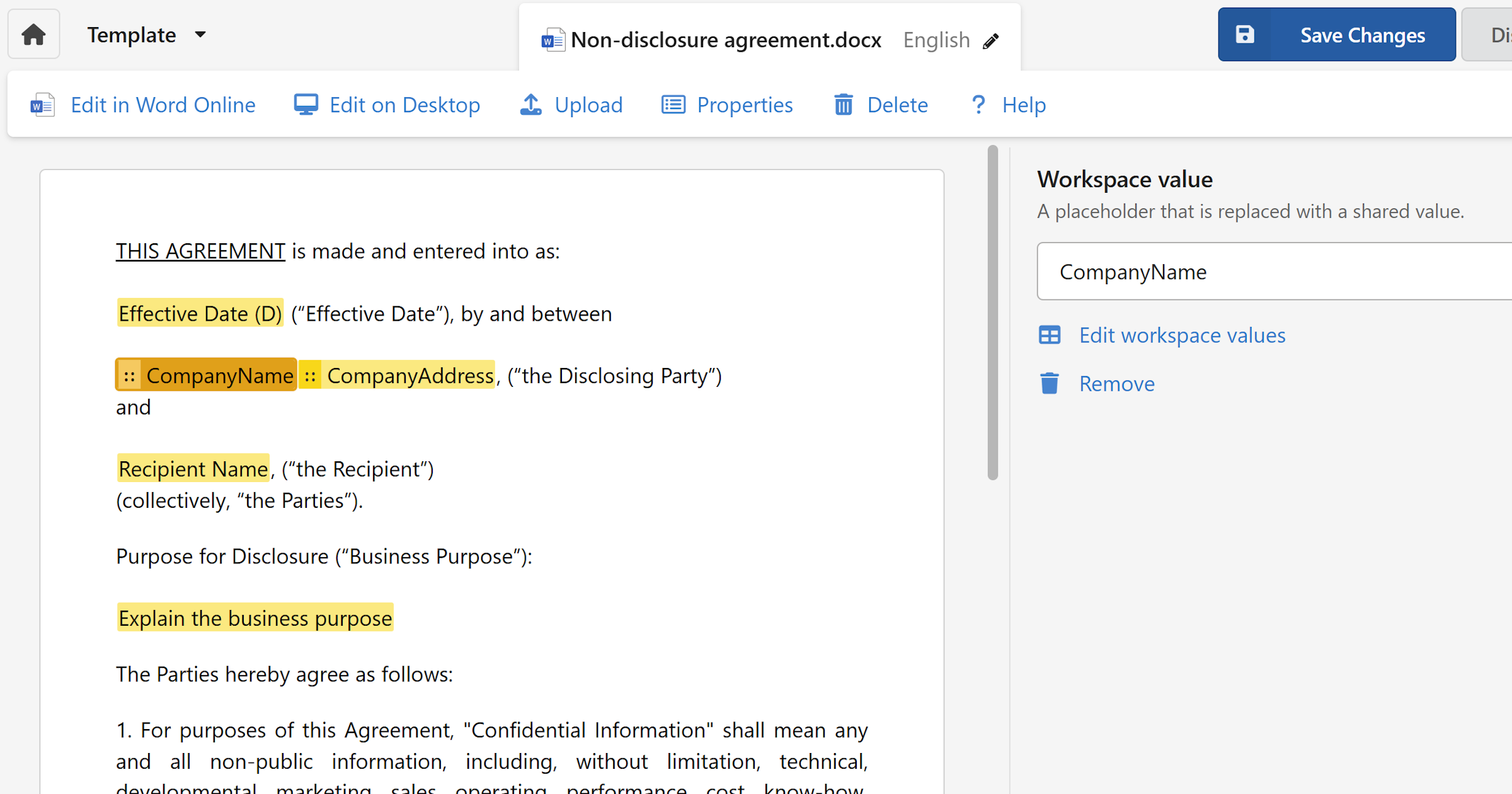
Workspace tags are the shared values an Admin defines in Workspace Settings → Shared values — a company address, a bank account, a support email. When the value changes, every document made from then on has the new one. Manage shared values… at the end of the list opens the settings. See Workspace shared values.
Reference field repeats the value of a named field elsewhere in the document: the customer's name in the address block and again in the greeting, typed once.
Click a merge tag in the document to see it in the pane: its kind, which you can change, the value it shows, and the Format it shows in — a date's or a number's, or a text's case. The document's properties of a date or a number kind — DocumentDate, AutomaticNumber — take the formats of their kind: a long date, a number padded to four digits.
Formulas
Formula…, last in the Insert field menu, opens the Formula dialog for a new formula at the cursor or in the cell. A formula can use the template's named fields and the document's properties — ADDDAYS([DocumentDate], 30) for a due date, [Quantity] * [Unit Price] for a line total. See Writing a formula and the Function reference.
Note
A template with a formula that has an error can't be saved: the red bar at the top says which formula and what is wrong, and the formula's row in the pane shows the fix where there is one.
What the form asks
When a document is created, the form in the pane asks for every field in the template's order, plus:
- DocumentDate — always, today unless another day is picked.
- Title — when the template has no title pattern in its numbering.
- Any name the template's title pattern, numbering or notes use that the file has no field for — listed under Other fields in the pane.
A required field left empty, or a value outside a field's allowed range, stops the document until it is fixed. See Create a document.