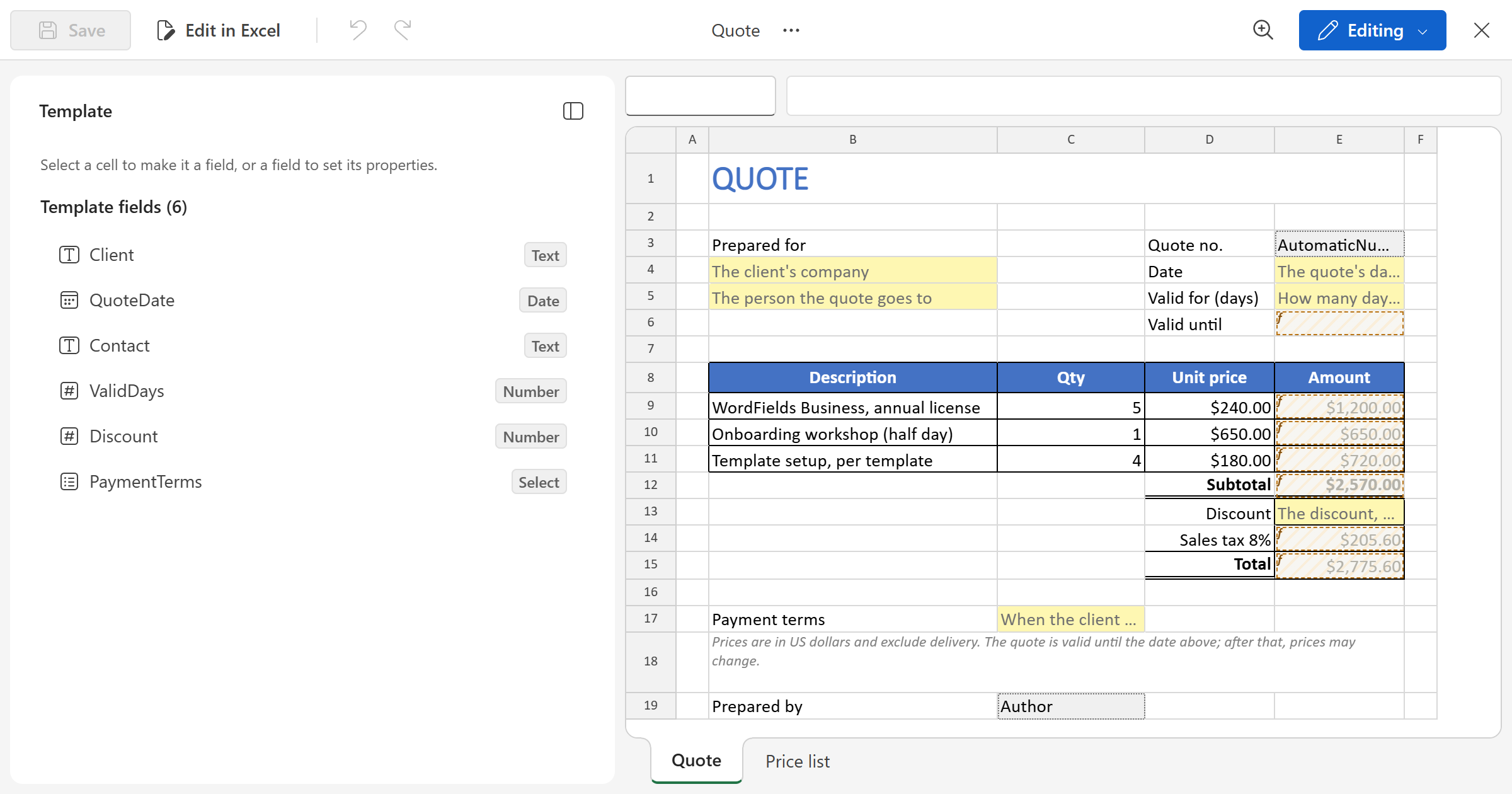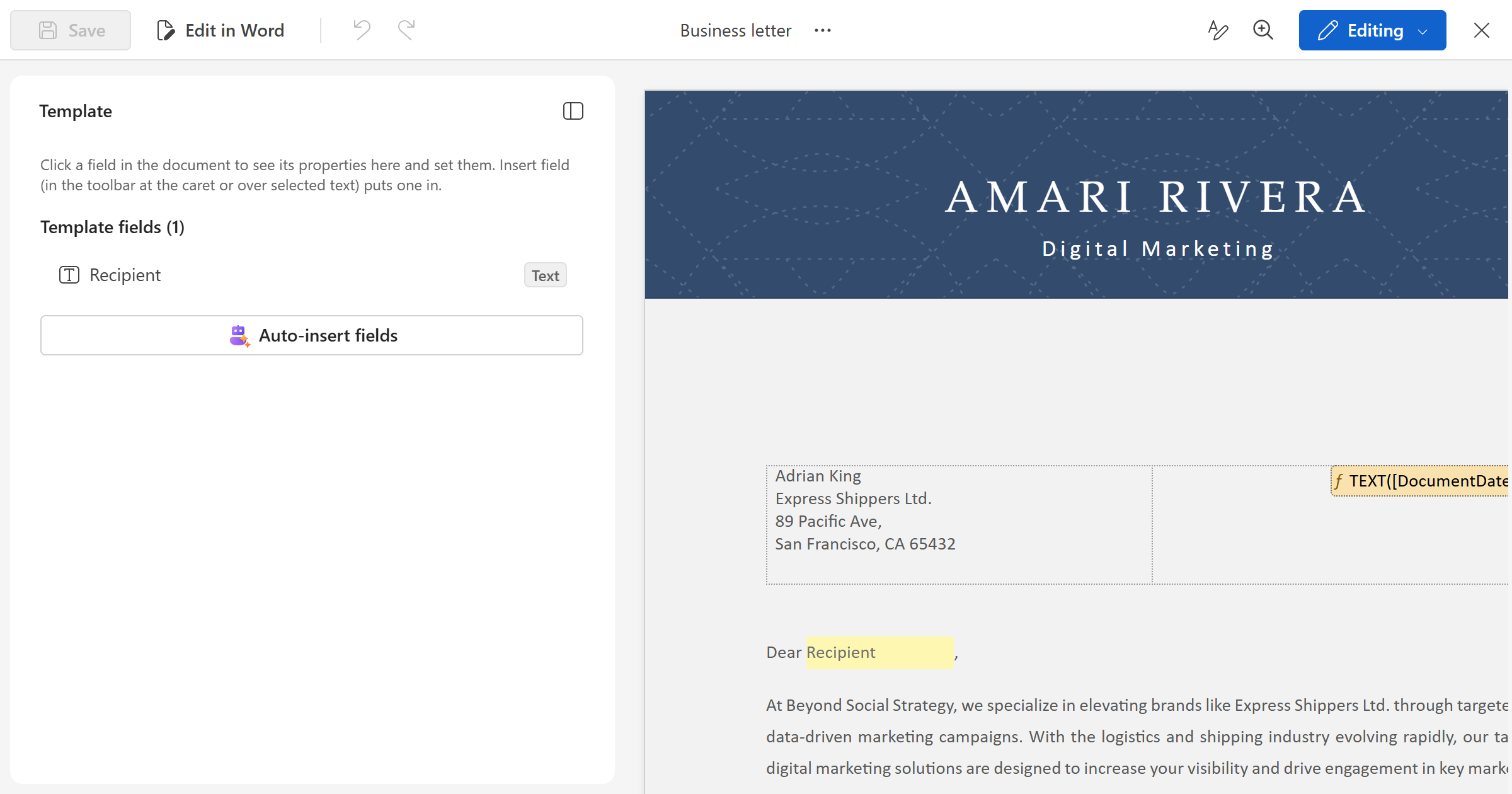
Turn a Word document into a template in the Word editor — open the .docx, put fields where the text changes, try it out in Preview, and bring it back to desktop Word whenever the layout needs work.
Start a Word template
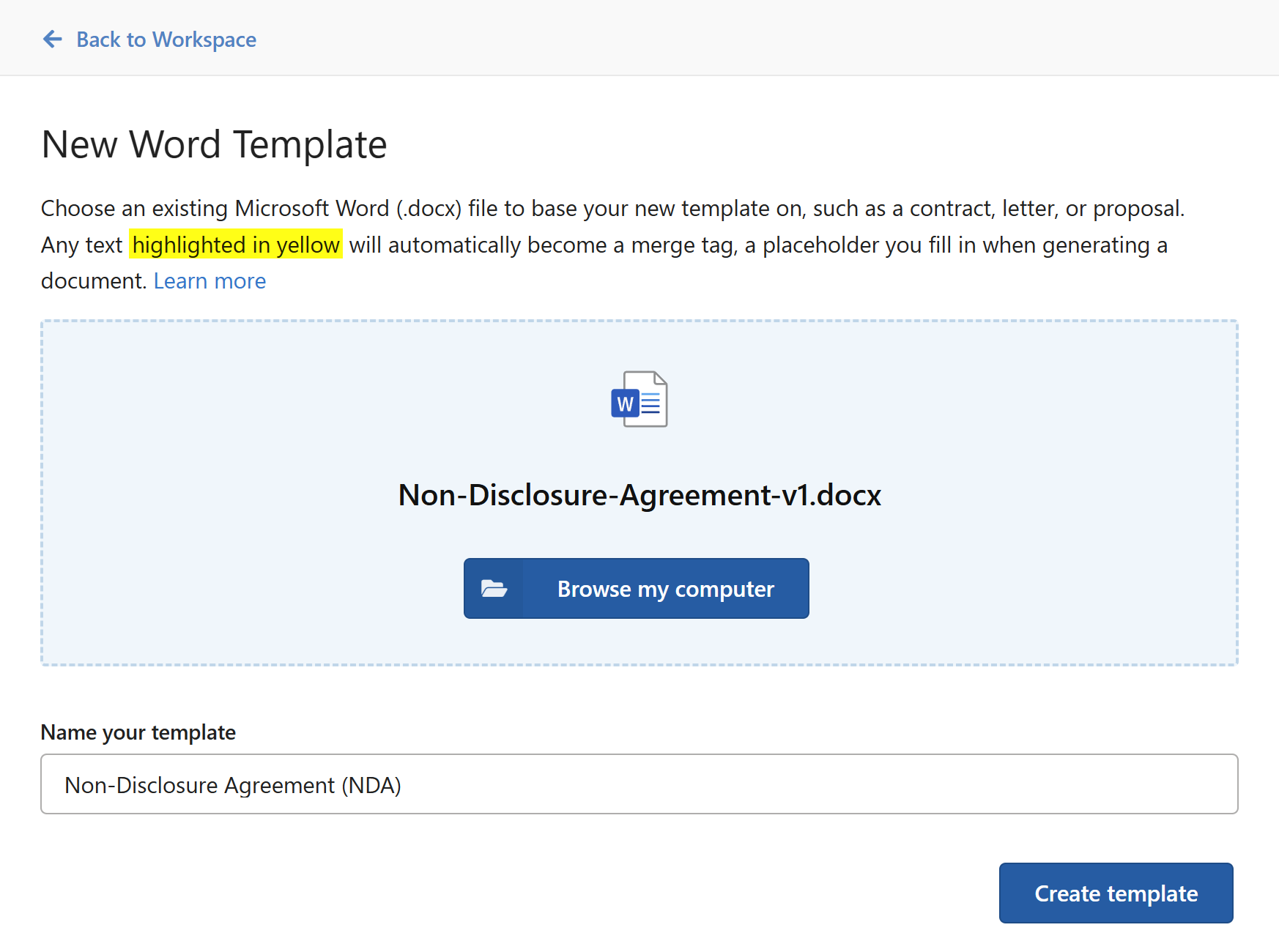
- Click
+ Create newin the left sidebar and selectWord template. The template is made in the folder you have open. - Press
Ctrl+Oor clickOpen .docxand pick the document — or drop the file onto the page. - Add your fields (below), then click
Create templatein the top left. Its name is the file's; click the name in the toolbar to change it.
To change an existing template, open it from the content list and click Edit template in its details pane. You need an Admin or Manager role.
Note
The editor shows the document as Word lays it out — pages, headers and footers, tables, pictures. You can type into the text and format it, but the layout itself is changed in Word: see Edit in Word below.
Put in a field
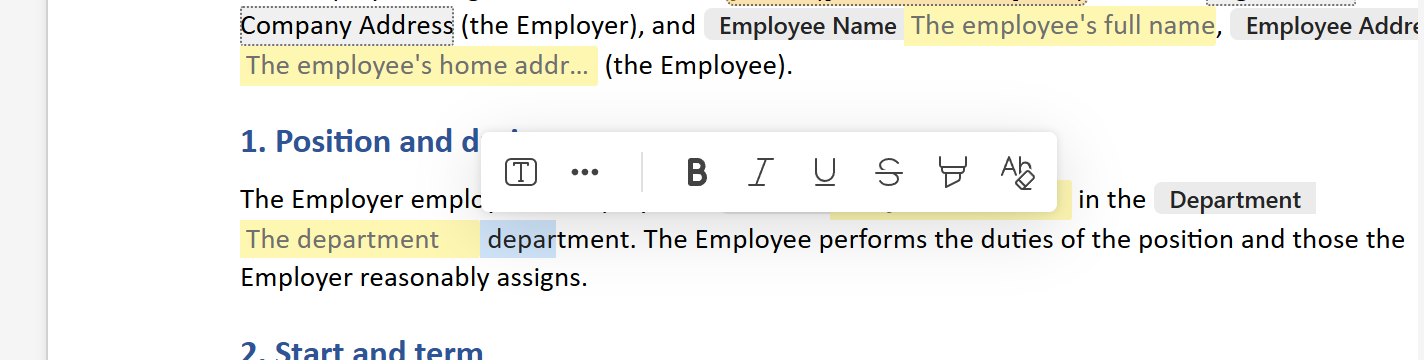
- Select the text that changes each time — a name, a date, an amount — or place the cursor where a field should go.
- In the small toolbar that appears, click Insert text field (
Ctrl+M), or More insert options (⋯) for the other kinds: number, date, select and toggle fields, merge tags and formulas.
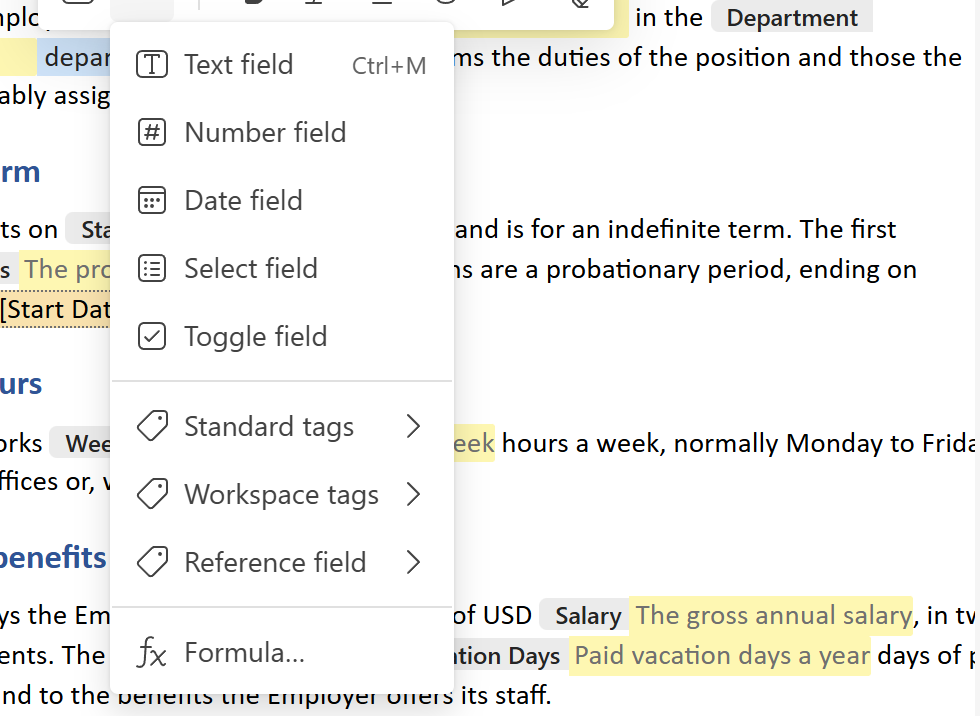
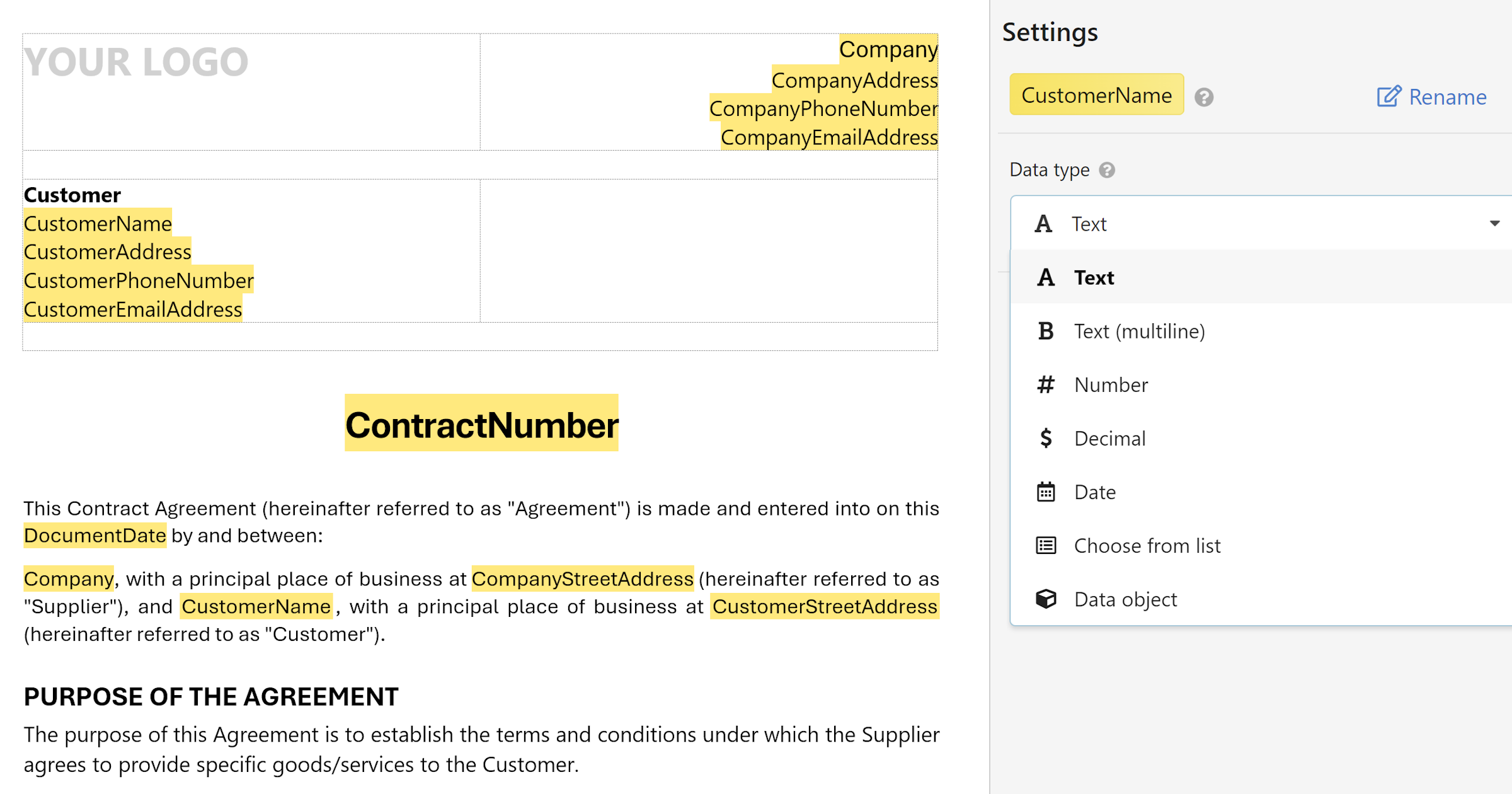
The selected text becomes the field's hint — what the user sees while the field is empty — and, where it makes a good name, its name. The field's properties open in the template pane on the left: change its kind, hint, default value, format, whether it is named and whether it is required. See Fields in templates for every property.
The toolbar over selected text also formats it: bold, italic, underline, strikethrough, highlight color and Clear Formatting. With a field selected, these format the whole field.
Tip
Auto-insert fields in the template pane lets the AI Assistant read the document and put in the fields it finds — names, dates, amounts, and references where a value repeats. What it inserted is one change, so Ctrl+Z takes it all back.
Headers and footers
Headers and footers are shown, but can't be edited in the browser yet. Double-click one and a tip opens with the way to do it: open the template in Word with Edit in Word, change the header there, and bring the file back. To put a field in a header, insert it on the page first, then, in Word, cut the field and paste it into the header — it comes back as the same field.
Edit in Word
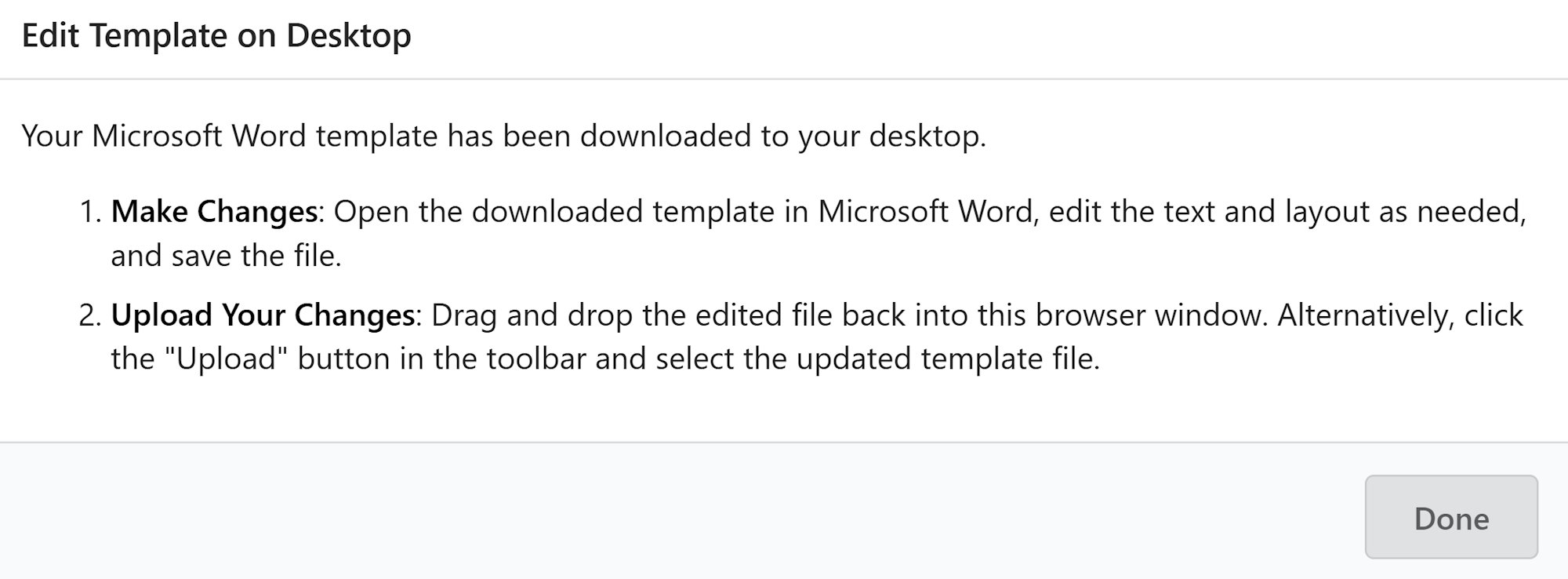
For anything the browser can't do — tables, layout, styles, headers — take the file to Word and back:
- Click
Edit in Wordin the toolbar. A copy of the template as it is now downloads, and a dialog waits for it. - Open the copy in desktop Word, make your changes, and save it.
- Drop the saved file onto the dialog, or click it to choose the file.
The template takes the changes, with its fields intact. A green bar confirms it; you can go on editing, or save.
Note
The editor waits for the copy it downloaded. Another file is refused; so is a copy that an older version of the template was downloaded from. Closing the dialog stops the wait — the template stays as it was.
Track changes (the toolbar button next to zoom) marks what your edits changed while you work: inserted text turquoise, deleted text red. It is off when the editor opens.
Preview and test
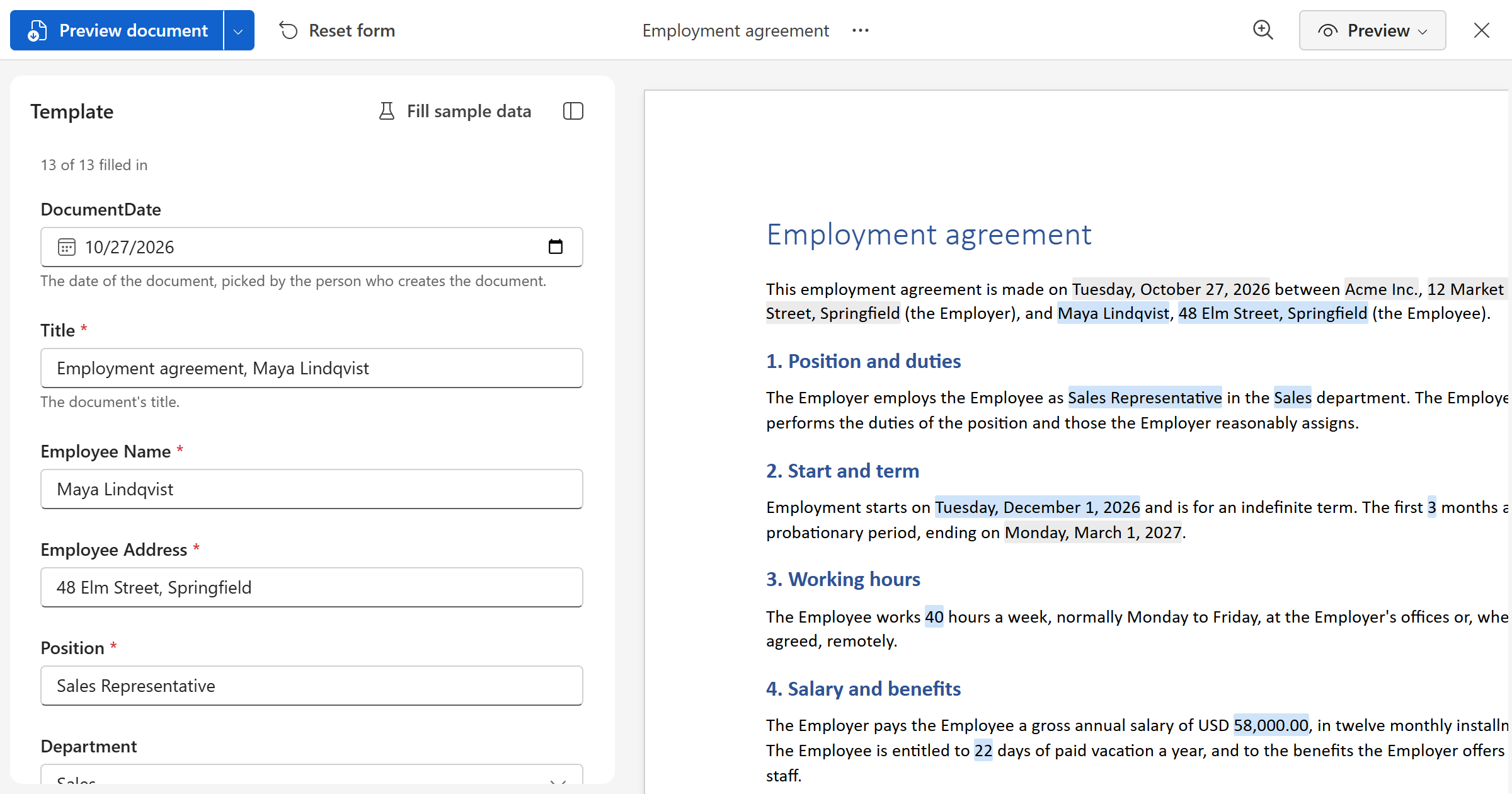
Switch the mode menu in the top right from Editing to Preview to see the template as your team will: the form in the pane, the fields fillable in the document, merge tags and formulas worked out as you type. Fill sample data fills every field with a sample of its kind.
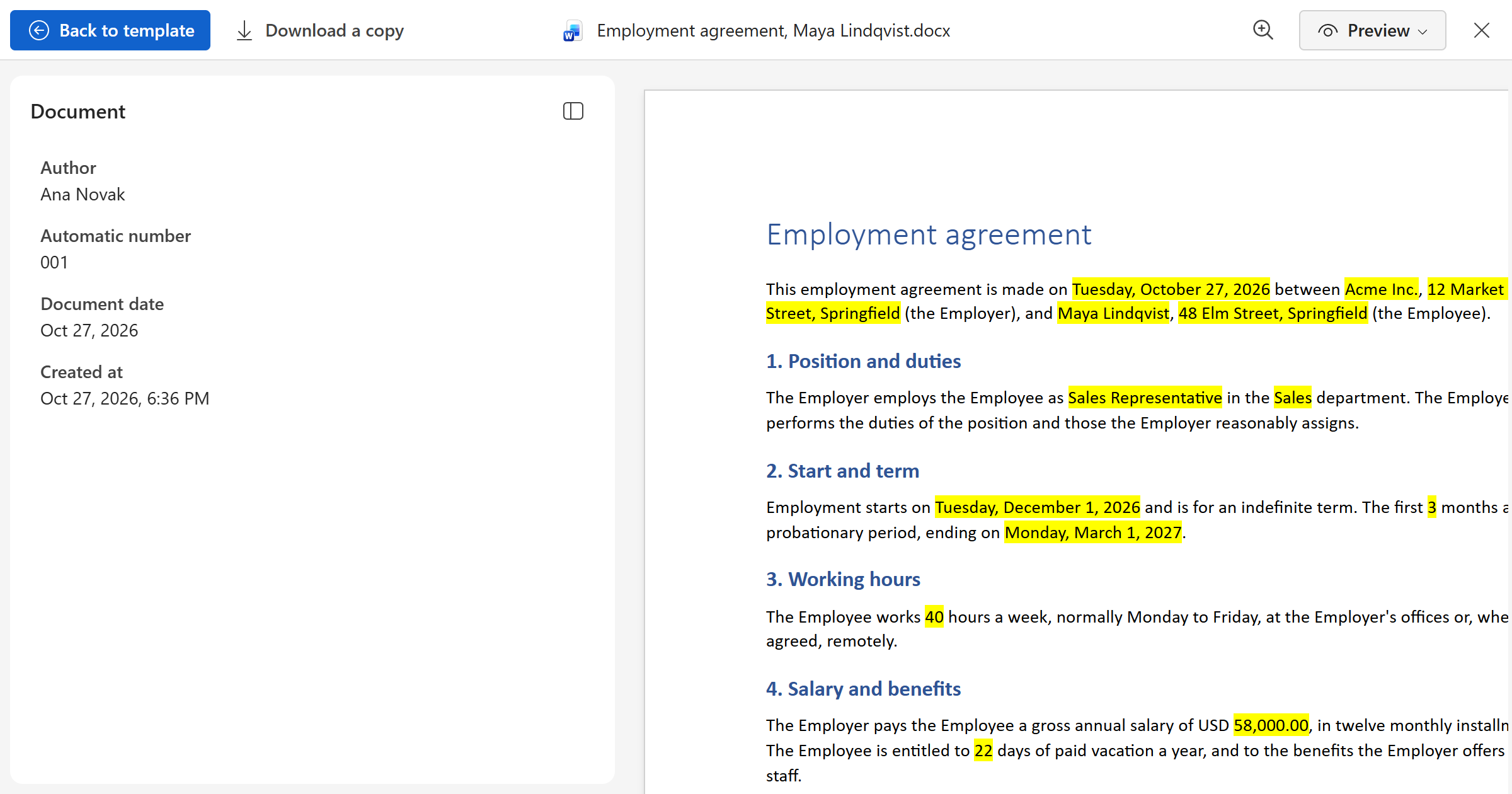
Preview document makes a test document from the template as it is now, unsaved changes included, and shows it over the editor; its menu offers Preview with fields highlighted, which marks what the fields put in, in yellow. Download a copy saves the test file; Back to template closes it. Nothing is recorded or numbered.
Save
Save (Ctrl+S) saves the template. It is disabled until something changed, says Saving while it does, and Saved until the next change. Closing with unsaved changes asks first.
Note
A template isn't saved while one of its formulas has an error: the red bar at the top says which. See Writing a formula.