Make a template from any text file — notes, Markdown, JSON, CSV, configuration — in the plain text editor, where a field is a tag in the text.
Start a plain text template
- Click
+ Create newin the left sidebar and selectPlain text template. - Press
Ctrl+Oor clickOpen text fileand pick the file (.txt,.md,.json,.yaml,.csv,.html), drop it onto the page — or clickBlank templateto start from an empty text. - Add your fields (below), then click
Create template.
The text opens in a code editor: it wraps, there are no line numbers, and the editor's own find (Ctrl+F) and undo work. A plain text template has no formatting — the file comes out exactly as the text, with the fields filled in.
A field is a tag
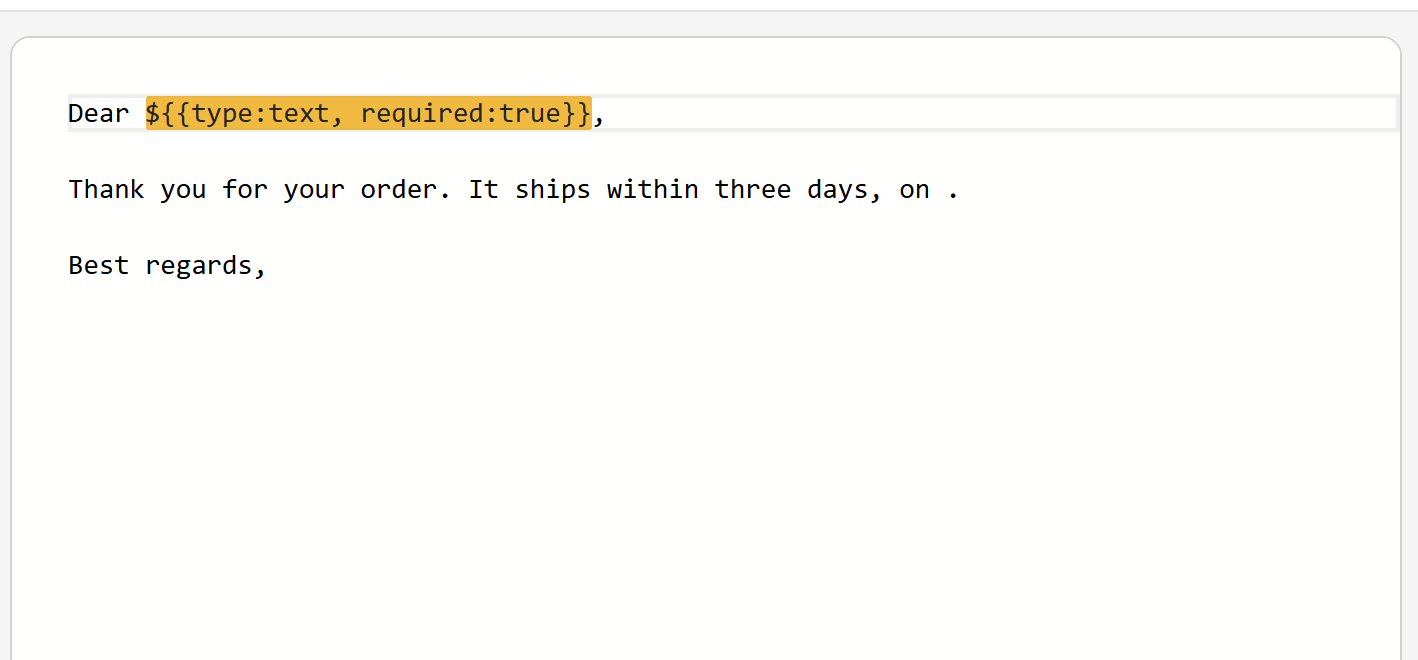
In a plain text template, a field is a tag written into the text, between ${{ and }}:
Dear ${{type:text, required:true}},
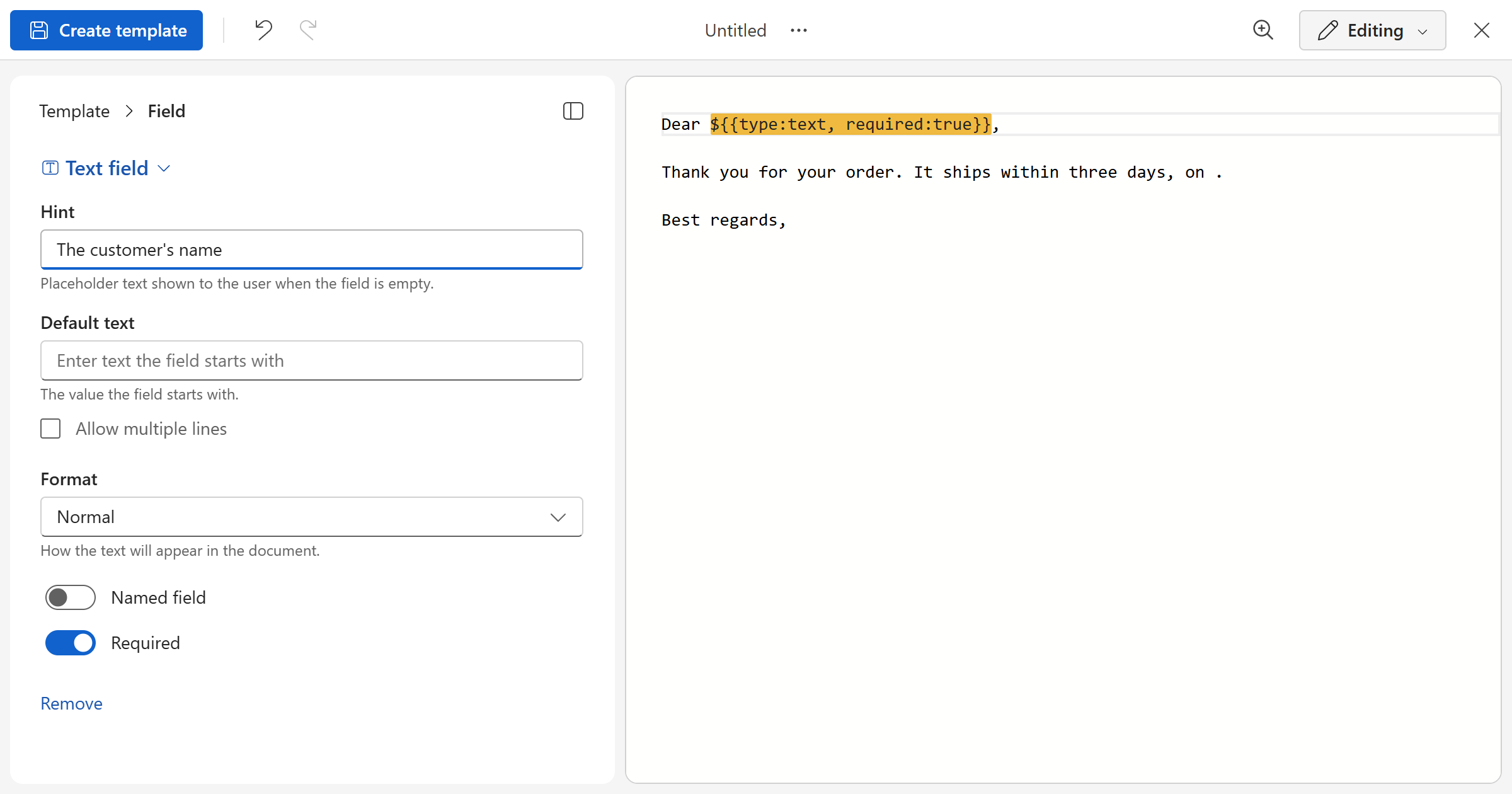
You don't have to write tags by hand. Select the text that changes, or place the cursor, and click Insert text field (Ctrl+M) in the toolbar that appears — or ⋯ for the other kinds, merge tags and formulas. You can also type ${ and pick from the list that opens. The tag is written for you, selected, and its properties open in the template pane; everything you set there is written into the tag.
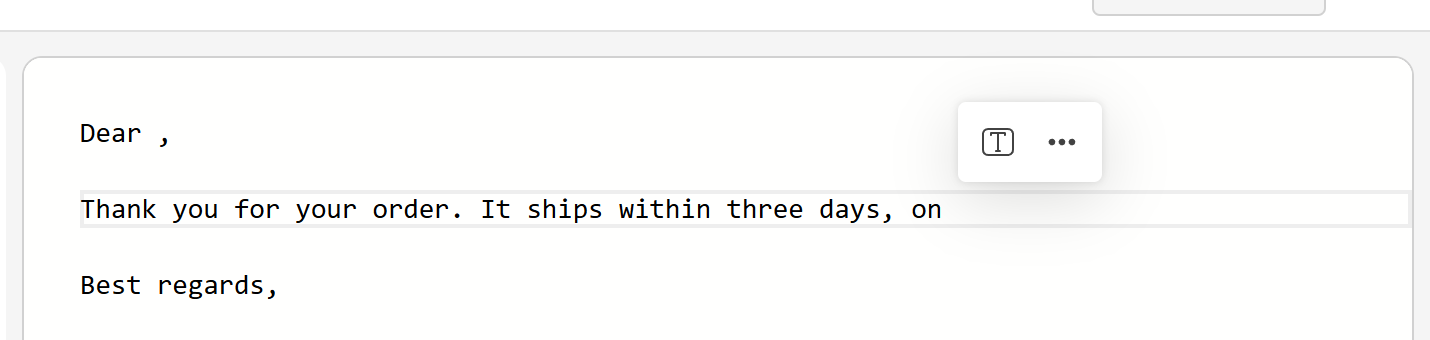
The tags are colored: an input field yellow, a formula or a reference pale orange, a Standard or Workspace tag gray; the one at the cursor is orange. Hover a tag to see what it is.
A tag can carry a name, a hint, a default, a format, options and the other properties — see Fields in templates. A few examples:
${{type:text, name:"Customer", hint:"The customer's name", required:true}}
${{type:date, name:"Due Date", default:"today"}:D}
${{type:select, name:"Priority", options:["Normal","High"], default:"Normal"}}
${=ADDDAYS([Due Date], 7):D}
${=VALUE("Organization")}
A later tag with the same name is the same field. A formula is ${=…}, with its format after a colon. A tag that doesn't read as a field is left as text.
Tip
Auto-insert fields in the template pane lets the AI Assistant read the text and write the tags for the parts that change.
Preview and test
Switch to Preview in the top right: the text is shown filled in, each tag replaced by a field to fill in or a formula's result, in the same font and lines. Fill sample data fills every field at once; Preview text makes the test file and shows it. A multi-line text field is filled in from the form in the pane.
Save
Save (Ctrl+S) saves the template once something changed. There is no Edit in a desktop app for a plain text template: everything is edited here.