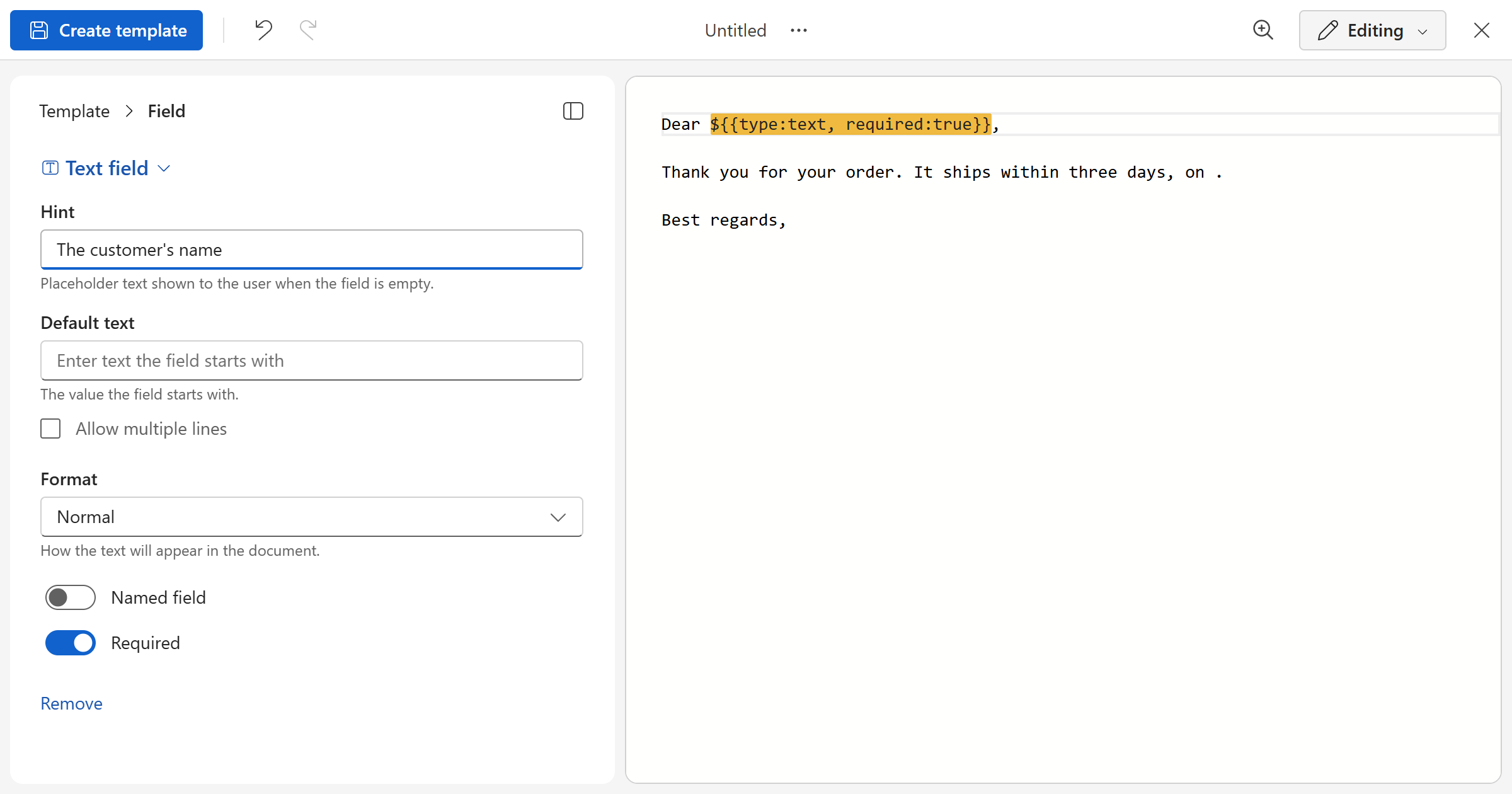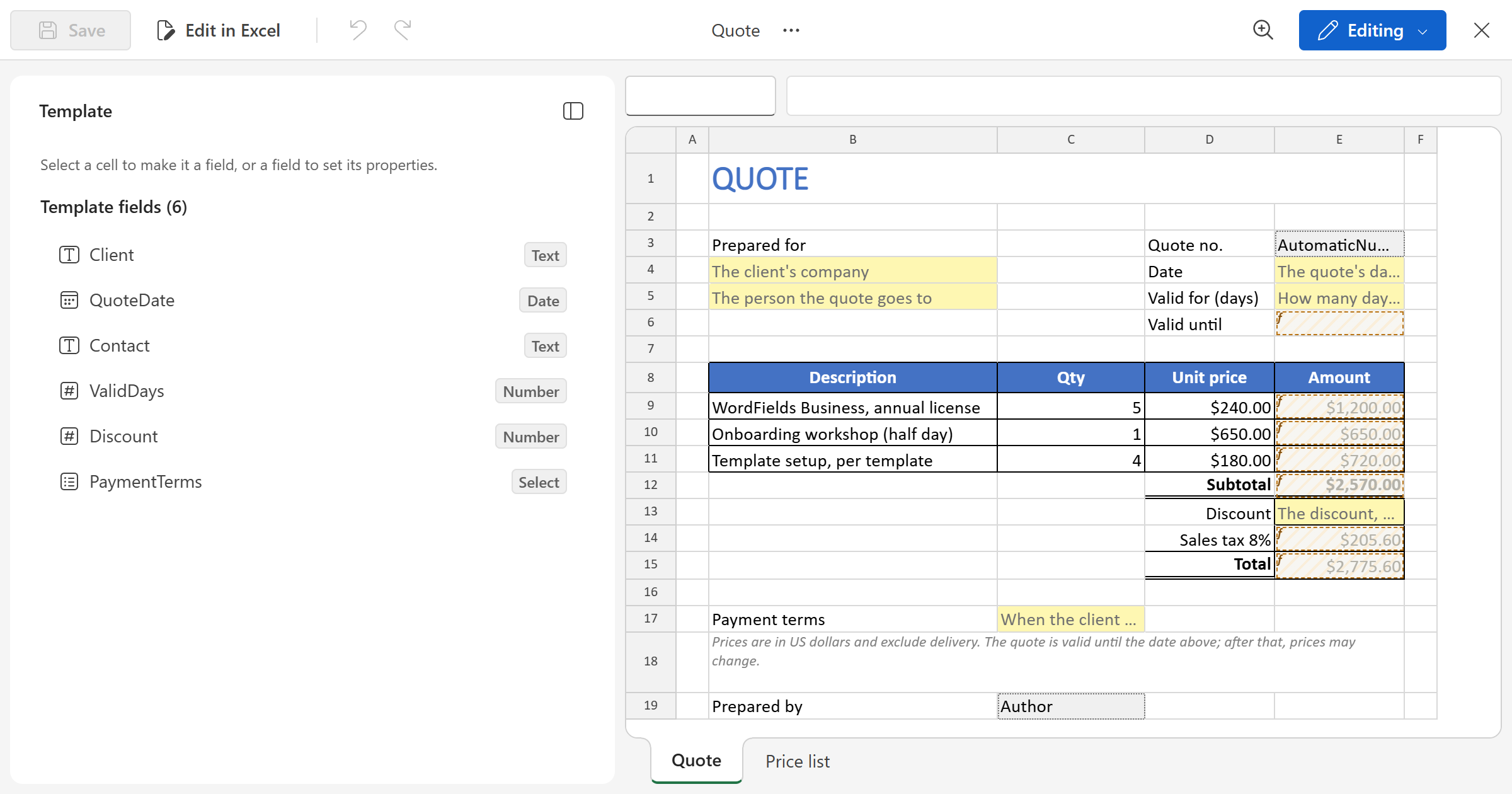
Turn a spreadsheet into a template in the Excel editor — a cell becomes a field, Excel's own formulas keep working, and the workbook comes out ready to open.
Start an Excel template
- Click
+ Create newin the left sidebar and selectExcel template. - Press
Ctrl+Oor clickOpen .xlsxand pick the workbook — or drop the file onto the page. - Add your fields (below), then click
Create template.
The editor shows the workbook's visible sheets as Excel does — column widths, gridlines, pictures, the formula bar and the sheet tabs. Click a cell to select it, type to edit it; Enter saves and moves down, Tab saves and moves right. A cell that holds one of the workbook's own formulas can't be edited: Excel works it out when the finished workbook is opened.
A cell becomes a field
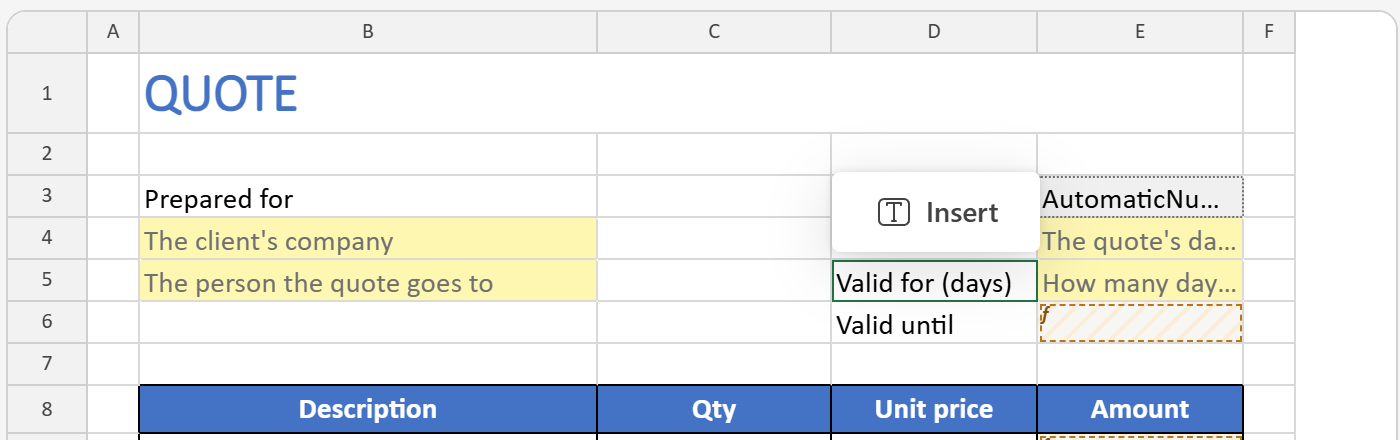
In an Excel template, a field is a cell:
- Select the cell that should be filled in each time.
- Click
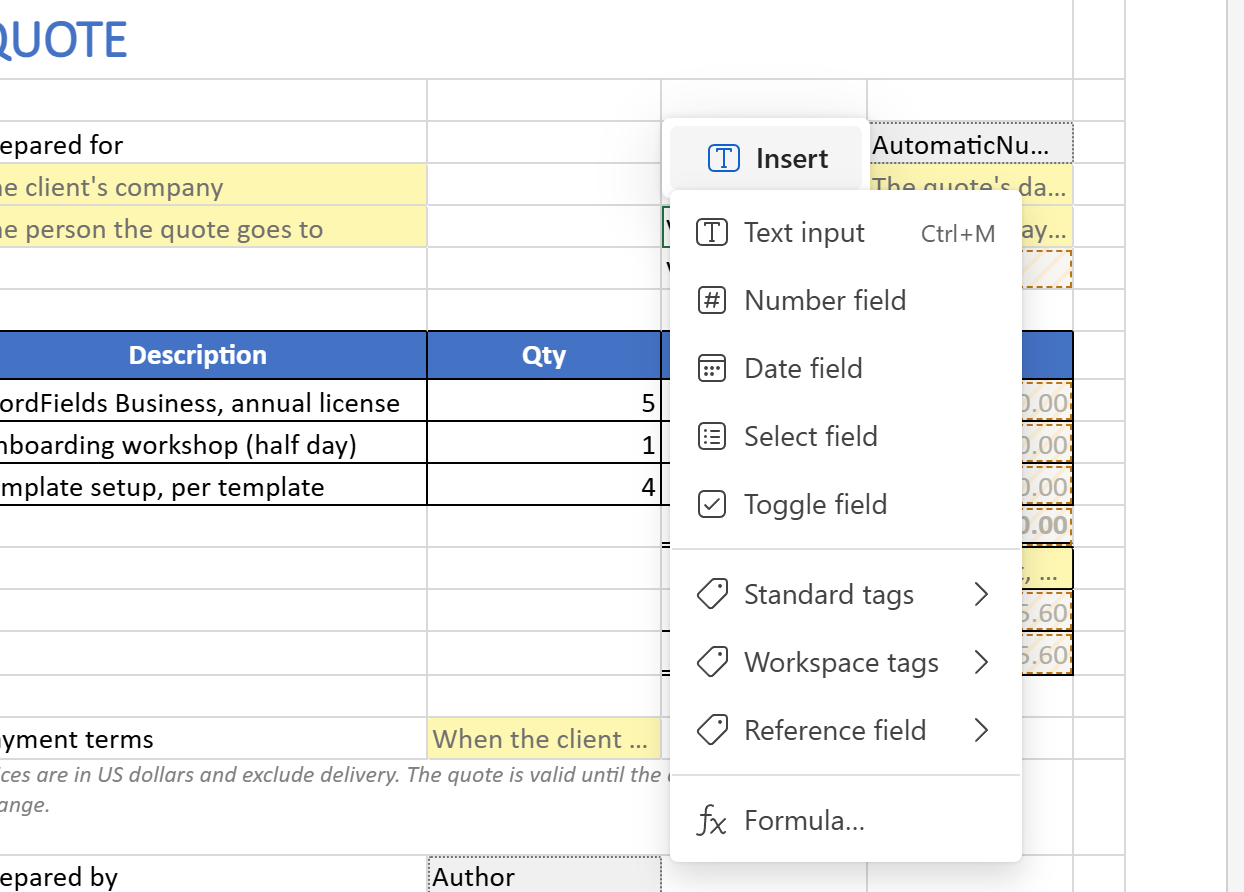
Insertin the small toolbar over it and pick the kind: Text input, Number field, Date field, Select field or Toggle field — or a merge tag or a formula.
The cell's text becomes the field's hint, and a value of the right kind its default — the number in a number field, say. The field's properties open in the template pane: hint, default, whether it is named and required, and the kind's own settings. See Fields in templates.
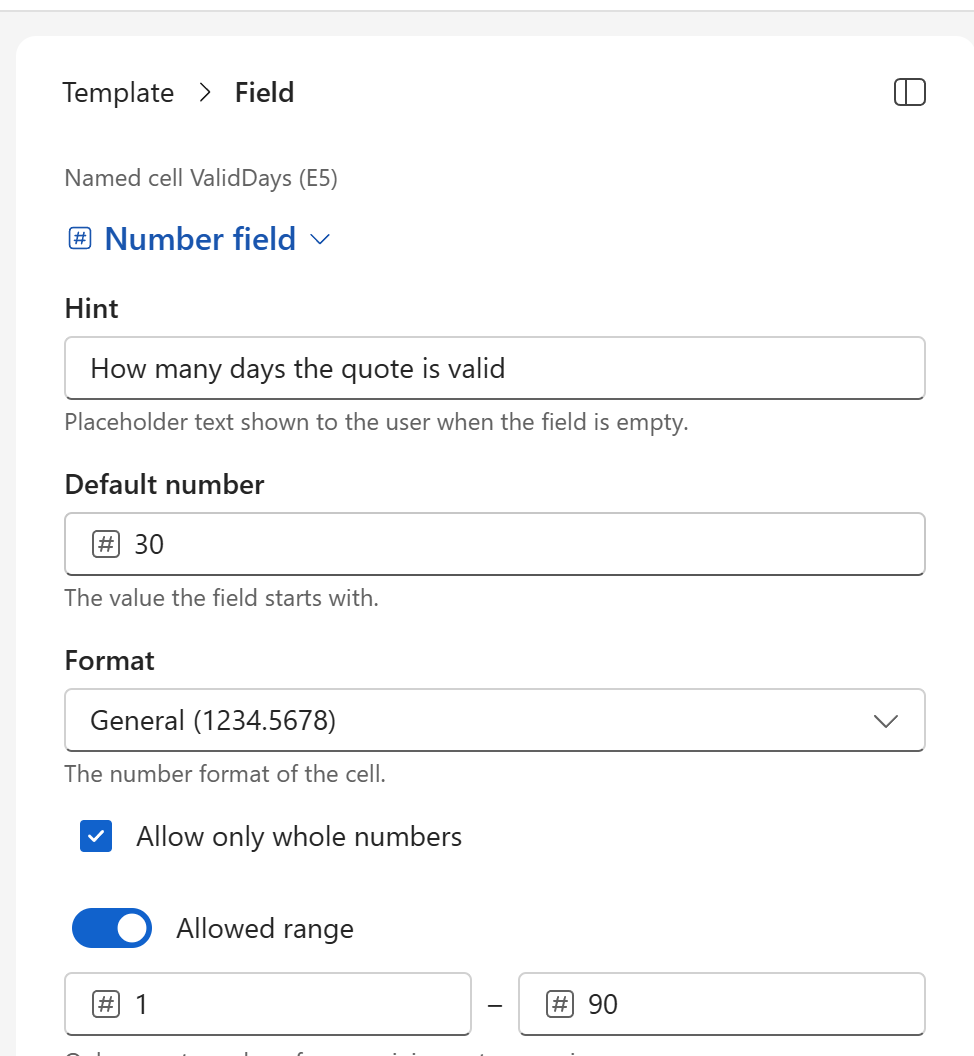
A few things are Excel's own here:
- Format. A number or date field shows in the cell's number format — General, two decimals, a thousands separator, a percentage, a currency, a short or long date — which you pick in the pane. Allow only whole numbers makes a number field take whole numbers only.
- Named cell. A named field is a named cell in the workbook, as the pane's first line says (
Named cell ValidDays (E5)), so the workbook's own formulas can refer to it:=E4+E5, or=QuoteDate+ValidDays. - References. A reference to a field is an Excel formula on the field's name, and Excel keeps it up to date in the finished workbook.
- Percentages. In a cell formatted as a percentage, the default and the allowed range are typed in percent:
5for 5%.
Note
There is no Not part of the text setting in an Excel template: the cell is the field. Put a field that only formulas need on a helper sheet or out of the print area instead.
Edit in Excel
For changes the browser can't make — new rows, formatting, charts — take the file to Excel and back: click Edit in Excel, open the downloaded copy in desktop Excel, save your changes, and drop the saved file onto the waiting dialog. The fields stay where they were. The editor waits for the copy it downloaded, and refuses another file.
Preview and test
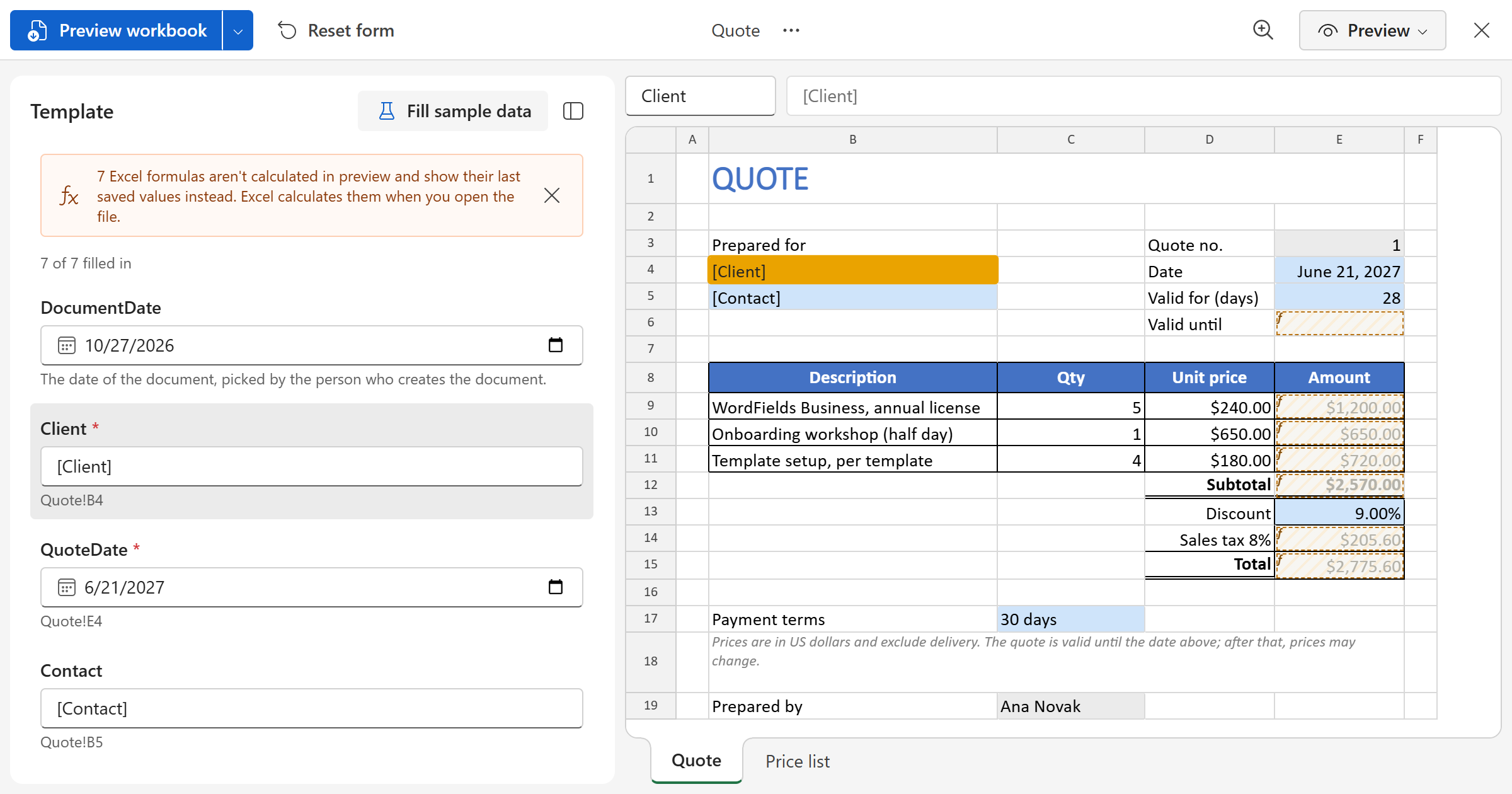
Switch to Preview in the top right to fill the template in as your team will, in the form or straight in the cells; Tab moves to the next field. Fill sample data fills every field at once. Preview workbook makes a test workbook from the template as it is now and shows it over the editor; Preview with fields highlighted marks the cells the fields filled in. Nothing is recorded or numbered.
Note
The editor doesn't calculate the workbook's own formulas: the preview shows the values saved in the template, and Excel calculates everything when the finished workbook is opened.
Save
Save (Ctrl+S) saves the template once something changed. A template isn't saved while one of its WordFields formulas has an error — the red bar says which.