A formula works out a value from what the user fills in — a due date, a total, a sentence that depends on a choice — the moment a snippet or document is made. Here's what formulas are and where they go. 🧮
What a formula is
A formula is a small calculation written into a snippet or template. When someone uses it, the formula is worked out from the values they entered and its result takes its place in the text — a date two weeks after the meeting date, the number of days an invoice is overdue, a price with a discount applied, or a sentence that reads differently depending on a yes-or-no choice.
A formula is never typed by the user. It reads the fields they fill in, and the result updates as they type.
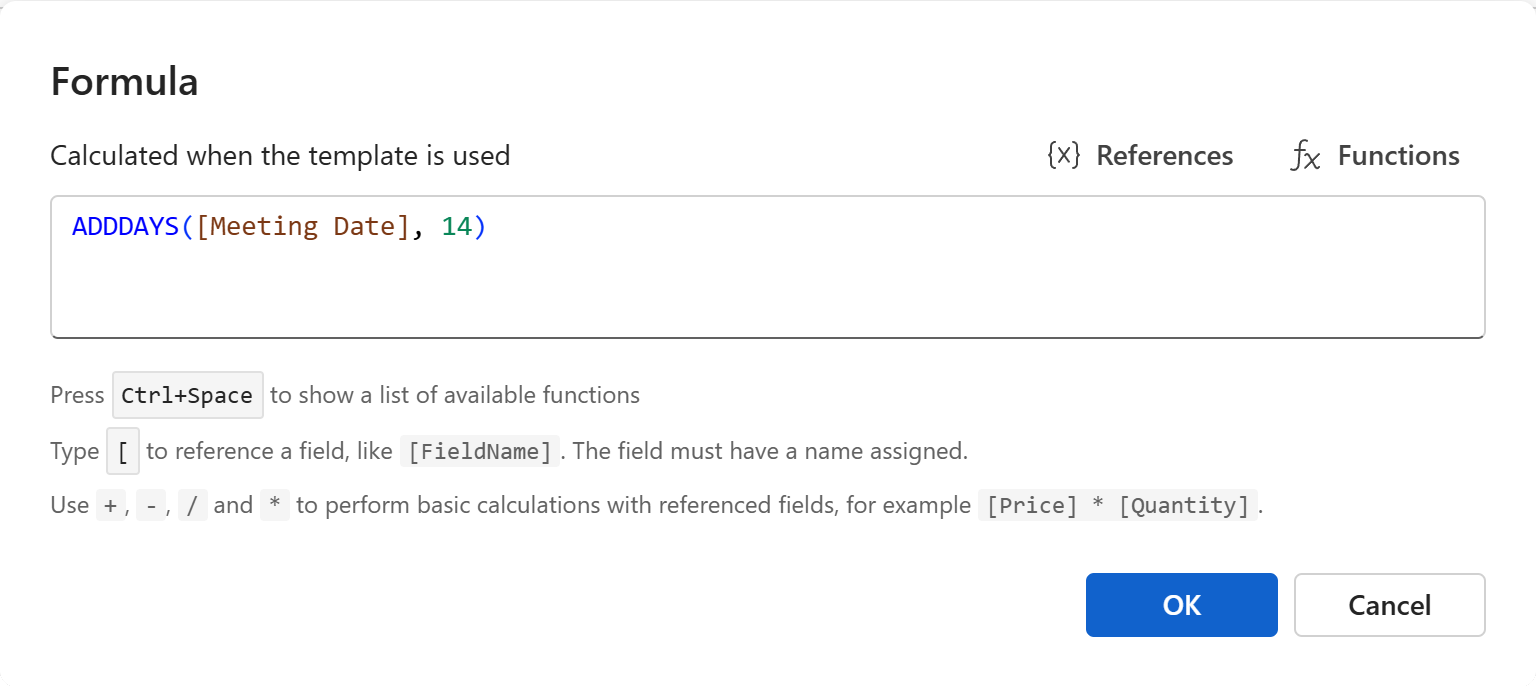
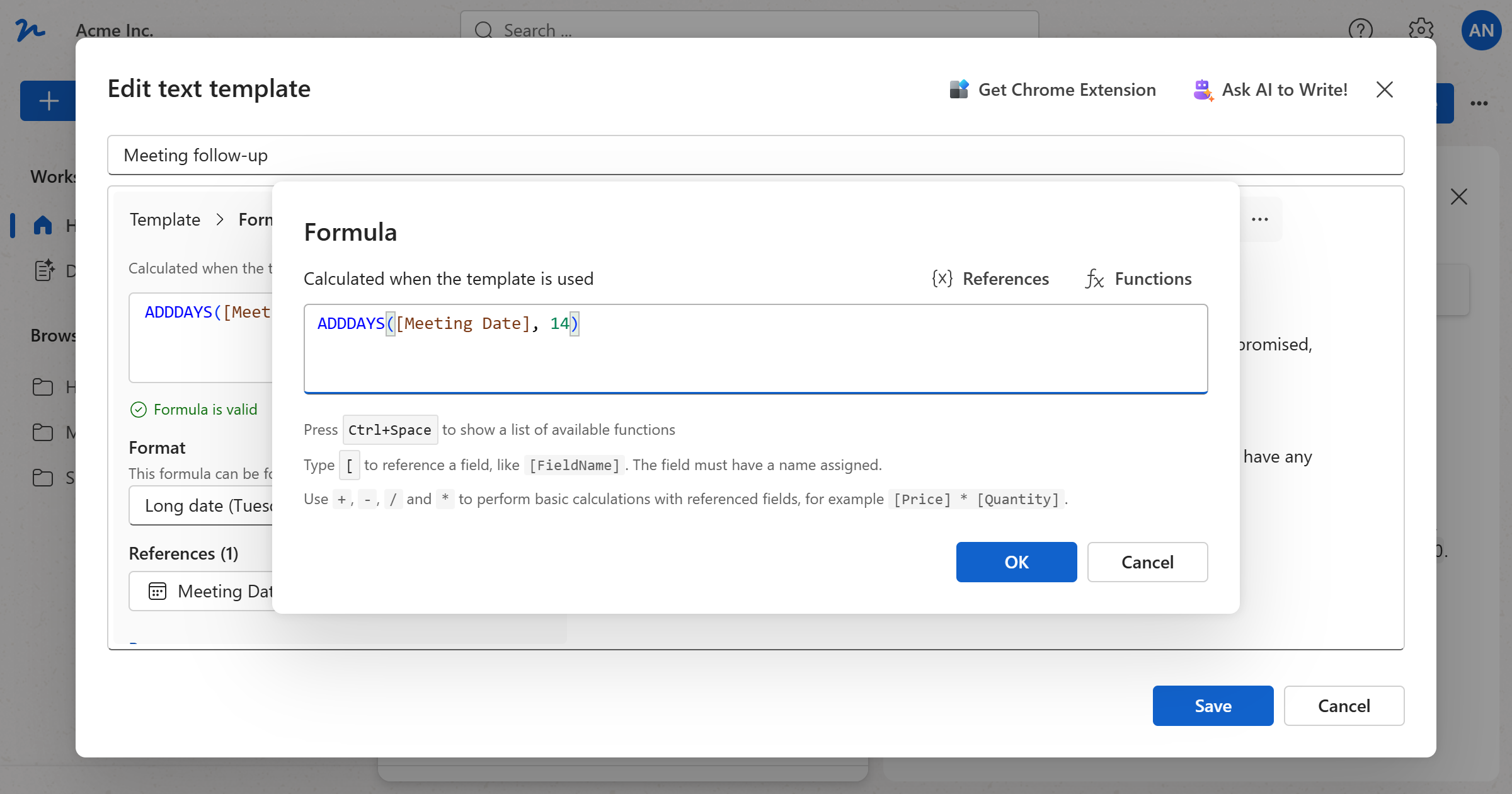
ADDDAYS([Meeting Date], 14)
Compared with the other things you can put in a template:
- A field is something the user fills in. See Fillable fields in snippets and Fields in templates.
- A merge tag repeats a known value as it is — the user's name, a shared workspace value, or what they entered in a field. See Merge tags in snippets.
- A formula calculates something new from those values.
Where formulas go
Formulas work the same way everywhere a template is edited:
- Text templates (snippets) — the Insert formula button (
fx) in the editor's toolbar, next to Insert merge tag. - Word templates —
Insert field → More insert options → Formula…, or the Formula… kind in a merge tag's properties. - Excel templates —
Insert → Formula…in the cell toolbar, for the selected cell. - Plain text templates —
Formula…in the Insert field menu, or type${and pick Formula.
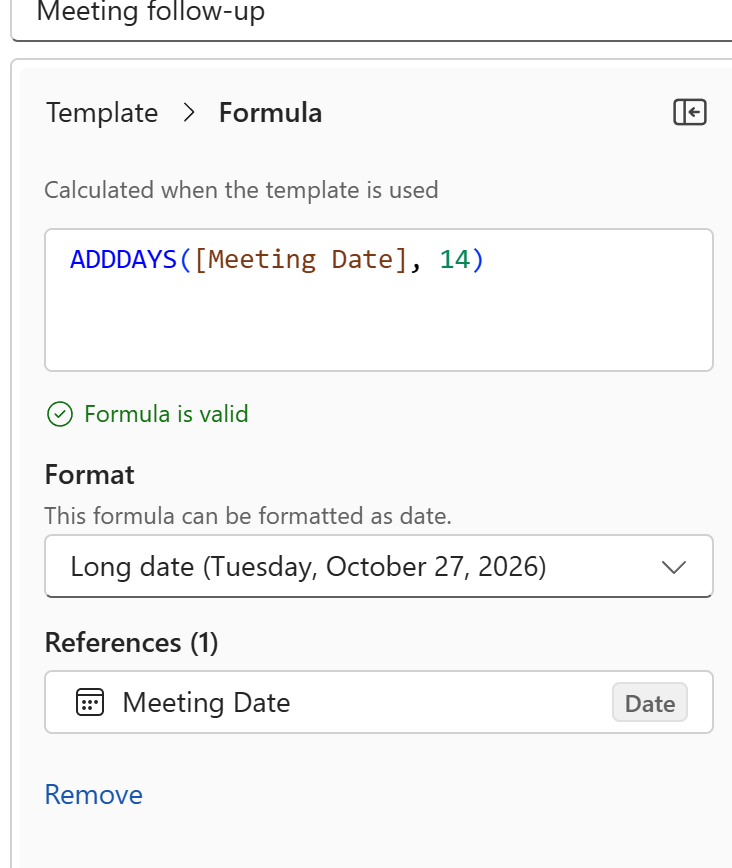
Each one opens the same Formula dialog, and each editor shows the formula afterwards in its template pane, with the fields it refers to and the format its result is shown in. See Writing a formula.
What a formula can refer to
- Named fields of the same snippet or template, written in square brackets:
[Meeting Date],[Price]. A field without a name can't be used in a formula — give it one in its properties. - The document's own properties, in Word, Excel and plain text templates:
[DocumentDate],[AutomaticNumber],[Author],[Organization],[Title],[CreatedOn],[DocumentId]and[Template]. - Shared workspace values, with
PREVALUE("Company Address"). See Workspace shared values. - Today's date, with
TODAY(), and anything the functions give.
Tip
A field can be Not part of the text, used only in formulas: the user fills it in, nothing of it appears in the text, and only the formulas use its value — a quantity that only a total needs, for example. Tick it under the field's name in its properties.
What the user sees
Until the fields a formula needs are filled in, the formula shows its own text in place of a value, so the user can see what is still missing. As soon as the values are there, the result appears, and it is kept up to date as they change.
A required field that is still empty, or a value outside a field's allowed range, stops the snippet from being copied or the document from being created until it is fixed — so a formula never has to cope with a missing number.
The result is shown in the Format picked in the template pane: a long date, a number with two decimals, a text in capitals. See Writing a formula.
Note
Formulas are worked out by WordFields, in the template's language: a date comes out as Tuesday, November 17, 2026 in an English template and as torek, 17. november 2026 in a Slovenian one. See Snippet properties for the language setting.