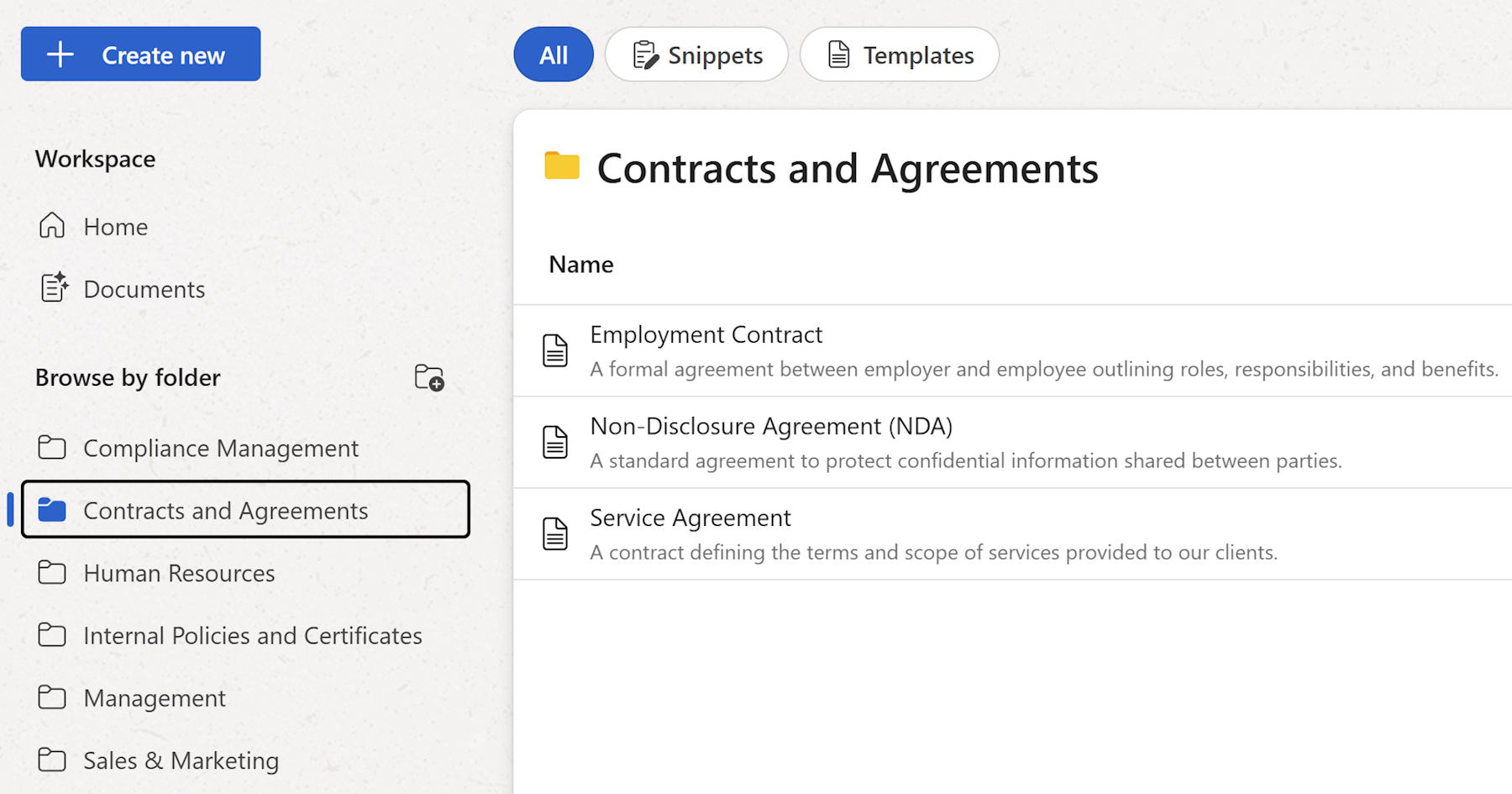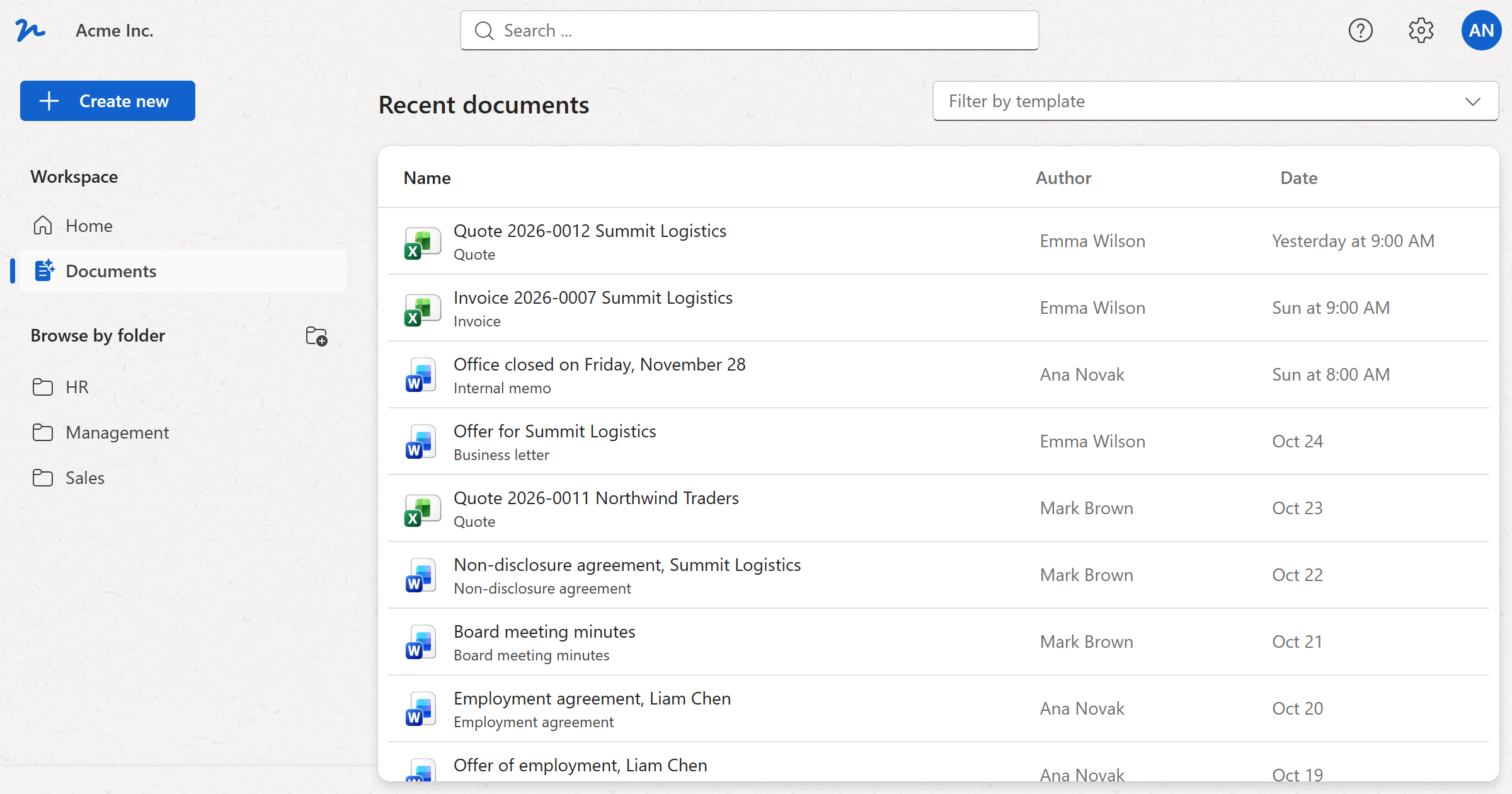
The Documents page lists every document generated from the templates in your workspace — who made it, when, from which template — with a details pane for each. 📄
Recent documents
Click Documents in the left sidebar to open the list of documents generated from this workspace's templates, newest first. Each row shows the document's file icon (Word, Excel or text), its title and the template it was made from, who created it and when.
Note
WordFields keeps a record of each generated document — its title, number, template, author and date — but not the file itself. The file is downloaded to your device when the document is created, or saved to your connected cloud storage. See Connect apps.
Filter by template
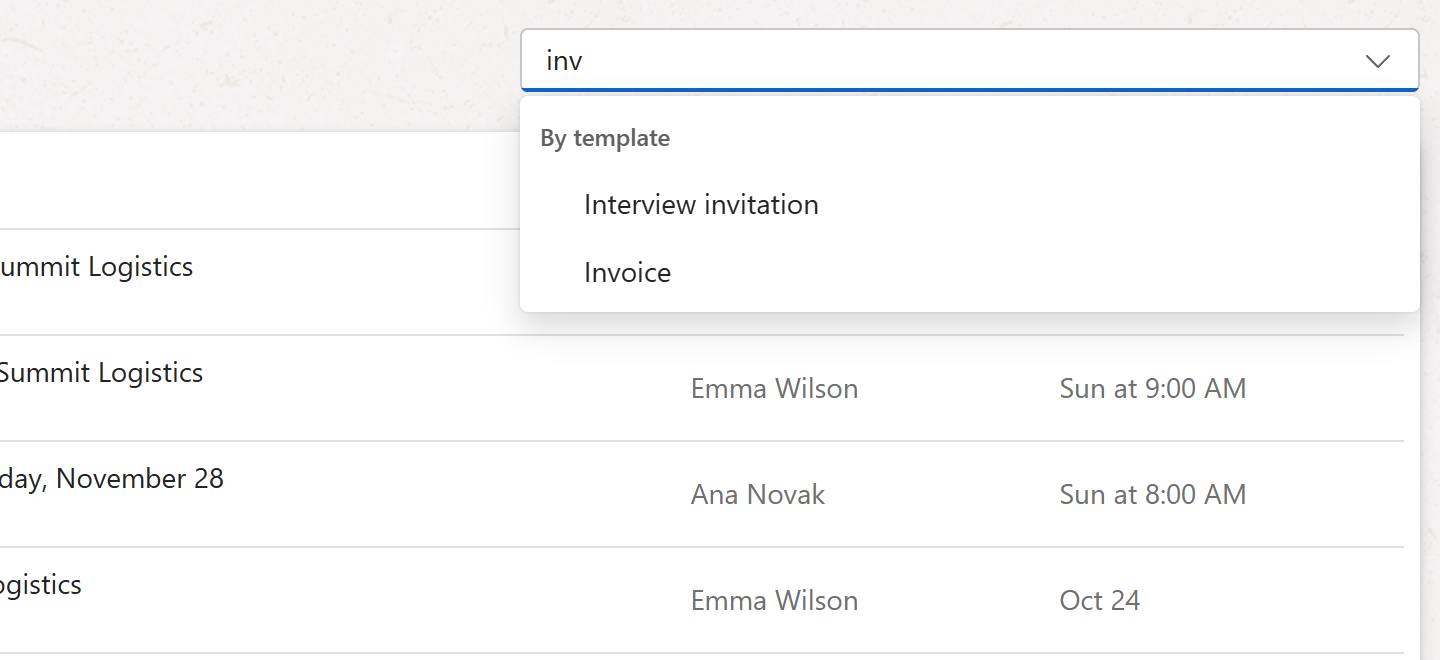
To see the documents made from one template only:
- Click the Filter by template box at the top right of the page.
- Start typing the template's name and pick it from the list.
The list shows only that template's documents until you clear the filter with the X in the box.
A document's details
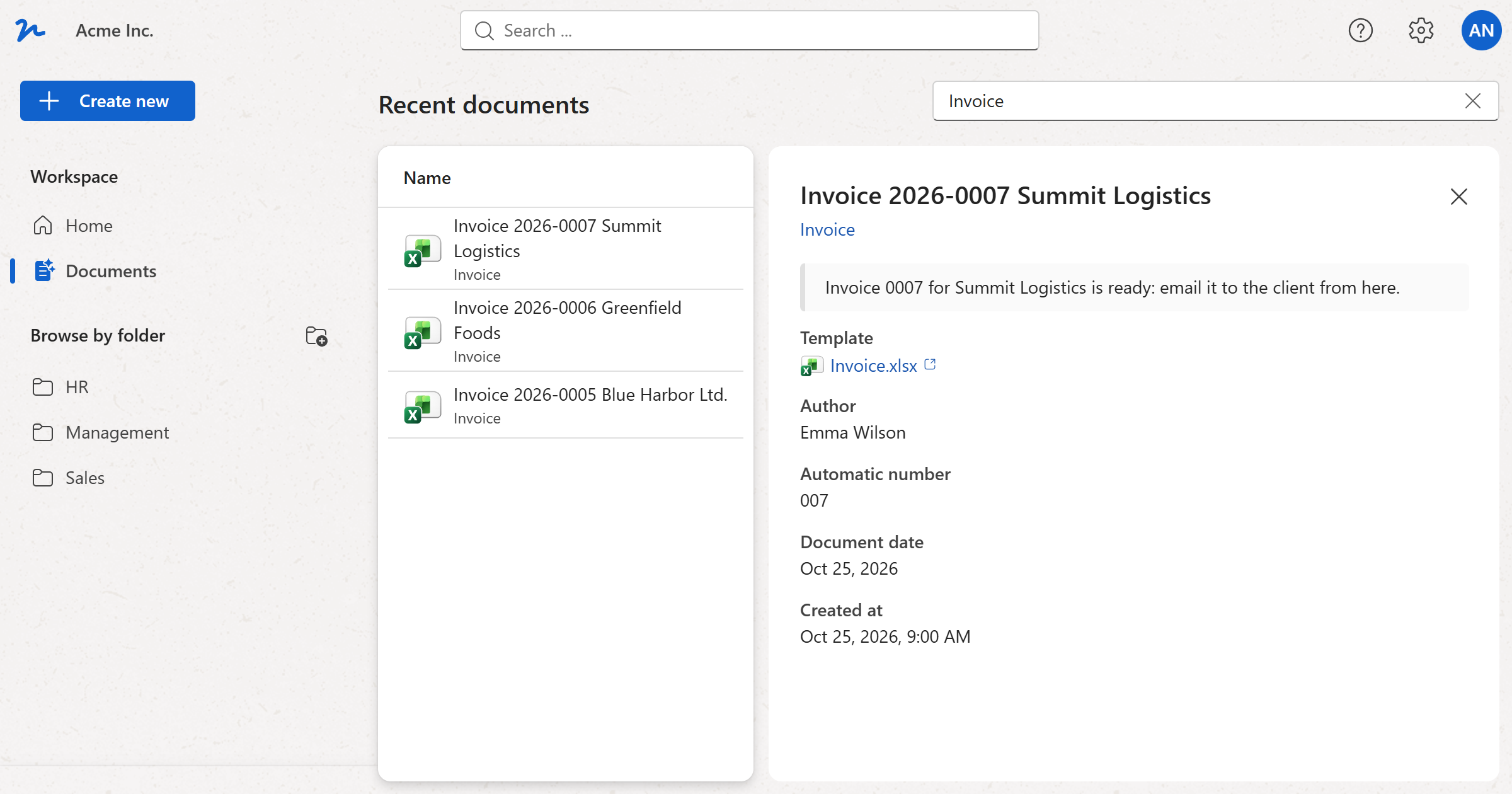
Click a document to open its record in the pane on the right:
- The title, and under it the template the document was made from — click it to go to the template.
- The notes after creating, if the template has any — for example, what to do with the finished document.
- Stored to … — A row for each copy of the file kept in a connected cloud storage, with a link to open it there.
- Template — The template file the document was made from, with a link that opens it.
- Author, Automatic number, Document date and Created at — The record itself. The number and the document date are there when the template's numbering gave them.
Close the pane with the X, or by opening another page.
Tip
Members see the documents they have access to through their folders. To be told by email every time a document is created from a template, open the template and click the bell icon in its details pane.