How dates and numbers come out in your documents and snippets — which language names the month, where the separators come from, and how to change either for a workspace, a template or a single field.
Two things decide how a value looks
When WordFields writes a date or a number into a document — a long date in a letter, a total in an invoice — two settings decide what you see:
- The language gives the words and their order: the month's name, the day of the week, Yes and No, and whether a long date reads Tuesday, October 27, 2026 or torek, 27. oktober 2026.
- The regional format gives the conventions: the decimal and thousands separators, the short date and the time.
1,234.50and10/27/2026in the United States;1.234,50and27.10.2026in Slovenia.
The regional format is always the workspace's. The language is the workspace's too, unless a template or a snippet says otherwise. So an English template in a Slovenian workspace prints Tuesday, 27 October 2026 and 1.234,50: English words, Slovenian conventions — the same way the whole team writes.
The workspace's regional format
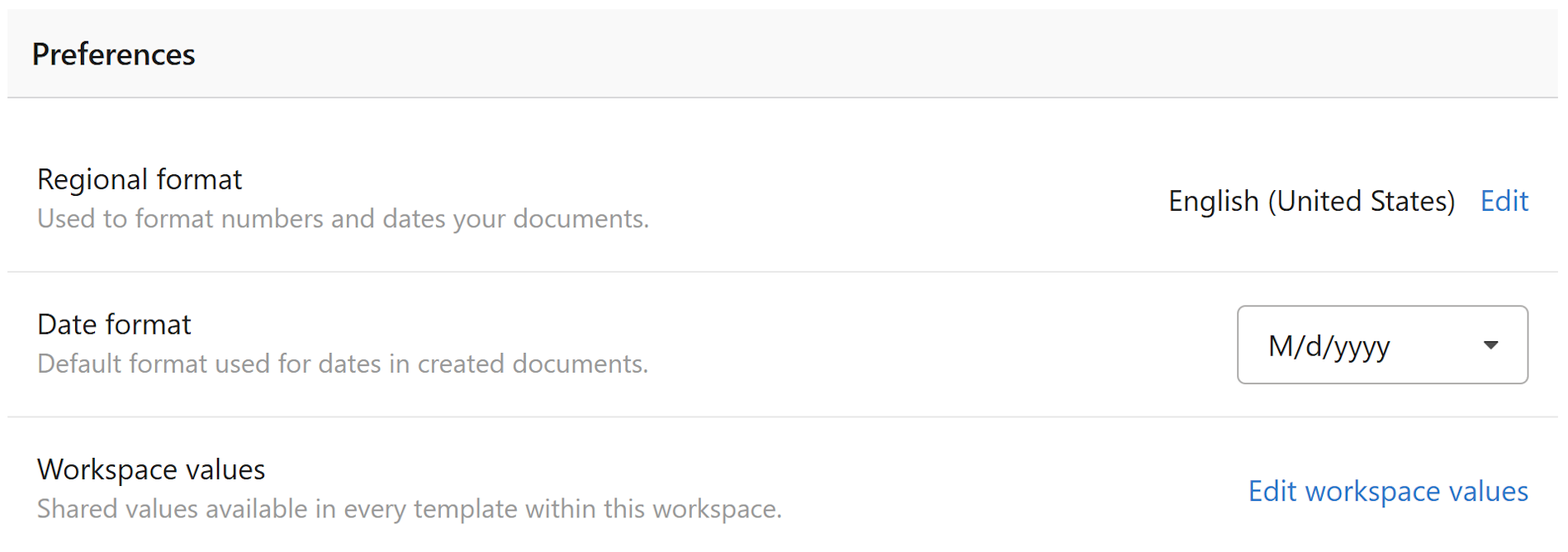
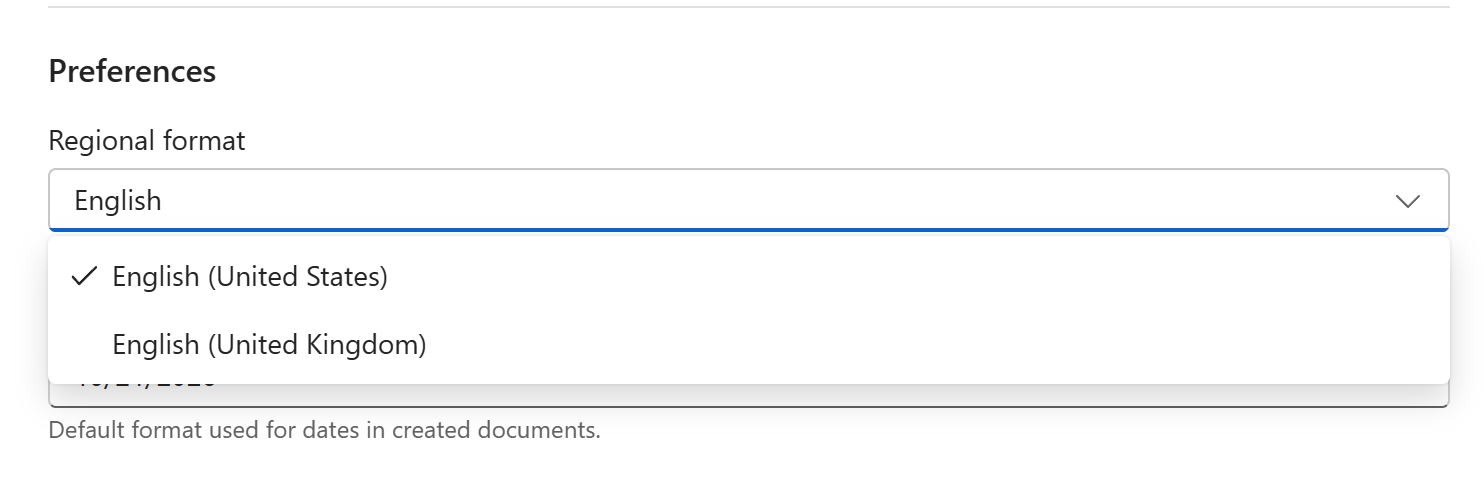
Admins set it in Workspace Settings → General → Regional format, for example English (United States) or Slovenian (Slovenia). It sets both the language and the conventions for everything in the workspace, and the dates shown in the workspace itself — the Updated column, a document's record.
Date format, under it, is the short date: M/d/yyyy, d.M.yyyy, yyyy-MM-dd. Choosing a regional format sets it to that region's own; you can pick another. Every short date in the workspace follows it. See Workspace settings.
A template's language
A template written in another language than the workspace's gets that language's words, with the workspace's conventions:
- A document template's file — Properties in the file's menu on the template's details pane, Language.
Defaultis the workspace's. A template with two files, one per language, sets each file's own. See Manage template files. - A snippet — Properties in its toolbar, Language. See Snippet properties.
With no language set, a Word document's own language — the one most of its text is written in — is used.
A field's format
Each field decides how its own value is shown, in its Format in the properties pane:
- A date field: the short date, the long date, the month and day, the year, or a picture such as
yyyy-MM-dd. Each format is shown with a date in it, in the template's language. - A number field: whole numbers or decimals, with or without a thousands separator, a percentage.
- A text field: as typed, UPPERCASE, lowercase, or Capitalize Each Word.
A formula or a merge tag has a Format of its own too, for the value it gives. In an Excel template, a date's or a number's format is the cell's number format, set in the pane as well. See Fields in templates and Writing a formula.
A reference to a field — [Due Date] repeated elsewhere — shows the value in its type's default, not in the field's format; use TEXT([Due Date], "D") in a formula to format it there.
Examples
| Workspace | Template language | A long date | A number |
|---|---|---|---|
| English (United States) | Default | Tuesday, October 27, 2026 | 1,234.50 |
| Slovenian (Slovenia) | Default | torek, 27. oktober 2026 | 1.234,50 |
| Slovenian (Slovenia) | English | Tuesday, 27 October 2026 | 1.234,50 |
| English (United States) | German | Dienstag, 27. Oktober 2026 | 1,234.50 |
Note
A document opened in Word or Excel afterwards shows typed values — an Excel date, a number — the way that program is set up on the reader's computer. What WordFields writes as text, such as a long date in a sentence, stays as it was made.